Logitech C920x Review: The Long-Running 1080p Desk Camera
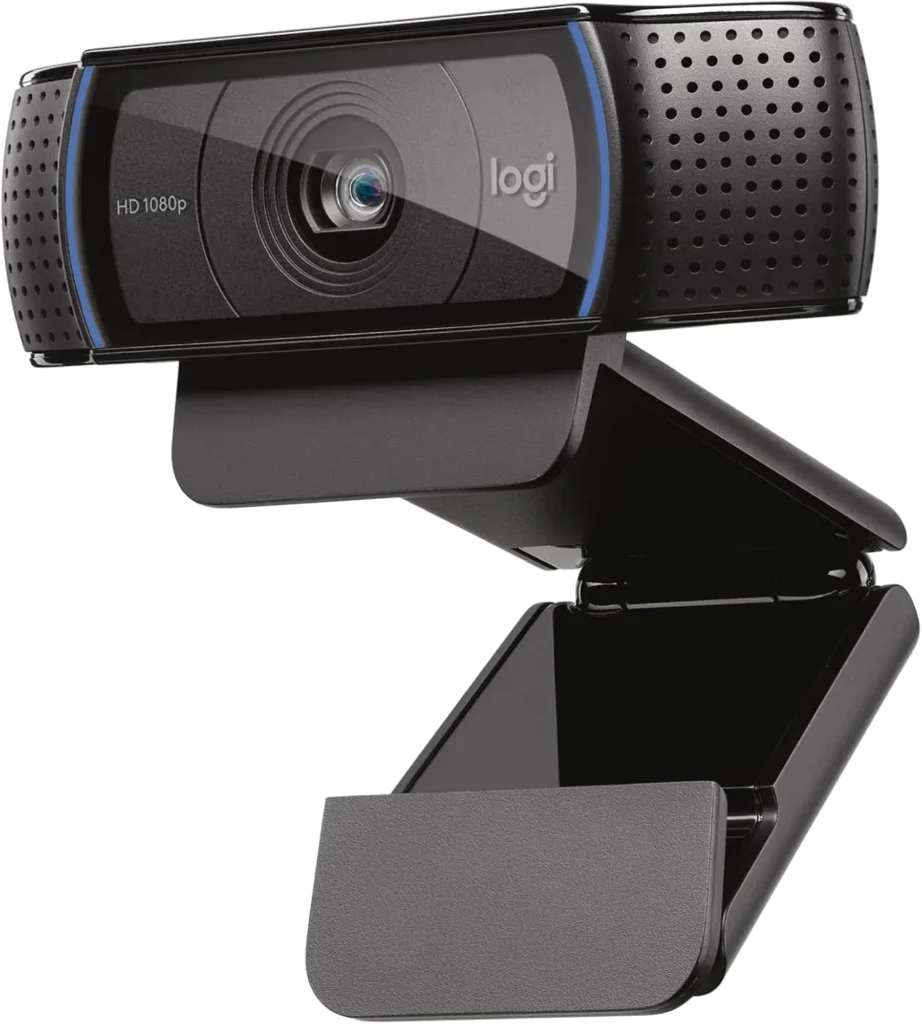
A dependable desk camera for seated calls in a lit room, the Logitech C920x pairs sharp 1080p detail and natural color with driver-free setup on Windows, macOS and Linux.
The Logitech C920x settles a simple buying question. Does a daily video call need a newer camera than a design Logitech has kept in its lineup for years? For a seated speaker in a lit room, it does not. This camera brings sharp 1080p video at 30 fps, autofocus and two microphones, and it sets up with no driver on Windows, macOS or Linux.
The second decision comes down to the box. Logitech's listing gives this version three months of XSplit VCam and no privacy shutter, while the C920S, the same camera in another box, trades the license for a clip-on shutter. Which box suits a desk depends on whether a lens cover or background effects matter more. The one habit to plan around, in either box, is an autofocus that can wander during a call.
Fine 1080p detail and an autofocus that wanders
Detail is the picture's strongest trait. With a lamp facing the speaker, the Logitech C920x resolves stubble and skin texture, and color stays close to life. At 78 degrees diagonal, though, the view takes in the speaker plus a fair slice of the room behind. Logitech's software can also crop in digitally when that background is better left out of frame.
The autofocus is the weak spot. Now and then, a speaker sitting still slips out of focus mid-call, and the blur can last seconds or even minutes. Toggling the video off and on, or shifting position, usually pulls it back. Movement also provokes it, so a presenter who leans in and out of frame sends it hunting. Objects held near the lens, such as a document or a card, are harder still; they read best under extra light.
For a seated caller, the cure is simple: switch autofocus off in Logitech's software and set the focus once. That keeps the picture sharp for as long as the chair stays put. Good light helps too, since the autofocus hunts more as the room darkens.
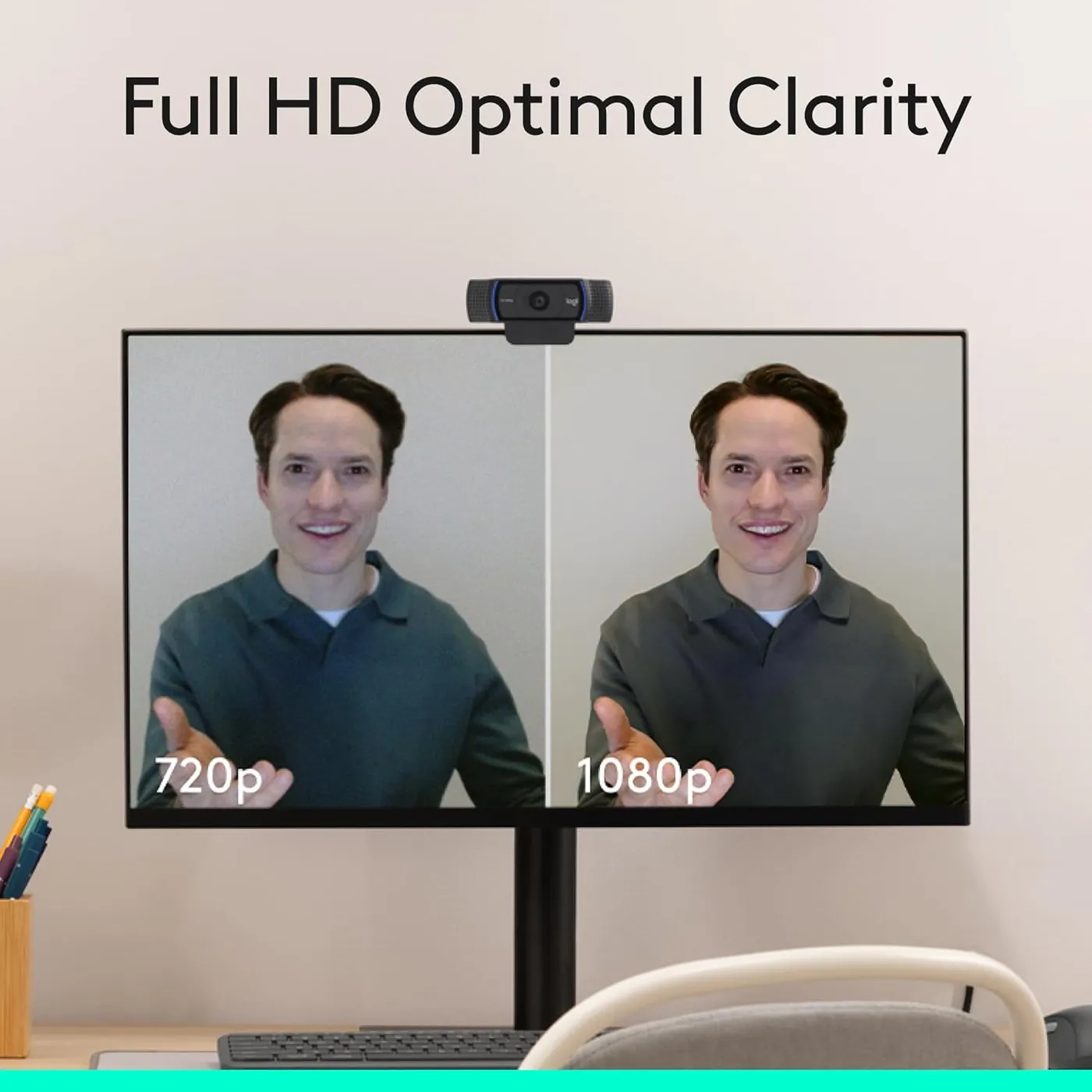
Light correction for a room lit by one lamp
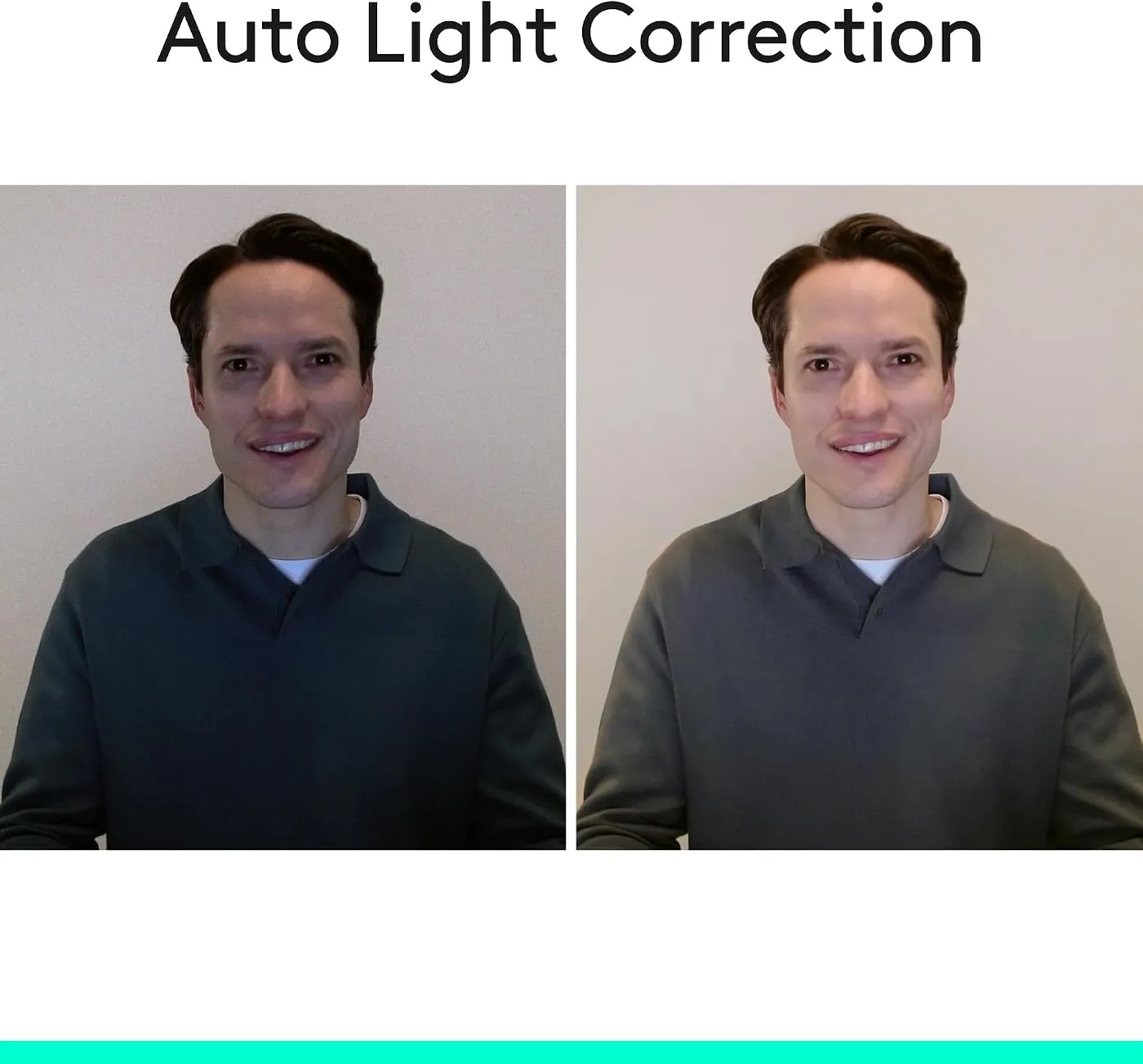
Logitech says its light correction keeps images bright in low light. That mostly holds when one lamp or a monitor's glow reaches the face, and the picture then stays bright and clear. A truly dim room is another matter, since the face darkens and grain creeps into the shadows. A lamp behind the camera, aimed at the speaker, still does more for this webcam than any setting.
Exposure and color are the other variables. When the light in a room shifts during a meeting, the image can swing between washed out and shadowy. Color can drift as well, running warm under some light and pale under other light, until it gets a manual setting. In Logitech's software, exposure, white balance and brightness all take manual values. Fixed values hold well while a room's light stays steady. A room that trades daylight for lamplight through the afternoon needs them revisited, though.
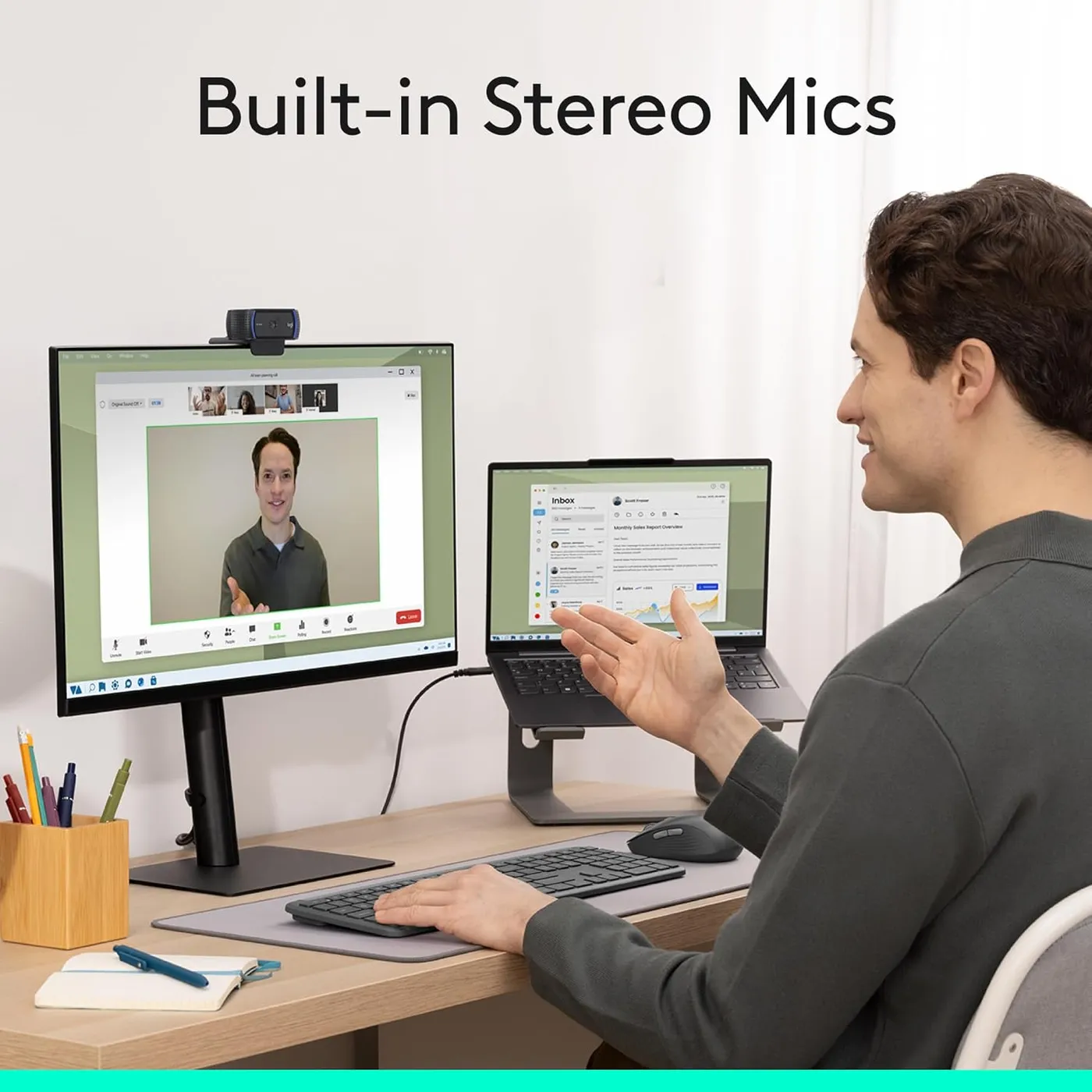
Two microphones that like a speaker close by
Logitech lists stereo audio from dual mics. At desk distance in a quiet room, they pick up a voice cleanly, so routine calls work without a headset. In a call app or on a Mac, it pays to check that the camera's mics are the selected input before the first call.
Distance is what these mics dislike. Once the speaker sits back from the desk, the voice thins out and starts to sound hollow and far away. The other side may then ask for more volume. If the far end hears echo or distortion, lower the mic's input level in the computer's sound settings first.
A daily presenter or a podcaster will still want a headset or a desk microphone. On the Logitech C920x, the built-in pair is a meeting convenience, and a good one, though serious voice work still belongs to dedicated gear.
Logitech C920x setup on Windows, macOS and Linux
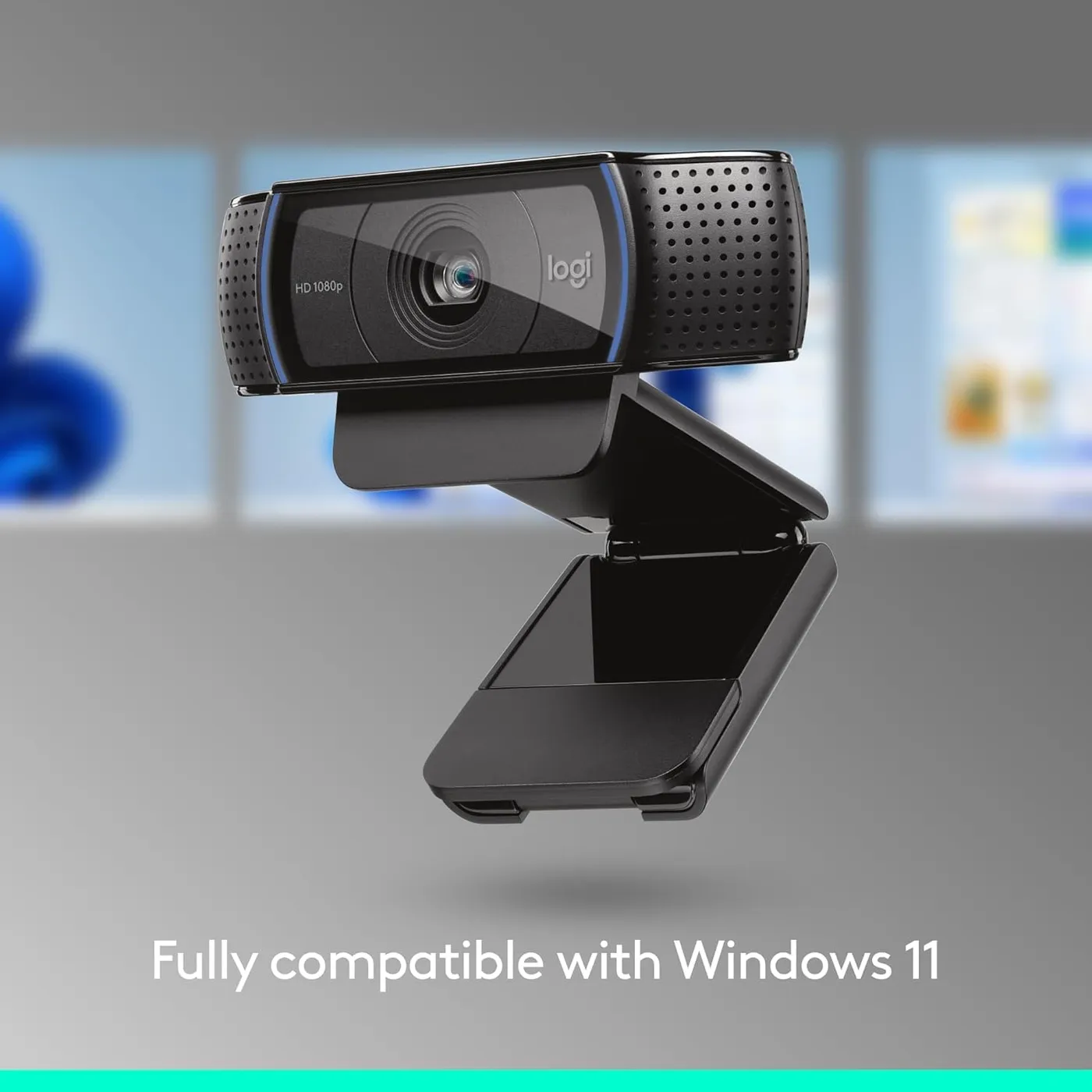
Setup is where the camera earns its place. Plug it in, and Windows, macOS and Linux each see a camera and a microphone with no driver to install. Linux deserves its own mention, because Ubuntu, Linux Mint and KDE desktops pick it up with no configuration at all. Zoom, Teams and OBS then list it at once. For a first streaming facecam, its 1080p feed at 30 fps covers the job. Logitech also lists it as compatible with Windows 11 and with the Nintendo Switch 2's GameChat mode.
A call app sometimes keeps showing a laptop's own camera until you pick the C920x in its video settings. Running two of these cameras on one computer is a weaker spot, since Logitech's help pages describe settings that won't apply to each camera separately.
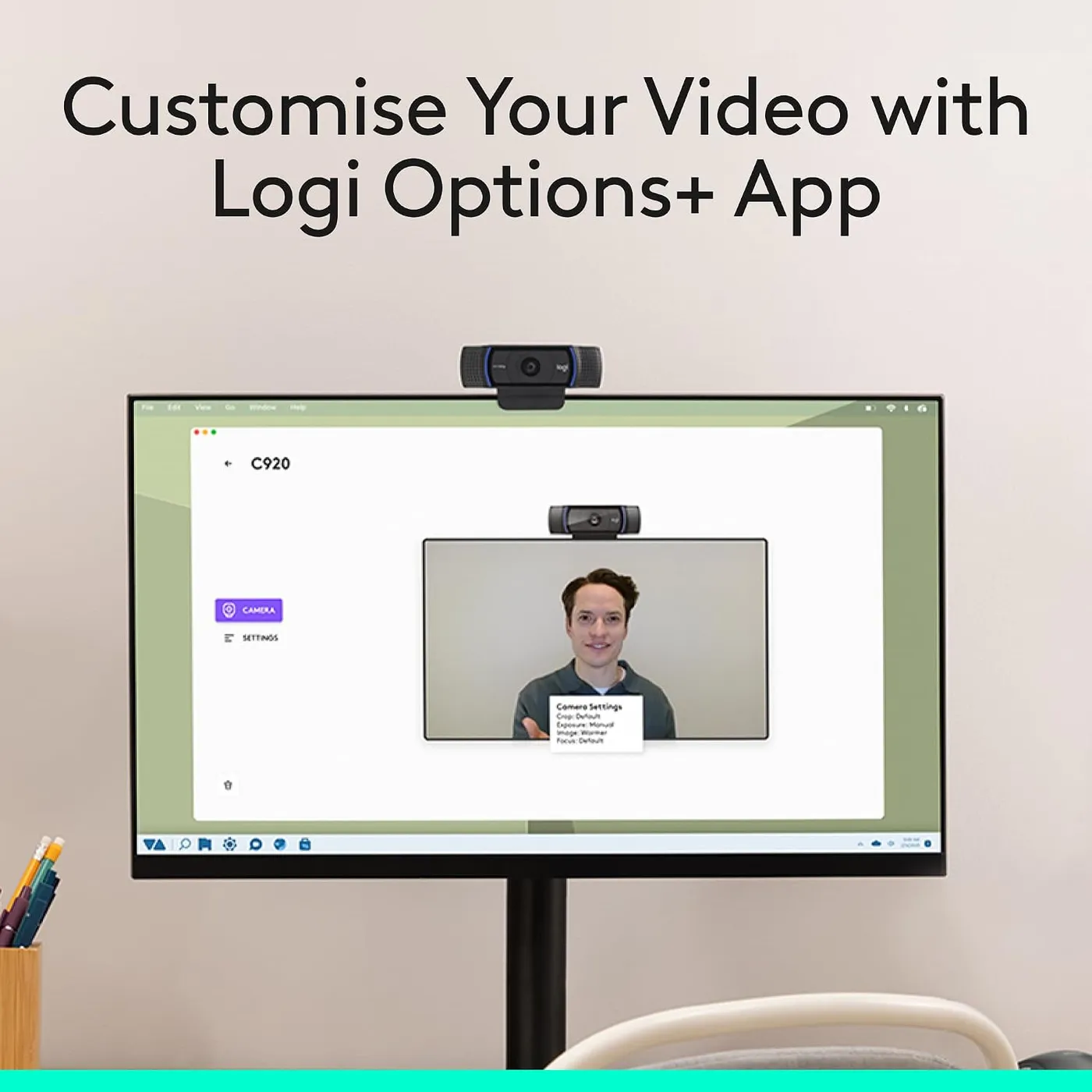
Logitech's current control app is Logi Options+, which lists the C920x among its supported webcams for Windows and macOS. Logitech's software puts zoom, focus and exposure under manual control. Changes made there do not always stick, though. The Mac side has been the shakier one, where a zoom level can fall back to default after a reboot or once the app closes. Our Logitech C920x troubleshooting guide walks through the common setup snags step by step.
One camera sold in two different boxes
Logitech's help page for the C920x gives its model number as V-U0028. Logitech's C920s technical specifications carry the same number. That sheet lists a 78-degree diagonal view, a glass lens of 3.67 mm focal length, 3 MP optics and 1080p at 30 fps. The sheet for the original C920 gives the same figures and still names Windows XP among its launch systems.
Only the box contents differ. By Logitech's own listing, the C920x comes with an XSplit VCam license that runs for three months, and nothing covers its lens. The same listing says XSplit VCam can remove, replace or blur a background without a green screen. In contrast, the C920S drops the license and adds a clip-on shutter that flips down over the lens.
Without a shutter, privacy on the C920x comes down to unplugging it or covering the lens. Blue lights do show whenever the camera is live. Logitech also sells the C920s cover as a separate part. Between the two boxes, I'd take the C920S for any desk where a lens cover matters. The Logitech C920x makes sense when the background tools will get real use within those three months.
A monitor clip, a tripod thread and a USB-A plug
The clip holds firmly on a monitor or laptop lid. It also folds to stand the camera on a desk. For angles the clip can't reach, a tripod thread sits underneath. Thin-bezel monitors are the awkward case, because the clip's front lip hangs over the top edge of the screen. A small spacer under the clip, or a tripod, keeps the picture area clear.
Logitech gives the cable a length of five feet, and it ends in a USB-A plug. That reach suits a laptop or a tower beside the monitor, while a floor-standing tower needs an extension. A laptop or monitor with only USB-C ports needs an adapter as well. For the best image, Logitech advises plugging the camera straight into the computer, with no hub or dock in between. Logitech's C920s pages add that the camera works fully on USB 3.0 ports.
Long service lives and a short-lived few
This design has a long service history, and plenty of units keep running through three to five years of daily calls.
Still, some units stop working within weeks or months. A camera may lose power entirely or cut out on and off during calls. On others, the picture carries on while the microphone turns garbled or goes silent.
When a camera starts cutting out, the first checks cost nothing. Plug it straight into a port on the computer, skipping any hub or monitor port, then try a second port and a second call app. A symptom that follows the camera to another computer points to the hardware. For a choppy or soft picture instead, Logitech's own advice adds closing other heavy programs while the camera runs, since capture leans on the processor.
A middle rung between budget and premium cameras
Logitech's own lineup brackets it on both sides. Below sits the Logitech C270, with 720p at 30 fps and a 55-degree diagonal view against 1080p and 78 degrees here, at a budget price. It also makes do with one built-in mic and, by Logitech's spec sheet, a fixed-focus plastic lens. The Logitech C920x adds autofocus, a glass lens and a second mic. In fairness, the C270's narrower view keeps more of a cluttered room out of frame.
Above it, the Logitech MX Brio brings 4K at 30 fps, 60 fps at 1080p, a built-in cover and a USB-C connection, at a premium price. Logitech also claims the MX Brio shows faces better in difficult light. For a desk webcam whose job is a face on daily calls, those upgrades are optional. I'd pay for them only for 60 fps streaming or a room with hard light.
Outside Logitech, two rivals sit close by. The budget NexiGo N60 also reaches 1080p and adds a privacy cover, though its glass lens has fixed focus. At the mid-range, the Anker PowerConf C200 pairs 2K with a 65, 78 or 95-degree view chosen in software and a built-in sliding cover.
Pros: What we liked
- Pro: Resolves stubble and skin texture at 1080p, with true-to-life color under a front light
- Pro: Works as a camera and microphone on Windows, macOS and Linux with no driver to install
- Pro: Light correction keeps a face bright and clear in a room lit by a single lamp
- Pro: Dual mics deliver a clear voice to the far end from desk distance in a quiet room
- Pro: Clip holds firmly on monitors and laptop lids, folds to stand on a desk and has a tripod thread
Cons: What could be better
- Con: Autofocus can drift soft mid-call until the camera restarts, unless you lock the focus manually
- Con: Some units stop working within weeks or months, losing power or cutting out during calls
- Con: USB-A plug only, so laptops and monitors with only USB-C ports need an adapter
- Con: No privacy shutter in the C920x box, while the C920S version includes one
Best For
- Remote workers who take seated calls on Windows, macOS or Linux and want no setup
- First-time streamers who need a 1080p facecam that OBS picks up instantly
- Offices fitting several desks with the same plug-in camera
Not Ideal For
- Presenters who move around the frame or hold documents and objects up to the lens
- Owners of USB-C-only laptops who would rather not carry an adapter
- Buyers who want a lens cover in the box, which the C920S version includes
| Specification | Details |
|---|---|
| Resolution | 1080p Full HD, plus 720p, 480p and 360p modes |
| Frame rate | 30 fps at 1080p |
| Field of view | 78 degrees diagonal, 70.4 degrees horizontal |
| Focus | Autofocus |
| Sensor | 3 MP optical resolution behind a glass lens |
| Microphones | Two, stereo |
| Connection | USB 2.0, USB-A plug on a 5 ft cable |
| Privacy | No shutter in this box; the C920S version includes one |
| Mounting | Monitor and laptop clip with a tripod thread |
| Software | Logi Options+; 3-month XSplit VCam license included |
Alternatives Worth Considering
Final Verdict
The Logitech C920x earns its long run on picture detail and on setup that asks nothing of the computer. Its one demanding habit is the autofocus, and the fix sits in the same software that handles zoom and exposure. For a caller who stays seated, the setting that makes this camera work is that autofocus switch. Turn it off and set the focus once at chair distance, and the picture then stays sharp for the whole call. A lamp facing the speaker also keeps the detail in place after dark. That pairing delivers the natural image that has kept this design on desks for years.
Frequently Asked Questions
What is the difference between the Logitech C920x and the C920S?
The camera is the same. Logitech lists both under model number V-U0028, with 1080p at 30 fps, a 78-degree view and stereo mics. Per Logitech's listings, the C920x box adds three months of XSplit VCam and no privacy shutter, while the C920S box includes a clip-on shutter and no license.
Does the Logitech C920x need a driver on a Mac or Linux?
No. It works as a standard camera and microphone on macOS, Windows and common Linux desktops as soon as you plug it in. Logi Options+, which lists the C920x as supported, adds manual controls on Windows and macOS, though calls work without it.
Can the C920x plug into a USB-C port?
Only through an adapter. Its five-foot cable ends in a USB-A plug, so a laptop or monitor with only USB-C ports needs a USB-C to USB-A adapter. For the best image, Logitech advises connecting the camera directly to the computer.
How do you stop the autofocus from blurring the picture mid-call?
For a seated caller, switch autofocus off in Logitech's software and set the focus once at sitting distance. A lamp facing the speaker also helps, because the autofocus hunts more as the light drops.
Does the Logitech C920x shoot or stream at 60 frames per second?
No. Logitech rates it at 30 fps at 1080p. For 60 fps at 1080p, the Logitech MX Brio is the step up, and it adds 4K at 30 fps.
The Verdict
A dependable desk camera for seated calls in a lit room, the Logitech C920x pairs sharp 1080p detail and natural color with driver-free setup on Windows, macOS and Linux.