Logitech C270 HD Webcam Review: Easy 720p Video Calls
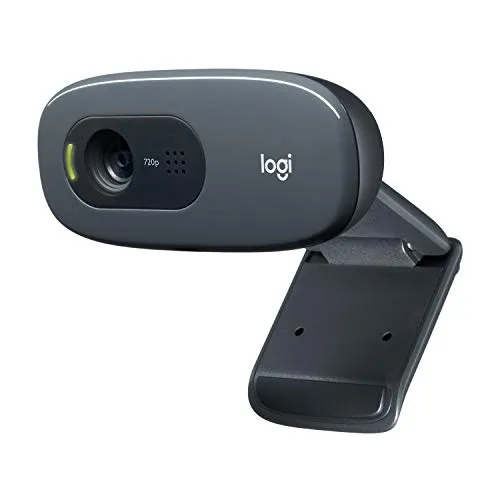
Plug-in-and-go setup and a clear mic carry the meeting job; ID checks, recorded video and wide shots of a room ask more than a tight 720p view that won't focus close can give.
The Logitech C270 HD Webcam gets plugged in for jobs that have little in common. It sits on office monitors for Zoom and Teams calls, and it gives desktops a first camera. Laptops with a failed camera borrow it too, and some houses put one on every computer. Remote exams also come its way, and those go far less smoothly.
On paper, the hardware is plain. Logitech lists 720p video at 30 fps, a 55-degree diagonal view and automatic light correction. A noise-reducing mic and a clip for a screen or laptop complete it, and it sells at a budget price.
What separates the jobs it handles from the ones it struggles with is what the camera has to show, and at what distance.
Weekday meetings on Zoom and Teams
Getting it onto a call is quick. The Logitech C270 HD Webcam needs no separate driver or software, and calling apps find it as soon as it's connected. Until an app opens it, though, it sits idle, so nothing seems to happen at the moment it's plugged in. Zoom and Teams are its usual home, and Skype picks it up just as readily. A laptop may also need the app's camera setting changed to this one. After that, the system's own camera app is the quickest place to check the picture before a call. On Windows, that's the built-in Camera app.
At arm's length, the picture is clear enough for a face on a call. In a well-lit room it looks crisp. Judged as video in its own right, though, it's basic. It's an old design, and the picture is where the age shows most. Detail runs thin at 720p, and fine texture doesn't come through.
That has an upside in meetings, since it's kind to skin. Skin texture and small blemishes don't take over the picture. For a weekday meeting, 720p is still enough, because a call needs a clear, recognizable face far more than fine detail.
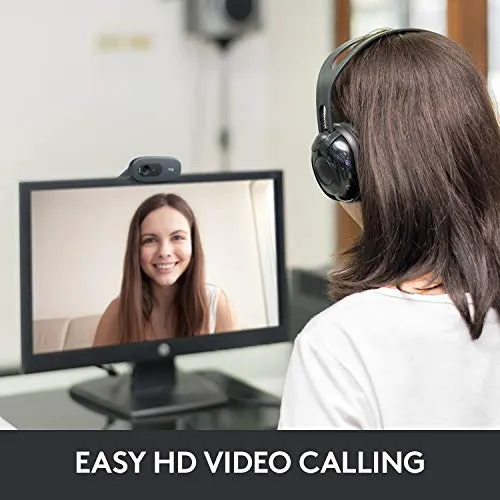
Showing more than a face
A head fills most of the frame on a monitor. The Logitech C270 HD Webcam shoots a 55-degree diagonal view. I read that figure as the cause, since at arm's length a 55-degree view leaves little frame to spare around a head. Shoulders and the room behind barely make it into the shot, and on a call the face can look oversized. The frame also has little room for a second face, or for a head that moves about in the chair.
For some calls, though, that tight crop is an advantage. It keeps a cluttered office out of view and puts the face squarely at the center of the picture. At arm's length on a desktop monitor, the result is close, though workable.
I'd treat distance as its zoom control. Farther back, it frames head and shoulders more comfortably than it does up close. That makes the depth of the desk part of the buying decision.
When the room is dim
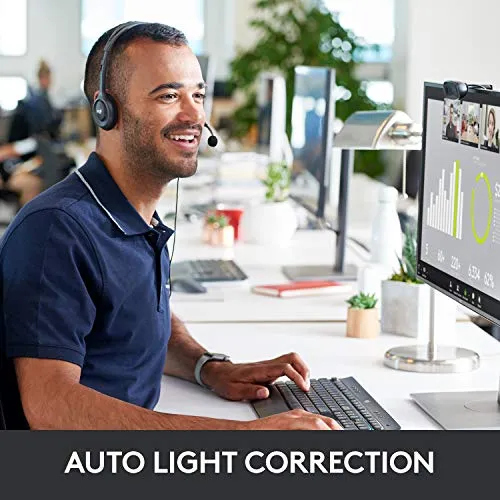
Light handling is a strength, up to a point. Logitech credits its RightLight 2 feature with adjusting to the lighting and producing brighter, more contrasted images. In an ordinary room, and even in fairly low light, the automatic correction keeps a face easy to see. Changes in the light don't throw it either, and a window or a desk lamp gives it enough to work with. Logitech's listing frames that correction as help to look good on conference calls.
A properly dark room is where it struggles. Short of that, its picture still tracks the light in the room closely, so extra light helps in most rooms. A lamp in front of the face is the remedy, especially for regular evening calls. Of its weak spots, low light is the easiest one to work around.
Getting a computer to see it
It runs on Windows, Mac and Linux. Logitech's listing names PC, Mac, laptop, MacBook and tablet. On Linux, Mint and Ubuntu both recognize the Logitech C270 HD Webcam. Macs have run it in calling apps too, though not every Mac takes to it. That spread suits a desktop that shipped without a camera, or a laptop whose own camera has failed. On a laptop docked to a larger monitor, I'd clip it to the monitor, since that's where the eyes go during a call.
Setup help is thin, though. The box carries little more than a web address and some very small print. The manual and a settings download sit on Logitech's website instead. Even the basic point that it stays idle until an app opens it goes unexplained. Thin documentation costs time on the first day. Logitech's own app is optional, and on some machines it can't find the camera at all.
A minority of computers don't see it at first, or lose it after it has worked for a while. The cause can sit on the computer's side, such as a dock or security software that blocks cameras. When a working camera drops out, a recent system or app update can be behind it. Restarts or an update to the calling app have cleared it on some machines, although on a few nothing fixes it.
Relying on its own mic
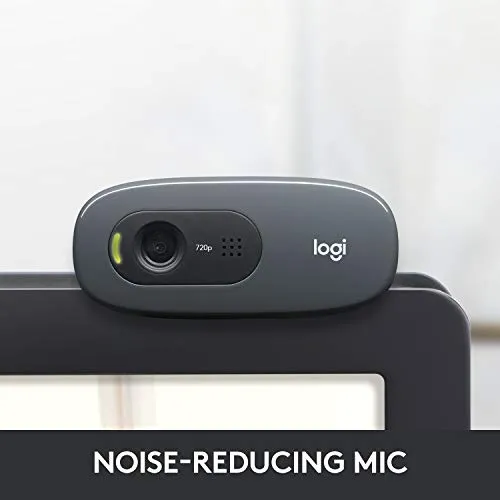
The mic can stand in for a separate one. The Logitech C270 HD Webcam carries voices clearly and keeps background noise down. Logitech rates it for a clear voice from up to 1.5 meters away, even in busy surroundings. For voice calls and long chats, the mic can do the work while the camera sits unused. On some units, however, it sounds merely adequate.
Setup can trip it up, too. Some machines won't bring the mic up in the calling app by themselves. A few never show it at all. Overall, I'd rate the mic as the stronger half of the camera, and at a budget price it's better than the job strictly needs.
Exams and recorded video
Exams are the riskier of the two. At the ID step of a proctored exam, a card held up to the lens stays blurred. It won't focus on anything held close to the lens. Faces at arm's length or a few feet back come out sharp. Close work, such as watching a 3D printer at short range, meets the same limit. When the ID check fails, the exam can stall at the start or have to be rebooked. I wouldn't risk an exam on it without a dry run of the ID step first.
Recorded video raises a second limit, since color is less dependable than brightness. Under some lighting, colors drift from true. On many setups, though, they look normal. That's a small cost on a call, and a real one where color has to be right. Out of the box, it offers little manual control. Fine-tuning brightness or color takes extra software, such as Logitech's own app or a free settings tool.
Recordings meant for an audience ask more of the Logitech C270 HD Webcam than calls do. For those, 720p at 30 fps leaves it short of detail. Plain talking-head clips, such as course videos, still get by. Logitech pitches it at video calls, and that's where it belongs.
Several computers, one Logitech C270 HD Webcam each
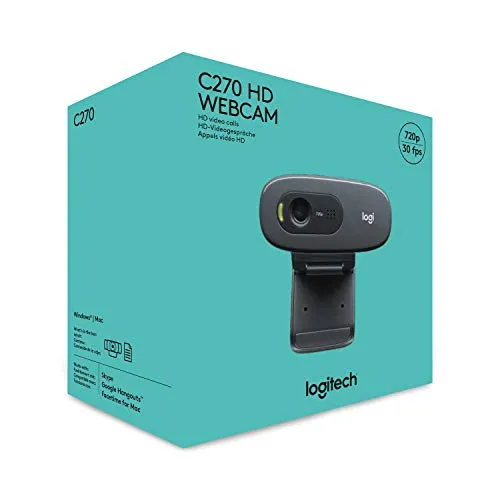
At budget webcam prices, a second unit costs little. Several computers in one house can each carry a Logitech C270 HD Webcam of their own. Extra units have behaved just like the first one. For a home that runs several machines, repeating one model keeps setup the same everywhere. Online classes run on it as readily as work meetings. Offices buy it in batches for staff desks as well.
It's also small and light enough to pack with a laptop for a trip, and its clip fits a laptop lid as well as a monitor. A unit can also stay at a second address, such as a relative's house or a cabin, for calls made from there.
Staying put on a monitor
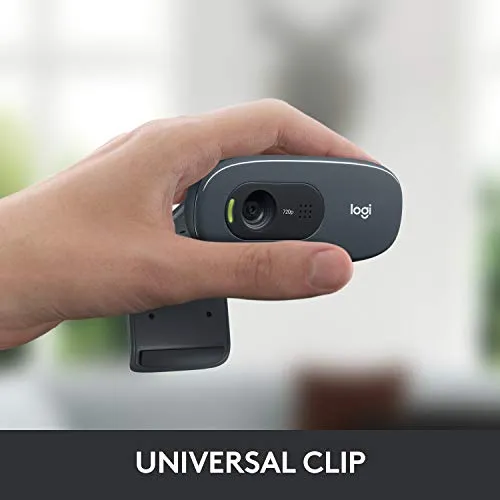
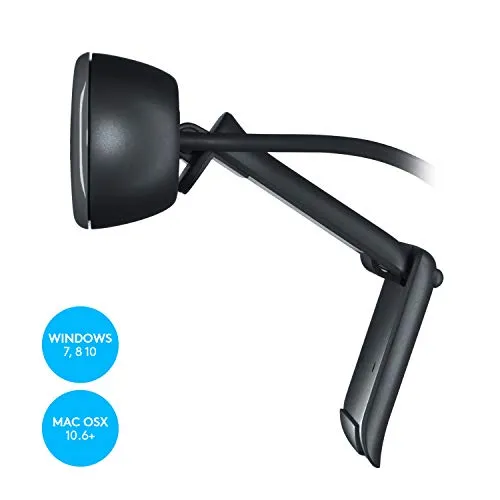
The clip is its weakest part. Getting it to sit right takes some fiddling at first, and after that it's best left alone. It grips many monitors well, though a knock to the screen can dislodge it. On some thin monitors it sits loosely or at an odd angle. The clamp in particular feels flimsy. Where a monitor won't hold it, Logitech notes that the clip folds so the camera can sit on a shelf, and the desk below the screen works the same way. It tilts up and down enough to center a face, and not much further. On top of a monitor it sits low and looks neat.
Despite a build that feels light and a little cheap, the Logitech C270 HD Webcam has kept working through years of daily calls. The body is sturdier than its feel suggests. Some units do wear out after several years of heavy use.
Pros: What we liked
- Pro: Plugs in and works with Zoom and Teams, with no driver or software to install
- Pro: Clear, forgiving picture for calls at arm's length
- Pro: Built-in mic that can replace a separate one for calls and voice chat
- Pro: Automatic light correction copes with ordinary rooms and fairly low light
- Pro: Runs on Windows, Mac and Linux machines
Cons: What could be better
- Con: Tight 55-degree view: a head fills the frame on a monitor at arm's length
- Con: Won't focus close: an ID card held to the lens stays blurred, which can sink a proctored exam's ID step
- Con: Recognition trouble on a minority of machines, at setup or later on
- Con: The clip can shift when the screen takes a knock and sits loosely on some thin monitors
Best For
- Home and office workers who want a no-fuss camera for Zoom or Teams calls
- Anyone giving a desktop or a laptop with a failed camera a working webcam
- Homes putting the same camera on several computers
- Callers who would like a cluttered room kept out of the shot
Not Ideal For
- Students sitting proctored exams that check an ID card on camera
- Video makers recording for an audience who need a sharp, color-accurate picture
- Anyone who wants shoulders and the room in frame with the camera at arm's length
| Specification | Details |
|---|---|
| Video | HD 720p at 30 fps |
| Field of view | 55° diagonal |
| Light correction | Automatic, with Logitech's RightLight 2 |
| Microphone | Built-in, noise-reducing; Logitech cites clear voice up to 1.5 m |
| Mounting | Adjustable universal clip for a screen or laptop; folds to stand on a shelf |
| Works with | Skype, Zoom and Nintendo Switch 2 GameChat mode, per Logitech |
| Platforms | PC, Mac, laptop, MacBook, tablet |
| Color | Black |
| Part number | 960-000694 |
| Release date | June 2010 |
Alternatives Worth Considering
Final Verdict
The C270's ceiling is low, and the picture and the focus set it. Exams, recorded video and wide shots of a room all sit above that ceiling.
Its floor is high, though. Setup and the mic set that floor, and units have run for years. Those are the parts a weekday call leans on most. The clip is its physical weak point, and a minority of computers refuse it. The low ceiling keeps the score modest, and the high floor is what earns it: a dependable, low-effort budget camera for meetings.
Frequently Asked Questions
Does the Logitech C270 work with a Nintendo Switch 2?
Logitech's listing says it's compatible with the Nintendo Switch 2's new GameChat mode, alongside platforms such as Skype and Zoom.
How can the lens be covered between calls?
A sticky note or a strip of tape over the lens does the job.
Why does a call show no picture after it's plugged in?
The calling app may still be pointed at another camera. Picking this one from the app's camera menu brings the picture up, and the mic can need the same step in the audio menu.
What happens the first time it's plugged in?
On Windows, the system fetches the driver it needs by itself, so there's nothing to download first.
The Verdict
Plug-in-and-go setup and a clear mic carry the meeting job; ID checks, recorded video and wide shots of a room ask more than a tight 720p view that won't focus close can give.