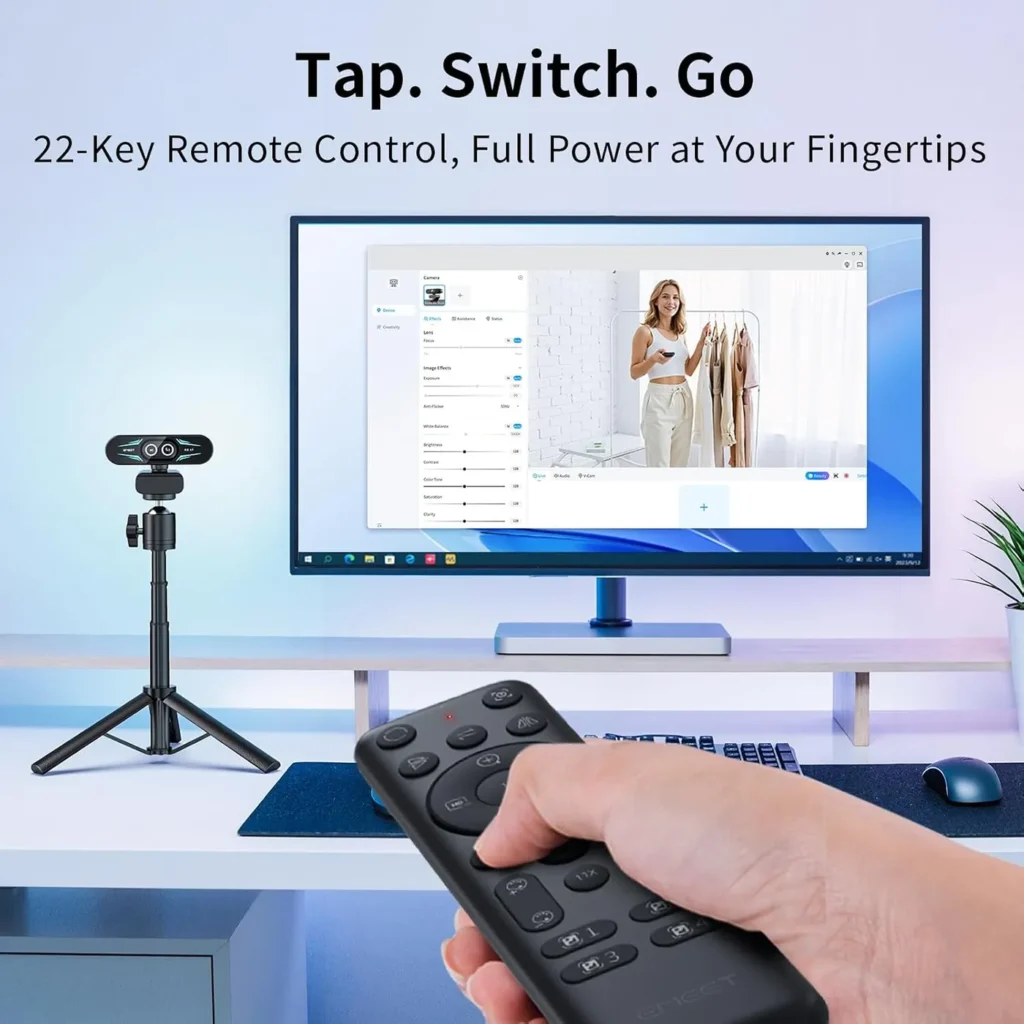
For EMEET C60E troubleshooting, the lenses come first, since this camera has two. EMEET's support pages name them the wide-angle camera and the telephoto camera, and one remote steers both. So the steps here start with the connection, which camera is active, the zoom and the focus. Then come the controls: the remote's picture buttons, the RGB light in EMEET's app and the remote's batteries. Each step comes from EMEET's C60E 4K Dual support page, its FAQ page or the quick start guide's remote map.
On EMEET's site, the model appears as the SmartCam C60E 4K Dual, while the product menus list a SmartCam C60E separately. Look for the 4K Dual name on support pages, software downloads and the support ticket form. Our full EMEET C60E review judges the picture and whether the telephoto camera earns its place.
Key Takeaways
- Begin EMEET C60E troubleshooting by selecting the EMEET device in your app, then check that the indicator light turns blue.
- Press Switch on the remote to move between the 73-degree wide-angle camera and the 45-degree telephoto camera.
- Use the 1X button to bring a magnified picture back to its original size.
- Press Focus to return to autofocus when the picture stops sharpening as you move.
- Correct an upside-down image with Flip and a left-to-right reversal with Mirror.
- Fit 2 AAA batteries in the remote after connecting the camera, so the two pair automatically.
EMEET C60E troubleshooting at the cable and the blue light
Start at the USB cable. EMEET's FAQ says the camera connects through a USB port, supports UVC and needs no driver. It also turns on by itself once the cable goes into the computer. Next, open any app and select the EMEET device as its camera, and the indicator light turns blue. If the light stays dark, go back to that app's camera setting and pick the EMEET device there.
Then check the computer against the spec table on EMEET's support page for the C60E 4K Dual. It lists the 64-bit editions of Windows 10 and above, plus macOS 10.14 and above. EMEET does not support Windows systems based on the ARM architecture. The table's system requirements also name a USB 2.0 port and 2 GB of RAM or more. Its processor floor is a 2.4 GHz Intel Core 2 Duo or higher. A built-in 2-meter cable makes the connection. The same table sets 3840 x 2160 at 30 fps as the default and lists 1080p at up to 60 fps.
If the light is blue but the picture is black, check the privacy cover. According to EMEET's FAQ, the cover folds down over the lens when the camera is not in use. With it folded down, EMEET says, nobody can record your video while the camera stays plugged in. Fold it up before the call starts. If the cover is not on yet, first wipe the front of the camera and peel the tape off the cover. Then line it up with the silkscreen marks, as the quick start guide shows. Finally, press it firmly against the camera for 3 seconds.
Wide-angle Camera 1 or telephoto Camera 2: the Switch button
Check which camera is on first. EMEET's FAQ numbers them: Camera 1 is the wide-angle camera and Camera 2 the telephoto camera. The spec table gives the wide-angle camera a 73-degree field of view and the telephoto camera 45 degrees. EMEET's listing places the gray wide-angle lens on the left and the blue telephoto lens on the right, so a glance at the front shows which is which. When the frame shows more of the room than you want, or less, press Switch on the remote. Per the remote map, that button moves between the wide-angle and telephoto cameras.
None of the buttons on the remote map pans or tilts the camera, so aim it by hand. On a monitor or laptop, EMEET's FAQ has you unfold the clip and set it on the top edge. From there, tip it up or down until the framing fits. A tripod also works, though the quick start guide notes that it is sold separately. Screw the camera onto it tightly through the threaded 1/4-inch hole on the bottom.
The zoom buttons: 1X, then 3X to 11X
Zoom comes in two kinds. EMEET's FAQ names zooming and image effects as the remote's main uses. On the remote map, the 3X, 5X, 7X and 11X buttons magnify the image 3, 5, 7 or 11 times. Zoom In and Zoom Out, meanwhile, enlarge or reduce the image. The spec table rates the digital zoom at up to 11x. If the picture stays magnified, press 1X, which restores the image to its original size.
If the zoom buttons seem to do nothing, check the video mode. EMEET's listing says zoom is not supported in 4K, at 60 fps or in YUY2, and the spec table sets 4K at 30 fps as the default. Choose a lower resolution at 30 fps in the app, such as 2K or 1080p, then zoom again.
The Focus button: autofocus or fixed focus
Check the focus mode next. EMEET's spec table lists PDAF autofocus. The quick start guide adds that the remote's Focus button switches between autofocus and fixed focus. If the picture stops sharpening as you lean in, press Focus once to return to autofocus. Fixed focus is the other setting, for a shot that should not refocus as you move.
Flip and Mirror for an upside-down or reversed picture
Two buttons set the picture's orientation. According to EMEET's button map, Flip rotates the image 180 degrees vertically, while Mirror flips it 180 degrees horizontally. Use Flip when the picture shows upside down, and Mirror when the frame looks reversed left to right.
The picture buttons: sharpness, color, brightness and effects
Three button pairs change the look. The quick start guide lists Sharpness +/-, Color +/- for color saturation and Brightness +/-. Each pair raises or lowers its setting. If the picture looks washed out, lower Brightness. If colors look weak or overdone, adjust Color instead, while Sharpness +/- handles a soft image. The four Image Effect buttons, numbered 1 to 4, switch between image effects.
When the adjustments go too far, press Reset, which restores the image to its initial state. White balance has no button on the remote. For that, EMEET's FAQ points to EMEET STUDIO, whose image settings cover brightness, saturation and white balance.
The RGB light and its three colors in EMEET STUDIO
The remote map has no button for this light. EMEET's FAQ says to download EMEET STUDIO to adjust the RGB lights. The same answer adds that only 3 colors are available for now. The FAQ also lists other STUDIO features, such as whiteboard mode, recording and a virtual camera. Calls do not depend on the app, though. EMEET adds that the camera works directly in third-party software such as OBS or Zoom.
Before installing it, check the computer once more. The support page lists the Windows version for the 64-bit editions of Windows 10 and above, with ARM-based Windows ruled out. The Mac version asks for macOS 15.5 or newer, well above the macOS 10.14 floor that the spec table sets for the camera itself. On a Mac running an earlier macOS, then, use the camera directly in OBS or Zoom, as EMEET's FAQ allows.
The remote's own power: two AAA batteries, then pairing
The remote ships without batteries. EMEET's FAQ says it needs 2 AAA batteries that you buy separately. Pairing then follows a set order, starting with the camera: connect it to the computer so it turns on. After that, install the batteries in the remote, and the camera pairs with it automatically. If no button responds, check each of those steps in that order.
EMEET's FAQ refers remote questions to the manual. The support page's manual download is that same quick start guide, button map included.
Beyond the remote: a ticket, an email or a call to EMEET
Some faults need EMEET itself. When EMEET C60E troubleshooting stalls, the support page asks for an email to support@emeet.com. It also says more support content is coming soon. A Create a ticket button on the same page leads to a support form. Select EMEET SmartCam C60E 4K Dual as the product. Then pick the closest match among its issue types, for example Connectivity for a camera the computer won't show. Finally, describe the fault and submit the ticket. The site footer also gives a phone number, +1 866 312 3636, marked toll-free. Its listed hours run between 9 AM and 5 PM Eastern Time.
Conclusion
EMEET C60E troubleshooting works lens first, then control by control. Check the cable and the blue light before anything else. Then press Switch for the other view, 1X for a stuck zoom and Focus for autofocus. The controls come next: Flip or Mirror for orientation, the picture buttons for the look and Reset to start over. EMEET STUDIO handles the RGB light and white balance. Two AAA batteries, fitted after the camera is on, let the remote pair.
Anything these checks leave unsolved goes to EMEET. Write to support@emeet.com, open a ticket on the support page or call the toll-free number in the site footer. And if one lens and fewer buttons would suit the desk better, our webcam shortlist ranks today's options.
Frequently Asked Questions
Why won't the EMEET C60E indicator light turn blue?
In EMEET's FAQ, the light turns blue once an app has the EMEET device selected. Plug in the USB cable, which switches the camera on, then pick the EMEET device in the app's camera menu. If it still stays dark, check the computer. EMEET supports the 64-bit editions of Windows 10 and above and macOS 10.14 and above, with no ARM-based Windows.
Why does the C60E picture stay zoomed in?
Press 1X on the remote, which restores the image to its original size, according to EMEET's quick start guide. The 3X, 5X, 7X and 11X buttons magnify the picture by those amounts, while Zoom In and Zoom Out enlarge or reduce it.
How do you fix a washed-out picture on the C60E?
Lower the brightness with the Brightness +/- buttons on the remote, then adjust Color +/- if the colors look off. Reset restores the image to its initial state after too many changes. For white balance, EMEET's FAQ points to the image settings in EMEET STUDIO.
Why is the C60E image upside down or mirrored?
Two remote buttons set the orientation. EMEET's quick start guide says Flip rotates the image 180 degrees vertically and Mirror flips it 180 degrees horizontally. Press the one that matches the problem. Reset returns the image to its initial state if several changes stack up.
Why doesn't the C60E remote respond to any button?
Check its power first. EMEET's FAQ says the remote needs 2 AAA batteries, which you buy separately. Pairing then runs in a set order: connect the camera to the computer so it turns on, then install the batteries. The camera pairs with the remote automatically after that.
How many colors does the C60E's RGB light support?
Three, for now. EMEET's FAQ says to adjust the RGB lights in EMEET STUDIO, with 3 colors available for now. On a Mac, the app asks for macOS 15.5 or newer. On Windows, it wants a 64-bit edition of Windows 10 and above, and no ARM processor.