EMEET S600 Review: A 60 fps Streaming Camera With Fast Focus
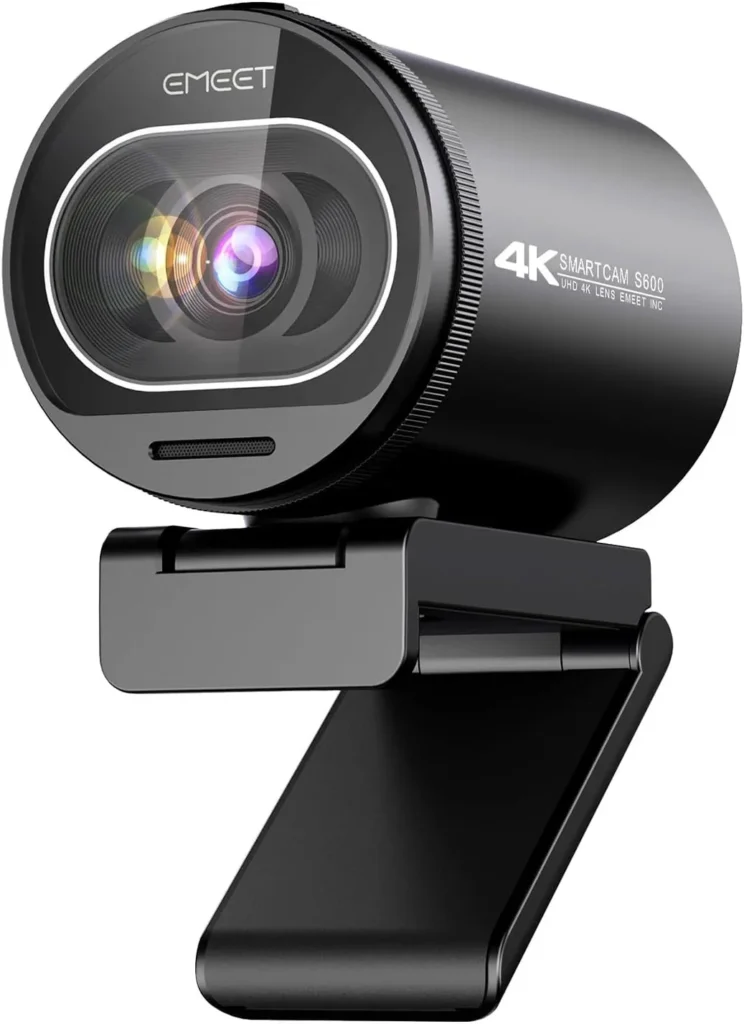
Fluid 1080p60 video and quick PDAF focus earn the EMEET S600 its mid-range price as a streaming camera, with 4K on hand for recorded clips.
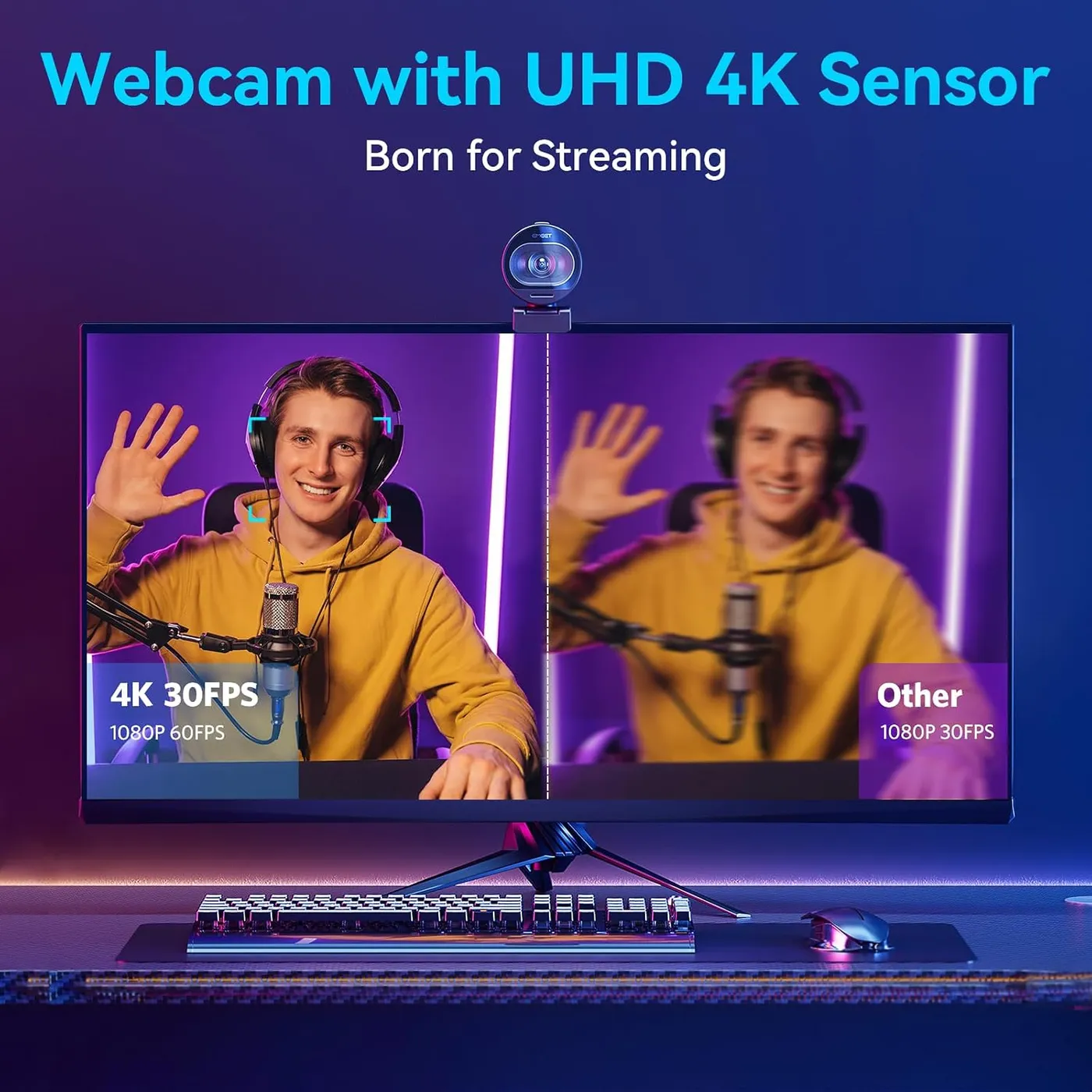
EMEET sells the S600 on its 4K mode, which tops out at 30 frames a second. Its daily work runs on another setting, though: 1080p at a smooth 60 frames, with phase-detection focus keeping pace. That pairing, more than the headline, is where the EMEET S600 earns its mid-range price.
Call apps also take the camera at 1080p, so the 4K mode mostly matters to software that asks for it, such as OBS. Behind every mode sits a 1/2.55-inch Sony sensor. Two microphones and a privacy dial round out a camera EMEET aims squarely at streaming.
Run the EMEET S600 at 60 frames for motion
Movement is where the extra frames earn their keep. At 1080p and 60 fps, a turn of the head or a wave of the hand stays fluid on screen. That matters most on a live stream, especially a gameplay stream with the camera in a corner overlay. At 4K the camera drops to 30 fps, half the frame rate, so I'd leave it at 1080p and 60 fps for anything live.
In OBS, that mode lives in the capture source's properties: set Resolution/FPS Type to Custom, then pick 1920×1080 at 60 fps. EMEET's own FAQ describes the same menu. It also warns that a higher setting can cost smoothness, depending on the computer and the network.
Phase-detection autofocus keeps pace with all that motion. EMEET pitches its PDAF system on speed and stability, and the camera bears the claim out. It locks onto a face quickly, then holds it as you lean in, sit back or move across the frame. Between those moves it doesn't hunt, so the image stays sharp while you talk. If focusing ever slows, EMEET's first suggestion is to clean the glass, since dirt on the lens cuts focus accuracy.
Request 4K through the software that captures it
The 4K mode is real, though meetings rarely see it. EMEET says meeting platforms start the camera at 1080p and 30 fps by default. Call software can then lower the resolution further to keep a call smooth. In practice, a Zoom or Google Meet call stops at 1080p, so the 4K headline sits unused through a typical workday.
Recording software is where 4K shows up. EMEET names OBS and PotPlayer as apps that can switch it on. The computer's own camera app can set it too. Point the app at the EMEET S600, open its options and raise the video quality, and EMEET says the camera keeps that choice. At 4K the view stays at the full 73 degrees, since EMEET locks the field of view there to limit distortion.
Judged as a streaming webcam, the S600 earns its price in the 1080p mode, and 4K is a bonus for recorded clips. Chosen on purpose, that 4K mode delivers a crisp, detailed image for a tutorial or a product video, provided the room is well lit. On a desk used only for meetings, the 4K mode rarely runs at all.

Give streamed voice a microphone of its own
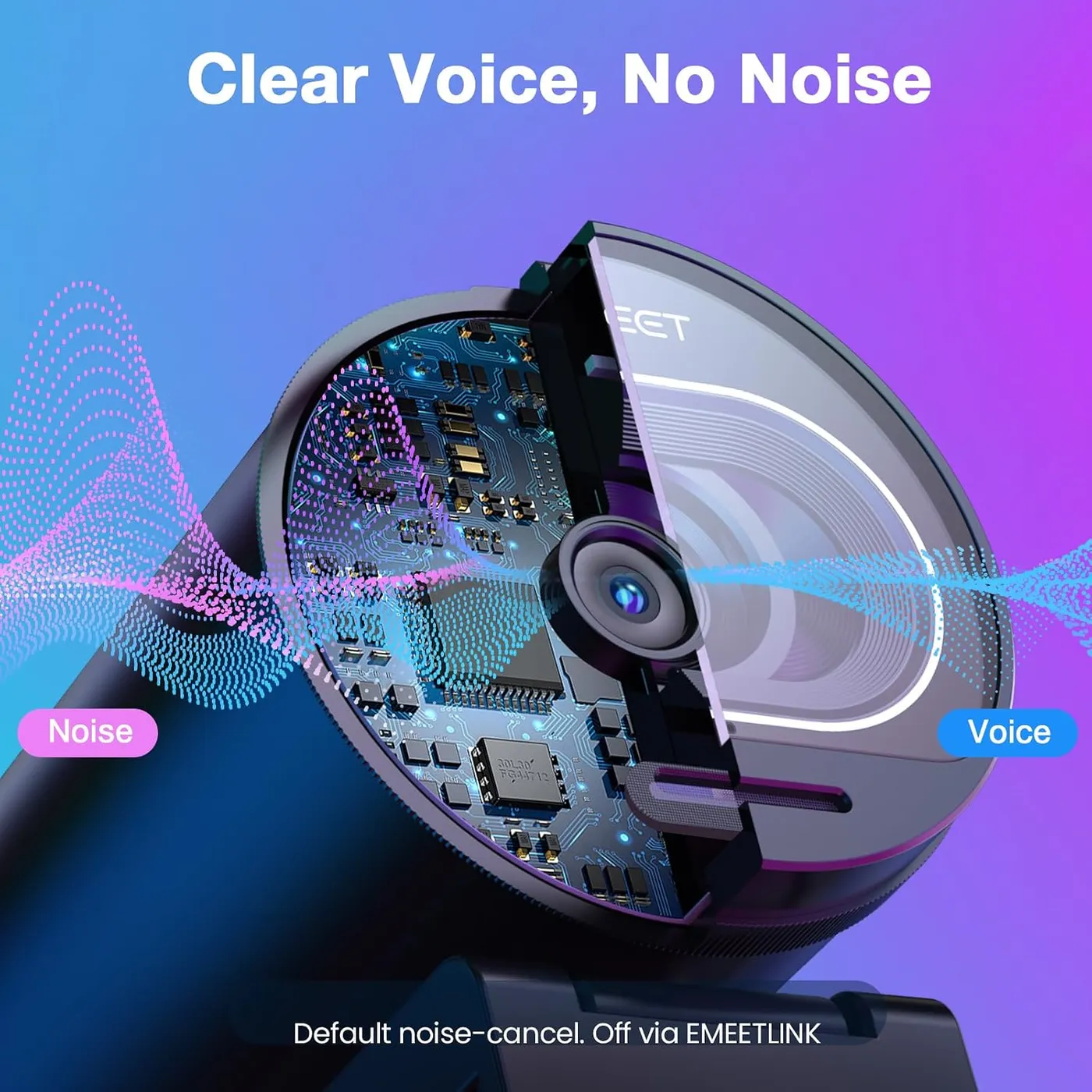
Two omnidirectional microphones sit in the housing. EMEET rates their pickup at 8 feet, and it says a noise-canceling algorithm runs from the start, with an off switch in EMEETLINK. For meetings at the desk, a voice comes through clearly, and that covers daily work calls and online training sessions well.
Streams and recordings ask more of them. In that role the built-in pair sounds thin and a little muffled. A separate mic gives a noticeably cleaner voice. My advice is to plan on one for any stream, even a basic clip-on model. The S600 makes itself the default microphone whenever it connects, according to EMEET. After plugging in the other mic, select it in the system's sound panel or in Zoom or OBS, so the two don't compete.
Light the face evenly from the front
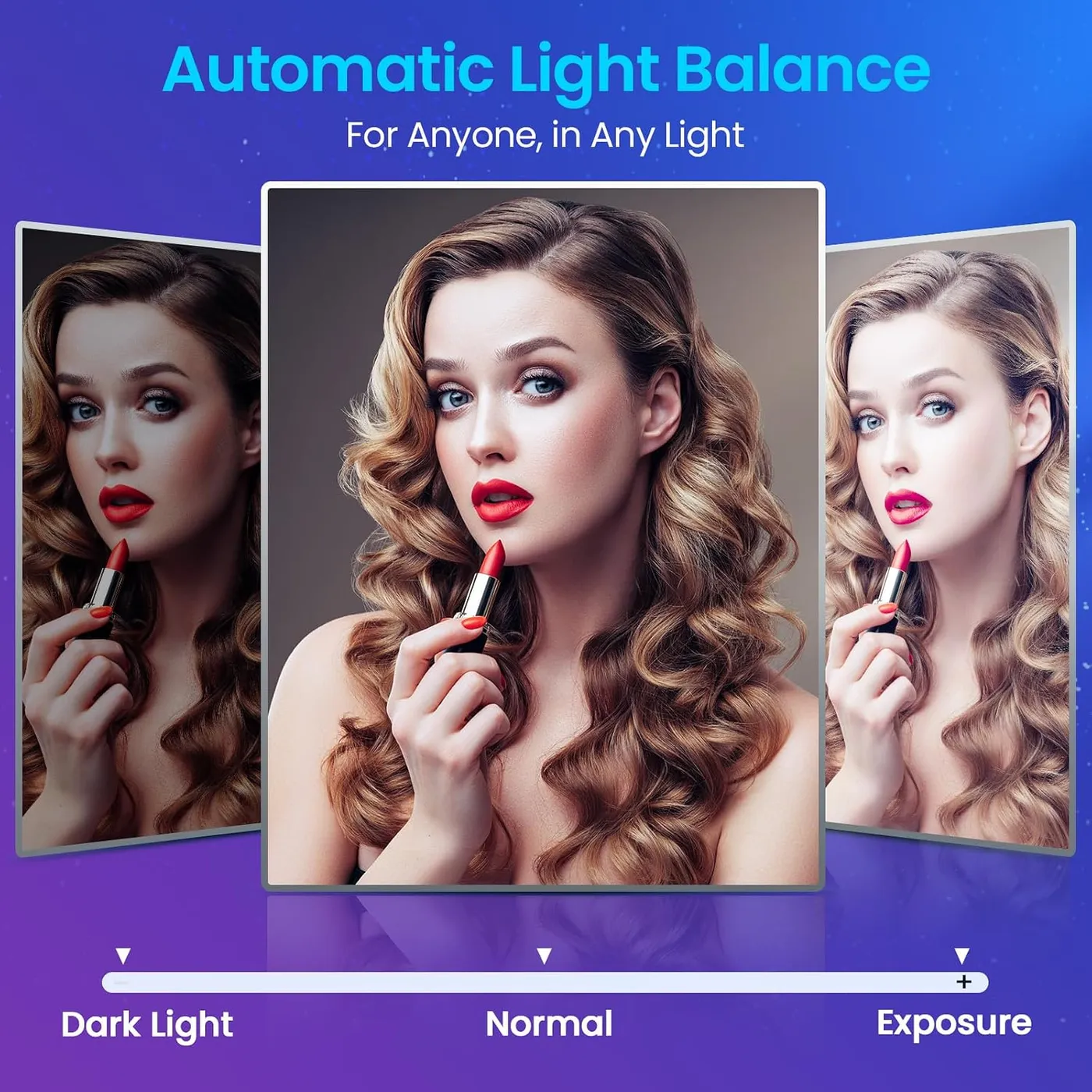
Light decides how much of the sensor's detail reaches the screen. With an even light in front of you, the EMEET S600 turns in sharp detail and accurate color. EMEET says its automatic light adjustment balances bright and dark areas even in low light. In a dim room the face does stay visible, though the picture runs on the dark side without a lamp.
Strong light is the other limit. Daylight falling straight onto a face, or a lamp set too close, can wash the image out. The automatic white balance doesn't always pull it back, either. In an evenly lit room, however, the automatic exposure and white balance get it right without help.
When the light can't change, EMEETLINK hands control back to you. Brightness, contrast, sharpness, saturation and white balance each get a manual control, and one button resets them all. If the picture flickers under room lights, EMEET's fix is the anti-flicker setting, which should match the local power frequency: 60 Hz in the United States and 50 Hz in Europe. For a green-screen stream, EMEET traces a green fringe around the subject to the keying software and to uneven lighting, so an evenly lit backdrop helps.
Close EMEETLINK before opening a call app
No driver stands between the camera and a call. Plugged into Windows or a Mac, the EMEET S600 shows up right away as the default camera and microphone. That suits a managed work computer that blocks new software. EMEET lists Windows 7 or later and Mac OS 10.10 or later for the camera itself. On the software side, it names OBS, XSplit, YouTube, Twitch and Zoom.
EMEETLINK, the optional companion app, adds the image settings, the noise-canceling switch, view control and firmware updates. It is also the least polished part of the package, and on some Windows and Mac machines it misbehaves. EMEET's S600 support page lists it for 64-bit Windows 10 and macOS 10.14 or later, but not Windows on ARM. For streaming, OBS can adjust the camera directly, which sidesteps the app entirely.
One rule in EMEET's FAQ explains a confusing moment: only one program can use the camera at a time. While EMEETLINK is open, Zoom, Teams and Google Meet can't reach the camera, so close it once the image looks right. Two call apps can't share it at once, either. If a call app grabs the laptop's own camera instead, its Devices menu switches video and audio to the S600, per EMEET.
Narrow the view, then lock the angle
The full 73-degree view takes in much of the room. At 1080p, EMEETLINK can narrow it to 40 degrees, which crops a cluttered background and frames a face more tightly. The tighter view also helps when the camera sits on a TV across the room. There, a full-width shot leaves a seated speaker small in the frame.
The clip folds open to straddle a display, and the camera head tilts and swivels above it. EMEET says the joints hold the camera securely as it tilts and rotates, and moderate angles do stay put. At a steep downward angle, though, the clip can lose its hold. The camera can then tip forward or slip out of position.
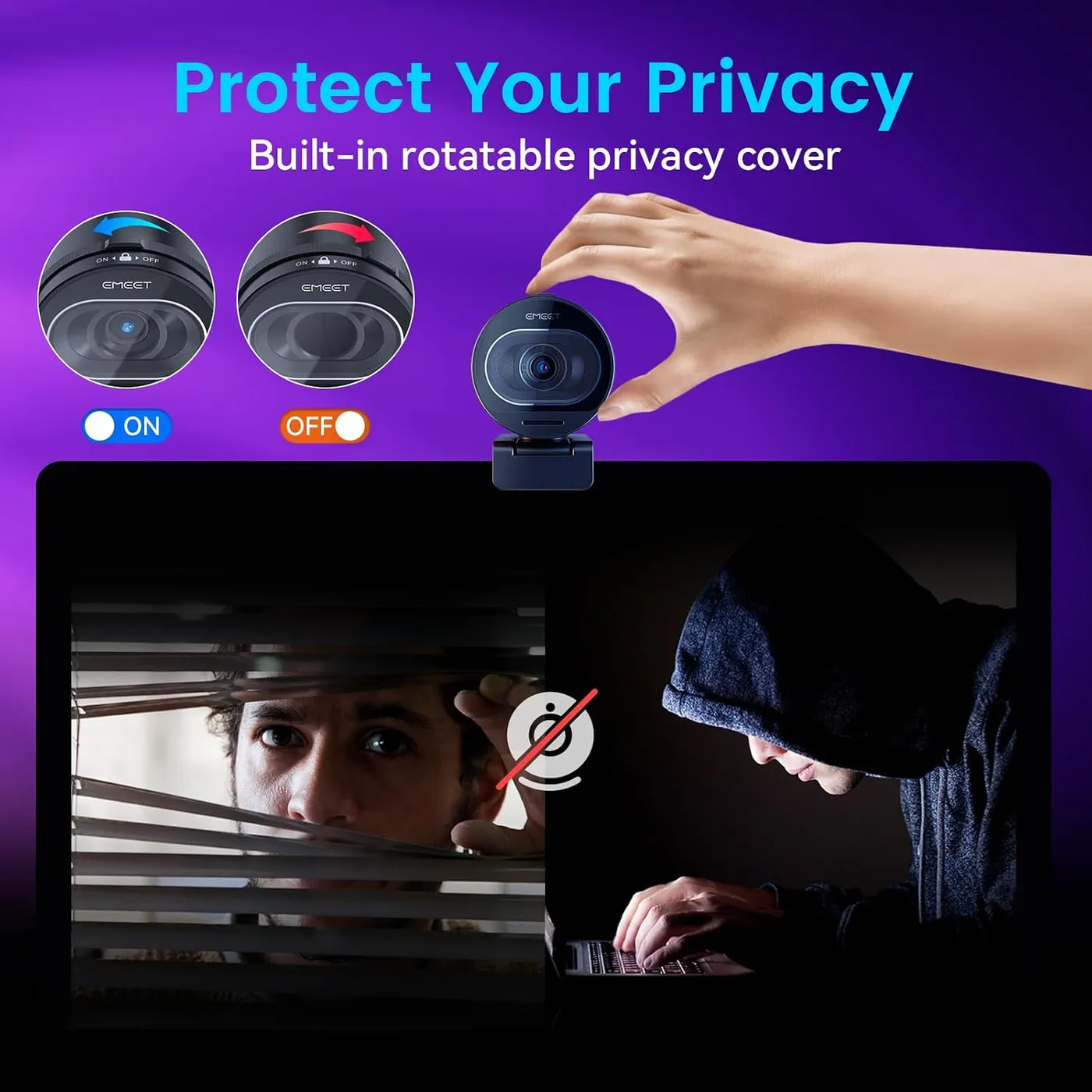
A 1/4-inch tripod thread underneath takes a desk tripod or a floor stand instead. Privacy comes from a dial that turns a gear-driven cover across the lens. EMEET builds the cover into the lens housing and says it can't open by accident. A status light also glows white whenever an app has the camera open. The housing is solid and well made, and the detachable USB-C cable makes it easy to pack for travel. The 1.5-meter lead in the box ends in USB-A, and a spare USB-C cable fits the camera's socket too.
Weigh the step-up options before spending more
Each step on the price ladder buys something specific. Against the EMEET NOVA 4K, its budget-tier sibling, the EMEET S600 lists 60 fps at 1080p, while the NOVA lists 30 fps. The S600's view also narrows to 40 degrees, whereas the NOVA's listing fixes the view at 73 degrees. Both list phase-detect autofocus, so the extra money buys frame rate and framing control.
Higher up, the Logitech MX Brio lists manual control of ISO, shutter speed and tint. It connects over USB-C and sits at a premium price. The Insta360 Link 2, also premium, puts a 1/2-inch sensor on a head that pans and tilts to follow you. In the same mid-range tier, the EMEET C60E splits one 4K sensor between wide and telephoto lenses. Its listing adds up to 11x hybrid zoom and a remote.
The MX Brio earns its premium where manual exposure control matters, and the Link 2 where the presenter moves around the room. At a one-person desk, I'd stay with the S600 unless tracking or a second lens is the point.
Check the port first when video cuts out
Some units fail early. A few stop working within weeks. Others cut out mid-call or never appear on the computer at all. The dropouts aren't tied to one program, either; they turn up in OBS, Discord and meeting apps alike. The share is small but real. Before writing a camera off, try EMEET's first steps: a different USB port, then a restart of the computer.
Firmware updates also run through EMEETLINK. EMEET puts an update at five to 15 minutes and warns against unplugging the camera mid-update, with a restart afterward. For each of these checks in order, the EMEET S600 troubleshooting guide walks through setup and recognition fixes step by step.
Pros: What we liked
- Pro: 1080p at 60 fps keeps head and hand movement fluid on a live stream
- Pro: Phase-detect autofocus locks quickly and holds a moving face without hunting
- Pro: Sharp detail and accurate color whenever an even light falls in front of you
- Pro: Works without a driver on Windows and Mac, so EMEETLINK stays optional
- Pro: Narrowing to 40 degrees at 1080p crops a busy room out of the frame
- Pro: Gear-driven privacy dial, a white status light and a 1/4-inch tripod thread
Cons: What could be better
- Con: The built-in mics sound thin on a stream, so a separate mic makes the better voice source
- Con: EMEETLINK misbehaves on some computers and has no version for Windows on ARM
- Con: The clip can lose its hold when the camera tilts steeply downward
- Con: Some units fail early, cutting out mid-call or never connecting at all
Best For
- Streamers who want fluid 60 fps video and fast focus without paying premium prices
- Remote workers who need a sharper picture with no driver to install on a work computer
- Creators who capture 4K clips in OBS and want a 1080p60 mode for live work
Not Ideal For
- Anyone expecting 4K inside Zoom, Teams or Google Meet calls
- Streamers who plan to use the built-in mics as their main voice source
- Presenters who need the camera angled steeply down from a monitor top
| Specification | Details |
|---|---|
| Resolution | 4K UHD at 30 fps; 1080p Full HD at 60 fps |
| Frame rate | Up to 60 fps at 1080p; 30 fps at 4K |
| Field of view | 40 to 73 degrees at 1080p; fixed 73 degrees at 4K |
| Focus | Phase-detection autofocus (PDAF), no off switch |
| Sensor | Sony 1/2.55-inch, 8 megapixels |
| Microphones | Two omnidirectional mics, 8 ft pickup (EMEET rating) |
| Connection | USB-C on the camera; 1.5 m USB-A to USB-C cable |
| Privacy | Gear-driven lens cover with dial; white status light |
| Mounting | Monitor and laptop clip; 1/4-inch tripod thread |
| Software | EMEETLINK, optional: Windows 10+ 64-bit, macOS 10.14+ |
Alternatives Worth Considering
Final Verdict
The EMEET S600 does its best work in the two modes its job leans on. Its 1080p mode at 60 frames a second keeps a stream fluid, and the PDAF system holds a moving face without fuss. The 4K mode stays a bonus for recorded clips, while a separate mic and a lamp aimed at the face finish the setup. If you stream or present from a desk and want fluid video with focus that keeps up, it's the one to buy at mid-tier money.
Frequently Asked Questions
Does the EMEET S600 show 4K in Zoom or Teams calls?
Usually not. EMEET says meeting platforms start the camera at 1080p and 30 fps, and call software may lower that further to keep the call smooth. For the sharpest call image, EMEET suggests Zoom's HD option. Full 4K takes recording software such as OBS or PotPlayer.
Can you turn off the S600's autofocus?
No. EMEET says the S600 currently has no way to switch autofocus off, so the lens keeps refocusing on its own. For a camera with locked focus, EMEET recommends its fixed-focus C980 Pro instead.
Does the EMEET S600 work with a Mac?
Yes. It runs on macOS without a driver, and EMEET lists Mac OS 10.10 or later for the camera and macOS 10.14 or later for EMEETLINK. The cable in the box ends in USB-A, so a Mac with only USB-C ports needs an adapter or a USB-C to USB-C cable.
Does the EMEET S600 work on a USB 2.0 port?
Yes. EMEET describes the S600 as a USB 2.0 and 3.0 webcam and rates its input at 5 V and 500 mA, with about 2.5 W of average draw.
What comes in the box with the EMEET S600?
EMEET lists the camera, a 1.5-meter USB-A to USB-C cable and a quick start guide. The privacy cover and the monitor clip are part of the camera itself, so there is nothing else to fit.
The Verdict
Fluid 1080p60 video and quick PDAF focus earn the EMEET S600 its mid-range price as a streaming camera, with 4K on hand for recorded clips.