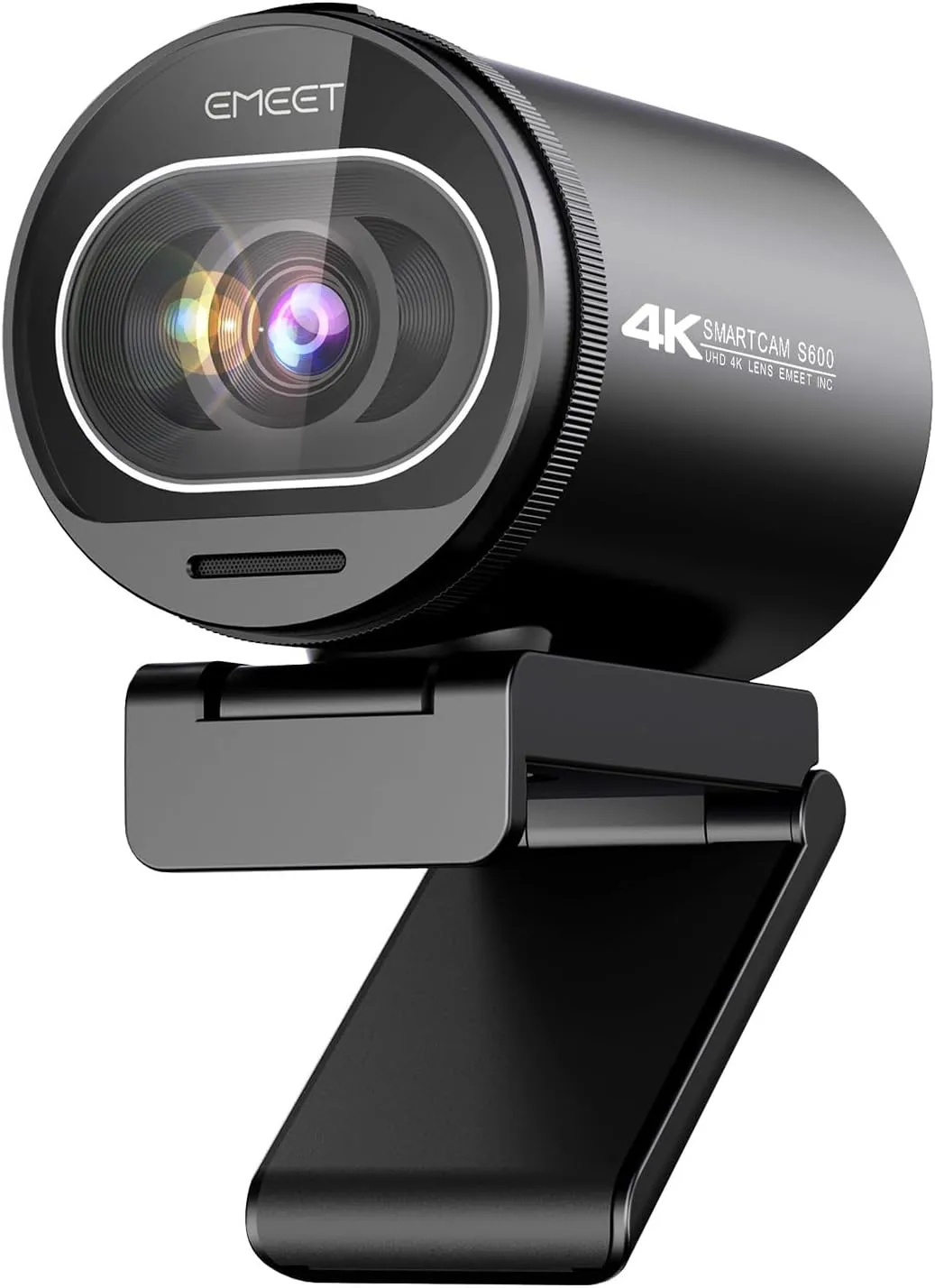
EMEET's S600 support page holds the camera's spec table, a numbered FAQ and the downloads for its companion apps. One FAQ answer frames this whole guide: only one program can use the S600 at a time. EMEET's own example is EMEETLINK, which keeps Zoom from using the camera while it adjusts the picture. Because of that rule, EMEET S600 troubleshooting opens on one question. Which program has hold of the camera right now?
Our full EMEET S600 review weighs the picture, the 60 fps mode and the alternatives. Here, the sections take the programs one by one: the computer's own camera app, EMEETLINK, OBS and the call apps. After them come the parts no program controls, then EMEET's own support channels.
Key Takeaways
- Start EMEET S600 troubleshooting by closing EMEETLINK before you open Zoom, Teams or Google Meet, since EMEET lets one program use the camera at a time.
- Set the anti-flicker value in EMEETLINK to 60 Hz in the United States or 50 Hz in Europe.
- Keep the USB cable plugged in for the 5 to 15 minutes a firmware update takes, then restart the webcam.
- In OBS, add a Video Capture Device and choose Custom under Resolution/FPS Type to pick 1080p or 4K.
- In Zoom's Video settings, select EMEET SmartCam S600 and tick HD for a clearer picture.
- Wipe the lens with a dust-free or eyeglass cloth when the autofocus turns slow.
EMEET S600 troubleshooting in the computer's own camera app
Test the camera in the app that came with the computer. First, plug the USB cable into the camera, then plug the other end into the computer. Open the camera app next. EMEET's S600 support page says the status light turns white once a program opens the camera.
If the computer does not recognize the S600 right away, EMEET gives two fixes: a different USB port, or a restart of the computer. Also check the operating system. The spec table covers Windows 7 or later and macOS 10.10 or later for the camera itself.
Once the computer sees the camera, EMEET says it sets the S600 as its default camera and microphone automatically. The built-in app can also set the resolution, and the camera stores that setting, according to EMEET. Use the switch button in the upper right corner to make the S600 the active camera. Then press the settings button in the upper left corner and change the video quality to the level you need.
EMEETLINK for picture settings, a full reset and flicker
Install EMEETLINK before changing the picture. EMEET calls it a basic companion app for its webcams, and its download listing names the S600. It runs on 64-bit Windows 10 or later and on macOS 10.14 or later. Windows computers with ARM processors fall outside that support, though. EMEET STUDIO, which EMEET describes as a comprehensive companion tool, also supports the S600, with the same Windows limits and a Mac version that needs macOS 15.5 or later.
To change the image, connect the camera by USB, open EMEETLINK and go to its settings. Choose the customization filter, then adjust brightness, contrast, sharpness, saturation and white balance as needed. To undo every change, choose Restore Default Settings.
EMEET traces video flicker to a camera set for the wrong region. In EMEETLINK's settings, pick the anti-flicker value for your location. EMEET's general rule is 60 Hz in the United States and 50 Hz in Europe, mainland China and Singapore. Japan splits by area, with 50 Hz for Kanto and 60 Hz for Kansai.
EMEET's description of EMEETLINK also mentions focus and zoom settings. Two S600 facts apply here: the spec table gives a field of view of 40 to 73 degrees, and the FAQ says the autofocus has no off switch for now. When the picture looks right, close EMEETLINK, because EMEET says no other program can use the camera while it holds it.
EMEETLINK again, this time for a firmware update
Firmware updates run through the same app. Download EMEETLINK first, then connect the camera with its USB cable. Open the app, go to its settings and select upgrade. EMEET puts the update at 5 to 15 minutes, with a progress bar to show its status. Keep the cable connected the whole time, because EMEET warns against disconnecting it during the upgrade. After the bar finishes, restart the webcam, as EMEET asks.
OBS: 1080p at 60 fps or 4K at 30 fps
OBS takes the camera through a capture source, and EMEET's FAQ walks through the setup. Open OBS and start in the Scenes menu. Click the + icon under Sources, then choose Video Capture Device. In the properties window, open Device and select the S600. Under Resolution/FPS Type, pick Custom from the drop-down, choose a resolution in the Resolution list and click OK to save.
Pick that resolution with EMEET's spec table in mind. It caps 4K, or 2160p, at 30 fps and reaches its 60 fps maximum at 1080p. EMEET also warns that changing the resolution may affect quality and smoothness, depending on the computer's hardware and network settings.
A green edge around a subject on a green screen is a common issue across camera brands, EMEET says. Its FAQ places the root cause in the software that keys out the green. Reflections and shadows around the subject make that edge easy to form. An unevenly hung screen or uneven lighting also hurts the result, so hang the screen flat and light it uniformly.
Zoom, Teams and Google Meet: one call app at a time
Call apps take turns with the camera. Once Zoom has the S600, EMEET's FAQ says Microsoft Teams or Google Meet cannot use it. An open EMEETLINK blocks Zoom the same way. Close whichever program holds the camera before joining a call in another one.
In Zoom, open Settings, choose Video and select EMEET SmartCam S600 as the camera. During a call, video software picks a lower resolution to protect call performance, EMEET explains. For a clearer image, tick HD in those Video settings.
Meeting platforms run the camera at 1080p and 30 fps by default, according to EMEET. Where a platform lets you choose a higher resolution, change it in that platform's settings. When an app opens the wrong camera or microphone, go to its settings, open Devices and select EMEET SmartCam S600 under Camera and Audio devices. The S600's own two microphones are omnidirectional, and EMEET rates their pickup range at 8 feet.
No app involved: the cover, clip, cable and power
Some EMEET S600 troubleshooting needs no program at all. If the camera connects but the picture stays black, look at the privacy cover first. EMEET's rotating cover blocks the lens, and the FAQ says no one can record video through it while the camera remains plugged in. Turn the cover switch to open it.
For a monitor or laptop, EMEET has you unfold the adjustable clip to fit the top of the screen. Then tilt the camera up or down by hand to frame yourself. On a tripod, find the 1/4-inch threaded hole under the camera and twist the two together until they sit snugly.
EMEET's box list is short: the camera, a 1.5-meter USB cable and a quick start guide. The spec table describes that cable as USB Type-A to Type-C. It rates the camera's input at 5 V and 500 mA, with an average draw of 2.5 W. Power comes through the cable too, since the FAQ switches the camera on by plugging it in and off by unplugging it.
Slow focusing has a physical cause in EMEET's FAQ: dirt or dust on the lens, which reduces the sensitivity and accuracy of the focusing system. Wipe the lens gently with a dust-free cloth or an eyeglass cloth.
Past the fixes: EMEET's ticket form, email and phone
The S600 support page carries EMEET's ticket form, behind a Create a ticket button. Use it when a fault outlasts these steps. Choose EMEET SmartCam S600 as the product, pick the closest issue type, such as Connectivity or Firmware / Software, then describe the issue and submit it. EMEET also takes questions at support@emeet.com, and its site footer lists a toll-free line, +1 866 312 3636, open 9AM to 5PM Eastern Time.
Two FAQ answers spell out their own hand-off. EMEET asks you to get in touch when focusing stays slow after a lens cleaning, and it welcomes comments on the always-on autofocus. If the S600 still misbehaves after all of that, a replacement webcam may serve better than another round of fixes. Our ranked list sets out the current choices.
Conclusion
The fixes here start from one question: which program has the camera? The built-in camera app covers detection and resolution, while EMEETLINK handles picture settings, flicker and firmware. OBS or the call app decides what the audience sees, so close each program before the next one opens the camera. If the hardware checks pass and a fault remains, EMEET S600 troubleshooting goes to EMEET directly, through the ticket form on its support page or support@emeet.com.
Frequently Asked Questions
Why does Zoom show no picture from the EMEET S600?
Check whether another program has the camera. EMEET allows one program at a time, and its own example is EMEETLINK keeping Zoom from using the S600. Close EMEETLINK and any other call app, then open Zoom's Settings, go to Video and select EMEET SmartCam S600 as the camera. A closed privacy cover also blocks the lens, so turn its switch to open it.
Why doesn't the EMEET S600 run at 4K in Zoom or Teams?
EMEET says meeting platforms default to 1080p at 30 fps, and video software lowers the resolution during a call to protect performance. In Zoom, tick HD in the Video settings for a clearer image. For 4K, which tops out at 30 fps in EMEET's spec table, set a Custom resolution in OBS instead.
How do you stop the EMEET S600's video from flickering?
Match the anti-flicker setting to your region in EMEETLINK's settings. EMEET's general rule is 60 Hz in the United States and 50 Hz in Europe, mainland China and Singapore. In Japan, EMEET gives 50 Hz for Kanto and 60 Hz for Kansai.
Why is the S600 slow to focus, and can you switch autofocus off?
EMEET points to dirt or dust on the lens, which lowers the focusing system's sensitivity and accuracy. Wipe the lens gently with a dust-free or eyeglass cloth. The autofocus itself has no off switch for now. If focusing stays slow after a cleaning, EMEET asks you to contact its support team.
Is it safe to unplug the EMEET S600 during a firmware update?
No. EMEET warns against disconnecting the USB cable during the upgrade, which it puts at 5 to 15 minutes with a progress bar in EMEETLINK. Leave the cable in place until the bar finishes, then restart the webcam, as EMEET asks.
What fixes a computer that does not detect the S600?
EMEET suggests a different USB port or a restart of the computer. Also check the operating system, since EMEET supports the camera on Windows 7 or later and macOS 10.10 or later.