
Logitech C920x troubleshooting leans on Logitech's C920s pages as much as on its C920x ones. Logitech's help page for the C920x gives its model number as V-U0028. The C920s technical specifications carry the same number, so the two cameras share their hardware. Each fix sits at the moment its fault appears: plug-in, the first picture, a call or the box.
Logitech's spec sheets for the C920s and the C920 also set a baseline for a working camera. Both rate it at 1080p and 30 frames per second at most, with autofocus behind a glass lens and stereo microphones.
Key Takeaways
- Start Logitech C920x troubleshooting at the port: connect the camera directly to the computer, with no hub or dock in between.
- If Device Manager shows the camera with a yellow mark or as UNKNOWN, update its driver to USB Video Device.
- Add light to the room first when the picture looks grainy, noisy or fuzzy.
- Give the autofocus a moment to settle after movement, or after the lens uncovers.
- With two or more C920s cameras on one Windows PC, give each one the generic USB driver, then restart once.
- Contact Logitech Support when a second computer can't detect the camera either.
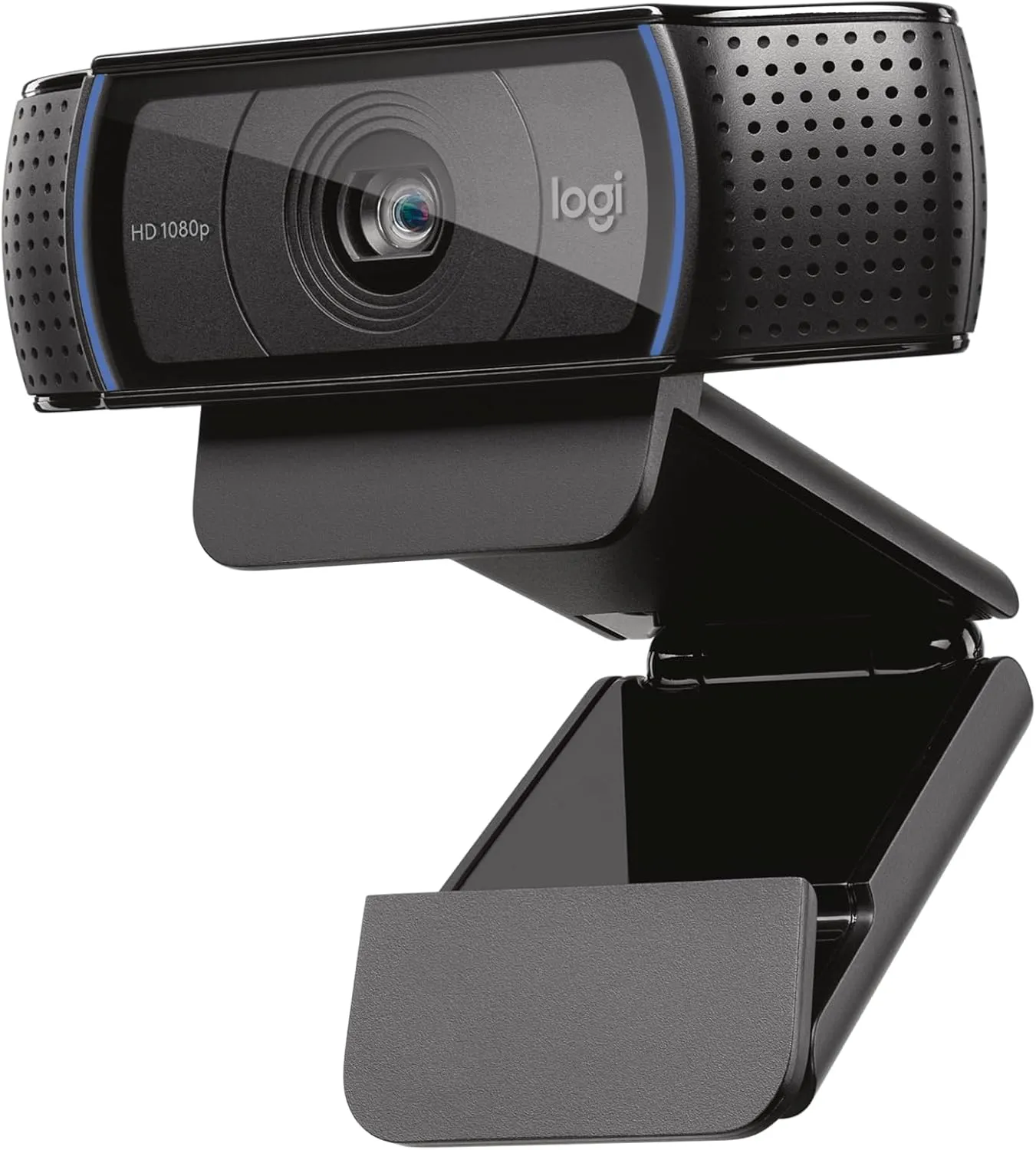
At plug-in: Logitech C920x troubleshooting port by port
The spec sheet sets out what the camera needs from a port. Logitech's C920s technical specifications, which describe this camera's hardware, list a USB 2.0 connection over a 5-foot cable. The camera also draws its power from USB. A separate C920s page adds that it works fully on USB 3.0 ports, which usually carry a blue insert.
When the computer can't find the camera, Logitech's general webcam advice starts at the socket. First, try a different USB port. Then make sure no USB hub or docking station sits between the camera and the computer. Next, check the Downloads tab on the camera's support page for the correct driver. If the camera sits on a USB 3.0 port, the same advice suggests trying a USB 2.0 port as well.
For a quick check that the computer sees the camera, open the Camera app that Windows 10 installs by default. On a Mac, QuickTime Player does the same job, and Logitech's C920s pages name both programs for this camera. Logitech's last check is a different computer. If a second computer can't detect it either, the same general advice says the camera itself may be defective.
At plug-in on Windows: a yellow mark in Device Manager
A Windows 10 update can cut the video from a working camera. Logitech's general advice for that case, written around its Brio webcam, also covers a camera that Windows stops recognizing. Type Device Manager into the Start menu search, open it and find the camera. A yellow exclamation mark beside it, or a device listed as UNKNOWN, means its drivers did not load properly.
The repair runs through the same window. Right-click the flagged entry and choose Update Driver. Then tell Windows that you will pick the driver yourself from those already on the PC. With Show compatible hardware ticked, choose USB Video Device and press Next. If Windows lists categories instead, find USB Video Device under its category.
The release notes for Logi Options+, Logitech's device app, list the C920, C920s and C920x as new devices. Those notes belong to version 1.85.655119, last updated 2024-12-11, for Windows 10 and 11 and for macOS 12 to 15. On Windows, Logitech says the latest release needs Windows version 1903 or later, so update an older Windows 10 build first. For version 1809 or earlier, it points to Options+ 1.44 instead.
At the first picture: focus that blurs, then returns
A blur that clears by itself comes from the autofocus. Logitech's spec sheets list the focus type as auto. Its help center explains that the camera adjusts the image whenever a change affects it. A soft picture just after movement in front of the lens is that refocus at work. Give the camera a moment to settle before judging the picture.
Logitech's general image advice sorts blur by focus type. Manual-focus cameras get a focus ring and fixed-focus ones a seating distance, while autofocus models adjust by themselves. For blur that shows up during quick movements, the same advice has one fix: more light in the room.
At the first picture: grain, dim rooms and 720p on a Mac
Grain and noise call for light before anything else. Logitech's general image advice says cameras need light to produce a good picture. Better lighting, it adds, can considerably improve a fuzzy, grainy or noisy image. The C920s page on image quality also lists improving the room's lighting among its fixes. So add light first, then judge the picture again.
On a Mac, check the calling app before the camera. Logitech's C920s spec sheet, which lists platform support at release, gives HD 720p in FaceTime and other supported calling apps. By the same sheet, QuickTime Player records full 1080p. A call that looks softer than a QuickTime recording may simply be running in that 720p mode.
During a call: ports, processor load and the connection
Begin with the port the camera uses. For a better image, Logitech's C920s page says to plug the camera directly into the computer, with no hub or dock. The same page asks for a USB 2.0 port that runs at high speed.
Next, look at the processor, since capturing video takes a lot of processing power, by Logitech's account. Close other heavy programs while the camera runs. The C920s spec sheet sets the bar for HD video. It asks for at least a Core 2 Duo at 2.4 GHz and 2 GB of RAM. Logitech recommends an i7 quad-core at 2.6 GHz with 4 GB.
Logitech's general advice points to the internet connection when the picture looks clear locally but poor in the call. That works in both directions, so a poor picture from the other side may mean a slow link at their end. Likewise, a poor picture of you on their screen may start with your own connection. Logitech also says a wireless connection may make video choppy. As a last step, it suggests trying another calling app.
During a call: several C920s cameras on one computer
Two or more C920s cameras on one PC bring their own faults. Logitech's page on this setup names two. There is no way to adjust settings on each camera separately, and launching OBS can trigger a blue-screen crash. The page puts both down to a possible driver problem, and its fix moves each camera onto the generic driver. The steps need an Administrator account on Windows. Before starting, connect every camera directly to a USB port on the motherboard. A USB hub can cause more issues, the page warns.
Then type Device Manager into the Windows search box and open it. Find the camera, which Logitech's page lists as Logitech HD Pro Webcam C920s, then right-click it and choose Update Driver. Choose to browse the computer for driver software. After that, pick from a list of the drivers on hand, and select the generic USB driver. Windows asks for a restart after the first camera, but the restart can wait until every camera has the generic driver. To run them together, Logitech suggests the Camera app on Windows 8 and 10, or OBS or QuickTime on a Mac.
In the box: no shutter on the C920x, one on the C920s
A bare lens is normal on this version. Logitech's listing for the C920x says it ships without a privacy shutter. The C920's spec sheet lists no privacy shade either, while the C920s sheet does list one. Our full Logitech C920x review sets out what else separates the two boxes.
A C920s that arrives without its shutter is a different case. Logitech's help center says to contact Logitech Support at support.logi.com when that happens. Logitech also sells a privacy cover for the C930e and C920s as a separate part, P/N 993-000900. Its page names only those two models.
A privacy shade brings one side effect: a soft picture right after it opens. Logitech's help article on that blur names the C920-C. It says the camera needs time to refocus once the privacy shade is out of the way. So after uncovering the lens, give the picture a moment to sharpen before the call starts.
After the last check: when Logitech Support takes over
Two cases go to Logitech once the checks run out. One is a camera that a second computer can't detect either, which Logitech's general advice says may be defective. The other is a C920s missing its shutter. For both, contact Logitech Support through support.logi.com. The serial number sits on the cable tag, per the C920s spec sheet. As for the warranty length, the C920 sheet points to the product support page. If the camera is past its working life, our ranking can point to a newer webcam.
Conclusion
Logitech C920x troubleshooting follows the timing of the fault. At plug-in, swap the port, drop any hub and check Device Manager for a yellow mark. At the first picture, add light and let the autofocus settle. During a call, plug straight into the computer and close heavy programs. With several C920s cameras, move each one to the generic driver. In the box, a C920x without a shutter is complete. Anything past those steps belongs with Logitech Support at support.logi.com.
Frequently Asked Questions
What should you try first when the computer can't detect the C920x?
Logitech's general advice starts with the connection. Try a different USB port and remove any hub or docking station. If the camera sits on a USB 3.0 port, try a USB 2.0 port. After that, test it on a second computer. If that one can't detect it either, the camera may be defective.
Why does Device Manager show a yellow mark next to the C920x?
Logitech's general advice covers this for a camera that stops working after a Windows 10 update. A yellow exclamation beside the camera, or an UNKNOWN device, means the drivers did not load properly. Choose Update Driver, pick the driver yourself, tick Show compatible hardware and select USB Video Device.
Why does the C920x picture blur for a moment, then sharpen again?
That is the autofocus at work. Logitech lists the focus type as auto, and its help center says the camera adjusts the image whenever a change affects it. Give it a moment to settle. More light also helps, since Logitech's general advice says it cuts blur during quick movements.
How do you fix a grainy or noisy picture on the C920x?
Start with light. Logitech's general image advice says better lighting can considerably improve a fuzzy, grainy or noisy picture. Its C920s page also lists improving the room's lighting as a fix. The same C920s page adds two more: plug straight into the computer, and close heavy programs while the camera runs.
Why can't you adjust each camera separately when two C920s cameras run at once?
Logitech's C920s page says this, along with a blue-screen crash when OBS launches, can come from a driver problem. Its fix gives each camera the generic USB driver through Device Manager. Plug every camera straight into a motherboard USB port first, then restart once all of them have the new driver.
Why did the C920x arrive without a privacy shutter?
By Logitech's listing, this version ships without one. The C920's spec sheet lists no privacy shade either. A C920s should include a shutter. If one is missing, Logitech's help center says to contact Logitech Support at support.logi.com.