Logitech MX Brio Review: 4K Detail and Fine Image Controls
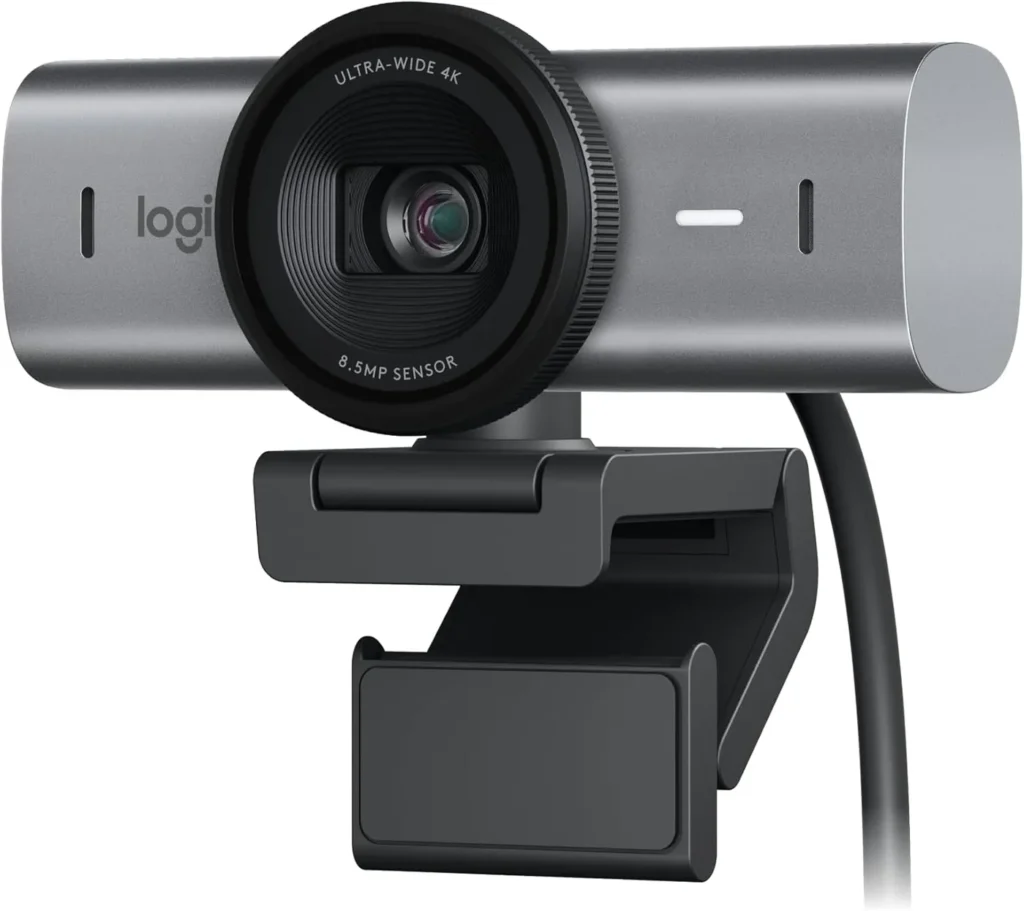
Sharp 4K detail and steady exposure beside a sunny window, plus manual ISO and white balance, for desks that can spare a fast USB-C port.
Logitech pitches the MX Brio on two promises. The first is what it calls its most advanced webcam sensor yet, a Sony Starvis chip with pixels 70% larger than the Brio 4K's. The second is control, since you can set ISO, shutter speed, tint and vibrance by hand. That matters whenever Auto reads a room wrong.
The first promise holds. Next to a bright window or under mixed lamps, the picture stays sharp and evenly exposed. The Logitech MX Brio also keeps enough detail in reserve for a tight crop. The second promise comes with conditions, though. Its controls live in Logitech's software, spread across three apps, and the camera expects a USB-C port that meets the USB 3.0 standard. On those terms, it gives a desk worker real say over how a call looks.
Picture: exposure and color in awkward light
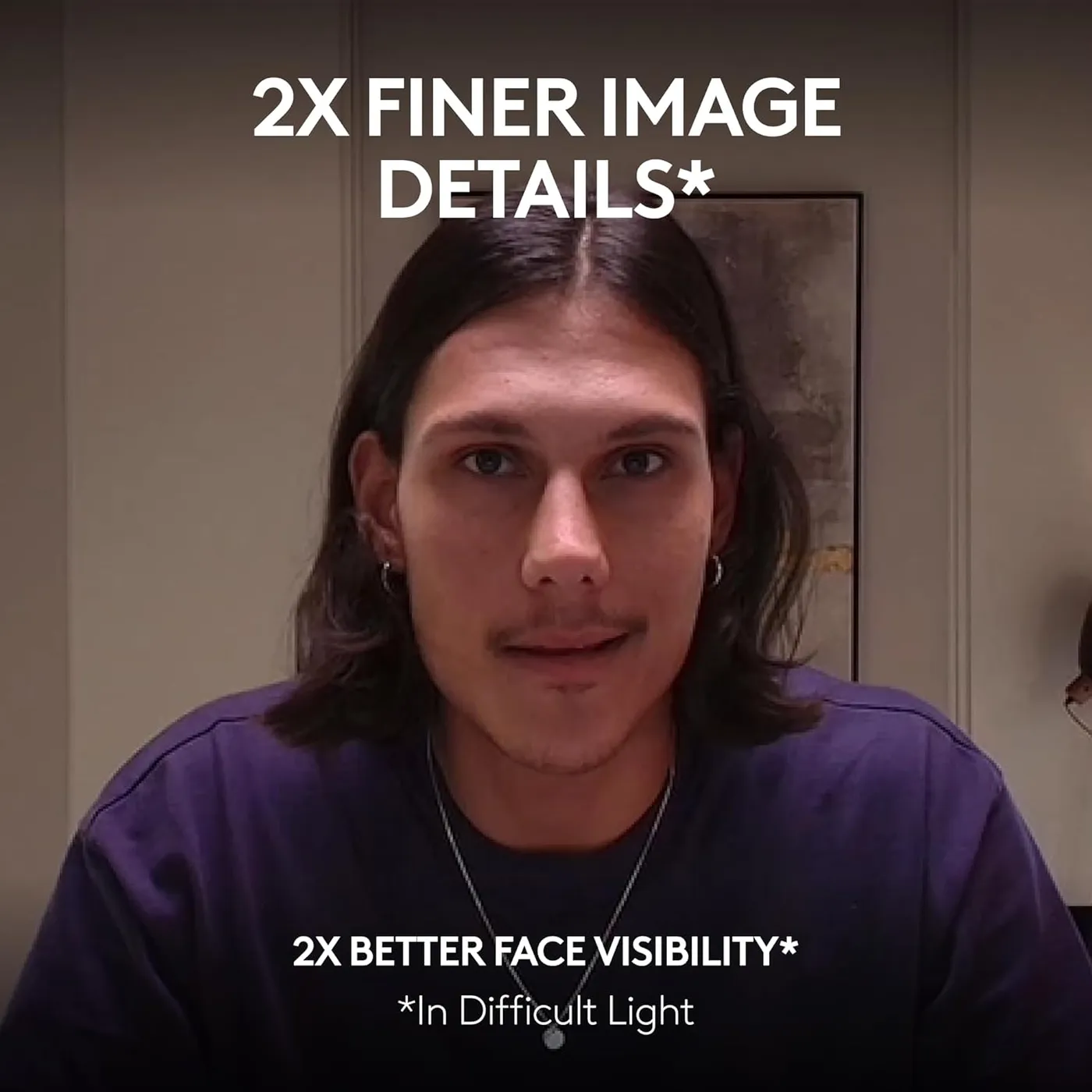
Awkward light is where this camera earns its price. A face lit from one side by a bright window stays evenly exposed, and the picture also holds together when daylight mixes with a desk lamp. HDR mode, which Logitech's software can switch on, lifts shadows while keeping the bright side in check. Logitech credits AI image adjustment keyed to the face, and it claims twice the face visibility in difficult light.
Sharpness is the second strength. The Logitech MX Brio renders fine texture cleanly in 4K, while its autofocus locks quickly at normal desk distances without hunting.
Two limits remain. In a genuinely dark room, grain creeps into the shadows, so a light in front of you still pays off. Color is the softer point on Auto, where the white balance can drift and leave a yellow or green cast. Logitech's answer is manual white balance and tint. Its March 2024 firmware also targeted color quality in bright, warm light.
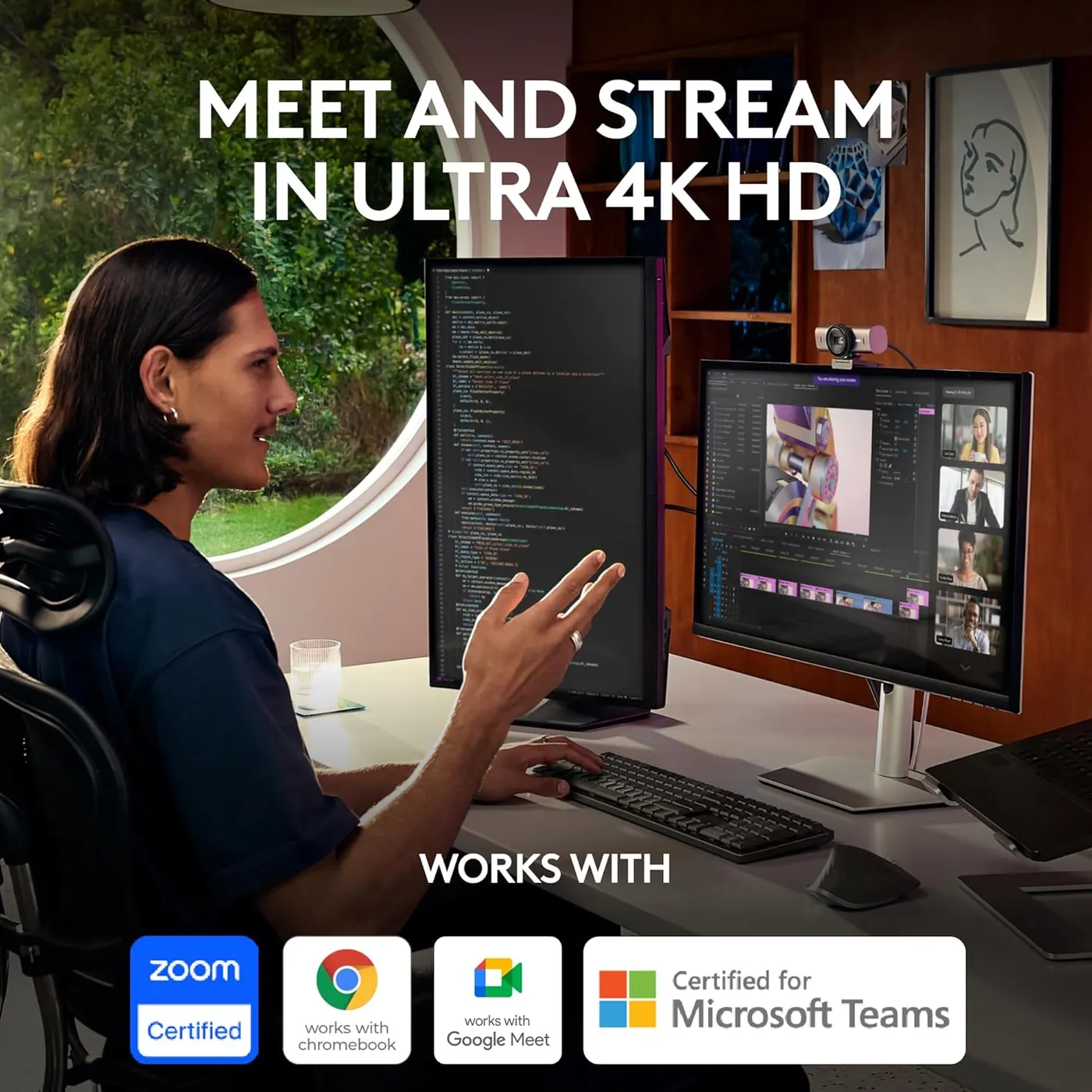
Controls: three Logitech apps for one camera
Fine control is the reason to choose this model. Logitech lists ISO, shutter speed, white balance, tint and vibrance among the manual adjustments, and Auto handles whatever you leave alone. All of it lives in software, which makes the app part of the purchase.
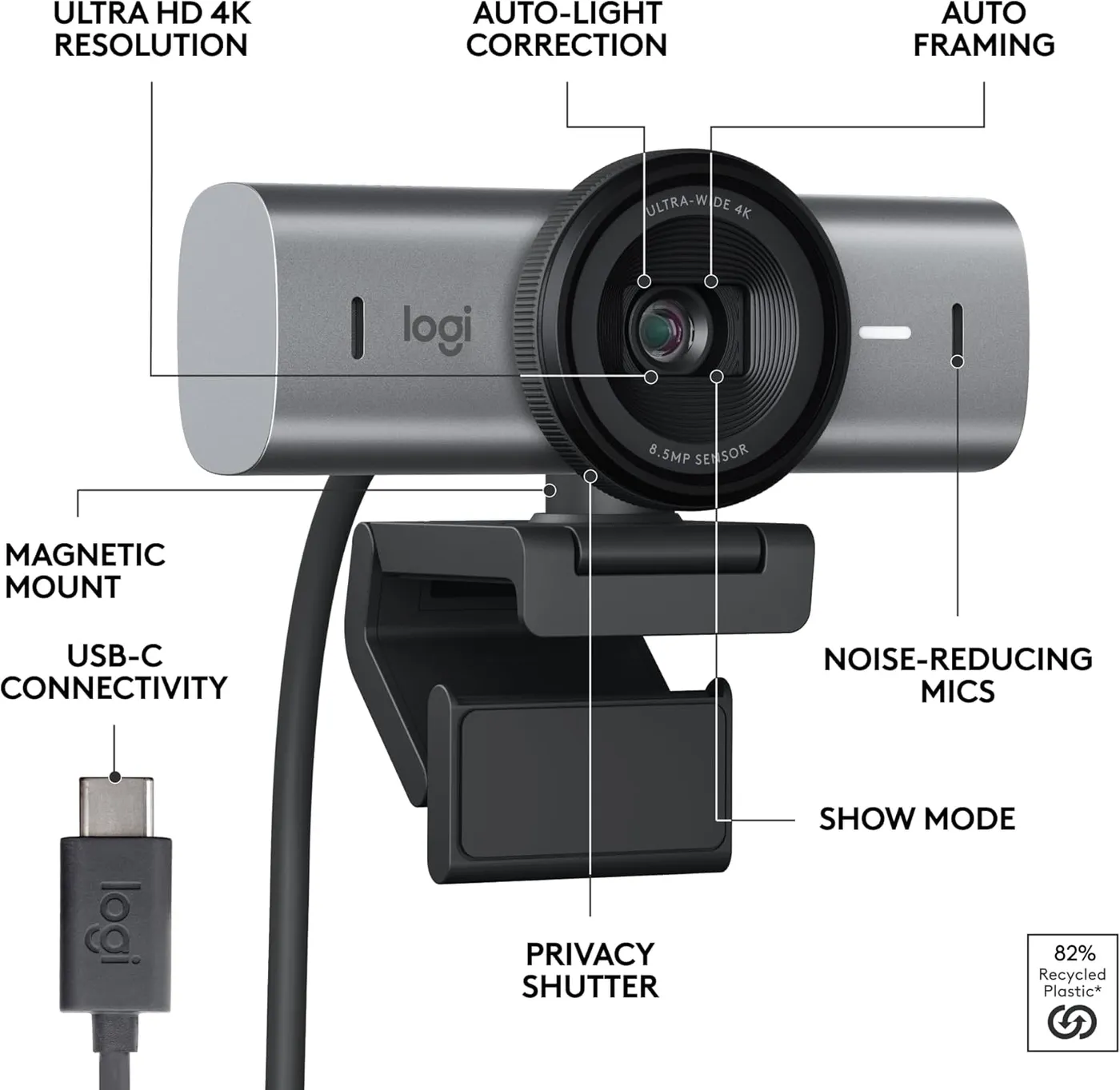
The catch is that the company spreads those controls across three apps. Logi Options+ and G HUB both carry the image settings, and Logitech recommends Options+ for video meetings and G HUB for game streaming. Logi Tune is the third, and it alone runs RightSight, the automatic framing. Two of these apps installed together can also make the camera change its settings unexpectedly, the company notes. Pick one app, then remove the others. Paired through that software, an MX keyboard or mouse can also control the stream, by Logitech's account.
Without any app, the camera still runs as a standard USB video device with no driver. That holds on Windows, macOS, ChromeOS and Linux, though Logitech's apps run only on Windows and macOS. A Chromebook or a Linux desk therefore gets the basic camera without the fine controls. Logitech also lists certification for Zoom, Microsoft Teams, Google Meet and Streamlabs. In addition, its firmware notes describe settings stored in the webcam itself.
Framing: a 90-degree view with room to crop
By Logitech's figure, the lens takes in 90 degrees. That frame shows plenty of the room behind one person, which suits a shared desk better than a solo call. For a single face, a software crop narrows the view, and the 4K sensor keeps enough detail that the tighter frame still looks sharp.
RightSight, Logitech's automatic framing, goes further in Logi Tune. It reframes the shot through zoom and position as you move, so that a face stays near the middle of the picture. Because it lives only in that app, choosing Logi Tune is the cost of having it.
Show Mode covers the opposite job. By Logitech's account, tilting the camera toward the desk flips the picture so that notes read correctly. Logitech's August 2025 firmware fixed a case where the image stayed upside down after a quick tilt, which makes the current version worth installing. If the mode gets in the way, any of the three apps can switch it off.
Connection: USB-C, USB 3.0 and a short cable
Logitech treats USB 3.0 as a requirement here. The included cable runs USB-C to USB-C at that standard, and Logitech's specification page also lists a USB-C port supporting USB 3.0 among the system requirements. Its cable guidance is blunter still: on a slower cable, the video probably won't reach 4K, and the camera won't work properly.
As a result, the Logitech MX Brio is picky about the path to the computer. A longer third-party cable, a USB-A adapter or a busy dock can drop it to 1080p, and in some setups it doesn't show up at all. A computer with only USB-A ports needs a USB 3.0 A-to-C cable. The company adds that some USB-C adapters carry power but no video, which leaves the camera unrecognized.
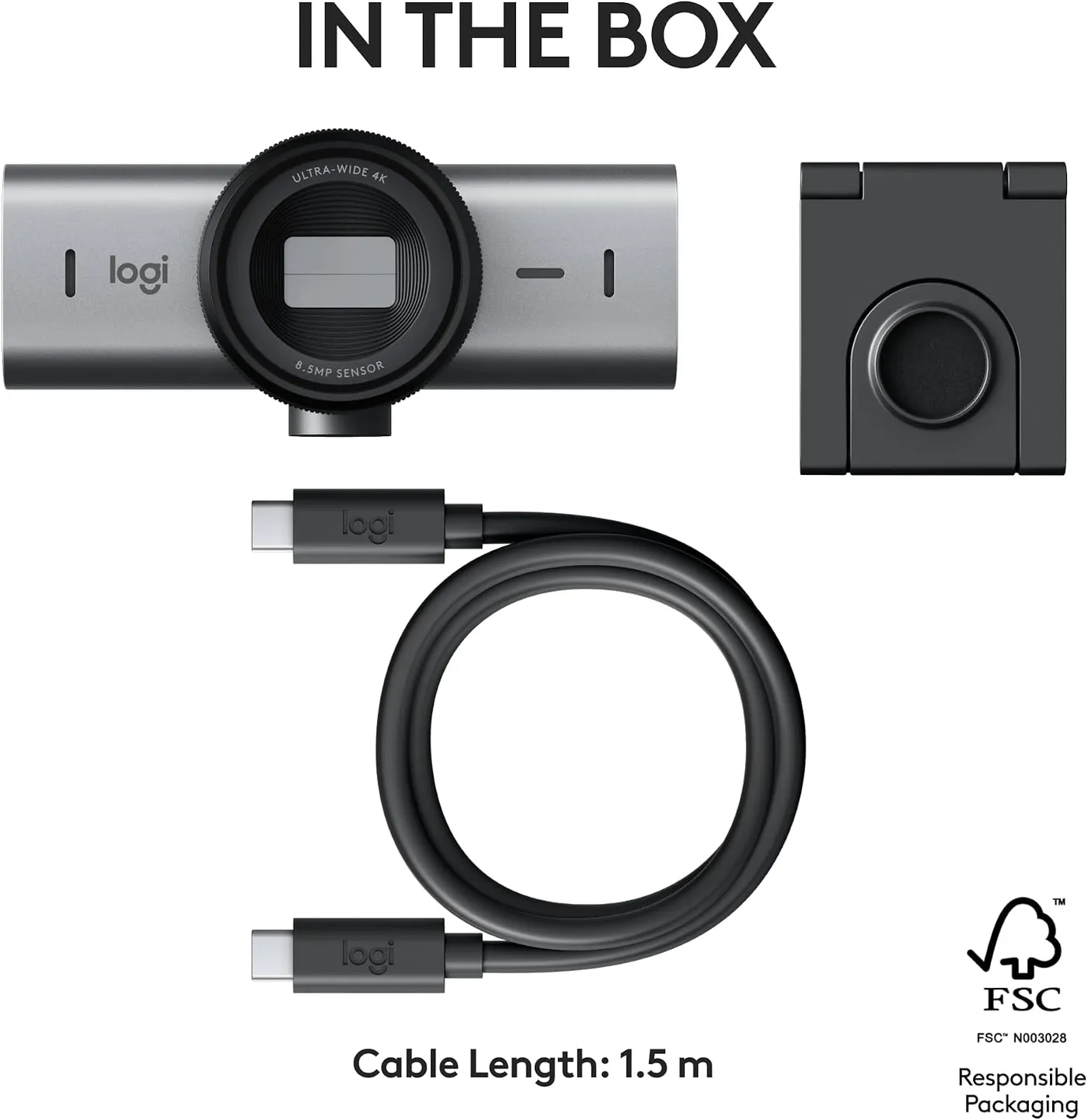
The cable is short, too. Its listed length of 1.5 m (5 ft) reaches a laptop or a desktop on the desk. A tower on the floor, however, usually needs a longer USB 3.0 cable or an extension. Frame rates then depend on the app, and the camera reaches 30 fps in 4K and twice that at 1080p. Still, Logitech notes that a meeting app may skip 4K, or even 1080p, until its HD setting is on.
Microphones: clear on calls, thin for recording
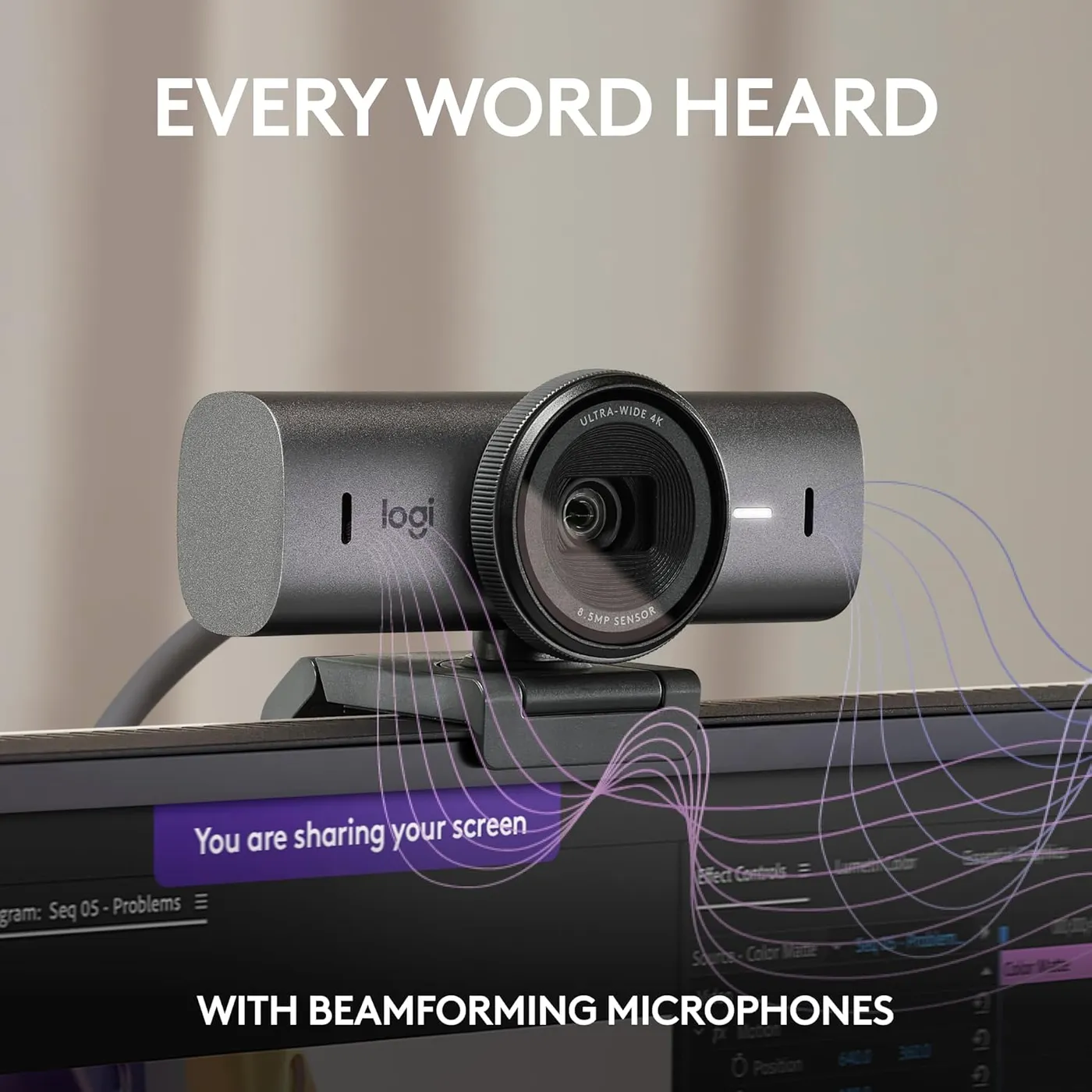
Logitech calls the two beamforming mics noise-reducing. By its account, AI handles part of the filtering. On calls they carry speech clearly, while steady background noise in the room drops well down in the mix.
Recording asks more of them, however, because next to a dedicated USB or lavalier microphone the voice sounds thinner and lacks body. A podcast or a stream therefore still calls for a separate mic. For a day of meetings, though, the pair is good enough that a headset becomes optional.
Mount and cover: magnet, pad and shutter
A magnet holds the camera head on its mount. The mount grips the back of the monitor with what Logitech calls a micro suction pad, one it says comes off later without leaving marks. Its clip also adjusts to fit a range of screens, according to the company. Take the mount away, and the camera's base reveals the usual 1/4-inch tripod thread. A small desk tripod therefore makes an easy alternative.
That magnetic joint is the design's weakest point. It can let go when you twist the head to work the shutter or tip it far down. On some monitors, the pad also loses its grip and needs reinforcing. The Logitech MX Brio is heavy for its size, too, at 8.3 oz with clip and cable on the spec sheet. Its head, meanwhile, can droop out of the angle you set.
The privacy cover is better resolved. Rotating the built-in cover closes a shutter over the lens, and Logitech builds it into the camera, whereas the Brio 4K used an attachable one. A white status light shows whenever video is going out. If the picture goes black while the camera still shows as connected, check that shutter first. Logitech's own video checklist includes the same step.
Reliability: units that quit in the first months
A minority of units stop working within the first few months: the camera won't power on, or the computer no longer sees it. In those cases, a different port or cable doesn't bring it back. It's rare, but at a premium price it is the risk that weighs most.
Brief drop-outs are a separate, milder symptom. Now and then, the camera vanishes from the computer. Similarly, an app sometimes won't wake it until it's unplugged and plugged back in. Logitech's help center lists further steps: first, try another USB-C port, and keep the cable away from a port feeding a fast drive. A powered USB 3.0 hub or dock is the next option. A USB 3.0 cable to a USB-A port is another route, since the company rates those ports as better shielded.
Focus deserves a check as well. If the picture looks soft, install Logitech's August 2025 firmware first. That update refined autofocus precision and fixed a rare autofocus bug, and both Options+ and G HUB offer it. The Logitech MX Brio troubleshooting guide walks through that step and the port and cable checks in a sensible order.
Ports and price: Logitech MX Brio against the C920x
Logitech's own range offers the obvious comparison. Where the MX Brio is a premium camera, the Logitech C920x sits in the mid-range, and its listing tops out at 1080p and 30 fps. That listing also promises autofocus and stereo audio from dual mics, and its box adds XSplit VCam for three months while leaving out a privacy shutter. The MX Brio counters with 30 fps at 4K, 60 fps at 1080p and a built-in cover.
The gap pays off on a particular desk. A bright window beside you favors a premium webcam with these controls. So does a wide view that needs cropping, or a wish to set exposure and color by hand. Without those needs, I'd put the difference toward a desk light instead.
EMEET's S600 is the mid-range alternative with the same frame rates. Its listing pairs those two modes with PDAF autofocus and a built-in cover. It also rates the camera for USB 2.0 as well as USB 3.0 ports.
Pros: What we liked
- Pro: Keeps a face evenly exposed beside a bright window or under mixed lamp light
- Pro: Manual ISO, shutter speed, white balance, tint and vibrance in Logitech's apps
- Pro: 4K detail holds up when a software crop narrows the 90-degree view
- Pro: Rotating privacy cover built into the camera body
- Pro: Two beamforming mics carry speech clearly in meetings
- Pro: Offers 1080p at 60 fps alongside 4K at 30 fps
Cons: What could be better
- Con: A minority of units stop working within months, refusing to power on or to show up on the computer
- Con: Needs a USB-C port and cable that meet USB 3.0; slower cables, adapters and some docks cost 4K or the connection
- Con: Image controls are split across Logi Options+, Logi Tune and G HUB
- Con: The magnetic head and suction-pad clip can let go, and the head can droop from its set angle
- Con: The 1.5 m (5 ft) cable is short for a tower on the floor
Best For
- Remote workers on camera for hours in rooms with a bright window or mixed lighting
- Desk workers who want to set exposure, white balance and framing by hand
- Logitech MX keyboard and mouse owners already running Logi Options+
Not Ideal For
- Windows users who want face sign-in through Windows Hello
- People with older computers that lack a USB 3.0 port
- Podcasters who want the camera's mics to stand in for a dedicated microphone
| Specification | Details |
|---|---|
| Resolution | 4K Ultra HD; 1080p Full HD |
| Frame rate | 30 fps at 4K; 60 fps at 1080p |
| Field of view | 90 degrees; narrower framing by software crop |
| Focus | Autofocus |
| Sensor | Sony Starvis IMX415, 1/2.8-inch, 1.45 µm pixels |
| Microphones | Two beamforming mics with noise reduction |
| Connection | USB-C to USB-C cable, USB 3.0; 1.5 m (5 ft) |
| Privacy | Built-in rotating lens cover |
| Mounting | Magnetic monitor clip with micro suction pad; 1/4-inch tripod thread |
| Software | Logi Options+, Logi Tune or G HUB (Windows, macOS) |
Alternatives Worth Considering
Final Verdict
Give it a monitor, a USB-C 3.0 port and one Logitech app. In return, the Logitech MX Brio delivers a picture that holds up beside a window and survives a tight crop. It also takes manual color correction when Auto misjudges a room. That makes it a premium camera with a narrow, clear purpose. Insta360 answers a different need with its Link 2, a 4K camera whose head turns and tilts to keep a presenter in the shot. Pick that one if you pace while you talk. For a seated worker who weighs exposure and color above all, however, I'd take the MX Brio.
Frequently Asked Questions
Does the Logitech MX Brio work with Windows Hello?
No. Logitech says the MX Brio does not support Windows Hello face sign-in, and it recommends the Brio 4K, which does, for that feature.
Can the MX Brio connect to a USB-A port?
Yes, with a USB-A to USB-C cable rated for USB 3.0, a route Logitech itself suggests because it rates USB-A ports as better shielded from interference. By Logitech's account, a slower cable or adapter will probably keep the video below 4K.
Does the MX Brio need Logitech's software?
Not for basic video. It works as a standard USB video camera with no driver on Windows 10 or later, macOS 10.15 or later, ChromeOS and Linux. Manual controls, cropping and RightSight need Logitech's apps, which run only on Windows and macOS.
Which Logitech app suits the MX Brio?
Logitech recommends Logi Options+ for video meetings and G HUB for game streaming, while Logi Tune is the only one that runs RightSight. Keep just one installed: Logitech says two at once can make the camera change its settings unexpectedly.
Is it normal for the MX Brio to get warm?
Yes. Logitech says warmth during use is expected and depends on the camera's settings and how long it runs. The company adds that it designed the camera for high resolutions and long hours, and that the warmth is no cause for concern.
Why is the MX Brio picture black when the camera is connected?
Check the privacy cover first. The cover is part of the camera and closes when you rotate it, and Logitech's video checklist includes making sure the shutter is open.
The Verdict
Sharp 4K detail and steady exposure beside a sunny window, plus manual ISO and white balance, for desks that can spare a fast USB-C port.