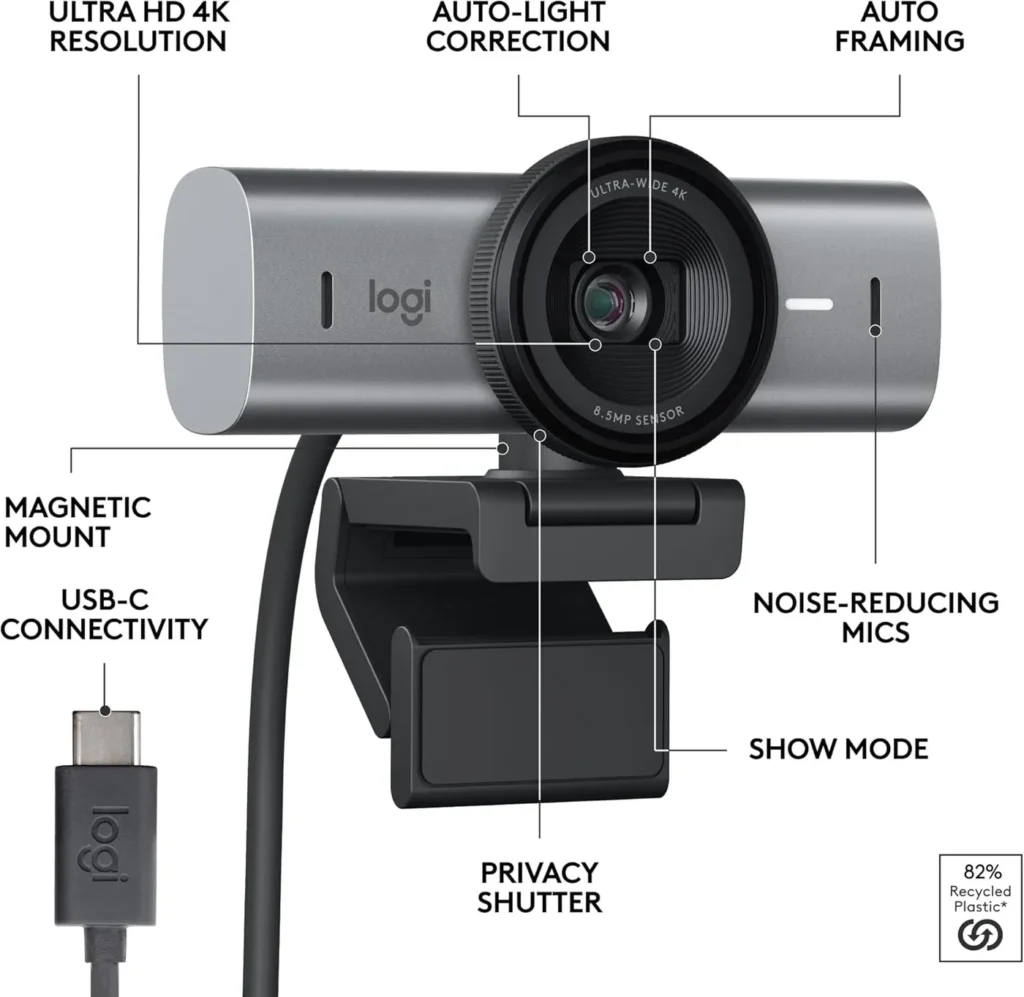
Logitech MX Brio troubleshooting starts with the screen, since each thing it shows calls for a different fix. An empty camera list, a black frame and video stuck below 4K each have their own steps. So do a color cast, a frozen feed and an upside-down image. Logitech's MX Brio specification page sets one requirement up front: a USB-C port that supports USB 3.0.
Match what your screen shows to a heading below, then work through its steps in order. Each step comes from Logitech's help articles or firmware notes, and steps from its general webcam advice say so. Our full Logitech MX Brio review covers its picture, microphones and controls.
Key Takeaways
- Use a USB-C port that supports USB 3.0, directly or through an adapter that also carries video.
- Open the privacy shutter on the camera before chasing a black frame any further.
- Keep only one of Logi Options+, Logi Tune and G HUB installed, or give each the same settings.
- Set the anti-flicker option to the right value, 50Hz or 60Hz, when the picture flickers.
- For freezes, unplug and replug first, then try another USB-C port or a powered USB 3.0 hub.
- Update the firmware through Logi Options+ or G HUB; version 1.1.394 fixed Show Mode flips and autofocus.
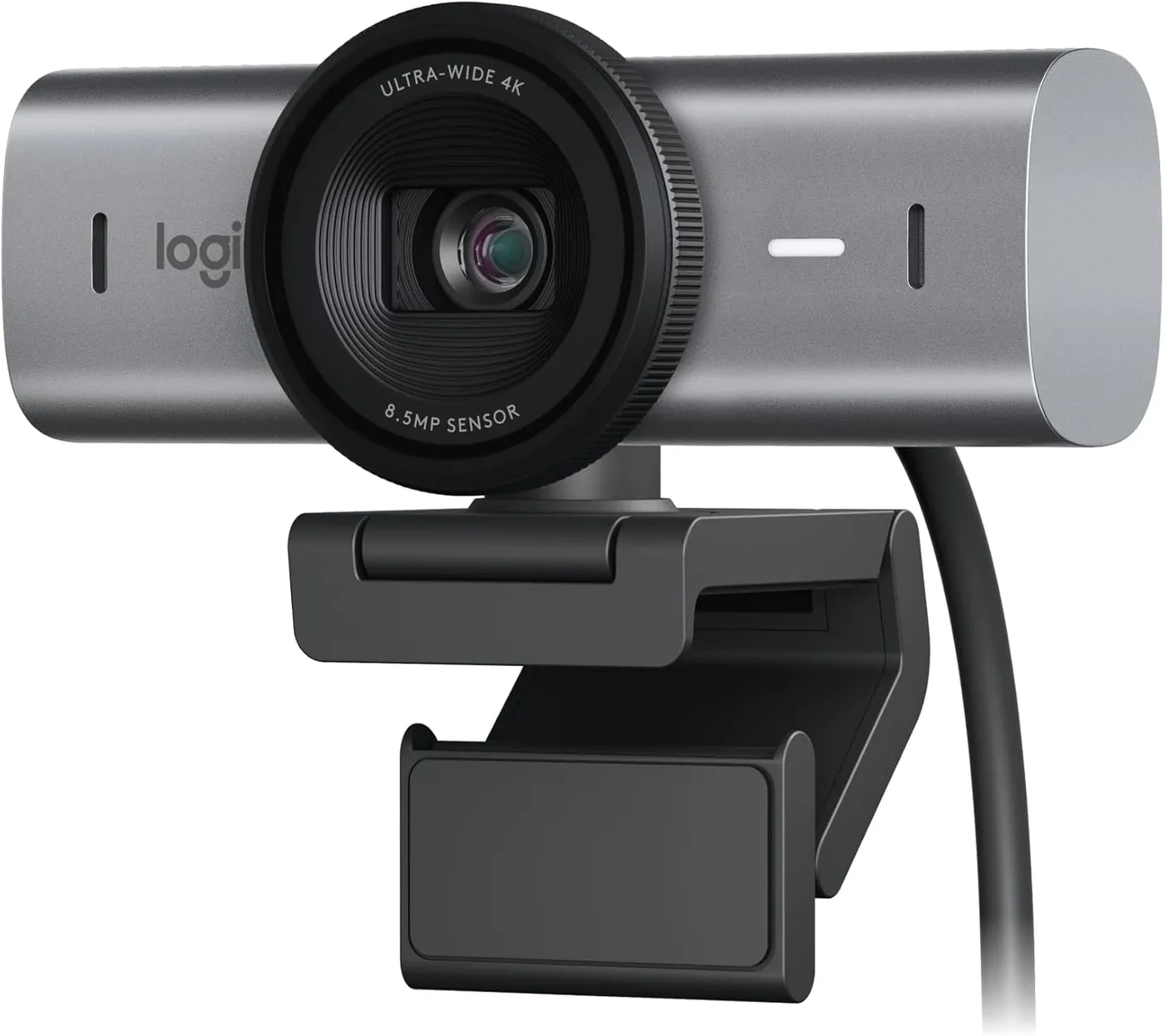
Logitech MX Brio troubleshooting when no app can find the camera
Start with the connection. Plug the cable straight into a USB-C port on the computer. An adapter also works if its USB-C port carries both power and video. Some adapters supply power only, and Logitech says the computer then cannot recognize the MX Brio. Use the supplied cable or another USB-C cable that supports USB 3.0, as Logitech's cable article requires.
If the camera still does not appear, Logitech's general webcam advice is to try a different USB port. A second general article, written for a camera lost after a Windows update, adds a Device Manager check. Open Device Manager from the Start menu and find the camera. A yellow exclamation mark beside it, or an UNKNOWN device name, means the driver did not load properly. In that case, right-click the device and choose Update Driver. Take the option to pick a driver from those already on the computer. Then turn on Show compatible hardware, pick USB Video Device and confirm with Next. If Windows lists categories at this step, find USB Video Device under its category.
Try a second computer last. If that computer cannot see the camera either, Logitech's general advice says the fault may lie in the camera itself. Note the model number, VU0066, from the bottom of the camera before you contact Logitech.
A black or purple frame with the camera connected
Check the lens cover first. Logitech's video checklist asks you to make sure the camera's built-in privacy shutter is open. Next, read the status light, which Logitech's LED article gives two meanings. Solid white shows an outgoing video stream, while breathing purple shows a firmware update in progress.
A purple screen is a separate fault. Logitech's March 6, 2024 firmware, version 1.0.390, fixed one that Zoom or Photo Booth showed with the shutter closed while Logi Tune was in use. To check the firmware, open Logi Options+ or G HUB and go to Settings. Then download and install any new firmware it lists, as Logitech's video article directs. Two later sections of this Logitech MX Brio troubleshooting guide send you back to this check.
A picture that stays below 4K in calls
Look at the call app before the camera. Logitech rates the MX Brio at 4K and 30 frames per second, or 1080p at 60. However, a video conferencing app may not support 4K or even 1080p, the company notes. Some apps also have an HD quality setting to switch on, so check the app's requirements and video settings before changing any hardware.
Then check the cable and port. Logitech's MX Brio specification page lists a USB-C port that supports USB 3.0 as a system requirement. Without USB 3.0 in the cable, its cable article adds, the video will probably not reach 4K. The supplied 5 ft (1.5 m) cable meets that standard, and any longer replacement also has to.
After that, lighten the computer's load. Too many active USB devices at once can drag down the video stream, by Logitech's account. Disconnect or turn off the ones you are not using. Heavy processor work counts too, such as file transfers, streaming or antivirus scanning, so close what you do not need. Finally, Logitech asks for an internet download speed of at least 3 Mbps.
Odd color, flicker, grain or a soft image
Rule out the call path first. Open the computer's own camera app and compare its picture with the one in the call. Logitech gives that test for ruling out the network or the conferencing service. If the camera app looks right, the fault lies in that path instead.
Flicker has a setting of its own. In the Logitech software, select the right anti-flicker value, 50Hz or 60Hz, as Logitech's video article directs. For grain or noise, add light first. Logitech's general advice says better lighting can considerably improve image quality and also reduces blur during quick movements.
Color and focus have both had firmware fixes. Version 1.0.390, from March 6, 2024, resolved issues between automatic and manual white balance. It also improved low-light image quality, HDR color in some lighting and color in bright, warm light. In addition, it fixed distortion that slight head movements could cause. For finer control, that release added Exposure Compensation, White Balance Offset, Tint and Vibrance, in Logi Tune only. Version 1.1.394, from August 5, 2025, then refined autofocus precision and fixed a rare autofocus bug. Bring the camera up to date with the firmware check in the black-frame section.
Zoom, framing or color settings that change by themselves
Count the Logitech apps on the computer. Logitech names three that support the MX Brio on Windows and Mac: Logi Options+, Logi Tune and G HUB. With more than one installed, it warns of unexpected behavior. For example, if two apps hold different settings for the camera, the MX Brio may switch between them without warning. RightSight adds a second case, because Zoom and Position changes made in G HUB or Logi Options+ last only temporarily while it runs in Logi Tune.
Logitech's first workaround is to keep just one app installed. Otherwise, make the same change in every app you keep, such as a 125% Zoom in each. To choose, Logitech recommends Logi Options+ for video conferencing or a desk with its non-gaming mice and keyboards. G HUB suits game streaming or a desk with Logitech G peripherals instead. RightSight, meanwhile, works only with Logi Tune, according to the spec page.
On a Mac, Options+ and G HUB need macOS 12 or later, though the camera itself works from macOS 10.15.
A feed that freezes or stalls during heavy use
Freezes have their own cause. Logitech ties them to advanced use, such as several webcam feeds in OBS or heavy computing while video streams. In those cases, wireless interference from the computer's USB-C ports could be freezing the feed.
First, unplug the camera and plug it back in. Then try another USB-C port, ideally not one beside a port feeding a hard drive or other high-data device. Next, connect through a powered USB 3.0 hub, a dock or a monitor, since the interference comes from the laptop. Finally, try a USB-A cable that supports USB 3.0 on the computer side, because Logitech calls USB-A ports better shielded.
That hub step is for freezes, though, since Logitech's advice for a camera the computer cannot see stays with a direct connection.
An image that stays upside down in Show Mode
Update the firmware first. Logitech's firmware notes describe Show Mode flipping the image as the camera changes orientation. Version 1.1.394, released August 5, 2025, fixed an image that stayed inverted or failed to flip during quick orientation changes. It also fixed a rare bug that showed wrong zoom values when the camera woke from idle in Show Mode. The firmware check in the black-frame section brings the camera up to date.
If you have no use for Show Mode, switch it off instead. Logitech's Show Mode article lists Logi Options+, G HUB and Logi Tune as the apps that can disable it.
A camera that will not stay put on the monitor
Refit the mount from a clean start. Logitech designed the mount to fit a variety of screens, so adjust it until the webcam sits securely on top of the monitor. Wipe the back of the monitor first, then open the mount and remove the film from the micro suction pad. Next, press the pad onto the back of the monitor where you want the mount. Logitech adds that the pad comes off later without leaving marks. Finally, plug the USB-C cable into the webcam and attach the webcam to the mount.
A tripod is the alternative. Remove the detachable universal mounting clip, then find the 1/4-inch thread on the bottom of the camera. Twist the camera onto the standard screw of a 1/4-inch camera tripod.
A warm camera body after long hours of calls
Warmth on its own is not a fault, by Logitech's account. The company expects the MX Brio to warm up in use, depending on conditions such as configuration and run time. It also designed the camera to work at high resolutions and for long hours, Logitech says.
Conclusion
Logitech MX Brio troubleshooting comes down to reading the screen first. An empty camera list sends you to the port and cable, while a black frame sends you to the shutter. Video below 4K points to the call app and the computer's load. Color and focus faults lead to light and firmware, and shifting settings to a single Logitech app. A freeze calls for another port or a hub, and a Show Mode flip for firmware.
If a second computer still cannot see the camera after those checks, the next step is Logitech's support. Reach it through the help center that hosts these articles, with the model number, VU0066, at hand. If replacing the camera makes more sense, our guide to other webcams compares current models.
Frequently Asked Questions
Why can't Windows Hello sign in with the MX Brio?
The MX Brio does not support Windows Hello, according to Logitech. For that feature, Logitech points to its Brio 4K webcam, which is compatible.
Does the MX Brio need a driver to work?
Not on Windows 10 or later or macOS 10.15 or later, where Logitech says it runs natively. ChromeOS and Linux also get basic USB Video Class support, though without Logitech software.
Will a longer or different cable work with the MX Brio?
Yes, as long as it is a USB-C cable that supports the USB 3.0 standard. Otherwise, Logitech says, the video will probably fall short of 4K and the camera will not function properly.
What does the status light on the MX Brio mean?
By Logitech's LED article, the light shows solid white while video streams out of the camera and breathing purple during a firmware update.
Why does the MX Brio feel warm after a long call?
Logitech treats warmth during use as normal, with configuration and running time both playing a part. The company also says it designed the MX Brio for high resolutions and long hours.
Why does the MX Brio picture flicker on screen?
Check the anti-flicker setting in the Logitech software first. Logitech's video article says to choose the right one of its two values, 50Hz or 60Hz.