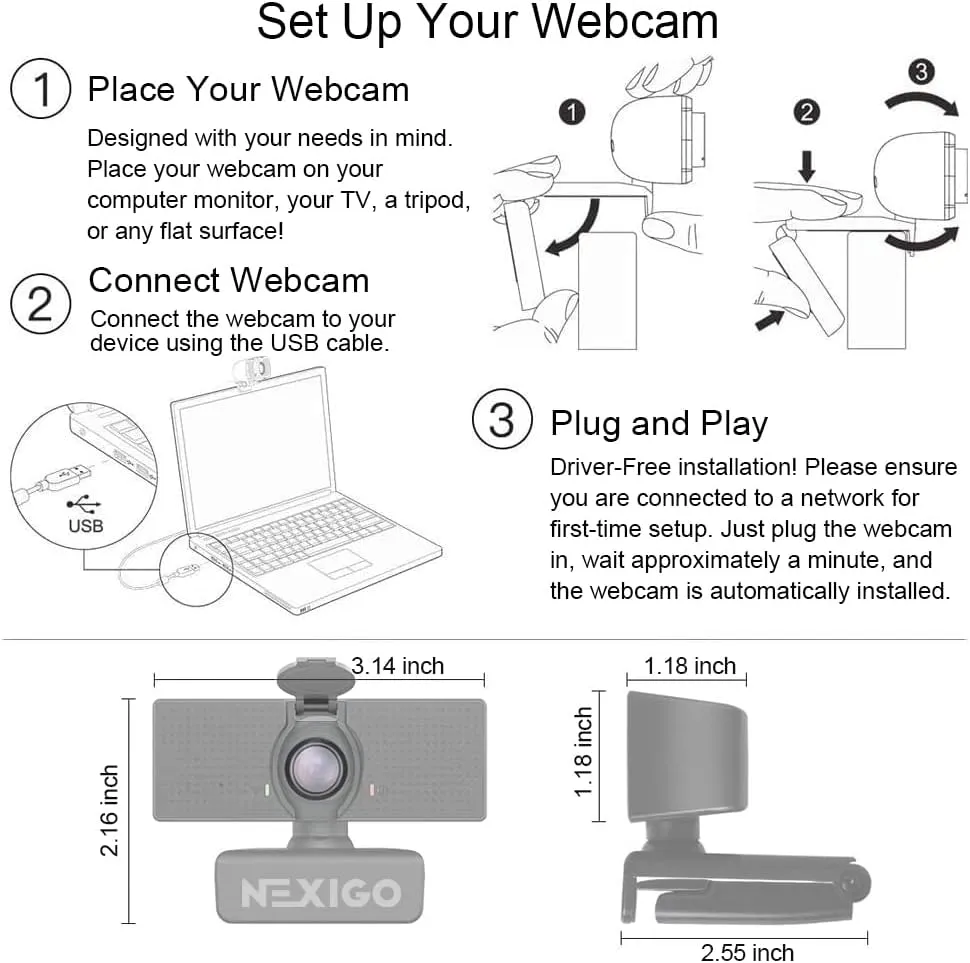
Most fixes in NexiGo's FAQ happen on the computer, since NexiGo says the N60 loads without extra drivers. The answers used here apply to every NexiGo webcam, and several split into Windows and Mac steps. So this guide sorts each fix by the machine the N60 plugs into.
NexiGo N60 troubleshooting here starts with Windows, then the Mac, then Chromebooks and Linux. After that come the shared checks: ports, the settings app, sound, then the clip and cover.
Key Takeaways
- Begin NexiGo N60 troubleshooting with a USB 2.0 or faster port on the computer itself, not a hub.
- On Windows, uninstall the webcam under Cameras in Device Manager, then replug it with NexiGo's settings app open.
- On a Mac, delete the webcam from the Login Items list before you replug it and click Preview.
- Switch the Powerline Freq. selector to the other option when the picture flickers or shows wavy lines.
- Set the preview software to MJPEG and keep the whole cable run within three meters if the picture lags.
- Run NexiGo's N60 audio-lag firmware update only when the sound trails the picture.
A Windows PC that never shows the N60
Start with the port, then a quick test. NexiGo's FAQ says any USB 2.0 or faster port works, and Windows needs a few seconds to find the camera.
To test it, close other camera apps and open NexiGo's Webcam Settings app with the N60 plugged in. Pick the camera in the menu next to the Preview button, then click Preview. An image there means the camera works.
If no image appears, keep the camera plugged in, open Device Manager from Computer Management and expand Cameras. Right-click the webcam, choose Uninstall device and unplug the camera. Then reopen the settings app with other camera apps closed. Plug the camera into a port on the computer itself, not a dock or hub. Wait up to a minute before you click Preview again.
NexiGo adds that Windows can call a working camera missing, so try the Camera app for Windows or Zoom too.
Windows defaults, mic levels and a stuck app
If the built-in camera takes the call, NexiGo gives two fixes. Press Windows + R, type Control Panel, press Enter and open Devices and Printers. If the webcam appears there, right-click it and choose Set this device as default. If it doesn't, disable the built-in camera instead. Press Windows + X, open Device Manager and find that internal camera. Then right-click it and choose Disable, which you can reverse later.
NexiGo's mic steps for Windows 10 start in Settings, then System and Sound. Under Input, pick the camera's mic, which may show as USB Microphone or NexiGo Microphone, and open Device Properties. On the Levels tab, set the Microphone and Microphone Boost sliders. Then speak and watch the meter under Test your microphone. If it moves, choose the same mic in your call app.
If NexiGo's settings app stops working, its fix is to delete C:\Users\USERNAME\AppData\Local\NexiGo and C:\Users\USERNAME\AppData\Roaming\NexiGo, with your login name as USERNAME. To prevent a repeat, close the app with the X at the upper right of its Settings menu each time. If it still fails, uninstall it and install the older version linked in the FAQ. NexiGo warns that Windows may flag that file as unsafe.
A Mac that hides the camera or its mic
NexiGo's Mac fix for a missing camera starts in Login Items. With the camera plugged in, open the Apple menu, choose System Preferences and go to Users & Groups. On the Login Items tab, select the webcam and click the minus button, or skip this if it isn't there. Next, unplug the camera and open NexiGo's settings app with other camera apps closed. Then plug it into the Mac itself, not a dock or hub. Wait up to a minute, then click Preview. NexiGo's steps use the older System Preferences names, and newer macOS versions keep the same controls under System Settings.
A Mac may also call a working camera missing, the FAQ warns, so test it in Photo Booth or Zoom. NexiGo has no Mac steps yet for making the N60 the default camera, so choose it inside each app.
NexiGo's Mac mic steps run through Sound in System Preferences. Click Input, pick the webcam's mic and set the Input volume. Speak, and if the Input level meter moves, select that mic in your call app too.
On a Chromebook or a Linux machine
These systems rely on their built-in drivers. NexiGo's product page lists Chrome OS 29.0.1547, Linux 2.6.24 and Ubuntu 10.04 or later, plus Android 4.0 or higher. Its FAQ adds a caveat, though: NexiGo can't test every operating system, so it can't promise full support. Still, it expects most standard drivers to work.
NexiGo's settings app comes in Windows and Mac versions only, so test the camera in a video call app. If the app lists cameras with unclear names, hold a hand in front of the N60's lens. Then switch between them until your hand appears, as NexiGo's FAQ suggests.
Ports, cables and power on any computer
A weak port can hide the camera on any machine. NexiGo's FAQ warns that some USB ports don't supply enough power, so the camera may not start or appear. Try another port, and plug the camera straight into the computer if it runs through a hub or adapter. Then unplug it and plug it back in once or twice, which NexiGo says occasionally clears the fault.
A silent mic calls for a USB slot on the back of the computer, NexiGo says. For flicker that the settings fix below can't cure, it suggests another USB port or another computer.
A preview that lags can come down to the cable. NexiGo's chart lists the N60's cable at 4.9 feet, and the FAQ caps the total, extension included, at three meters. A long, poor-quality extension on a USB 1.1 port can block high-definition video, it warns. Some laptops and desktop front panels carry USB 1.1 ports, so use a USB 2.0 or faster one.
NexiGo N60 troubleshooting inside the Webcam Settings app
Leave the focus alone. The N60 is one of NexiGo's fixed-focus models, its downloads page notes. As a result, the Focus bar under Advanced Options stays gray. Keep your face between 19.6 inches and 13 feet from the lens instead, the range on the product page. Our full NexiGo N60 review covers what that lens takes in at a desk.
NexiGo's FAQ ties blur to wrong image settings, so the color and flicker fixes also apply to it. Odd color most likely traces to Hue and Saturation, NexiGo says. A dark picture needs plenty of direct light first, then Brightness, Contrast or Gamma in the app. Save the original settings as a preset before you change anything, or use the Defaults button to reset them.
Wavy lines, bands or flicker across the image call for the power-line setting. Switch the app's Powerline Freq. selector to the other option, which NexiGo says normally clears them. If they still show, it points to network congestion or low bandwidth, so check your connection speed.
Resolution, lag and a frame that's too wide
Check what the camera sends first. Preview shows the live resolution and frame rate, and the Set Resolution menu changes them. Call apps often set their own resolution, though, NexiGo notes, so check inside the call app too.
NexiGo's FAQ gives three causes for a call stuck at 720p or lower. They are a busy processor, thin bandwidth and a call app without 1080p support. Close other programs, extra browser tabs and background downloads first. If that fails, ask your internet provider for a bandwidth test or contact the call app's support team.
If the cable checks above don't cure a lagging preview, set the preview software to MJPEG. NexiGo's FAQ says YUY2 can't carry high-definition video over USB 2.0. MJPEG, in contrast, appears for the N60 on both its product page and NexiGo's chart.
You can't narrow the 110-degree view in the camera, since the FAQ says the lens sets it. NexiGo's workaround is OBS Studio. Add the camera there as a Video Capture Device, crop its sides with Edit Transform and click Start Virtual Camera. Then pick OBS Virtual Camera in the call app and keep OBS running.
Sound and audio lag on any computer
The camera has no speaker. NexiGo's FAQ says none of its webcams has one, so call audio plays through the computer. The camera's mic, meanwhile, must be the input in both the computer's sound settings and the call app.
In Microsoft Teams, NexiGo also says to turn off Automatically adjust mic sensitivity. It ties a Teams mic fault to an update.
In NexiGo N60 troubleshooting, audio that trails the picture is the one fault with a camera-specific fix. NexiGo's downloads page links to an N60 audio-lag page with a firmware update, version V2.1.0_240129, which NexiGo labels an audio lag delay optimization. It comes with one update tool for Windows and another for macOS. In both, you connect the camera, run the tool, choose the webcam, select the firmware file and click Upgrade. NexiGo advises against any firmware update unless the camera has a problem, and it warns to use only the firmware it supplies. So leave it alone while sound and picture stay in step.
The clip, the cover and the lens
The clip rests on the monitor without gripping it. Unfold the clip base, set the camera on top of the screen and hold it firmly. Then fold the rear support toward the monitor until it touches the back. NexiGo's FAQ says the mount doesn't clip on, so gravity keeps it in place. Its chart lists 30 degrees of tilt, 360 of rotation and a tripod-ready base.
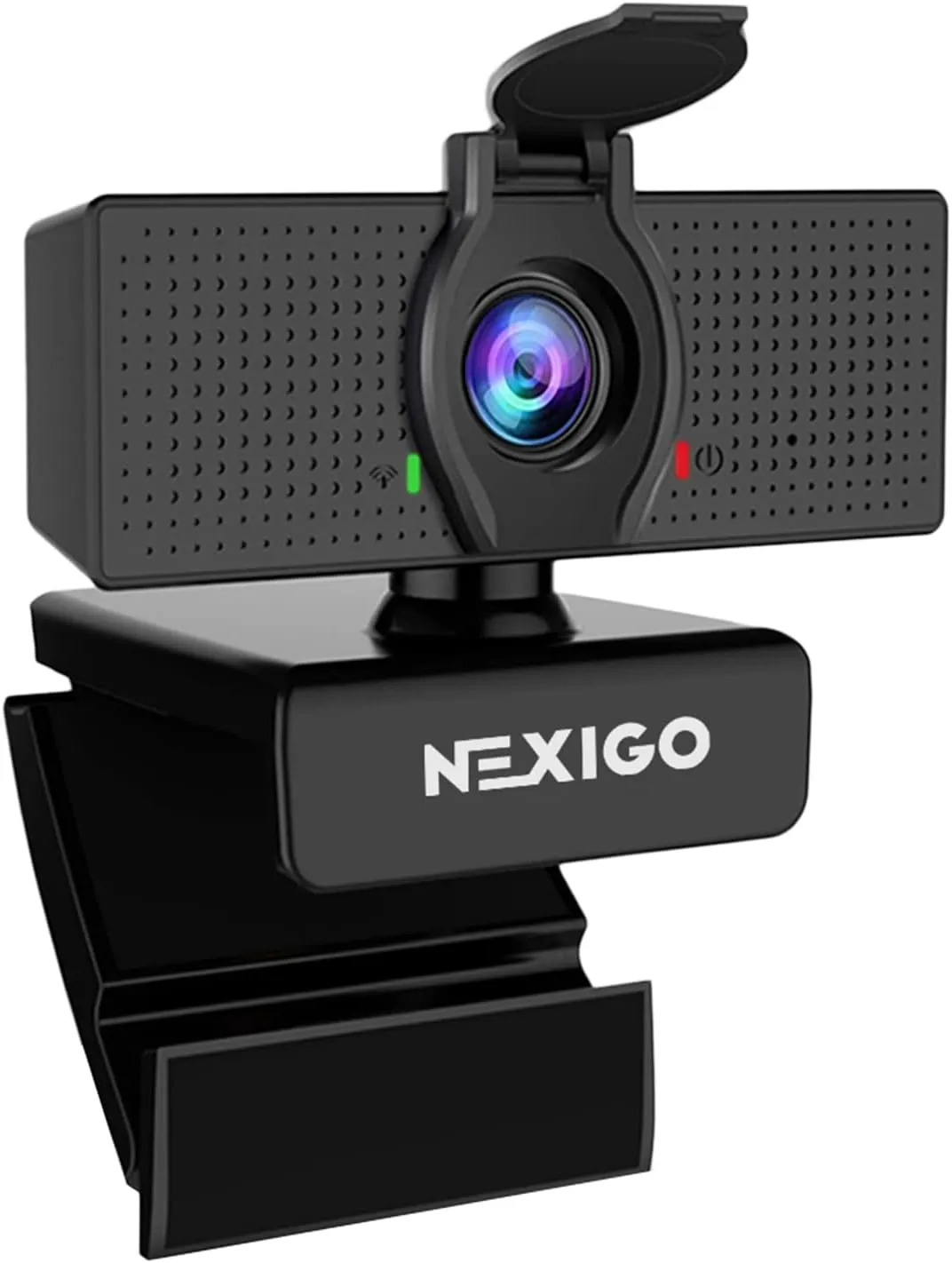
The privacy cover comes in the box as its own piece. NexiGo's product page says the cover blocks the lens and keeps dirt off it, so open it before a call.
Glare usually means a dirty lens, according to NexiGo. Wipe it with a clean microfiber cloth and a tiny amount of alcohol, then check that no streaks remain.
Conclusion
NexiGo N60 troubleshooting follows the computer first. That means Device Manager on Windows, Login Items on a Mac and a call-app test on other systems. Then come the port, the app's defaults and each app's mic.
If the picture still flickers after another port and another computer, NexiGo's FAQ says to email cs@nexigo.com. Its downloads page gives the same address for software issues. NexiGo lists business hours of 9 AM to 5 PM Pacific, Monday through Friday. A fault in only one call app belongs with that app's support team. And if the fixed lens or the clip doesn't suit your desk, our roundup of other webcams covers the alternatives.
Frequently Asked Questions
Why doesn't the computer recognize the NexiGo N60?
Give it a few seconds on a USB 2.0 or faster port on the computer itself, not a hub. On Windows, uninstall it under Cameras in Device Manager and replug it. On a Mac, remove it from Login Items, then replug it. Then click Preview in NexiGo's settings app to check for a picture.
Why does the N60 picture flicker or show wavy lines?
Switch the Powerline Freq. selector at the bottom of NexiGo's settings app to the other option. NexiGo says that normally fixes it. If it continues, NexiGo blames network congestion or weak USB power, so try another port or another computer.
Why is the Focus bar gray on the NexiGo N60?
A gray Focus bar means a manual-focus or fixed-focus camera, NexiGo's FAQ says. Its downloads page lists the N60 as fixed focus. The product page gives the lens an optimized range of 19.6 inches to 13 feet, so sit within it.
How do you fix audio lag on the NexiGo N60?
NexiGo's N60 audio-lag page offers a firmware update, version V2.1.0_240129, with update tools for Windows and macOS. Run it only if the sound trails the picture, since NexiGo advises against firmware updates on a camera without a problem.
Why does the N60 look too dark or oddly colored?
Add plenty of direct light first, as NexiGo's FAQ advises, then adjust brightness, contrast or gamma in its settings app. For odd color, check Hue and Saturation, the likely cause NexiGo names. If a change goes wrong, the Defaults button restores the original settings.
Why is the N60 microphone silent in Microsoft Teams?
NexiGo traces this to a Teams update and says to turn off Automatically adjust mic sensitivity in the Teams settings. Also check that the computer's sound settings and Teams both use the camera's mic as the input.