Insta360 Link 2 troubleshooting works best as a walk outward along the video chain. The picture starts in a camera head that rides a gimbal, then crosses one USB cable to the computer. There, Link Controller manages it, while Insta360's virtual camera adds effects on request. Finally, a call or streaming app takes the feed. The checks below follow that order, and each one traces back to Insta360's online manual or product pages.
The Link 2 and the Link 2 Pro share Link Controller and most of the manual, so the steps cover both. Where Insta360 limits a step to one model, the text names it. The gimbal-free Link 2C and Link 2C Pro, however, are separate products and sit outside this page. For how the camera performs on calls, see our full Insta360 Link 2 review.
Key Takeaways
- Plug the original cable straight into the computer, trying a USB 3.0 port first.
- On Windows, switch off Link Controller's preview before another app opens the camera.
- Choose Insta360 Virtual Camera only for effects, and the camera itself for 60 fps.
- Wipe the lens guard and turn off HDR or Filter when the picture looks noisy.
- Double-press the Touch Key to send the gimbal back to its default angle.
- Upload logs under Settings and Report Issue, then give Insta360 the Log ID.
Insta360 Link 2 troubleshooting begins at the camera head
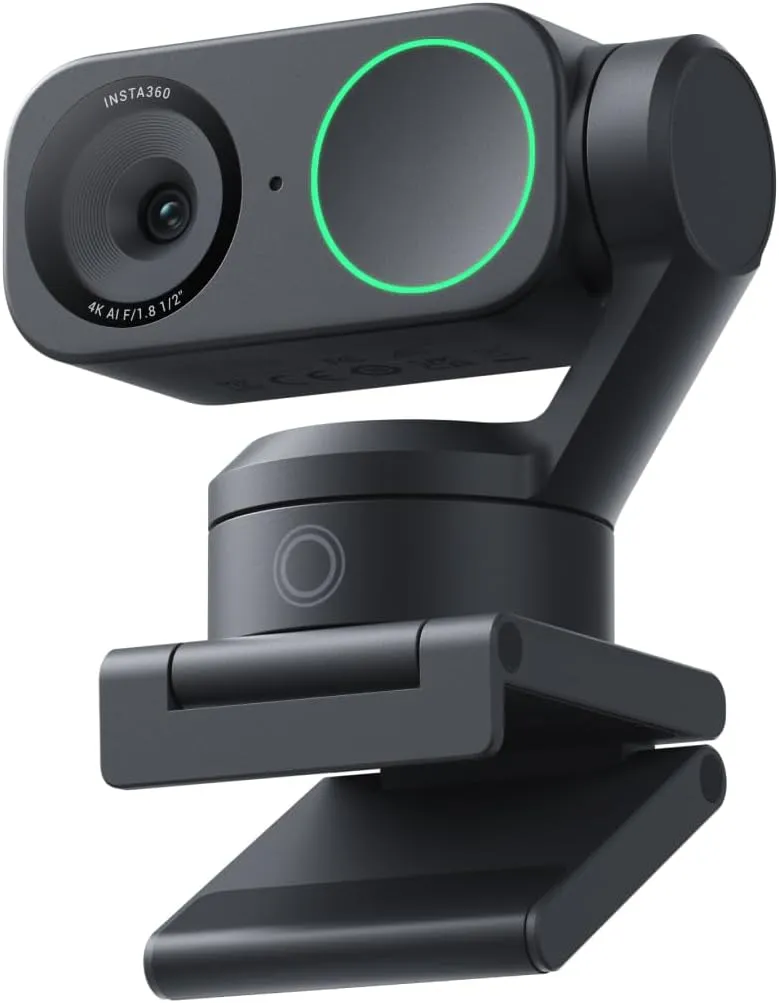
Read the indicator light first. In Insta360's online manual for the Link 2, a solid red light has three possible causes. Debris or a cable may jam the gimbal, or long, intensive use may have overheated the camera. Otherwise, a part such as the motherboard may have failed.
On a Link 2, clear anything caught around the head. Then turn the gimbal gently by hand to check that it moves freely. Insta360 limits that gimbal check to the Link and Link 2, though. On an Insta360 Link 2 Pro, the red-light fixes therefore begin with the camera's temperature.
If the camera feels hot after a long session, stop using it, unplug it and let it cool before restarting. Next, reconnect the USB cable or switch ports, and test on a second computer if one is available.
A head that tips down by itself has gone to sleep. Insta360's privacy mode lowers the lens after 10 seconds without use, and also when the app using the camera closes. To wake it, reopen that app, tilt the head back up or reconnect the cable.
Tracking that wanders and gestures that misfire
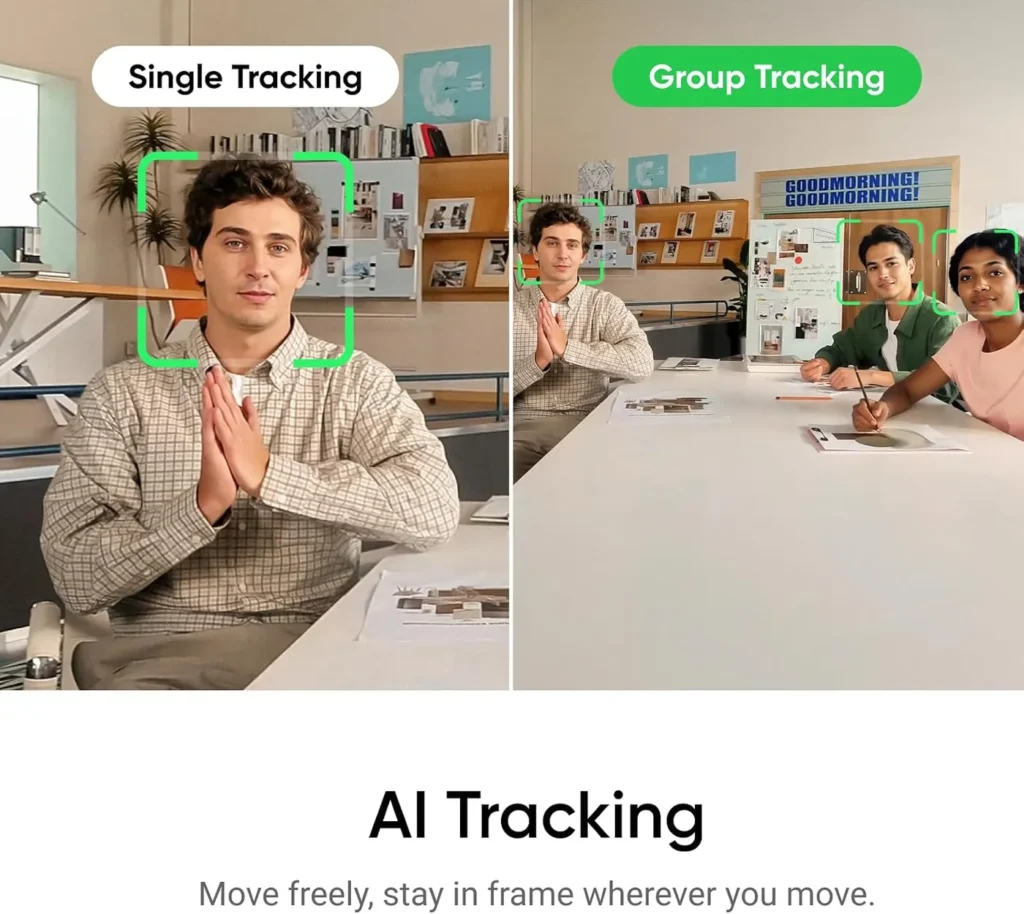
Tracking needs a face to follow. Insta360 built AI Tracking for human faces only, so it will not follow hands, objects or animals. Its reach also stops at 9.8 feet (3 meters). After 60 seconds with no one in view, tracking switches itself off. For a group of two or three, Insta360 recommends Group Tracking.
Tap the Touch Key to toggle tracking, or click AI Tracking in Link Controller's bottom bar. To keep the head out of a private corner, set a Tracking Area, and tracking stops once you leave it. A Pause-Track Area works the other way: inside it, the camera pauses and zooms in, which suits a whiteboard.
Gestures follow fixed rules: the L-shaped zoom works only next to a human head. With several faces in frame, the camera answers the first L it sees. A palm shown for tracking fails if the hand covers the face. Also keep the hand inside the frame, or a zoom stops early.
Along the USB cable to the computer
When Link Controller cannot find the camera, check the software and the port. Update Link Controller, then connect the camera straight to the computer with its original cable. Insta360 suggests a USB 3.0 port first, possibly marked SS. On a desktop, a USB 2.0 port on the back panel comes next.
Then open the camera in a different app. If no program on the computer recognizes it, Insta360 points you to its repair service for a diagnosis. Also stick with the included cable, as the manual asks, to avoid compatibility issues.
Other hosts have limits. On an iPad Pro or iPad Air 4 with iOS 17 or later, the manual allows FaceTime only. For the Link 2, Insta360 also confirms Linux support over UVC/UAC, though Link Controller has no Linux version.
Inside Link Controller: updates, preview and picture
Keep the app current. A red dot on the three-dot icon at the upper right flags a new version. Click the icon, choose About Us, then Update Now. Run the installer that downloads; Insta360 calls it normal if the app closes itself meanwhile. Per Insta360's product pages, the app needs Windows 10 or later (not ARM-based Windows) or macOS 11.0 or later.
On Windows, Link Controller's preview holds the camera, and only one app can use its stream at a time. Before Zoom, Teams or OBS opens the feed, turn the preview off with the Camera icon at the bottom. Otherwise, the app may say the camera is in use.
For a noisy picture, wipe the lens guard and add light before changing settings. In version 2.2.1 or later, open Image on the right to switch off HDR or lower Sharpness. Insta360 sets sharpening fairly high by default. Under Effects, also turn off Filter. An overexposed image needs Exposure switched on in the Image panel, then a tweak to the Exposure curve.
Through the virtual camera: effects, drivers and permissions
Link Controller adds a second camera, Insta360 Virtual Camera. It carries the effects, such as Natural Bokeh, background blur and Makeup. Choose it in the call app only for those effects. Otherwise, turn Virtual Camera off in Link Controller and select the camera under its own name. Per the manual, the two streams cannot run together. Adding the virtual camera while an app holds the physical one gives a black screen.
On Insta360's spec sheet, the virtual camera also skips 50 and 60 fps, so a 1080p60 call needs the native stream. Natural Bokeh needs an NVIDIA GTX 1080, RTX 2060 or newer on Windows, or an M1 Mac or later.
On Windows, antivirus software can mistake the virtual camera's driver for a threat. Add Link Controller to the antivirus trust list, then reinstall the latest version. A "Missing Graphics API (Vulkan)" error instead points to an outdated graphics driver. Find the card under Display adapters in Device Manager, then install the newest driver from AMD, Intel or NVIDIA.
On a Mac, a "System Extension Blocked" prompt means a missing permission. Confirm macOS 13.0 or later, restart and try again. Before macOS 15.0, click Allow under Privacy & Security in System Settings. On 15.0 and later, search System Settings for Extensions and allow Link Controller under Camera Extensions.
Effects that change nothing in the preview, Insta360 explains, usually missed their data because the computer was offline at first use. Restart while online, and reinstall Link Controller if that fails. If the app crashes with the virtual camera on, reinstall the virtual camera from About Us.
Into the call or streaming app
At the chain's end, the app must ask for the right camera. Insta360's compatibility page for the Link 2 names Zoom, Teams, Google Meet, GoToMeeting and Cisco Webex, plus OBS and Twitch for streaming. In the app's video settings, choose the physical or virtual camera, then set the resolution there too. Insta360 describes Link Controller's own setting as mainly a preview resolution. Some softness on a platform is still normal, Insta360 notes, because services compress video.
In OBS, click + under Sources, choose Video Capture Device and pick the Link 2 under Device. Configure Video holds brightness and contrast, while Resolution/FPS Type set to Custom unlocks frame rate and format. If OBS loses the camera after every restart, select it in the source settings and click Activate.
Vertical video needs a tripod, since Insta360 says the two-axis gimbal cannot turn the camera on its side. Mount it sideways, then enable Portrait Resolution and High Frame Rate under Settings, Camera and Compatibility Settings. After the camera restarts, choose 9:16 in Resolution Settings, and select 1080p in any third-party platform.
Sound along the same route: silence, echo and lag
Audio shares the picture's route. If another app records silence while Link Controller hears you, set that app's audio device to the Insta360 camera. For silence inside Link Controller, pick the camera through the ^ icon at the lower left. Then raise the input under Sound in the computer's settings. A Mac also needs Link Controller allowed under Privacy & Security, then Microphone.
On the Link 2 Pro, Insta360 traces a picture with no sound to an audio algorithm that has not started. Update the firmware, then reconnect the cable or restart the computer. External microphones plug into the computer, never the camera.
Insta360 names external speakers as a common cause of echo. Switch to the computer's built-in speakers and lower their volume if a faint echo remains. Then turn on echo cancellation in the meeting app, if it has the setting. When a recording drifts out of sync, play it in VLC, because Insta360 warns that PotPlayer can cause it. With the virtual camera on, also close background apps and drop to 1080p or 720p.
Firmware, resets and logs before contacting Insta360
Insta360 Link 2 troubleshooting then turns to the camera's own tools. Link Controller prompts you when new firmware arrives, and About Us under Settings shows the firmware and app versions. Click Update to download it, then Update again to install. Insta360 puts the update at about two to three minutes. The app may lose the camera meanwhile, so keep the cable connected until the camera restarts.
For a manual update, enter U-Disk Mode. Press the Touch Key three times briefly, then hold it for five seconds until the light turns solid blue. Copy your camera's firmware file from Insta360's Downloads page onto the new drive. Then unplug and reconnect the cable, and the update runs on its own.
A double-press on the Touch Key returns the gimbal to its default angle. Reset beside View Adjustment in Link Controller does the same. For a factory reset, open Settings from the three-dot icon, then choose About Us and Factory reset.
Before contacting Insta360, connect the camera, open Settings, choose Report Issue and click Upload Logs. When it finishes, click Copy Log ID and pass the ID to Insta360 Customer Support. If Link Controller will not launch, look in AppData\Local\Insta360\Insta360 Link Controller\log inside your Windows profile folder. On a Mac, the logs sit in Library/Application Support/Insta360/Insta360 Link Controller/log in your home folder.
Conclusion
Insta360 Link 2 troubleshooting comes down to finding the first weak link. Check the light and gimbal first, then the cable and port. After them come Link Controller, the virtual camera and the app, with sound on the same route. Firmware, the resets and the logs come last.
Contact Insta360 when a step in its manual does not hold, with the Log ID ready. Its product pages list chat, open around the clock, and an email option. A camera that no app can see belongs with the repair service. If a confirmed fault means replacing the camera, our webcam ranking lays out the alternatives.
Frequently Asked Questions
Why does the Insta360 Link 2 show a solid red light?
Insta360 lists three causes: a gimbal jammed by debris or a cable, overheating after long use, or a hardware fault. Clear the head and turn the gimbal gently, let a hot camera cool unplugged, then reconnect or try another port. The gimbal check applies to the Link and Link 2 only.
Why does Zoom or Teams say the camera is in use?
On Windows, the preview in Link Controller holds the stream, and only one app can use it at a time. Turn the preview off with the Camera icon at the bottom of Link Controller. Then select the camera again in the call app.
Why does the call app show no 60 fps option?
Insta360's virtual camera does not output 50 or 60 fps. Switch Virtual Camera off in Link Controller and pick the camera under its model name. That native stream reaches 60 fps at 1080p, by Insta360's spec sheet.
What fixes a "System Extension Blocked" prompt on a Mac?
Insta360 requires macOS 13.0 or later for the virtual camera, so check the version, then restart and try again. Before macOS 15.0, click Allow under Privacy & Security. On version 15.0 or later, search System Settings for Extensions and allow Link Controller under Camera Extensions.
Why does recorded audio drift out of sync with the video?
Insta360 first suggests VLC Media Player for playback, since PotPlayer can cause it, and a test recording in OBS. With the virtual camera on, close background apps, lower the resolution to 1080p or 720p and update Link Controller.
Why does the other side hear an echo on calls?
Insta360 names external speakers as a common cause. Switch to the computer's built-in speakers, and turn their volume down if a faint echo remains. Then enable echo cancellation in the meeting app, if it has one.