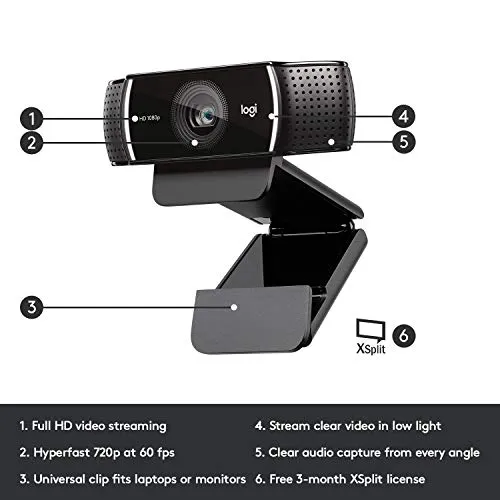
Logitech C922x troubleshooting depends on the mode you need. Logitech's C922 pages give the camera two top settings: 1080p at 30 fps and 720p at 60 fps. Every 60 fps setup there runs at 1280×720, so this guide files streams under 720p60 and calls under 1080p30. Background replacement and photos follow, and each fault sits under the mode it breaks. One step comes before every mode: getting the computer to recognize the camera.
Most steps here come from Logitech's C922 pages, written for the C922 Pro Stream, or from the C922x setup guide. Logitech links the two cameras in Logi Options+ 1.85. Its release note groups the C922, C922x, C922 Pro and 1080p Pro Stream as C922 Webcams. Where a step comes from Logitech's general webcam advice instead, the text says so. Our full Logitech C922x review covers the picture and the 60 fps mode in depth.
Key Takeaways
- Connect the C922x's USB-A plug straight to the computer, keeping any USB hub or docking station out of the chain.
- Judge a dark LED with a camera app open, since the setup guide ties the light to app use.
- For a steady 720p60 stream, aim for more than 300 lux, with the lights behind the webcam and little backlight.
- In OBS Studio, set the output and the camera source to 1280×720 at 60 FPS, using MJPEG.
- When G HUB's presets stay gray, add a new camera mode to set your own zoom, focus and exposure.
- Make a second computer the last test in Logitech C922x troubleshooting before opening a Logitech support ticket.
Recognition comes first in Logitech C922x troubleshooting
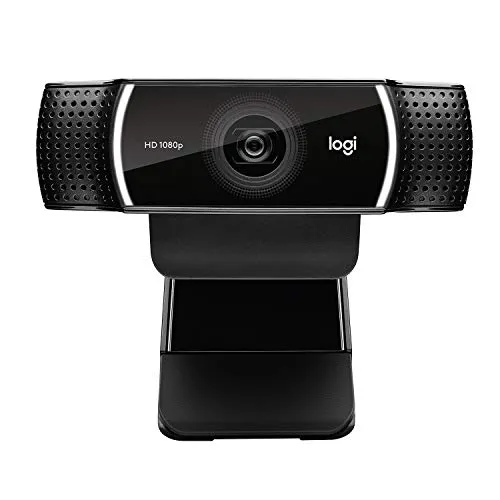
Every mode starts at the USB port. The C922x setup guide says to plug the camera's USB-A connector into a USB-A port on the computer. Logitech's C922 pages add that the camera needs no extra drivers, since it uses the operating system's own.
A dark LED right after plugging in tells you little. The setup guide says the activity light comes on when an app is using the webcam. Open a camera app before deciding the connection failed.
When every app comes up empty, Logitech's general webcam advice turns to the connection. First, switch to a different USB port. Then take out any USB hub or docking station, so the plug goes straight into the computer. USB 3.0 ports usually carry a blue insert. For a camera in one, the same advice suggests a USB 2.0 port instead. Finally, try the camera on a different computer.
After a Windows 10 update, the camera can lose its video or stop appearing in Windows. Logitech's general article for this, which names its BRIO webcam, sends you to Device Manager. There, an UNKNOWN entry or a yellow exclamation mark beside the camera means the drivers did not load properly. That entry's right-click menu holds Update Driver. Choose it, then tell Windows you'll select from the drivers it already has. With Show compatible hardware switched on, select USB Video Device, then press Next. If a category list appears at that point, find USB Video Device under its category.
Calls and recordings at 1080p and 30 fps
Start with what the camera can send. Logitech's technical specifications for the C922 Pro Stream list three recording modes. Those are 1080p at 30 fps, 720p at 60 fps and 720p at 30 fps. So a 1080p call or recording tops out at 30 fps. The same page also lists 20-step autofocus for the glass lens.
For video calls, Logitech's C922 pages say most third-party apps can use the camera. When the picture looks fuzzy, grainy or noisy, Logitech's general webcam advice calls for more light first. The same article credits more light with less blur in quick movements. When a local camera app looks clear but the call looks poor, that advice suspects the internet connection. The slow link can sit on either end of the call. Wireless links can make the video choppy, the same advice adds.
The 1080p picture: focus, exposure and flicker in G HUB
Two current Logitech apps cover this camera family. G HUB's 2024.7 release note, dated 2024-09-24, adds Shutter Speed and ISO controls for manual exposure on the C922. That note names the C922, not the C922x. Logi Options+ lists the C922x itself from version 1.85, dated 2024-12-11. Logitech's notes from that time add that the newest Options+ then needed Windows 1903 or later.
In G HUB, the camera presets stay gray because they are not configurable, as Logitech's general G HUB note explains. It names three presets: DEFAULT, STREAMING and VIDEO CALL. Your own zoom, focus and exposure settings need a new camera mode, by the same note. Open the CAMERA tab's menu, click ADD NEW CAMERA MODE and adjust the new mode. Then click the NEW CAMERA MODE label above the picture to give it a name.
Flicker has its own fix on the VIDEO tab. Its filter presets, such as NONE and CARTOON, are not configurable either, so choose ADD NEW FILTER there. The same note ties anti-flicker to the refresh speed of a monitor or TV. If a recording or a call flickers, switch the setting to its other value.
Streams at 720p and 60 fps: light before settings
A steady 60 fps stream begins with the room's light. Logitech's C922 article on holding 720p at 60 fps asks for more than 300 lux. The light should come from behind the webcam, not from behind you. Light your face with a main source, which Logitech calls a keylight. Then add a softer fill light to cut the keylight's shadows. Also keep backlight to a minimum, and use natural light or bright white lights for neutral color. The article also suggests a light with adjustable brightness.
If 60 fps still won't hold, Logitech's C922 pages say to turn off Low Light Compensation. They reach that checkbox through older apps that this guide does not recommend. One is Logitech Gaming Software. The other is Logitech Camera Settings, last updated in 2016. The OBS and XSplit pages open it through the camera's Configure option.
Streams at 720p60: the OBS Studio and XSplit settings
Logitech's OBS Studio page for the C922 sets 60 fps in two places. First, on the main window, open File, then Settings, then the Video tab. Choose 1280×720 for Output Resolution and 60 FPS for Common FPS Values. Next, click the + button under Sources, pick Video Capture Device and name the source. In its Properties, choose the camera, which the page lists as C922 Pro Stream Webcam. Then set Resolution/FPS Type to Custom, Resolution to 1280×720, FPS to 60 and Video Format to MJPEG. Double-clicking the source reopens those Properties later.
Logitech's XSplit page for the C922 starts at the top right of XSplit's main window. Set Frame Rate to 60 FPS there. For Resolution, begin at 1280×720, since some PCs and broadband connections may not cope with more, Logitech warns. Click Add, choose the Webcam, capture card, video devices entry and select the camera. After that, right-click it and choose Configure, then Video Output. There, set Frame Rate to 60.00, Color Space/Compression to MJPG and Output Size to 1280×720. To confirm, right-click the camera source again: the bottom of its options window shows the output resolution and FPS.
If either app still falls short of 60 fps, Logitech's pages say the lighting may not be right yet, then turn to Low Light Compensation.
Background replacement and the 720p, 30 fps cap
Logitech's older C922 pages handle background replacement with ChromaCam by Personify. They cap it at 720p and 30 fps. One says ChromaCam holds a stream to that limit while it replaces or removes the background. So, by those pages, a 60 fps stream cannot use ChromaCam's background replacement.
A 2021 Logitech note on background options listed Capture, XSplit VCam and ChromaCam among the Windows choices for the C922. Logitech has also said support for Capture would discontinue in 2022. For the C922x, the setup guide lists an XSplit license coupon in the box. The C922x's product listing calls it a 3-month XSplit VCam license that removes, replaces or blurs the background. A separate Logitech article said the C922 Pro Stream's XSplit Premium offer ran until December 31, 2023.
Photos and recorded video with the Camera app or QuickTime
Photos and recordings run through an app on the computer. Logitech's C922 pages say both need third-party software. They name the Microsoft Camera app on Windows and QuickTime Player on a Mac. The 1080p ceiling applies here too: in Logitech's C922 specifications, 60 fps recording comes only at 720p. Those specifications also list photo and video capture in both 4:3 and 16:9.
The clip, the tripod thread and a lens with no shutter
The universal clip goes on a computer, laptop or monitor. Per the C922x setup guide, set the camera where you want it. Then adjust it until the clip's foot lies flat against the back of the device. After that, angle the webcam up or down by hand until you sit in the frame.
For a tripod, the setup guide sends you under the clip, where a 1/4-inch thread sits. Twist the camera onto the tripod there. No tripod comes in the box, the guide notes. Instead, the box holds the webcam with its attached 5 ft (1.5 m) USB-A cable, the XSplit coupon and documentation. Logitech's C922 specifications also list no privacy shade. The C922x's product listing likewise says the camera ships without a privacy shutter.
Passing a stubborn fault to Logitech support
Some faults outlast every step above. Logitech's general webcam advice saves one test for last, a different computer. If that machine also misses the camera, the advice calls the camera possibly defective. That is where Logitech C922x troubleshooting at home stops. From there, Logitech's help center takes support tickets through the request form on support.logi.com.
The cable tag holds the serial number, as Logitech's C922 specifications show. Logitech's C922x page lists V-U0028 as the model number. The matching warranty article describes a limited hardware warranty. If the C922x no longer suits the desk or the stream, our webcam lineup ranks current models.
Conclusion
Logitech C922x troubleshooting comes down to naming the mode before touching a setting. Recognition sits under every mode: a direct USB port, an open camera app and Device Manager on Windows. Calls at 1080p30 lean on light and on custom modes in G HUB. Streams at 720p60 start with more than 300 lux, then 1280×720 at 60 fps with MJPEG. On Logitech's older pages, ChromaCam holds a stream to 30 fps, while photos go through the Camera app or QuickTime. For mounting, set the clip's foot flat on the device or use the tripod thread. If a second machine still finds no camera, open a Logitech support ticket.
Frequently Asked Questions
Why doesn't the C922x's light come on when it's plugged in?
The C922x setup guide says the LED activity light comes on when an application is using the webcam. Open a camera app, such as the Microsoft Camera app or QuickTime Player, before treating the dark light as a fault. If no app finds the camera, try another USB port without a hub, then a second computer.
Why won't the C922x hold 60 fps on a stream?
Logitech's C922 pages put light first: more than 300 lux, coming from behind the webcam, with little backlight. Then set 1280×720 at 60 fps with MJPEG in OBS Studio or XSplit. If 60 fps still slips, the older C922 pages turn off Low Light Compensation, in apps this guide does not recommend.
Why do the C922x's presets look grayed out in G HUB?
Logitech's general G HUB note says the presets under each mode are not configurable. For your own zoom, focus and exposure, open the CAMERA tab's menu and click ADD NEW CAMERA MODE. Then adjust the new mode and rename it.
How do you stop the C922x picture from flickering?
Logitech's general G HUB note links anti-flicker to the refresh speed of a monitor or TV. On the VIDEO tab, choose ADD NEW FILTER, because the preset filters are not configurable. Then switch anti-flicker to the other value.
Why won't background replacement with ChromaCam reach 60 fps?
Logitech's older C922 pages cap ChromaCam by Personify at 720p and 30 fps while it replaces or removes the background. The XSplit page calls 1280×720 at 30 fps the only resolution ChromaCam supports.
Why isn't there a tripod in the C922x box?
The C922x setup guide says a tripod is not included, though the universal clip has a 1/4-inch tripod thread on its bottom. The box holds the webcam with its attached 5 ft USB-A cable, an XSplit license coupon and documentation.