Logitech C922x Review: Sharp 1080p and a 60 fps Stream Mode
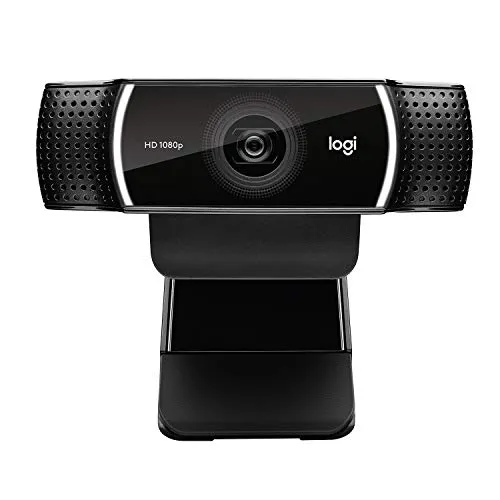
Whether the job is a crisp 1080p call or a 60 fps stream in 720p, the Logitech C922x handles it well, provided the faster mode gets strong light.
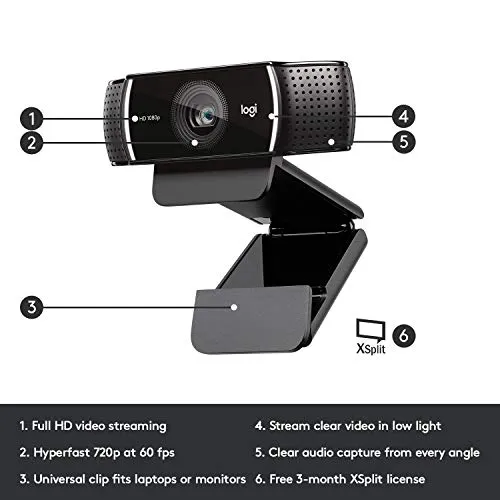
The Logitech C922x is the streaming sibling of Logitech's C920x, and on paper the two sit very close. Logitech's spec pages for the C922 and the C920s both list a 78-degree glass lens, autofocus and stereo microphones. Both pages also give a 5 ft USB 2.0 cable and a tripod mount. What the C922x adds is one extra mode: 720p at 60 frames per second, beside the full HD at 30 that both offer. Like the C920x, it comes with an XSplit license and no privacy shutter, per both listings.
Light decides whether that extra mode pays off. Logitech's advice for holding 720p at 60 fps starts with a room lit above 300 lux. Under weaker light, however, the faster mode struggles to keep its frame rate, and even at its best the 720p picture looks softer than full HD. At 1080p, meanwhile, the camera stays sharp and natural in ordinary room light, and that full HD picture is its most dependable strength.
When a stream switches to 720p at 60 fps
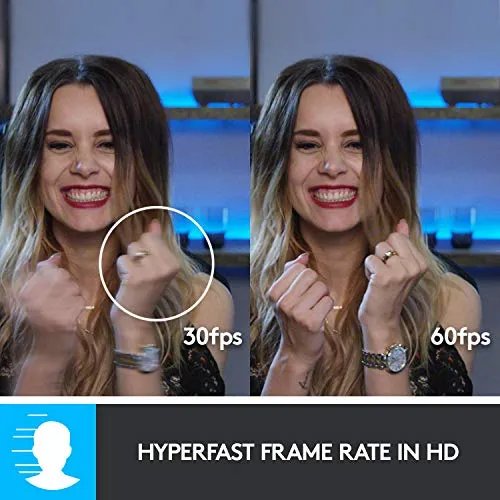
Logitech lists two modes for this camera. Full HD runs at 30 frames per second, and it's the everyday mode for calls and recordings. The 720p mode then doubles the frame rate to 60, and Logitech's C922 pages set it up for live streams, with steps for OBS Studio and XSplit.
That speed costs sharpness. At 720p and 60 fps, the Logitech C922x looks visibly softer than in full HD. The frame rate also depends on light. Under anything less than strong, even light on the face, the camera struggles to hold 60 frames. As a result, a stream set to 60 can land short of its target.
Logitech's own guidance for a steady 720p stream at 60 fps reads like a lighting plan. The room should top 300 lux, with light coming from behind the webcam and none from behind you. A main light, aimed at the face, does the bulk of the work. A softer fill light then eases its shadows, while backlight stays to a minimum. Natural light or bright white bulbs also keep colors neutral, according to the same page. Logitech's OBS Studio steps set the source to 1280×720 at 60 fps in MJPEG, and its XSplit steps start at 1280×720 before adjusting for what the PC and connection allow. If the frame rate still sags, its C922 pages suggest switching off low-light compensation.
My advice: buy for the 60 fps mode only if the desk already has that light. Under a single ceiling fixture, 1080p at 30 still gives the better picture, and the faster mode is a setting to leave off.
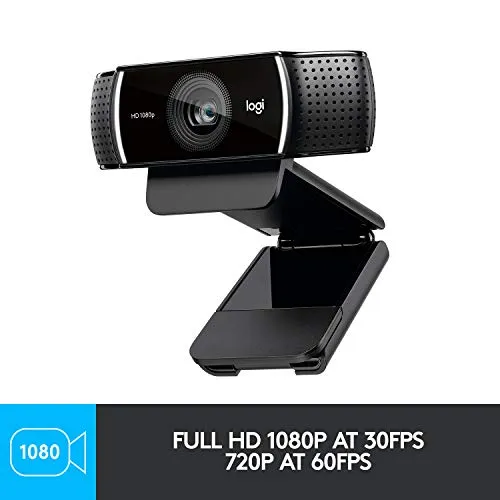
When room light is all the camera gets
In full HD, the Logitech C922x renders a face in crisp detail, and color generally looks natural. As a replacement for a laptop's built-in camera, it's also a clear step up.
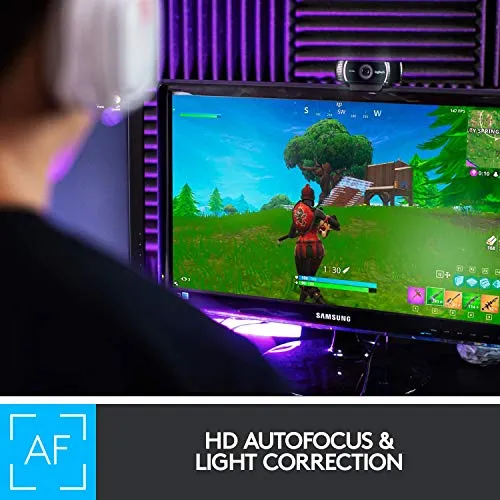
Logitech's spec lists automatic low-light correction, and the listing goes further, promising bright images even in low-light settings. In an ordinary room, the correction does keep a face bright and usable without extra lighting. A properly dim room is different, though. There the picture can turn grainy and dark. Logitech's general webcam advice for a grainy image is simply more light.
The view is wide enough for two. Logitech's C922 Pro Stream specifications give a 78-degree diagonal field of view, or 70.42 degrees across. That fits two faces side by side on a shared call. For a solo call, however, the frame can take in more of the room than it needs, and Logitech's software can then zoom in and pan to tighten it.
When the autofocus or exposure needs overriding
Focus is automatic by default. Logitech's C922 specs list 20-step autofocus, and it generally keeps a face sharp without help. It can hunt, though. During a session, the focus sometimes slips and pulls back in. On a stream or a recording, that shows as a brief blur. Switching the autofocus off and setting focus by hand stops it. Logitech's general G HUB note explains that its built-in presets are locked, so custom focus, zoom and exposure settings go into a new camera mode.
Exposure is the other automatic setting to watch. In some rooms it misjudges the scene, so brightness shifts partway through a call or the camera opens on an overexposed, washed-out default. Logitech's G HUB 2024.7 notes, however, list the C922 among webcams that gained manual shutter speed and ISO.
Settings don't always stick, either. After a restart or an unplug, focus, exposure and other adjustments can fall back to their automatic defaults. A stream that looked right the day before may then need re-tuning before it goes live.
When the Logitech C922x meets Logitech's software
A call needs no app at all. Logitech says the camera runs on the operating system's own drivers as a USB Video Class device. It plugs straight into calls on Windows and Mac, in apps such as Zoom, Teams, Google Meet and Webex. The listing also names Teams, Meet and Zoom before adding Nintendo Switch 2's GameChat mode.
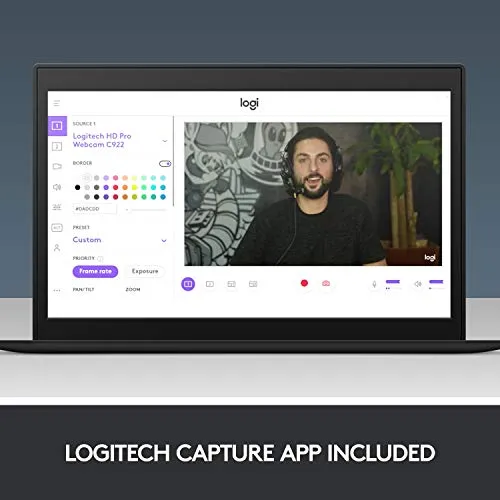
Image controls are another matter. Logitech lists the C922x under Logi Options+ from version 1.85, released in December 2024, while its G HUB notes name the C922. Logitech's release notes offer that Options+ build for Windows 10 and 11 and for macOS versions 12 through 15. Logitech has also said that G HUB takes over from Logitech Capture, whose support was due to end in 2022.
This software is where the package feels least finished. Getting the settings right can take some effort. Used patiently, though, it reaches the adjustments that matter on this camera: focus, exposure, white balance, zoom and framing.
For background effects, the listing points to a third-party app. It says the camera comes with a 3-month license for XSplit VCam, which removes, replaces or blurs the background without a green screen. Call apps bring their own effects as well, and their virtual backgrounds work well with this camera. Logitech's setup guide also lists an XSplit license coupon in the box, beside the webcam and its documentation.
Setup and fixes have a page of their own. The Logitech C922x troubleshooting guide sorts each fix by the mode it affects. It first covers getting the camera recognized, then picture and focus control at 1080p. Streams at 60 fps get their own steps for light and output settings.

When the built-in mics carry the call
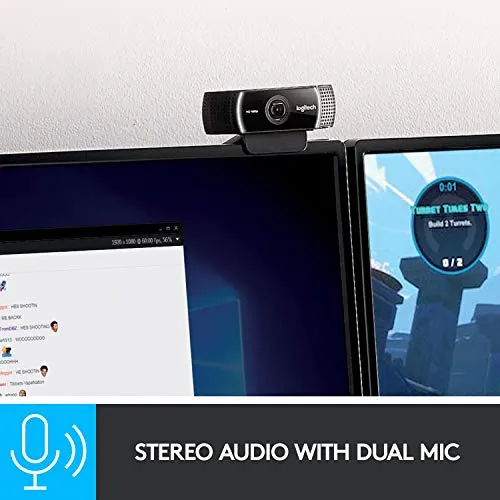
Logitech lists built-in dual stereo mics, and the listing promises natural sound in calls and recorded video. On calls, the pair on the Logitech C922x handles speech well, and a voice reaches the far end of a meeting or a class clearly. A headset can often stay in the drawer for that kind of daily call.
Recording asks more of them. On some setups the sound comes across thin, distant or noisy. For voice-overs, podcasts or a stream where the audio carries the show, a separate microphone is the better partner. The camera can then stay in charge of the picture alone.
When the clip meets a thin bezel or a curved monitor
In Logitech's setup guide, the clip's foot rests flat against the rear of the screen. On a flat monitor that hold is firm. The camera also tilts up or down on its hinge without sagging from where it's set. Two shapes give it trouble, though. On a thin-bezel screen, the clip's front lip reaches past the bezel and covers a strip of the display. Curved monitors, screens without a flat back and some laptop lids also give the clip less to grip, and there the camera can shift out of position.
For those screens, the underside of the clip takes a tripod through a 1/4-inch thread. Logitech's setup guide marks the tripod as not included, though. A small stand or desk tripod is a separate purchase.
There is no privacy shutter on the Logitech C922x. The listing says as much, and Logitech's specifications also give the privacy shade as absent. Per Logitech's pages, white LED activity lights glow while a program is running the webcam. A snap-on cover sold separately fits the housing for a lens that closes physically. Logitech's C920s is the sibling with a privacy shade built in, though its ceiling is 1080p at 30 fps.
The hardware wears well, too. Cameras three years and more into use still turn in a sharp picture.
When the C920x or EMEET's S600 makes more sense
The Logitech C920x is the closest alternative. Its listing stops at full HD and 30 fps, whereas this camera's listing adds 720p at 60 fps. Both listings also promise XSplit VCam for three months, and both say the camera ships without a privacy shutter. The Logitech C922x sits a tier higher, at a premium price, and the extra money buys that 60 fps mode above all.
Full HD at 60 fps calls for a different camera. EMEET's S600 and Acer's A640 both list 1080p at 60 fps, plus PDAF focusing and a privacy cover built in. Those two are the 60 fps webcams I'd compare first. Both add 4K at 30 fps, and the A640 runs 2K at 60 as well, per their listings. For a presenter who walks the room, Insta360's Link 2 instead lists AI tracking that pans and tilts.
Pros: What we liked
- Pro: Crisp, natural-looking 1080p picture at 30 fps in ordinary room light
- Pro: A 720p mode at 60 fps for streams, alongside full HD at 30
- Pro: Autofocus keeps a face sharp, and focus can be set by hand in software
- Pro: Works in Zoom, Teams, Meet and Webex with no driver to install
- Pro: Stereo mics clear enough for daily calls without a headset
- Pro: Clip grips flat monitors firmly, with a tripod thread underneath
Cons: What could be better
- Con: The 720p mode at 60 fps looks softer than full HD and holds its frame rate only in strong light
- Con: No privacy shutter, so a lens cover is a separate purchase
- Con: Image settings can revert after a restart or unplug, and can take effort to get right
- Con: The clip's front lip covers a strip of thin-bezel screens and grips curved ones loosely
Best For
- Streamers with a well-lit desk who want a 60 fps option alongside full HD
- Remote workers replacing a laptop's built-in camera for daily calls
- Two people sharing one call who need both faces in the frame
Not Ideal For
- Streamers who need 60 fps at full 1080p
- Anyone who wants a built-in shutter over the lens
- Podcasters or narrators relying on the built-in mics
| Specification | Details |
|---|---|
| Resolution | 1080p (Full HD), 720p |
| Frame rate | 30 fps at 1080p; 60 fps at 720p |
| Field of view | 78° diagonal (70.42° horizontal, 43.3° vertical) |
| Focus | 20-step autofocus, manual focus in software |
| Microphones | Built-in dual stereo |
| Connection | USB 2.0, attached 5 ft (1.5 m) USB-A cable |
| Privacy | No privacy shutter |
| Mounting | Universal clip with 1/4-inch tripod thread; tripod not included |
| Software | Logi Options+; 3-month XSplit VCam license (per the listing) |
Alternatives Worth Considering
Final Verdict
The deciding factor for the Logitech C922x sits beside it on the desk: the lamp. Given strong, even light on the face, the 720p mode keeps its 60 frames, and the camera then earns its step up from the C920x. In a dimmer room, however, the faster mode is a setting to skip. That still leaves a crisp 1080p camera with autofocus, stereo pickup and a monitor clip that holds best on flat screens. So my recommendation turns on that one condition. Choose it when a stream gains from the doubled frame rate and the face it films is already well lit.
Frequently Asked Questions
Does the Logitech C922x shoot 1080p at 60 fps?
No. Logitech's C922 Pro Stream specifications give 1080p at 30 fps as the top full HD mode, and 60 fps is available at 720p. The listing describes the same pair of modes.
Does the C922x have autofocus, or fixed focus?
It has autofocus. Logitech lists 20-step autofocus, and the focus can be switched to manual in Logitech's software if it hunts during a session.
How much light does the 60 fps mode need?
Logitech's guidance for a steady 720p stream at 60 fps is a room above 300 lux, lit from behind the webcam, with a main light on the face, a softer fill light and little backlight.
What comes in the box with the C922x?
Logitech's C922x setup guide lists the webcam with an attached 5 ft USB-A cable, an XSplit license coupon and documentation, and notes that a tripod is not included. The listing calls the license a 3-month XSplit VCam license.
Does the camera need software for Zoom or Teams?
No. Logitech says it uses the operating system's own drivers as a USB Video Class device. Logi Options+ lists the C922x among its supported webcams, and Logitech's G HUB notes name the C922 for manual exposure controls.
Can a privacy cover be added to the C922x?
Yes. The camera ships without a shutter, and snap-on covers sold separately fit the housing. Logitech's C920s is the sibling with a privacy shade built in.
The Verdict
Whether the job is a crisp 1080p call or a 60 fps stream in 720p, the Logitech C922x handles it well, provided the faster mode gets strong light.