EMEET's C950 support page carries the camera's specs and the EMEETLINK download. Its FAQ answers cover each stage of setup. So EMEET C950 troubleshooting here runs in setup order, with each fix at the step where it can go wrong. First come the box and the clip, then the plug, the computer's settings, the picture and the call apps.
The same page also serves the C950 4K and a C955, so a few of its answers describe other hardware. Every step here is for the 1080p C950, with figures from the C950 column of the spec table. For the picture, the mic and the alternatives, see our full EMEET C950 review.
Key Takeaways
- Begin EMEET C950 troubleshooting at the clip: keep the cable slack and set the camera's upper part flat on the monitor.
- Open a meeting app after plugging in, since EMEET says that is when the status light turns white.
- On a Mac, pick EMEET C950 on the Input tab under Sound, then choose HD Webcam EMEET C950 in each app.
- On Windows, switch on both camera-access settings under Privacy, then Camera, before testing an app.
- In EMEETLINK, select the customize filters mode before changing brightness or white balance.
- Move the camera to another USB port, then restart the computer, when the C950 goes unrecognized.
Unpacking the C950 and fitting the universal clip
Check the box first. EMEET's FAQ lists just two items: a quick start guide and the webcam itself. The C950 spec table on EMEET's support page also names a physical privacy cover, and EMEET's listing has you fit that cover by hand, so look for it in the packaging before it goes out. The table gives the connection as USB 2.0 through a USB-A plug, with 1.5 m of cable, about 5 feet.
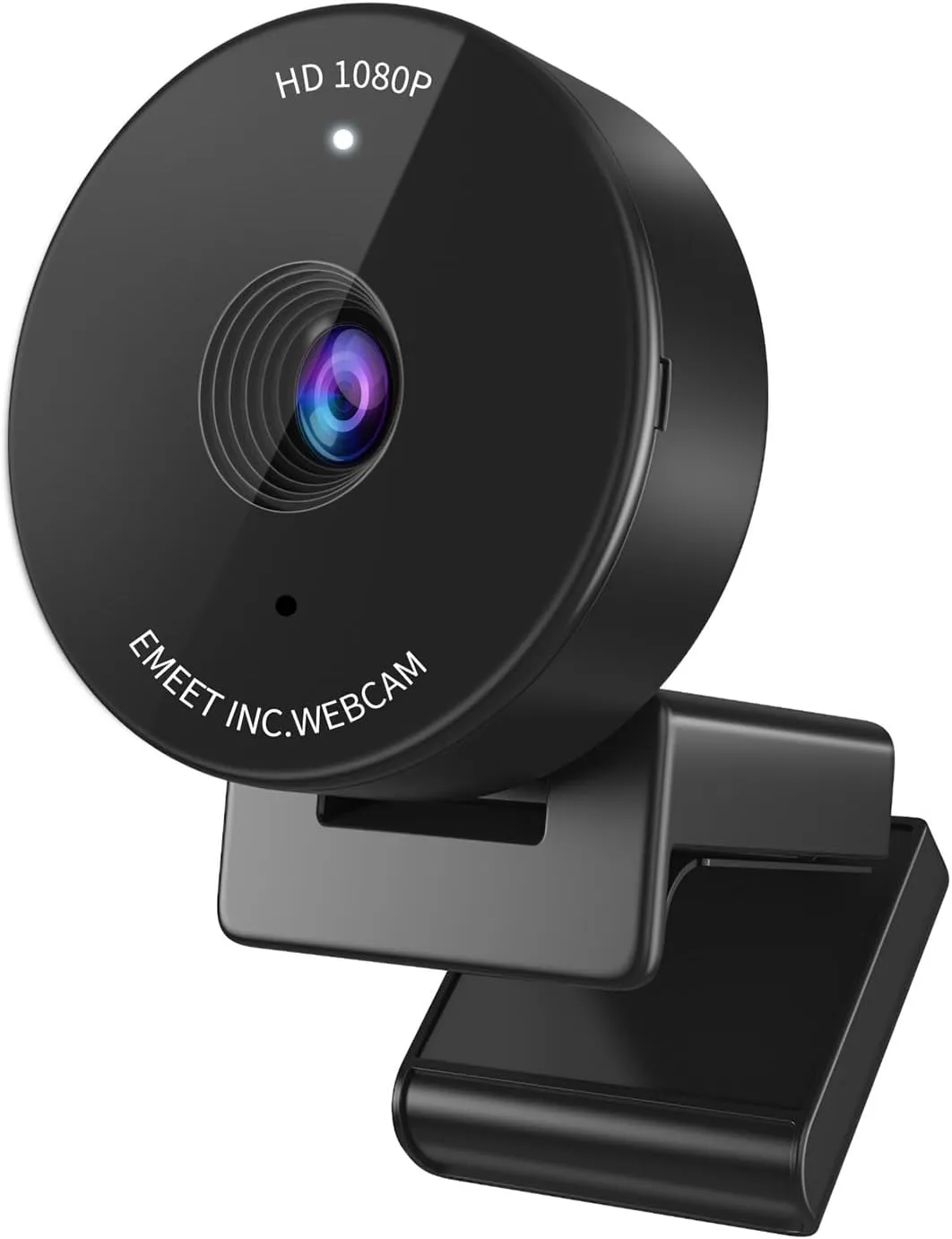
Next, fit the camera to a screen. Unfold the universal clip so it sits over the top of the monitor or laptop screen. Then point the lens higher or lower, or rotate the camera, until it frames you.
If the camera slips, EMEET's stability answer notes its light weight, 75.9 g in the spec table, and gives two points. First, leave the cable in a natural slack state, never taut. Second, rest the upper part flat on top of the monitor, since that helps support the camera. The spec table also shows N/A against a 1/4-inch tripod thread on the C950, so the clip is the mount to plan around.
Plugging in, power and the white status light
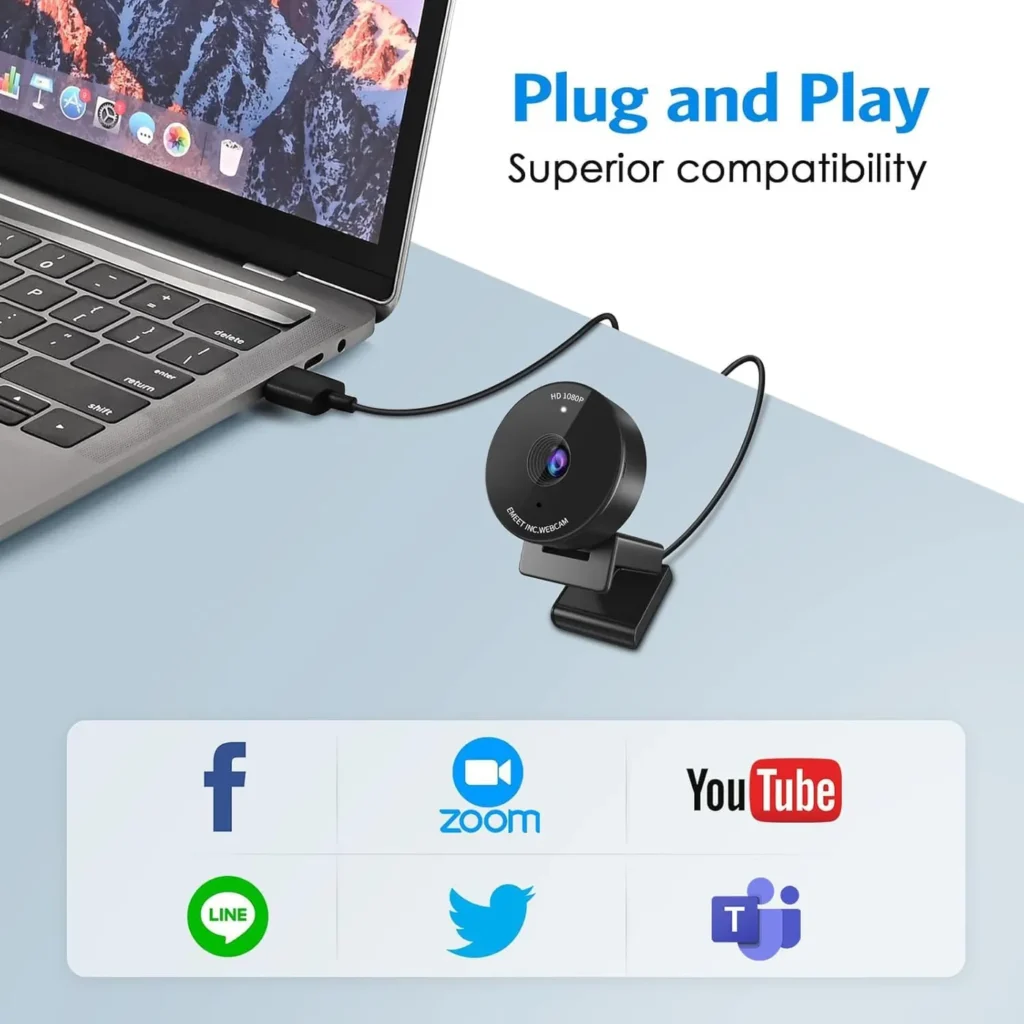
Power reaches the camera over USB. Plug the USB-A connector into the computer, and EMEET says the camera turns on by itself. Then open the meeting software you plan to use. At that point, the status indicator shows white, according to EMEET's FAQ.
So if the light stays dark after plugging in, open a meeting app and choose the camera there first. To switch the camera off, unplug the connector. EMEET calls the C950 plug-and-play, meaning the computer should recognize it right away. Its rated input is 5 V at 500 mA, and the spec table puts the average draw at 750 mW.
Setting up a Mac: the default mic and the camera menu
Connect the camera before changing any setting. Then open System Preferences and choose Sound. EMEET's FAQ uses that older name, and recent macOS versions call the app System Settings. On the Sound tab, click Input and select EMEET C950 as the default microphone.
Camera choice happens inside each app. EMEET's example is Photo Booth: open it, click Camera in the menu bar and select HD Webcam EMEET C950.
Setting up Windows: camera access and the sound devices
Camera access comes first on Windows. Open the computer's Settings, click Privacy, then choose Camera. Under Allow access to the camera on this device, click Change and switch access on. Then turn on Allow apps to access your camera, which EMEET says lets the camera work normally.
Next, set up the microphone. Right-click the speaker icon in the lower-right corner, click Open Sound Settings and pick EMEET C950 for input. To test it, tap the camera or say something, and the volume bar should move.
To make it the default, open Control Panel, choose Hardware and Sound, then Manage audio devices. On the Recording tab, select EMEET C950 and click Set as Default Device. For volume, double-click that entry, open Levels, drag the slider and click OK.
Tuning the picture in EMEETLINK before the first call
EMEETLINK holds the picture controls. Its supported products include the C950. On Windows it needs a 64-bit copy of Windows 10 or later, and EMEET says it doesn't support Windows on ARM. The Mac version needs macOS 10.14 or later.
Connect the camera, then launch EMEETLINK and open its setting interface. Under Video Setting, set the power line frequency, EMEET's anti-flicker control, to suit your needs. The same screen also covers white balance, saturation, sharpness, contrast, brightness and the filters.
EMEET adds one condition: the other parameters change only in the customize filters mode. So choose that filter before changing any value. To undo every change at once, click Restore Default Settings. Other Settings can also update the software version and rename the camera.
The lens has a fixed focus. EMEET's FAQ gives its focus range as 80 to 100 cm, about 31 to 39 inches, and calls the image clearest inside it, so sit within that distance. Its answer on slow focusing doesn't fit a fixed lens, but the cleaning step still holds, since dust or dirt on the lens scatters light. Give the lens a gentle wipe with an eyeglass cloth or a dust-free one.
Choosing the mic and camera inside Zoom, Teams and Meet
The C950 has one microphone. EMEET's spec table lists a single omnidirectional mic with an optimal pickup range of 1.8 m, about 6 feet.
In Zoom, click the settings icon at the top right. Choose Video and select HD Webcam EMEET C950 as the camera, then choose Audio and select the same entry as the microphone.
For Microsoft Teams, EMEET starts at your profile picture in the top right of the main window. Select Device Settings, choose HD Webcam EMEET C950 as the microphone, then scroll down to Camera and pick the same name.
In Google Meet, click the Settings button at the top right. Choose EMEET C950 as the microphone, and EMEET says the blue volume icon moves when you speak. Next, choose it as the video device, and the image appears on the right.
Closing the privacy cover on the lens between calls
Privacy on this model comes from a physical cover. EMEET's spec table lists one for the C950, and its FAQ confirms it.
EMEET's product listing describes the cover as a slide. Line it up with the camera and hold it there with firm pressure for a few seconds. Then pull it left or right, and the privacy protection works.
EMEET's turn-off steps also describe folding the lens back onto its stand, facing upward, to start an auto privacy protection mode. That step belongs to another C950 design, not this camera's slide cover. If a call shows a black picture while the status light is white, check that the cover is open.
EMEET C950 troubleshooting when the computer won't recognize it
Start with the port. If the computer doesn't recognize the webcam right away, EMEET's FAQ says to move it to another USB port or restart the computer.
Next, check the computer itself. The operating systems in the spec table include Windows 10 and 11, plus Mac OS 10.10 or later. EMEET also warns that a computer that is too old may have a hardware incompatibility with the camera. On Windows, recheck both camera-access switches under Privacy, then Camera.
Google Meet in a browser needs two permissions first. Open the browser's settings from the top-right corner. Under Security and Privacy, open Site Settings, then Camera. Select your camera device and choose the setting labeled Sites can ask to use your camera. After that, select Google Meet in the site settings and allow it to use the camera.
After setup: when to open a ticket with EMEET
Contact EMEET when a fault remains after these checks. On the support page, Create a ticket leads to EMEET's support form. Choose EMEET SmartCam C950 as the product and pick the issue type that fits, such as Connectivity or Audio / Video quality. Then describe the problem and send the ticket.
EMEET also lists an email address, support@emeet.com. For a phone call, its site footer prints a toll-free number, +1 866 312 3636, with hours of 9AM to 5PM Eastern Time.
Some limits belong to the hardware, and no fix on this page changes them. Per EMEET's spec table, the C950's maximum is 1080p at 30 fps, through a 70-degree lens with fixed focus. If one of those specs is the real obstacle on your calls, our webcam picks compare cameras with different specs.
Conclusion
Setup order sorts every fix here. Clip the camera on with the cable slack, then plug it in and open a meeting app to bring up the white light. Next come the Mac or Windows settings, the EMEETLINK picture controls, each call app's device menu and the cover. If a new port and a restart still leave the camera undetected, EMEET C950 troubleshooting moves to EMEET's support team, by ticket or email.
Frequently Asked Questions
Why doesn't the C950's status light turn white after you plug it in?
EMEET ties the white light to the meeting software. Plugging in turns the camera on, and the status indicator shows white once you open the meeting app you plan to use. Choose HD Webcam EMEET C950 as that app's camera.
What should you try when the computer doesn't recognize the C950?
EMEET's first fixes are another USB port and a computer restart. Then compare the operating system with the spec table's list. EMEET also warns that a computer that is too old may have a hardware incompatibility with the camera.
How do you keep the C950 from slipping off the top of the monitor?
Unfold the universal clip over the top of the screen. Then follow EMEET's two points. Leave the cable slack so it never pulls taut, and rest the camera's upper part flat on the monitor. The spec table lists no tripod thread for this model, showing N/A.
Why do Zoom and Teams still show the laptop's own camera?
Each app needs the C950 chosen in its own settings, per EMEET's steps. In Zoom, pick HD Webcam EMEET C950 under Video, then again under Audio. In Teams, choose it in Device Settings as the microphone and, under Camera, as the camera.
Why does the C950's picture look soft or slightly out of focus?
The C950 has a fixed focus with a range of 80 to 100 cm, about 31 to 39 inches, where EMEET says the image is clearest. Sit within that range. EMEET also says dust or dirt on the lens scatters light, so wipe it gently with an eyeglass cloth or a dust-free one.
Why does the C950's microphone sound quiet on calls?
EMEET rates the omnidirectional mic's optimal pickup range at 1.8 m, about 6 feet, so stay within it. On Windows, double-click the mic on the Recording tab, open Levels and drag the slider up. Then check that the call app uses HD Webcam EMEET C950 as its microphone.