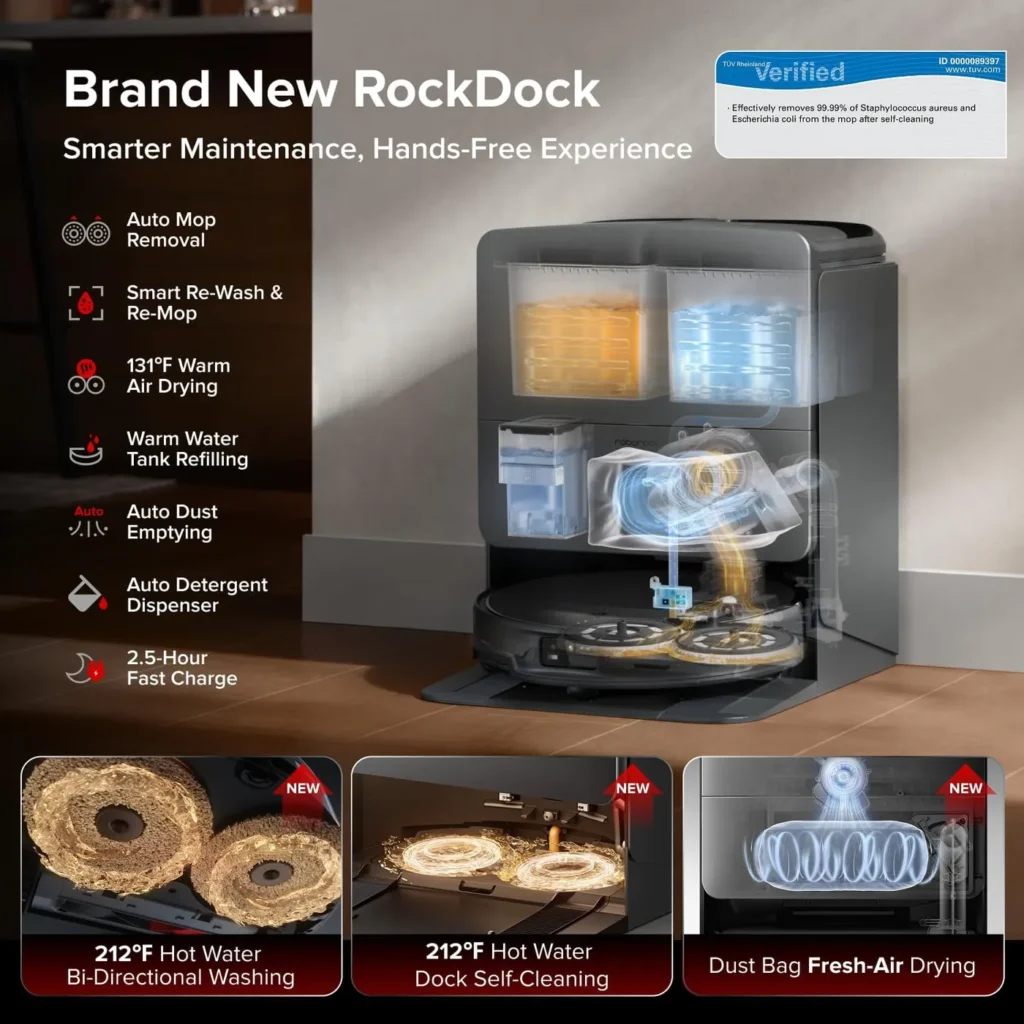
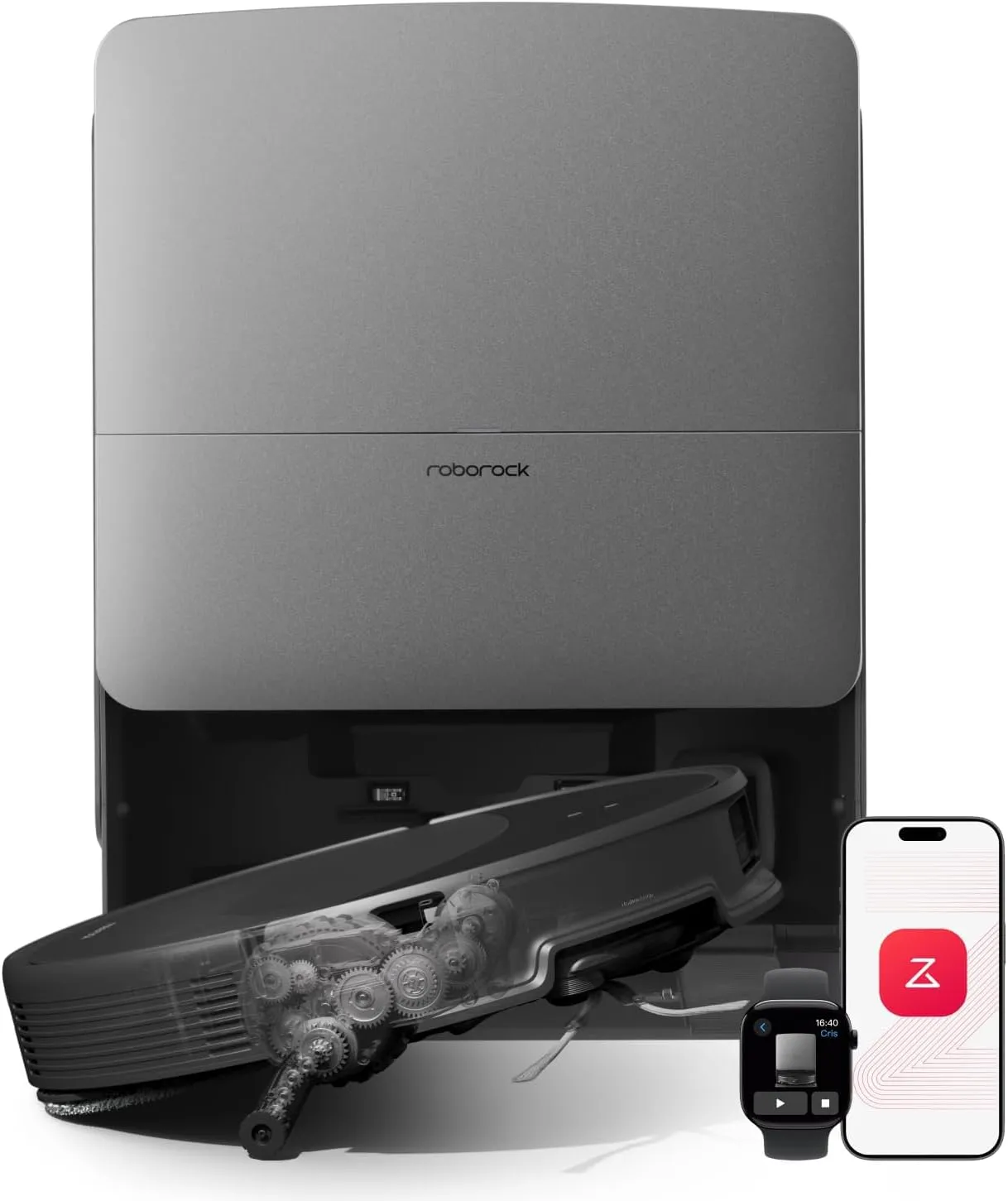
The Saros 20 changes shape as it cleans. Its chassis rises to climb and to clear carpet. Its mop mounts come off, and its side brush and side mop reach out along walls. Every one of those moves can stall.
This Roborock Saros 20 troubleshooting guide pairs each symptom with the remedy from Roborock's US manual or support pages. Inside each problem, the least invasive step comes first.
Key Takeaways
- Much of Roborock Saros 20 troubleshooting comes down to an app switch, from FlexiArm reach to hot washing.
- Single thresholds up to 1.77 inches are in range; the 3.46-inch double-layer figure has conditions.
- A steady red dock light points to voltage, a water tank or the cleaning tray.
- Clean the main brushes and filter every two weeks, and the side brush monthly.
- Damage, or an error that Roborock's remedy and a reset don't clear, goes to Roborock support.
Hot mop washes, dry patches and stains
Hot washing hangs on one app setting. If washes never run hot, check that Mop Washing Temperature reads Hot Water. During a wash, keep your hands off the dock's clean-water dispensers, since the manual warns of burns.
When the Roborock Saros 20 skips mop washing altogether, check how the run began. It washes only mops it has used. It also returns for a wash only if it left from the dock and the app map shows the dock. Next, check the water tanks and the cleaning tray.
Dry patches and stains call for one change at a time. First, raise the water flow in the app. Then stick the mop cloths flat on their mounts. On a very dirty floor, switch the mop washing mode to Deep. For set-in stains, turn on Deep Cleaning for Heavy Dirt or Stains, which Roborock ties to maximum mop pressure.
Carpet runs and the detachable mop mounts
In carpet-first and vacuum-only runs, the robot detaches its mop cloth mounts. If they stay on, check that Auto-Detach/Reinstall Mop Cloth Mounts is on in the app. The manual adds, however, that it works only under specific conditions.
A mount that won't detach or reattach needs three checks. Free it if it has jammed. Make sure it sits where the robot left it. Then confirm both mounts on the robot are fully installed, with the mop axles clicked in.
Roborock's dynamic carpet cleaning adjusts the chassis height for pile up to 1.18 inches, once switched on in the app. Its brush setting for mid-to-high pile also needs Deep Carpet Cleaning, selected by hand. Still, the manual warns against high-pile carpet and says dark carpet may reduce cleaning. Roborock's fix for error 4 is to wipe the cliff sensors and move the robot off dark or shag carpet.
FlexiArm reach and missed spots
The FlexiArm side brush and side mop don't reach out every time. The manual says the brush won't extend at every corner or wall pass. The mop extends only along walls and certain obstacles. If an arm never reaches out, check its switch in the app. The brush uses FlexiArm Design Extended Cleaning, and the mop uses FlexiArm Design Extended Mopping. After that, look for a jammed brush or a stuck mop extension.
Spots the robot starts to miss point to its sensors instead. Wipe the wall sensor, cliff sensors and carpet sensor with a soft, dry cloth. Roborock's support page blames most misses on a dirty wall sensor. Also clear any obstacle that keeps the robot out of those spots.
Zones drawn past a once-closed door can fail. Prop the door open and run a normal clean close by. Start the zone once the robot knows the door is open.
Thresholds, climbing arms and low furniture
Single thresholds up to 1.77 inches are within Roborock's range. The 3.46-inch double-layer figure has conditions. That holds only if the first step is 1.77 inches or less and the second 1.69 inches or less. The gap between them must also measure 4.72 to 5.51 inches.
If a crossing stalls, switch the robot off first, as the manual asks before any maintenance, and look underneath. The manual's only fix for a climbing arm that won't extend is to clear anything in its swing area. Roborock says a trapped robot can raise its chassis or adjust each side on its own to break free.
Under low furniture, the limit is the body's 3.14-inch height. Roborock says slight flex at the front lets it squeeze under gaps down to 3.13 inches, though scraping may occur. For a spot where it keeps wedging in, draw a no-go zone in the app.
Finding the dock, charging and resuming
A robot that can't find home may have started elsewhere or hit an obstacle. Start each run from the dock, and don't move the dock mid-run. Also give the dock hard flooring, clear of clutter and out of direct sunlight. The robot homes in on the dock's front signal area with its front sensor, so wipe both.
Charging shows on two lights: the dock's status light goes dark while the robot's power light breathes. If the dock light stays on with the robot parked, shift the robot until it goes dark. Then wipe the contacts on both with a soft, dry cloth, and check both ends of the power cord.
If a run won't resume after charging, check Do Not Disturb, which blocks the automatic top-up. It runs 10 p.m. to 8 a.m. by default, and the app can allow top-ups then. A robot you dock by hand or with its buttons won't resume either.
The dock's red light, tanks and emptying
A steady red status light means a dock error. First, check that your outlet voltage matches the dock's printed requirements. Next, refill and reseat the clean water tank, using cold tap water only. Then empty and reseat the dirty water tank. Finally, check that the cleaning tray and its filter sit properly.
Auto-emptying won't start if it's off in the app or the dust container cover is missing. It also skips a robot that docks without cleaning or that you carry back. A return during Do Not Disturb skips it too, unless the app allows emptying then. Otherwise, press the dock button on the docked robot to start emptying.
Weak emptying or a strange noise while emptying has two fixes. Refit the main brushes and their cover properly. Then clear any blockage in the filter, air duct, suction inlet, air inlet, dustbin or dust bag.
Poor pickup, brush tangles and strange noises
Debris left behind or dust leaking out has three fixes. Empty the dustbin, clean the filter and pull hair off both ends of the main brushes and their bearings. Flip the robot and press the cover's two latches inward to reach them.
For error 5, Roborock wants a tangle-free main brush, slots and ends included, then a run in Carpet mode. Error 18 calls for several claps on the robot's side to shake debris out of the fan. A fan speed warning sends you to the strainer, then to a new filter. With error 9, find the magnet on the filter's side, and replace a filter without one. Error 10 needs a cleaned filter that has dried thoroughly.
Judge noise against Roborock's benchmark first: about 65 dBA is normal, and hair-dryer or busy-street loudness is not. Beyond that level, the manual blames a jammed brush or wheel, so switch off before cleaning them. The omnidirectional wheel pries out from the left or right with a small screwdriver.
Cleaning and replacement intervals
The manual's schedule follows. Clean the main brushes and washable filter every two weeks, and replace both every 6 to 12 months. Clean the side brush monthly, then replace it every 3 to 6 months. Wash the mop cloths as needed, then replace them every 1 to 3 months. Everything else, from sensors to the dust bag, is as needed.
Before any of it, turn the robot off and unplug the dock. Rinse the filter and dustbin in clean water only, then allow at least 24 hours to dry. Keep hands, brushes and sharp objects off the filter's surface.
The dock doses cleaning solution from its own cartridge, never from the clean water tank. Remove the dust container cover with both hands, then pull the whole cartridge out. Fill it with a solution Roborock recommends, click it back in and refit the cover. If you don't mop with solution daily, switch off Smart Cleaning Solution Filling in the app. Roborock's box list has one dust bag and no solution.
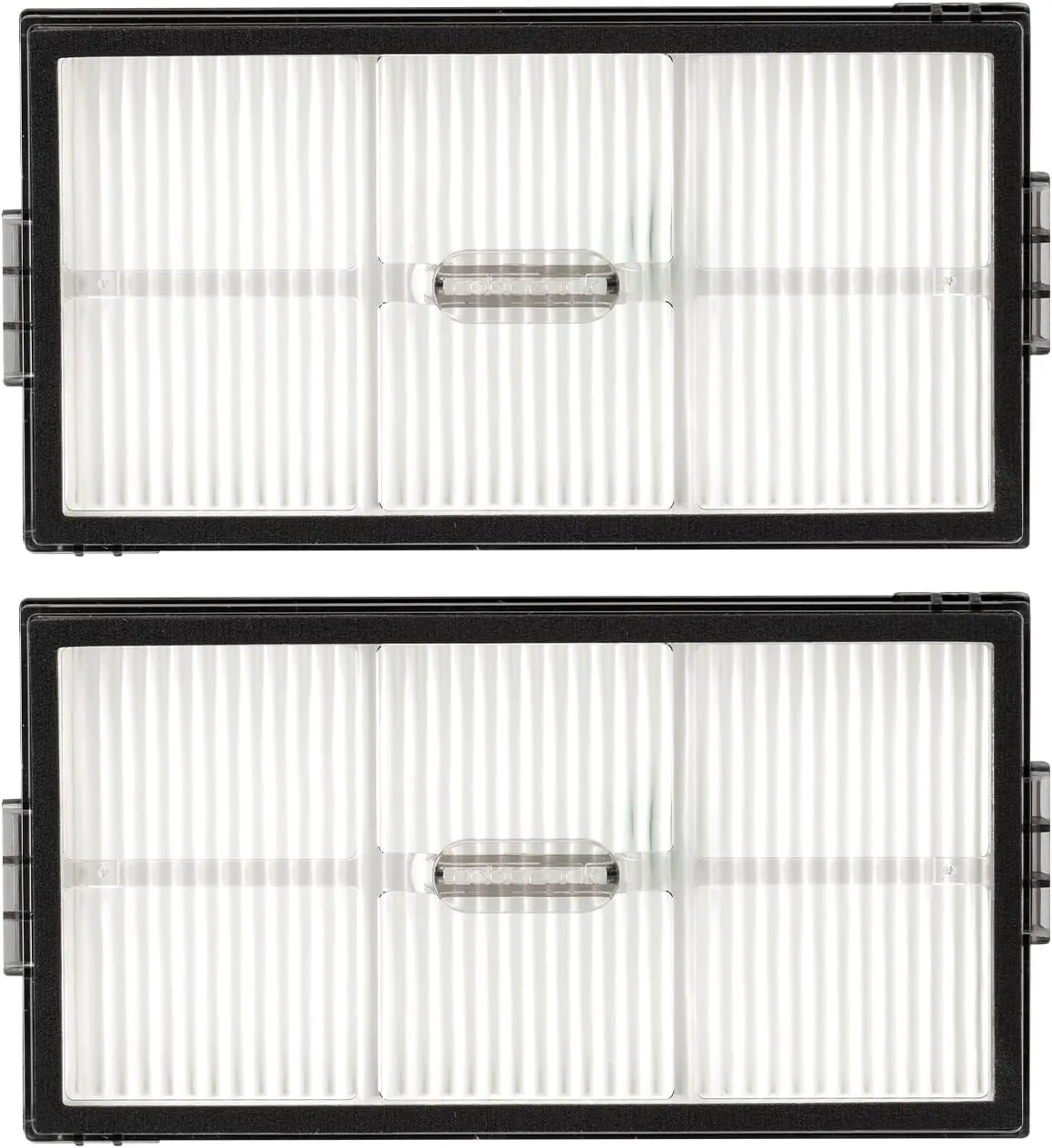
Roborock Washable Filter (2-Pack)
View on AmazonLast resorts in Roborock Saros 20 troubleshooting
For odd behavior, the manual's first answer is a restart. An unresponsive robot or an internal error calls for a system reset instead. Lift off the magnetic top cover, open the rubber plug and press the Reset button. Afterward, schedules and Wi-Fi sit at factory settings. If trouble persists, the manual's last home step is a factory restore of about 5 minutes.
Beyond that, contact Roborock, as with any error that its remedy or a reset doesn't clear. Never run a damaged robot, the manual adds. Roborock's Saros 20 pages offer no fix for a saved map that disappears. The setup steps name no Wi-Fi band either, so a router it won't join goes to support.
Roborock's US support line runs 24/7 at 1-855-960-4321, with email at support-us@roborock.com. Its store lists a 1-year limited warranty. The serial number sits on a sticker under the robot, so have it ready.
Bookmark Roborock's Saros 20 troubleshooting page for the numbered error fixes.
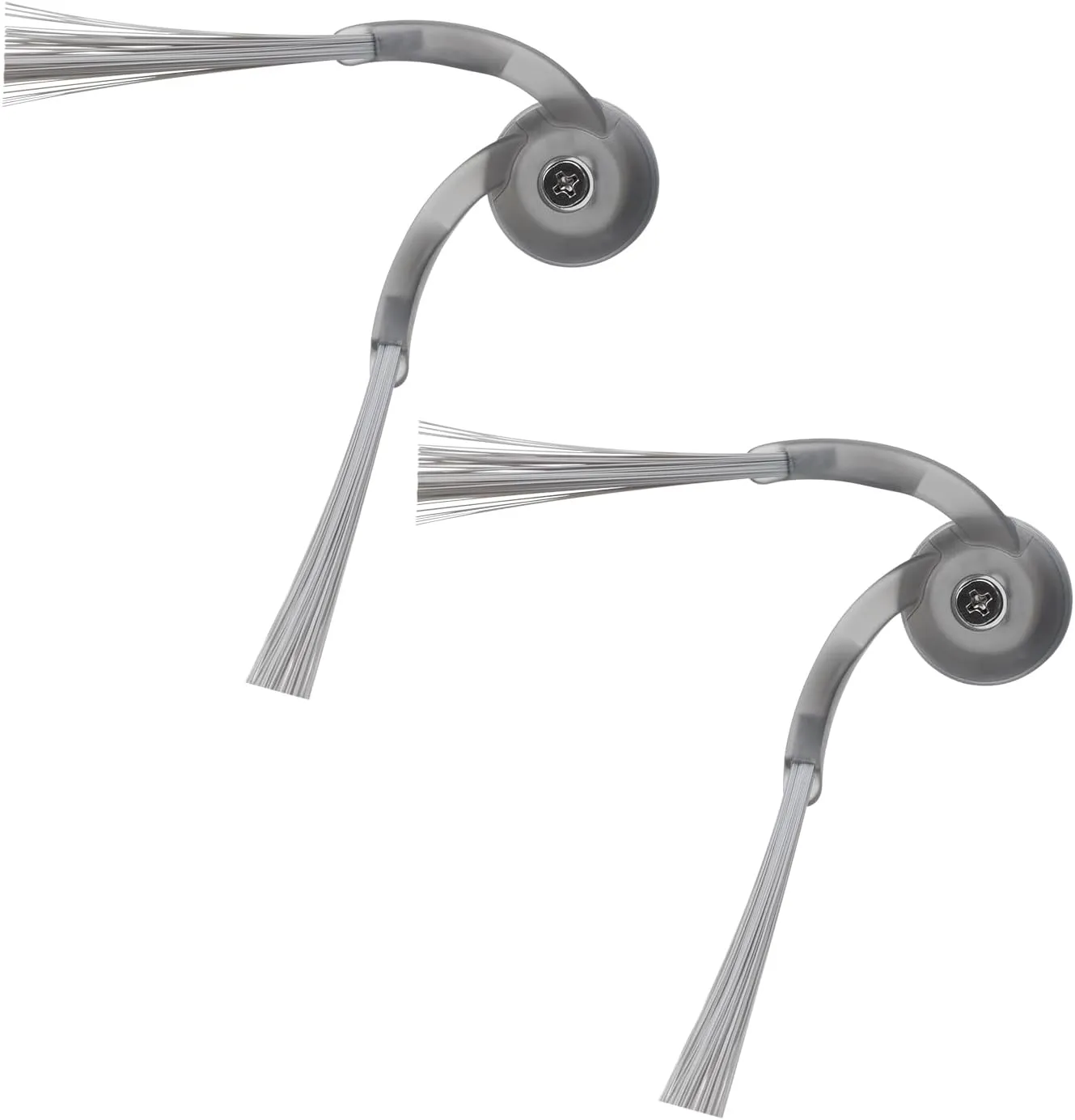
Roborock Side Brush (2-Pack)
View on Amazon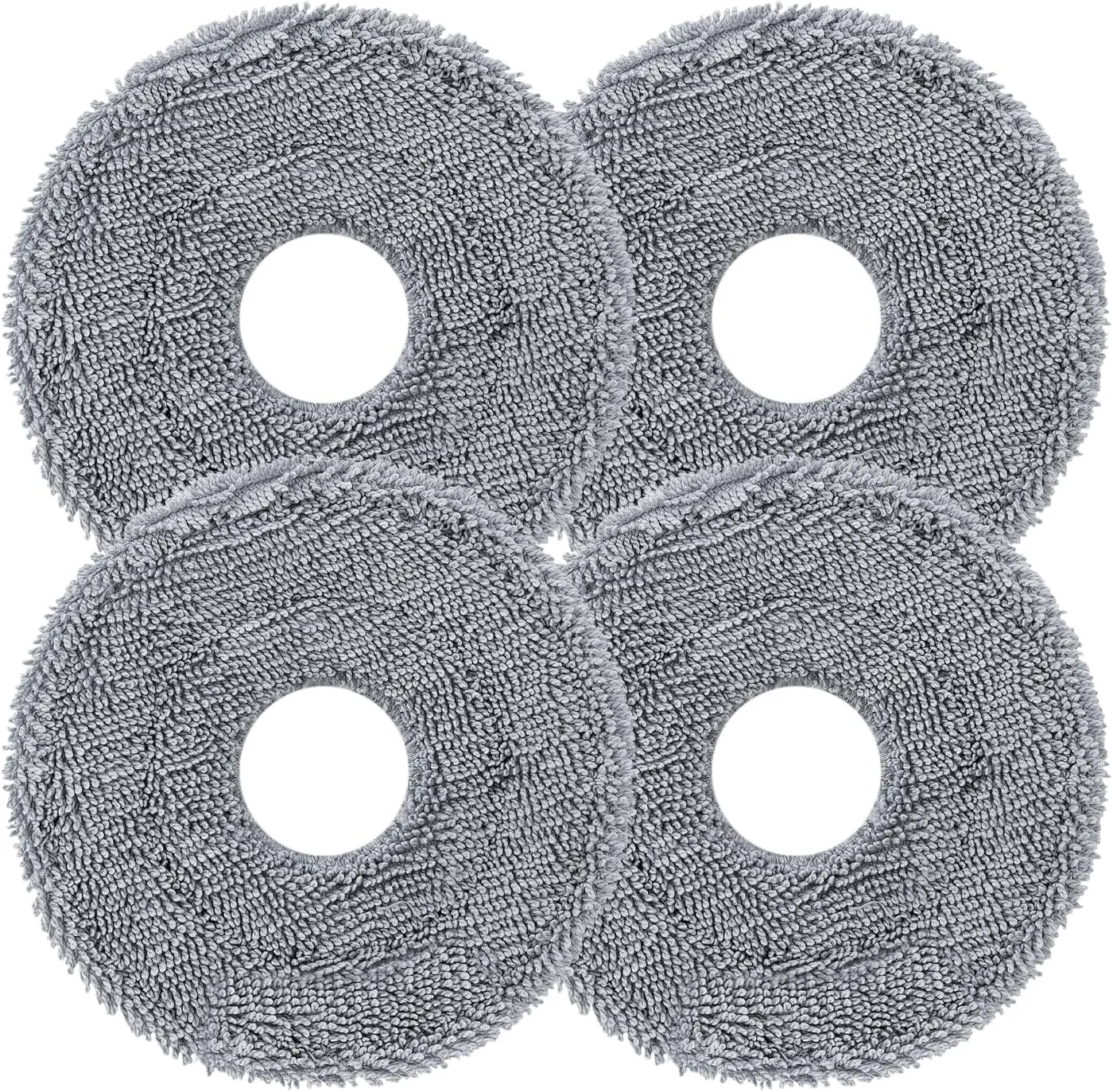
Roborock Rotating Mop Pads (4-Pack)
View on Amazon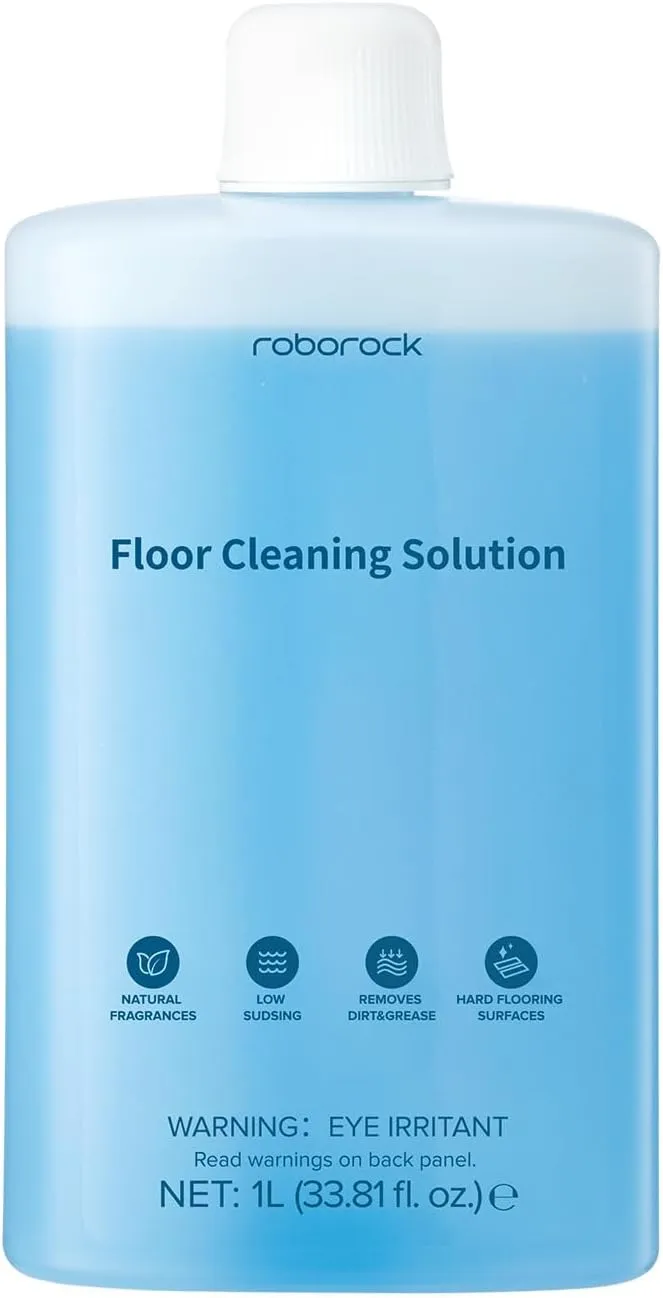
Roborock Floor Cleaning Solution (1 L)
View on AmazonConclusion
Several Saros 20 features sit behind named switches in the Roborock app. FlexiArm reach, mop detachment, deep carpet cleaning, hot washing and maximum mop pressure on stains each need one. So when a feature seems to have quit, I'd open the settings before reaching for a screwdriver. Add the manual's two-week brush and filter routine, and most Roborock Saros 20 troubleshooting stays short. Damage and errors that keep returning are Roborock's job.
Frequently Asked Questions
What do the colors on the Saros 20's power light mean?
White means 15% battery or more, and red means less. A quick red flash signals an error, which also pops up in the app. A slow blue flash means it's waiting for Wi-Fi.
Why won't the Saros 20 respond to its buttons?
With Child Lock on, a stationary robot ignores presses, so switch it off in the app or hold both buttons. A robot paused for over 10 minutes also sleeps until you press a button. If neither applies, try a system reset.
How do you reset the Wi-Fi on the Saros 20?
Hold both robot buttons until you hear "Resetting WiFi" and the power light flashes blue slowly. Then add the robot as a new device in the Roborock app. If the signal is weak, move the robot somewhere with better coverage.
Does the Saros 20 need a long first charge?
Roborock says it doesn't, because lithium-ion batteries have no memory effect. The robot is ready once fully charged. On the dock, it draws a very small amount of power to maintain the battery.
Can floor cleaner go in the clean water tank?
Keep that tank to cold tap water, with no disinfectant. Cleaning solution goes only in the dock's cartridge, and the robot doses it at a preset ratio. Roborock's support page also warns that detergent in the tank water can clog the filter.