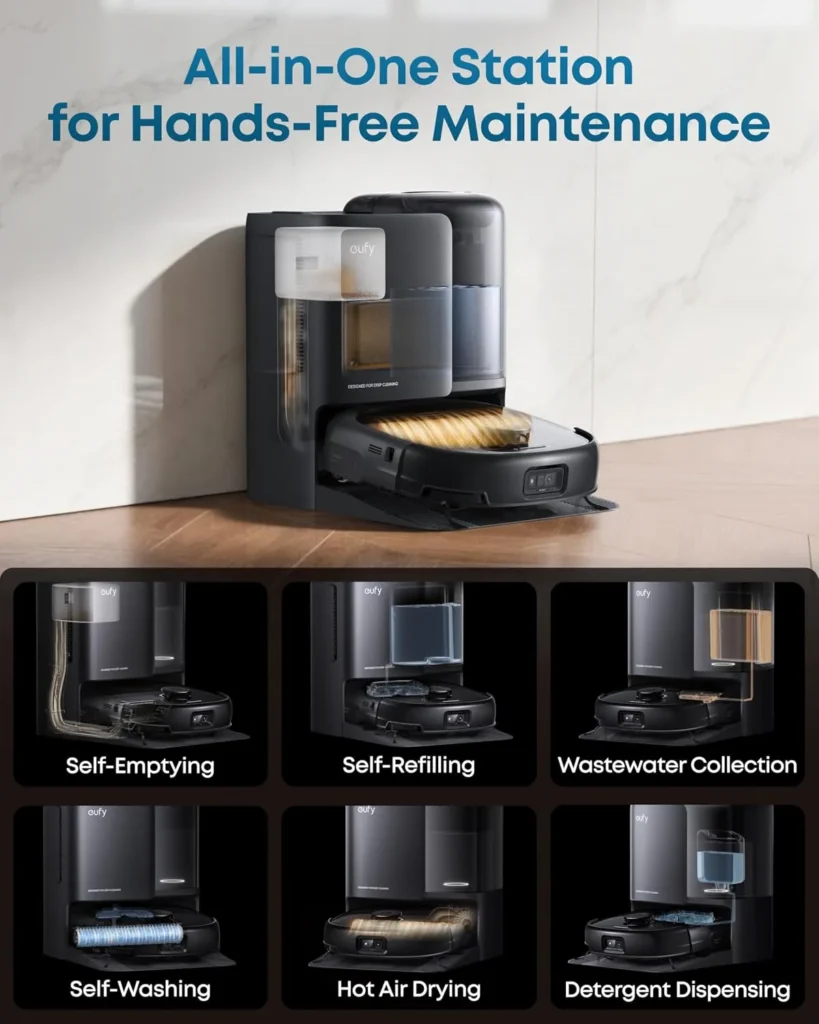
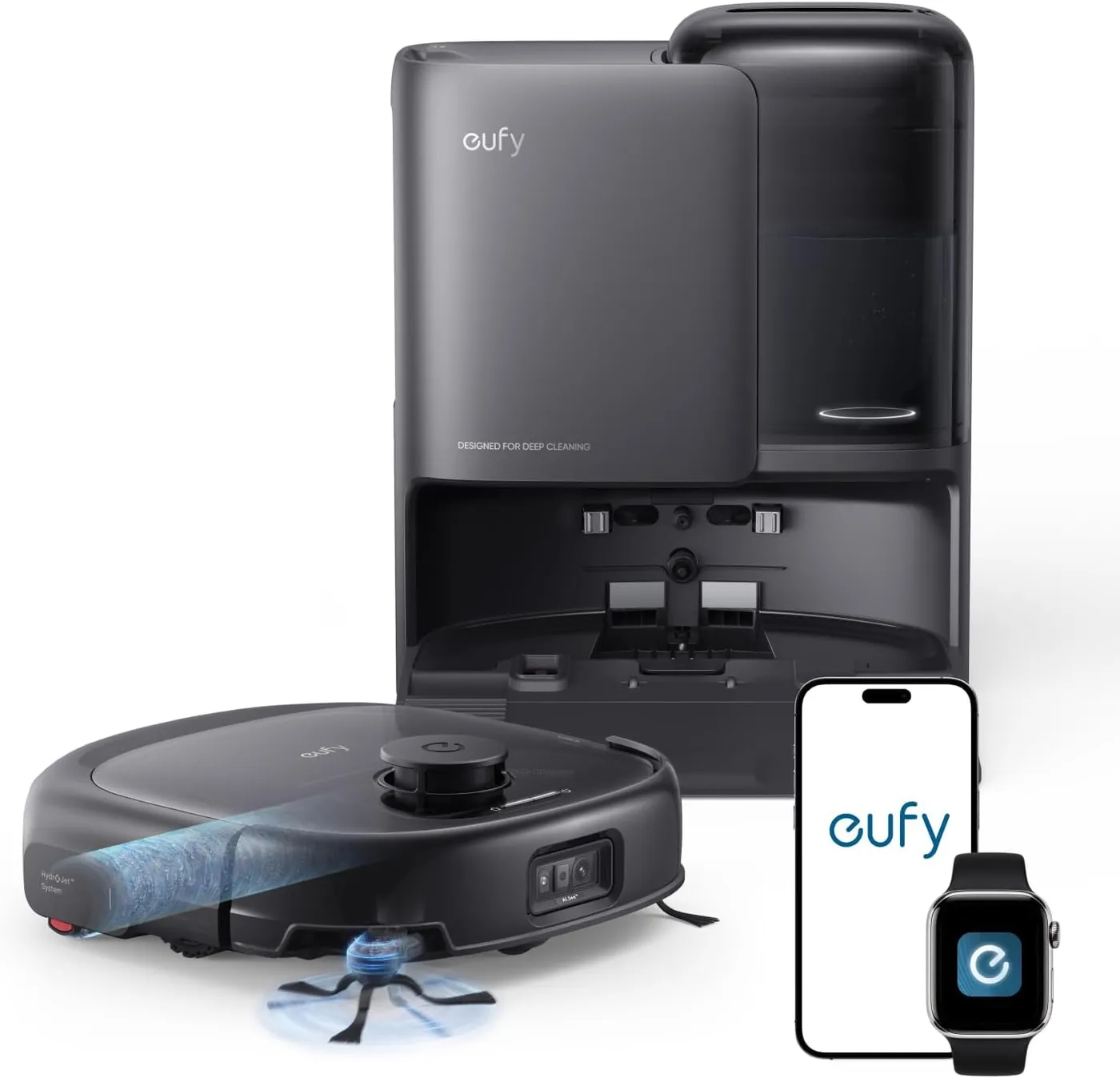
Dust and water take separate routes through the E25, and both routes end at the Omni Station. Dust leaves the floor through the DuoSpiral brushes, collects in the robot's dustbin and ends up in the station's bag. Water runs from the station's clean tank through the HydroJet roller mop and back to its dirty water tank. That split gives eufy E25 troubleshooting its first question: water side or dust side?
The water side comes first, then the dust side, the robot's rounds, the Wi-Fi link to your phone and the hand-off to eufy support.
Key Takeaways
- Before the first mop, run a vacuum-only pass, and expect some streaks at first, which eufy calls normal.
- Peel the cover off the Floor Cleaner before installing it, then enable automatic dispensing in the app.
- Use Standard Drying after every mop, and empty and clean the dirty water tank weekly or when full.
- With pets or children at home, set the empty frequency to 15 or 30 minutes.
- Steady red on the station, or fast-flashing red on the robot, means an error that the app explains.
- To reset Wi-Fi, hold the power and recharge buttons together for 3 seconds.
Water side, on the floor: streaks and stubborn stains
A streaky first mop can be normal. According to eufy's store page, a home without a recent deep clean may show visible streaks the first time the eufy E25 mops. The robot is dislodging thick dust from under furniture, and repeated cleaning reduces the streaks.
Before that first mopping session, run a vacuum-only pass in the eufy Clean app to clear dust and hair. Then set the water level to suit the floor type, using one of the three water levels the manual lists. For a stubborn stain, select the area and choose to mop it twice.
Switch on Dirty Spot Cleaning under Settings > Cleaning Preference, and the robot then detects stains such as coffee spills for deep precision mopping. Dirt Inspection, under eufy Lab, adds a room check after a full house clean to catch leftover stains.
Look after the roller itself as well. The store page asks for regular cleaning of the roller mop and dirty water tank, while the manual's table sets roller mop replacement at 3-6 months.
Water side, in the station: Floor Cleaner, tanks and drying
Check the Floor Cleaner's setup first. The manual has you peel off its cover before installing it, so confirm that the cover came off. For mopping results, the store page also advises using eufy's official Floor Cleaner and enabling the automatic cleaning solution dispenser.
The manual links odors to two places. To keep the roller mop from smelling, activate the drying function after each mopping task, and pick Standard Drying, which the manual strongly recommends every time. Then, once a week or sooner when it is full, lift out the station's dirty water tank, empty it and rinse it thoroughly under running water.
On the robot, the manual lists a 120 ml clean water reservoir and a 180 ml dirty water reservoir. Its table asks for a monthly clean of the large filter in that dirty water reservoir and lists a new filter valve assembly every 6 months.
Dust side, in the robot: brushes, hair and the dustbin
Start with the side brush. The manual warns that hair tangles easily around it and around the CornerRover arm. Remove the side brush, then carefully unwind any hair from both the brush and the arm. Wash the side brush with water, let it air-dry and refit it.
The DuoSpiral rolling brushes come out once you push the release tabs to unlock the brush guard. Push one brush's side inward, flip it up gently, then twist and pull it out, and repeat for the second. Rinse both brushes and the guard under running water, let them air-dry completely and snap everything back into place.
The dustbin and its filter get a weekly clean in the manual's table. Open the top cover, lift out the dustbin and pull its release latch to reach the filter. Empty the bin, tap the filter to knock dust loose, then rinse both thoroughly with water. Let them air-dry completely, because the manual says a damp filter may affect cleaning performance. Never use a brush, hot water or detergent on the filter.
On the dust side of eufy E25 troubleshooting, the monthly jobs matter too. Clean the side brush, rolling brushes and brush guard once a month, and clean the two brushes sooner when hair tangles or an error prompts it. Replace the rolling brushes every 6 months, and the filter, side brush and brush guard every 3-6 months. Swap the side brush or guard sooner once it looks visibly worn.
Dust side, in the station: emptying, bags and the tray
Set the empty frequency to suit the mess. With pets or children at home, eufy's store page recommends Turbo or Max suction. It also suggests an empty frequency of 15 or 30 minutes in the eufy Clean app.
If the station skips emptying at certain hours, check Do Not Disturb. During that window, the manual says the robot stays silent, with automatic dust collection and voice notifications disabled, which keeps emptying out of quiet hours. The help center adds a warning: if the window starts and ends at the same time, or overlaps a schedule, the robot may skip dust collection. Adjust it under Settings > More Settings so that cleaning runs fall outside it.
Replace the disposable dust bag every 3 months, or when the app prompts for one. If the station itself turns grimy, the cleaning tray is the manual's two-week job. Remove the tray, rinse it thoroughly with water, scrub it with a brush and slide it back in.
On the robot's rounds: chairs, cables and glass
Turn on AI.See first. On eufy's store page, this setting lets the robot recognize objects locally and avoid them during cleaning. Even so, the help center says cables and tiny toys can occasionally slip past the robot, so clear them before each run.
If the robot keeps getting stuck, start this part of eufy E25 troubleshooting with the help center's physical checks. Tap the bumper gently to confirm that it moves freely, then press down on the radar cover to make sure it can activate normally. Clear anything blocking that cover, then free the side brush and both wheels of trapped debris so they rotate freely.
Next, fence off problem furniture with No-Go zones in the app. The help center names bar stools, fan bases, U-shaped couches and Barcelona chairs, plus tables or couches close to the robot's own height. On the store page, thin chair legs and furniture bottoms lower than 116 mm join that list. The manual also warns that the robot may climb objects lower than 0.83 in (21 mm), so move those where possible.
Mirrors and glass need a different fix. The help center explains that the robot's LiDAR measures distance with infrared light, and reflective surfaces such as mirrors and balcony doors can make those readings inaccurate. Wipe the sensor and radar window with a damp soft cloth, then add a No-Go zone along the glass.
Rugs, tassels and the edge of a staircase
Rugs are where the water side has to stop. For short-pile carpets, the store page recommends the Vacuum Only carpet mode, which raises the mopping module on carpet so the rug stays dry. For medium- and long-pile carpets, pick Carpet Avoidance instead, which skips carpets entirely once the robot detects them. With Boost IQ turned on, the robot raises suction automatically on carpet.
Detection has limits, though. The store page warns that dark carpets may not be detectable, so set a No-Go zone around them. The manual adds two rules for rugs. Fold tasseled edges underneath, and avoid high-pile rugs or any rug thicker than 0.83 in (21 mm). On thin carpets, the store page suggests securing the edges and flattening any that curl.
The robot's six drop sensors usually keep it from tumbling down stairs. However, the manual says they work less well when dirty or on carpeted or reflective floors. Wipe them with a soft cloth once a month. Where the robot could fall, the manual suggests a physical barrier or a No-Go zone. It also says No-Go zones divide cleaning areas and are not meant to isolate hazards, so add a physical barrier at the top of a staircase.
Where both sides meet: station placement and the two lights
Look at the station's spot first. The manual wants strong Wi-Fi there and easy access for the robot, ideally on a hard, level surface against a wall. Its drawing shows 1.6 ft (0.5 m) of clearance on each side and 3.3 ft (1 m) in front. Also press both sides of the detachable base down firmly, since a loose base stops the robot from returning smoothly.
Keep the station plugged in at all times, because the manual says the robot relies on an infrared connection and will not return without it. Before mapping, open every door in the cleaning area and clear away toys, cables and small furniture, as the manual advises. Afterward, keep the station in place, since the robot uses it as a reference point for navigation. Once a month, dust off the charging contact pins with a soft cloth.
Then read the two sets of lights. On the robot, pulsing white means powered on and steady white means working normally. Breathing red means low battery, steady red means low battery or an error, and flashing red quickly means an error. On the station, the white ring means powered on, while steady white means working normally. Breathing white there means dust collection or mop cleaning, and steady red means an error. An unlit station has lost its power connection. For any error light, the manual's table sends eufy E25 troubleshooting into the app's instructions.
The phone link: Wi-Fi, schedules and firmware
Pairing begins with the right network. The help center's firmware article asks you to verify a stable 2.4 GHz connection at home, so make sure the robot joins that band. To pair, open the app, sign in and tap the plus icon, then follow the on-screen Wi-Fi steps. The QR code on the Quick Start Guide also leads to the app. If the connection fails, hold the power and recharge buttons together for 3 seconds until a voice prompt plays. The robot's lights then flash white quickly, so set up Wi-Fi again in the app.
Check the clock first when a schedule never starts, because 12:00 AM means midnight and noon is 12:00 PM. A robot that restarted without internet cannot sync its schedule, so reconnect the robot and the app to Wi-Fi. Also make sure Do Not Disturb is off during the scheduled time. If a schedule still runs while it appears off, open Settings > Schedule in the eufy Clean app, slide it to the left, tap Delete and confirm. Delete old schedules after the map changes, too.
For firmware, place the robot on the powered station, then turn on Auto Upgrade under Settings > Firmware Update. The help center says the robot then looks for updates in the early morning hours. The battery figure in the app is an estimate, which eufy says may read inaccurately over an inconsistent Wi-Fi link. For a large home, the store page suggests turning on auto-return cleaning in the app.
Where eufy E25 troubleshooting hands over to eufy
Every error comes with in-app instructions, so start there. If the problem persists, the manual's troubleshooting page directs you to support@eufy.com. The manual also lists a US and Canada phone line, +1 (800) 994-3056.
Warranty requests can start inside the eufy Clean app. In the app's Profile page, open the E-Warranty Card section and register the robot under To Be Registered. That section lists the robot only after it joins Wi-Fi. Per the help center, the support team then handles a request within one business day. Keep the order receipt and the product serial number handy. A short video or photos of the fault also help eufy's team respond faster. The article also limits warranty to the country of original purchase.
The box includes a Quick Start Guide, while eufy's E25 support page links to the full manual and lists how-to articles.
Conclusion
In eufy E25 troubleshooting, sort each fault by side before reaching for a fix. Streaks and odors point to the roller, Floor Cleaner, tanks or drying, while clogs point to the brushes, bin, bag or empty frequency. Getting stuck is a route problem, which No-Go zones and a clear floor address. Contact eufy support when an error keeps returning after the app's steps, or when a part stops working. Write to support@eufy.com or call +1 (800) 994-3056, and have the order receipt and serial number ready. If the E25 ever costs more to fix than it is worth, our best robot vacuums roundup covers today's other options.
Frequently Asked Questions
Why won't the E25 dispense its Floor Cleaner?
Go back to setup. The manual says to peel off the Floor Cleaner's cover before installing it on the Omni Station, so check that the cover came off. Then enable the automatic cleaning solution dispenser in the app, as eufy's store page advises. The same page recommends eufy's official Floor Cleaner as the cleaning solution.
Why did the E25 leave streaks the first time it mopped?
According to eufy's store page, a home without a recent deep clean can show visible streaks at first, because the robot dislodges thick dust from under furniture. The page calls this normal and says repeated cleaning reduces it. Before the next mop, run a vacuum-only pass and set the water level to suit the floor.
What keeps the E25 from getting stuck under furniture?
Draw No-Go zones around that furniture in the app. The help center names bar stools, fan bases, U-shaped couches and tables or couches close to the robot's height, and the store page adds furniture bottoms lower than 116 mm. Also tap the bumper to check that it moves freely, and press down on the radar cover so it can activate normally.
Why didn't the E25 start its scheduled clean?
Check the clock first: 12:00 AM means midnight, and noon is 12:00 PM. A robot that restarted without internet cannot sync its schedule, so reconnect the robot and the app to Wi-Fi. Also keep Do Not Disturb off during the scheduled time, as eufy's help center advises.
Why is the E25's station light red?
On the station, steady red means an error, according to the manual's light table, and the app's instructions hold the solution. On the robot, flashing red quickly also means an error, while steady red can mean low battery or an error. If the problem persists after the in-app steps, contact support@eufy.com.
How do you pair the E25 again after it drops off Wi-Fi?
Start by holding the power and recharge buttons together for 3 seconds until you hear a voice prompt. The robot's lights flash white quickly once the Wi-Fi connection resets. Then follow the app's Wi-Fi setup steps on a stable 2.4 GHz network, the band named in eufy's firmware article.