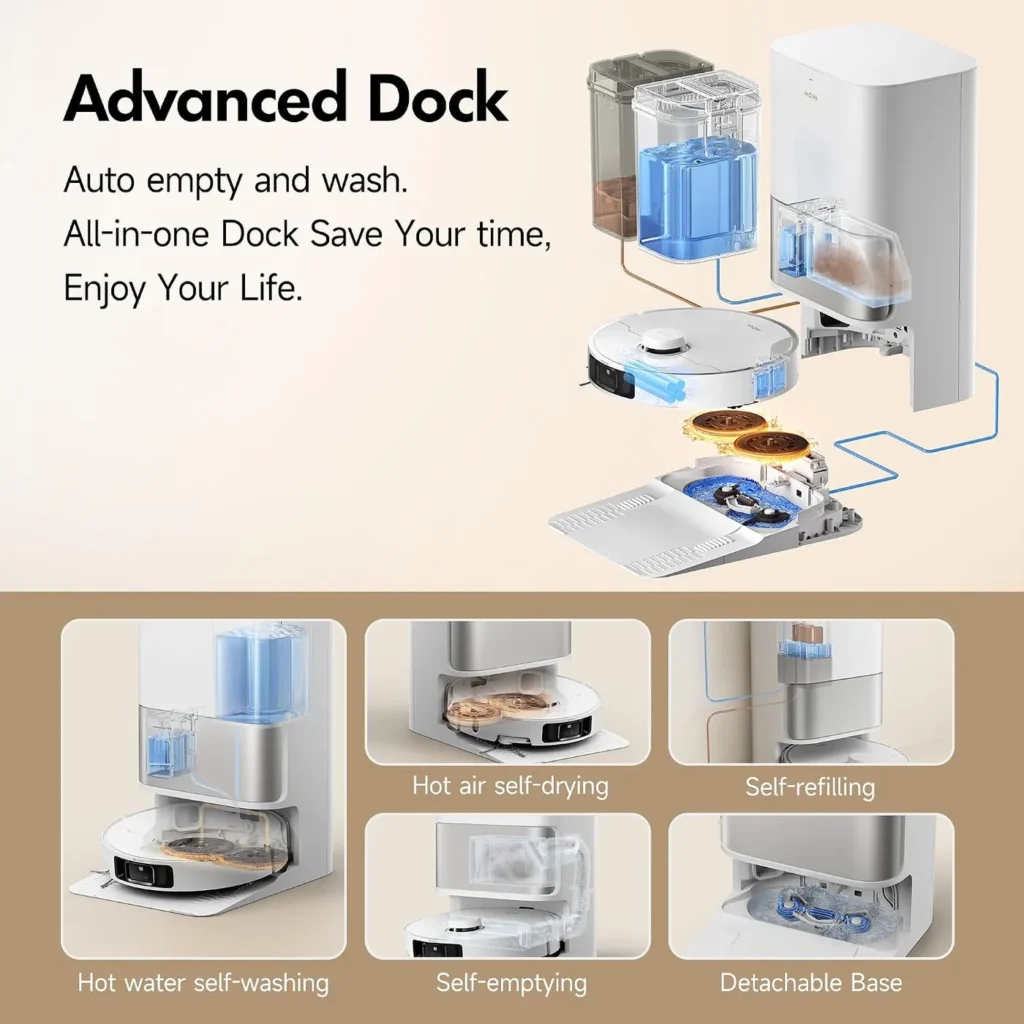
Much of the P10 Pro Ultra's routine runs without you. It plans each route from a saved map and lifts its mops for vacuum-only passes. Mid-run, it can head home to recharge and resume, or to get its pads washed and its tank refilled. After the run, the station clears the dust box before washing and drying the pads. P10 Pro Ultra troubleshooting therefore begins with one question: which of these automatic jobs never happened?
Each section below takes one of those jobs and opens with the fastest check, often an app setting or a status light. The final two cover the app link behind them and the cleaning that stays manual. Every fix comes from MOVA's manual for model RLM83HE or from MOVA's US store page.
Key Takeaways
- When dust stays in the robot, check the auto-empty switch, then the bag, then the vents.
- Blinking orange on the robot flags an error, and solid orange on the station flags a station fault.
- Keep 60 inches clear in front of the station and 2 inches at each side.
- Auto Resume Cleaning only works once enabled, and Do Not Disturb blocks it during its hours.
- Put only MOVA's approved solution in the detergent compartment, and never hot water in the clean tank.
- Clean the filter and main brush on a two-week cycle and the sensors monthly.
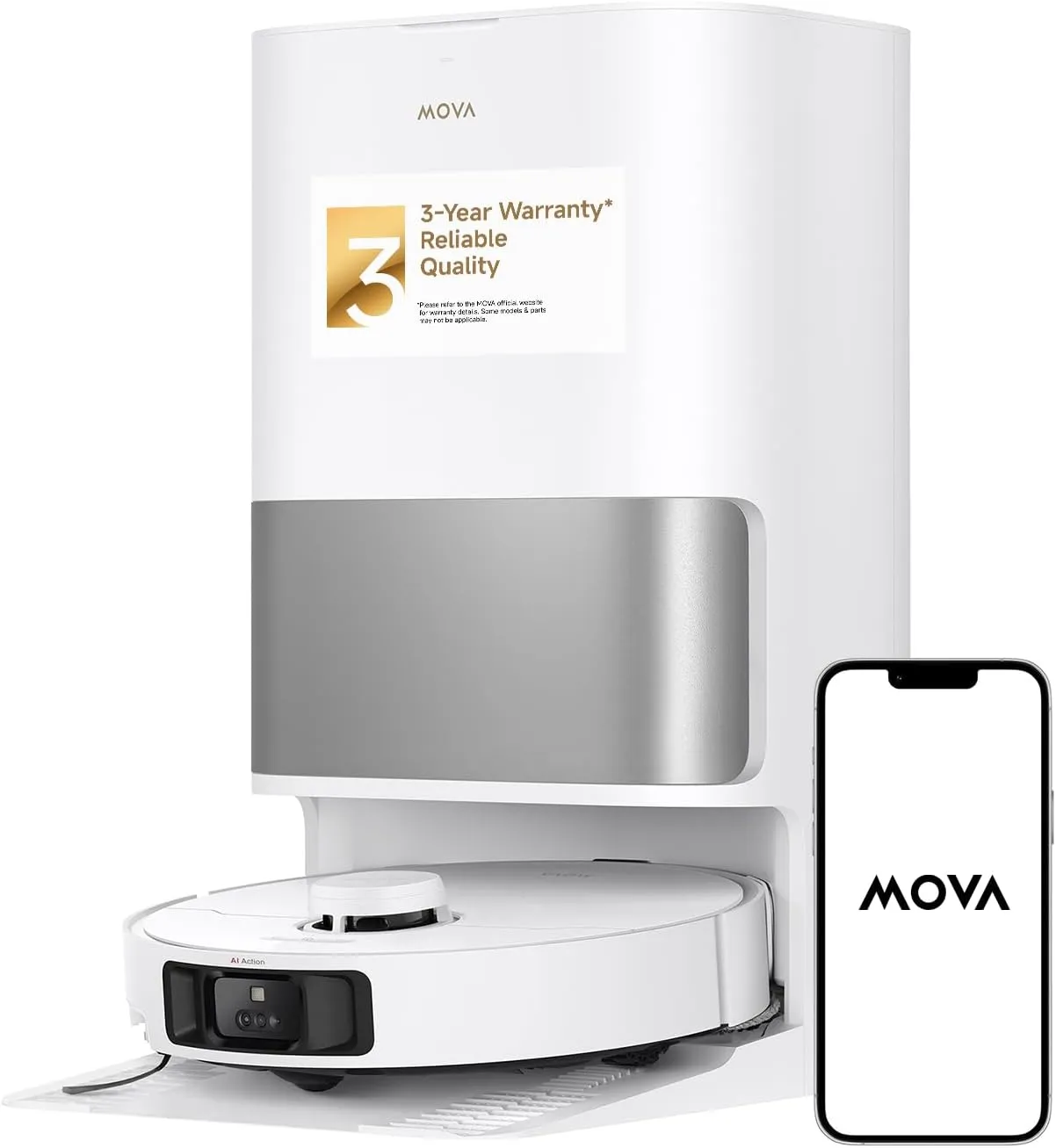
Dust and hair that stay in the robot
Check the app before you open the robot. Once the MOVA P10 Pro Ultra docks after a run, its station should empty the dust box automatically, ahead of any pad washing. That emptying follows a setting in the MOVAhome app, and with auto-empty switched off, the station skips it entirely.
A full dust bag is the manual's first suspect when emptying fails, so look there next. If the bag has room, check the dust box and both sets of auto-empty vents for a blockage. Dry-wipe the vents using a soft cloth. Pulling up on a full bag's handle seals it before you lift it out.
Then power the robot down, because MOVA cautions that the brush can start up unexpectedly. Unclip the dust box from under the robot cover, empty it and tap the filter basket lightly. Keep brushes, fingertips and sharp objects away from the filter, which they can damage. Rinse both parts in clean water alone, without detergent, then let them dry completely. For hair on the main brush, squeeze the guard clips inward, lift the brush out and slide off its end covers. The supplied cleaning tool then works the tangles free.
When the robot grows louder, look along the same path. The manual blames a clogged filter, a tangled brush or a hard object lodged in the dust box or main brush. If clearing those changes nothing, switch the suction mode to Standard or Quiet.
Routes that wander and rooms left out
Every cleaning run follows the saved map. The robot draws that map on a fast-mapping trip without cleaning, then stores it on reaching the station again. Carry the robot elsewhere, and it may need to relocate itself; if that fails, it builds a fresh map.
Before the first runs, clear cables, cloths, toys and anything hard or sharp off the floor. Open the doors to every room on the plan, and put up a physical barrier by any stairs. Then shadow the robot on its first outing so you can move obstacles in time. Stand clear of its path, doorways, hallways and tight spots while it works, so it can recognize the areas to clean.
If the route wanders, put away power cords and slippers first. Dry any wet, slippery patches, since they make the main wheels slip, and wipe the bumper window clean with a soft cloth. For a room the robot leaves out, P10 Pro Ultra troubleshooting begins at the door, which needs to stand open. The manual also flags thresholds over about 0.8 inch (2 cm), because the robot cannot climb high thresholds or steps. A wet floor just outside the room can make it slip too.
Give the laser distance sensor, edge sensor and cliff sensors a dry wipe as well, since MOVA cautions that a damp cloth can harm them. If curtains keep catching the robot, MOVA's app has Curtain Zone Cleaning, plus virtual walls that keep it out. Restricted areas fence off any other spot it should skip.
Getting back to the station and charging
Read the robot's status indicator first. Solid orange means it is on standby or paused with a low battery. Breathing orange means it is charging from low, and blinking orange is its error signal. The station's indicator stays solid white while it has power and turns solid orange for a station fault.
If the robot sits on the station without charging, P10 Pro Ultra troubleshooting starts at the power cord. Push the cord firmly into the wall socket, and upward into the station until its indicator lights. The switch beside the power port should also be on. Then dry-wipe the charging contacts, robot side and station side, and remove anything lodged at the robot's connector. Dirty contacts also slow charging. By MOVA's figure, a full charge from low takes approximately 3.5 hours, and charging slows itself outside 32 to 104°F (0 to 40°C). If the battery is too flat for the robot to switch on, place it on the station by hand.
If the robot cannot get home, the station may have lost power or moved while the robot was away. Restore power, or set the robot on the station by hand. Keep objects at least 60 inches (1.5 m) from the station's front and 2 inches (5 cm) from its sides. Its signaling area also needs to stay uncovered and dry-wiped. If the robot stops just short, make sure the ramp extension plate is in place. Then mop up any water in front of the station, because the robot can slip on a wet floor. A closed door on the way home blocks it as well.
Mop washing, water refills and the washboard
Wash trips double as refills. Mid-run, the robot heads back for a pad wash at the interval you choose in the MOVAhome app. The station refills the robot's onboard tank on every such visit, so that one setting also governs refills. MOVA adds that a color sensor checks the used water after mopping and sends the robot back to rewash and rewipe if it is too dirty.
If the water level in the washboard looks wrong, start with the used water tank. Press it down gently so it seats properly, and reset its seal by hand if it has worked loose. Then take out the washboard and check the sewage drain for a blockage. Finally, only MOVA's approved cleaning solution belongs in the auto-detergent compartment, which should click into place.
The washboard cleans itself with each mop wash, but the manual adds a deep clean every two months. Switch on washboard base cleaning in the app; after the robot leaves, lift the washboard out so water fills the base. Scrub the base with the cleaning tool, let the station pump the dirty water away and wipe it dry. Then clear hair from the washboard's roller and refit the parts by their colors.
During a run, leave the station, its two tanks and the washboard where they sit. With hot water cleaning on, avoid touching the water outlet to prevent scalding.
Rugs, mop lifting and the pad holder
Lifting depends on the cleaning mode. The robot raises its mop assembly in Vacuum Only and on the vacuum pass of Mop after Vacuuming. For that mode's mopping pass, and in Mop Only, it raises both brushes, main and side, instead. In Mop Only, the robot also checks for the mop assembly, which you fit by hand if it is missing.
MOVA puts the mop lift at 10.5 mm (0.4 inch), the robot's height difference before and after lifting. Its in-house lab data gives the side brush lift as 10 mm (0.39 inch). For pile longer than 3 mm (0.12 inch), MOVA suggests having the app avoid medium- and high-pile carpet to keep it dry. The app can also keep the robot off carpet in chosen zones. Set the station itself on tile or marble, as the manual advises, so water stains stay off wood floors and carpet.
If a mop pad holder sits raised when it should not, P10 Pro Ultra troubleshooting follows a short script. Take the holder off, check it for anything stuck in it and restart the robot. Keep both holders clean as routine care, and pull worn pads off them for replacement, which the table schedules within 1 to 3 months.
P10 Pro Ultra troubleshooting when a run stalls
Rule out the app settings first. Auto Resume Cleaning works only after you enable it in the app. With it on, a robot short of battery returns to charge, then finishes the job once it has charged enough. It won't resume if you carried it to the station or sent it to charge through the app or its Dock button. Pausing the robot and then placing it on the station ends the run as well.
Do Not Disturb holds a resume back too, though it ships switched off. Its default hours are 22:00 to 8:00, and during them the robot won't resume and its power indicator goes dark. It picks up where it left off once the window closes, and scheduled cleans still run inside it.
After a pause of more than 10 minutes, the robot drops into sleep mode and all of its indicators turn off. Any button on the robot, or the app, will wake it. If it stops responding entirely, hold the power button for 10 seconds until it shuts off, then hold it again for 3 seconds. A robot that won't switch off while charging has to leave the station first. The Reset button goes further, since a 3-second press and hold brings back the factory settings.
Pairing over Wi-Fi with the MOVAhome app
This robot connects only on 2.4 GHz. MOVA's manual rules out 5 GHz networks altogether. In the MOVAhome app, select "Scan QR code to connect", then scan the code printed on the robot and follow the prompts to finish. On the robot, a slowly blinking Wi-Fi indicator awaits a connection, a fast blink means connecting and a steady light means online.
If pairing fails, re-enter the network password carefully and make sure the robot sits where coverage is good. Then close the app, open it again and retry, since the robot may not have been ready to configure. To reset the Wi-Fi link later, repeat the add-device step and follow the prompts.
A 20-second hold of the Dock button, while the robot sits on the station, shuts the Wi-Fi module off until any button press revives it. MOVA also notes that app updates can change these steps, so follow whatever the current app shows.
Hand cleaning that follows MOVA's own table
Some maintenance still falls to you. After every run, tip out the used water tank, then rinse it to prevent odor, as the manual advises. Scrub its inner wall with the cleaning tool, and go gently around the float ball, which moves. Top up the clean water tank with clean water, never hot, since heat can deform it.
Every two weeks, clean the dust box filter along with the main brush. Once a month, dry-wipe the bumper, its window, the laser distance sensor and the 3D line laser sensor. The same monthly round covers the edge, cliff and carpet sensors, the omnidirectional wheel, the robot's water refilling inlet and its underside. For the wheel, use a small screwdriver to ease the axle and tire apart without forcing them. Rinse both under running water, then refit them only when fully dry.
Mop pads need replacing within 1 to 3 months and dust bags within 2 to 4, per the table. The filter and side brush last 3 to 6 months; allow 6 to 12 for the main brush. MOVA adds that real timing varies with use, and the app tracks accessory usage. A screwdriver frees the side brush for cleaning or a swap, and MOVA's manuals page shows each step in diagrams.
Conclusion
Name the job that did not happen, check its app setting, then clean or reseat the part the manual points to. P10 Pro Ultra troubleshooting passes to MOVA when a fault outlasts that fix. The manual says so for a mop pad holder that stays raised after a restart and a washboard water level that stays abnormal. A robot that still won't power off after a 10-second hold belongs with MOVA too, as does a dropped, damaged or soaked one. Call MOVA's US support line at +1 (888) 308-6159, 9:00 to 18:00 EDT daily, or email support@mova-tech.com. When a fix no longer adds up, the mid-range robot vacuums we rank make a fair place to look for a replacement.
Frequently Asked Questions
Why did the station leave dust in the P10's dust box?
Look at the MOVAhome app first: with auto-empty off, the station never empties the dust box, and otherwise it follows the emptying setting there. A full dust bag comes next on the manual's list. If the bag has room, look for a blockage in the auto-empty vents on both robot and station, or in the dust box.
What does blinking orange on the P10 mean?
On the robot, blinking orange is the error signal. Solid orange means standby or a pause with a low battery, and breathing orange means it is charging from low. The station has a separate light: solid white while it has power, solid orange when the station has a fault.
Why does the P10 sit on the station after a mid-run charge?
Check the MOVAhome app for Auto Resume Cleaning, which the manual says you must enable. Do Not Disturb also stops a resume during its hours, which default to 22:00 to 8:00. The robot won't resume either if you carried it to the station or sent it there to charge.
Is water under the clean water tank a leak?
Not according to MOVA. When you lift the clean water tank out, water left in the pipe can collect under the tank or around its seal, and the manual calls that normal. A dry cloth takes care of it.
Why does pairing with the MOVAhome app keep failing?
The robot connects only on 2.4 GHz, so a 5 GHz network won't do. Re-enter the network password carefully and make sure the robot sits where coverage is good. If pairing still fails, close the app, open it again and retry, because the robot may not have been ready to configure.
How do you restart a P10 that has frozen?
Hold the power button for 10 seconds until the robot shuts off, then hold it again for 3 seconds to bring it back. If it only refuses to switch off while charging, lift it off the station first and hold the button for 3 seconds.