The Roomba 505X names its own faults out loud. Per the owner's guide, it announces a fault by voice or with an audio alert, while the Roomba Home app lists steps in a notification.
On iRobot's support site, the error chart for the Plus 500 series gives each fault a number. Those numbers fall into ranges, and this Roomba 505X troubleshooting guide takes them in order. Every remedy comes from iRobot, whose owner's guide for the 505X carries the Roomba Plus 505 Combo name.
Key Takeaways
- Press the power button to hear the last error message again.
- On a high-pile rug, error 2 can come from the pile slowing the brush, so retest on a hard floor.
- Clean the charging contacts with lightly dampened melamine foam or a lightly dampened cloth, and treat green or copper-colored contacts as damage.
- Code 672 can mean a full or missing dirty tank or an overflowing wash basin, so check both.
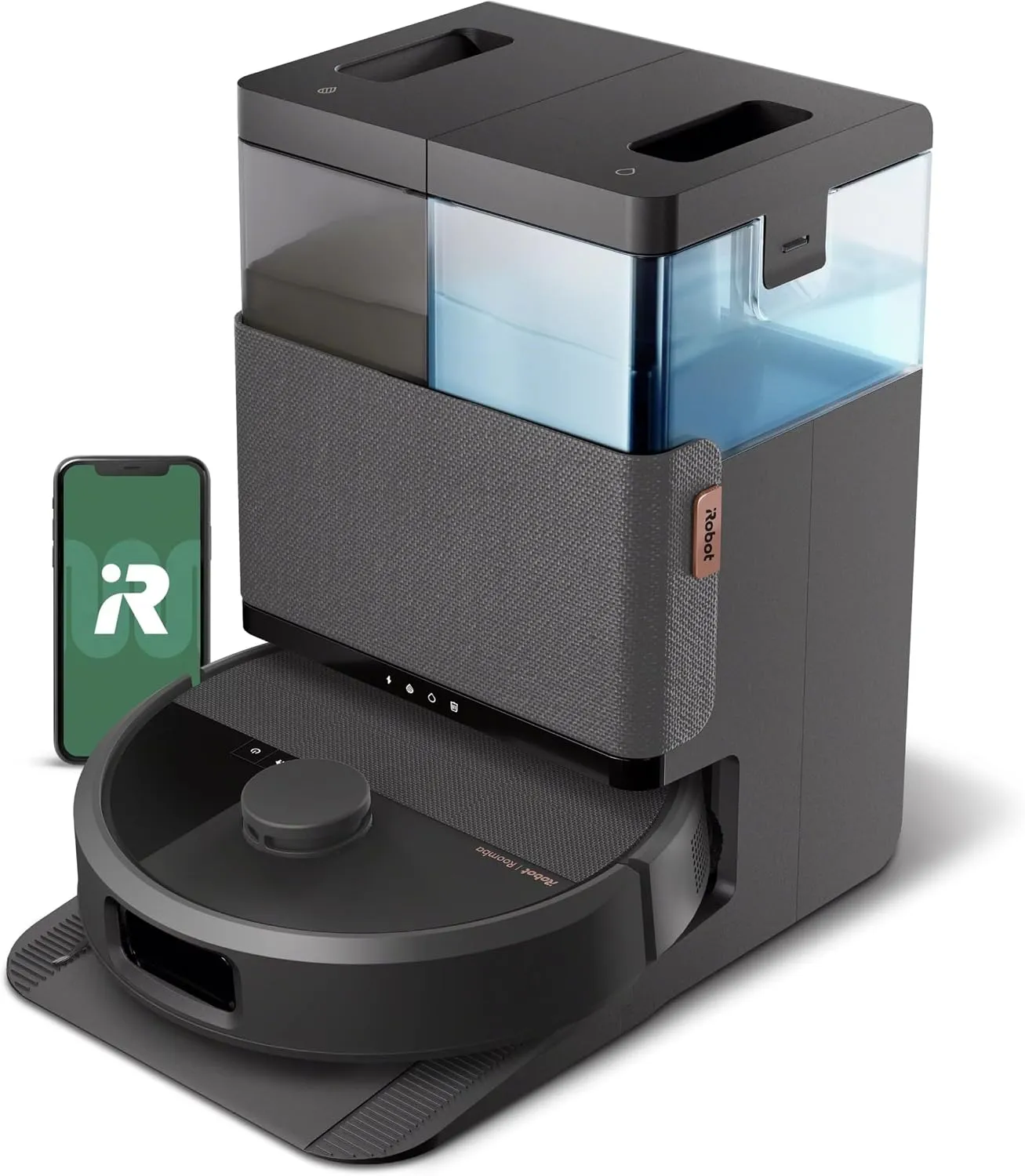
- The 505X carries no water tank of its own, so mid-job trips to the dock keep its pads wet.
How the error number steers Roomba 505X troubleshooting
Note the number first. Pressing the power button repeats the error message, per iRobot's error chart. Flashing red on that button warns of a battery running low or an error, and a dock fault also lights the dock's front LED indicators.
Each range then points to one area. On the iRobot Roomba 505X, one- and two-digit codes come from the robot itself, while the 100s cover charging. Codes in the 300s through the 700s belong to the AutoWash dock, its tanks and the mop pads. Finally, the 1000s span the side brush, the pads and navigation.
One reboot recurs across iRobot's error articles. With the robot lifted clear of the dock, keep the power button down for 10 seconds. Release it, then hold it down again for 3 seconds so the robot powers back on. After that, the articles say, the error should clear from the robot's memory. The app also has the same reboot under Product Settings.
The owner's guide sits on iRobot's owner's guide page, listed under the Plus 500 Series. Its care tables supply the intervals in the sections below.
Under 100: hair, dust and the bin (errors 2, 14 and 26)
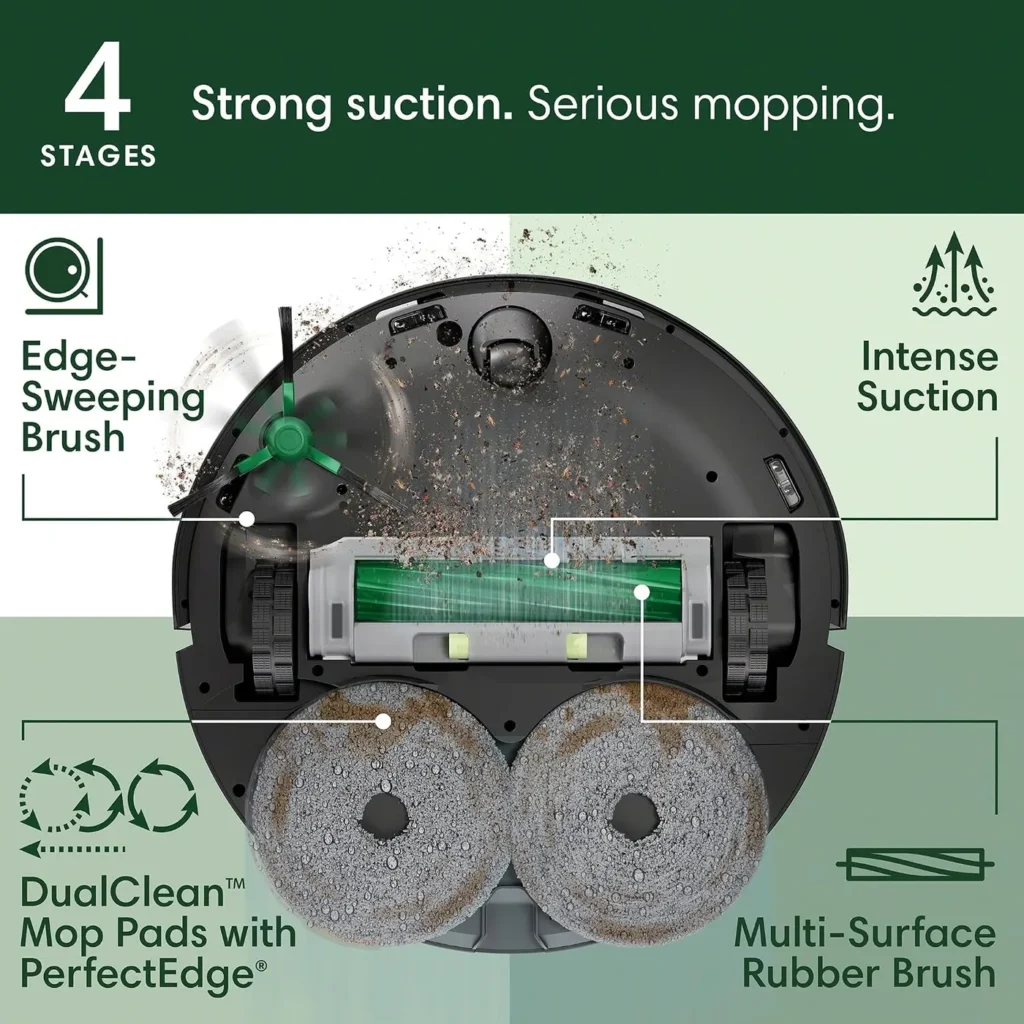
Error 2 means the main brush cannot turn. Press the brush cover release tabs and lift the cover away, then take out the Multi-Surface Brush. Clear its hair with the cleaning brush and twist off each end cap to reach the buildup beneath, then refit both caps correctly before the brush goes back.
Thick carpet or a high-pile rug can slow the brush enough to cause error 2, iRobot says, so also test the robot on a hard floor. A stall that survives a clean brush and a reboot may call for a new brush, which the care table schedules every 6-12 months.
Error 26 means the vacuum lacks airflow, so give it a clean or new filter, then reboot if the error persists. With error 14, the robot cannot detect its bin. The top cover is magnetic, so lift it off and press the bin release button to free the bin. Remove the filter and brush it clean, empty the bin through its door, then refit the filter and push the bin in until it clicks.
Weaker pickup with no code still belongs to Roomba 505X troubleshooting. For that, the owner's guide prescribes three jobs: empty the bin, clean the filter and clean the brushes. Its care table also wants the filter and the Multi-Surface Brush cleaned weekly. With a pet in the home, the filter needs it twice a week.
Under 100: lifted, lost or blocked (errors 16 to 69)
Error 16 typically means someone lifted the robot. It registers a lift once both wheels leave the floor, so avoid moving it mid-mission unless it needs a rescue. If nobody touched it, look for whatever it got stuck on, and block off a spot that keeps trapping it with a keep out zone.
Error 33 means the robot could not plan a path out of an area and canceled the job. First, look for a closed door, moved furniture, clutter or a threshold it crossed but cannot climb back over. Error 48 means it could not reach a room you sent it to, so clear the way between rooms. For both, the robot also needs adequate light, and iRobot counts daylight or dim lighting as enough.
Reboot if either code persists. A 48 that repeats over multiple missions points to a corrupted map, so delete it and let the robot remap. If 33 outlasts the reboot, turn the robot over and rotate both wheels fully, since one that turns harder than the other could mean a wheel module failure.
Code 69 is a localization error. After the light and obstacle checks and a reboot, iRobot suggests one Clean Everywhere mission with the dock moved elsewhere. That may help the robot see the space from a new angle, and afterward the dock can go back.
The ClearView LiDAR adds half an inch of height over previous models, which iRobot says may affect fitting under furniture. Codes 35 and 46 sit with the pads and charging.
Under 100: wheels, cliff sensors and bumper (errors 1, 4, 5, 6 and 9)
Error 1 means a wheel is stuck. The robot is sitting on an obstacle or uneven floor, so move it somewhere flat and restart it. If the code came up on flat floor, push each wheel up and down repeatedly and shake out loose debris. Then spin both wheels by hand, since they should turn freely with equal resistance.
Errors 4 and 5 name the left and right wheel, and the same checks apply. According to iRobot, a wheel that won't turn by hand, or a code that returns on a clear, flat floor, may mean a replacement robot. If the robot is still under warranty, contact Customer Care.
Error 6 means the robot is stuck over an edge, on a threshold or on a dark surface. Move it, then press the power button to resume. If error 6 or 1 keeps returning, wipe the cliff sensors with a dry, clean microfiber or soft cotton cloth, and never spray cleaning solution or water onto them. For error 9, tap both sides of the bumper repeatedly to shake loose any trapped debris.
Clear hair and debris from the front caster wheel with the cleaning brush, too. The owner's guide warns that a front wheel clogged with hair and debris could result in damage to your floor. If the wheel still drags after a cleaning, contact Customer Care.
The 100s and error 46: charging, contacts and dock placement
Error 46 is a low-battery warning. Let the robot charge fully on the dock, watching the status in the Roomba Home app. Mid-job, it also heads home to recharge by itself and then carries on from the point where it stopped.
Four charging codes lead to the contacts. Codes 104 and 105 mean little or no current reaches the robot, and with 119 and 121, a docked robot cannot charge properly or keeps losing charge. First, unplug the dock and wait 60 seconds, then lift the robot off and clean its contacts with lightly dampened melamine foam or a lightly dampened cloth until they shine. Only those two are acceptable to iRobot, and nothing abrasive should touch them.
Green or copper-colored contacts mean damage, and iRobot says the robot or dock carrying them needs replacing; contact Customer Care. Codes 106 and 107 flag a battery too hot or too cold to charge, which the chart treats as environmental. Take the other 100s, which concern the battery or charging system, to Customer Care too.
Placement belongs in Roomba 505X troubleshooting as well, since the owner's guide ties a clutter-free dock area to better docking. Give the dock a hard floor with good Wi-Fi coverage, away from direct sunlight. Keep a clear 1.5 feet (0.5 m) at both sides and 4 feet (1.2 m) in front, with stairs at least 4 feet away. To dock the robot by hand, slide it toward the dock with the metal charging contacts lined up.
The 300s: emptying, the bag and the dock link
Errors 350 and 353 point to the dust bag. Between them, they mean the bin could not empty because the bag is full or missing. The dock shows solid red for a dust bag that is full, missing or improperly installed. To swap it, pull the cubby door toward you and up, then slide out the card, which seals the bag. Slide the new bag's card along the guide rails, then refit the door so it sits aligned.
If a fresh bag leaves the light red, the robot's bottom port and the dock's port need clearing. Error 365 means too many evacuations, so inspect the dock and the bin for clogs. The dock's motor also has a thermal protector against overheating, and when it trips, the motor stops. Pull the plug and give the dock 30 minutes to cool, then clear the evacuation tube and port of any obstruction and plug it in again.
Errors 360, 660 and 757 mean the robot and dock have stopped communicating. For 520, a failed infrared link, the chart's remedy is clean IR sensors. On the dock, wipe the IR window and charging contacts with a dry cloth once a month. Wipe lint off the dock filter as it builds up.
The 400s to 700s: tanks, the wash basin and pad drying
Each dock tank has its own light. Solid red flags a full dirty tank, an empty clean tank, or a tank that is missing or improperly installed. In the chart, 450, 451 and 671 cover the clean tank, while 653 and 654 cover the dirty one. Lift the flagged tank off and open its latch, then pour out the dirty water or refill the clean tank. Close the latch properly before the tank goes back.
Error 672 appears twice in the chart. One entry is a full or missing dirty tank, and the other, shared with 517, is a basin overflow, where water cannot drain from the overflow basin. Wipe out the pad washing basin with a dry, clean cloth, then check the drainage port for anything blocking it. For stubborn grime, the guide allows a sponge with mild soap. Error 670, meanwhile, means the cleaning tray or wash basin isn't installed correctly.
The guide calls a noisy pad wash normal, since the pads turn while the basin fills and empties. During drying, which can stretch over a few hours, the dock may give off a low hum, and the app lets you change the drying time. Rinse both tanks in warm water and drain the dirty one as needed; neither tank is dishwasher safe.
The 1000s: side brush, mop lift, LiDAR and the map
Errors 1000 and 1001 mean the side brush has stopped. Pull the edge-sweeping brush off, clear its hair with the cleaning brush, then refit it with a firm press until it clicks. Error 1001 typically ends the mission, so return the robot to its dock before starting a new one.
Error 1008 means the mechanism that lifts the pads clear of rugs and carpet has failed. Inspect the pads for debris that could obstruct them, then reboot. Code 1026 flags a tangled or stuck pad, so remove both pads and refit them with nothing wrapped around them. Pad codes elsewhere include 35, 668, 669 and 752. For 35, check that authentic iRobot pads sit firmly in place.
Error 1010 means the robot can no longer find or reach its dock during a mission. Usually something changed, such as a blocked path, a closed door, or a moved or unplugged dock. Light or reflections around the docking sensors can also cause it, though iRobot says dark rooms do not. Open doors, clear the path and reboot, then clean the brushes, wheels and sensors on robot and dock, and remap if the code persists.
Error 1025 means the LiDAR has stopped, so move the robot to a clear location and reboot it off the dock. If the code persists, spin the inner part of the LiDAR cylinder with a finger or the cleaning tool. Codes 1029 and 32 mean the robot's map and the app's copy no longer match, so look over the map, reboot, then delete it and remap.
Conclusion
Keep a note of every code the robot calls out. In Roomba 505X troubleshooting, that number decides where to look first, since its range points to the brush and wheels, the charging contacts, the dock or the map. Keep up the care tables as well, because iRobot links poor maintenance to a multitude of error codes. Contact iRobot Customer Care through the Roomba Home app or global.irobot.com when a code survives the fix in its section. Do the same when a wheel still won't turn freely or the contacts look green or copper-colored. And once a repair outweighs what the robot is worth, our premium robot vacuums roundup sets out its current rivals.
Frequently Asked Questions
How do you make the 505X repeat an error it just announced?
Press the power button. The error chart for the Plus 500 series says error messages repeat that way. The Roomba Home app also pushes a notification that lists steps for the fault, and a dock fault lights the LED indicators on the dock's front as well.
Where does the 505X get water for its mop pads?
From the dock. According to iRobot, the Plus 500 robot has no water tank. Before a mission, the dock wets the pads, and the robot comes back periodically when they need more clean liquid. Mid-job pad washes bring it back too, and so does a low battery.
Why do the 505X's mop pads keep falling off?
Near furniture or power cables, iRobot blames collision and friction, so reattach the mop tray and carry on. If it drops off in open floor, try the tray in the left slot and then the right while listening for a click. To test the magnets, hold two pad holders together facing opposite directions. If they attract, one magnet is reversed and both pad plates may need replacing.
Can vinegar or hot water go in the 505X dock's clean tank?
No. The approved-solutions list for the Plus 505 series excludes hot water and warns that mixing water with vinegar leads to corrosion and a void warranty. Use plain water, StayClean Mopping Concentrate at 2 caps per empty tank or Braava Jet Fresh Liquid Floor Cleaner at 400 mL, then add water up to the fill line. Bleach-based products are out too, per the owner's guide.
Why is the bin still full after you dock the 505X by hand?
If you carry the robot to the dock yourself, it skips the automatic empty, according to the owner's guide. Start the empty from the Roomba Home app instead. The support article on bin care adds that pressing the home button on a docked robot starts it too.
How do you know the AutoWash dock's bag is full?
The dock's red light or the Roomba Home app tells you, according to the owner's guide. If you believe the bag isn't full, the support article on full bags suggests shaking it gently and putting it back in. That article also asks for authentic iRobot bags.