In its 2025 product FAQ, iRobot says the Roomba 100/1000 series needs a 2.4 GHz connection and cannot operate on 5 GHz. The 105 Vac belongs to that series, so trouble can start at the router, before the first clean.
Later stages also bring their own faults: a job ends early, the map stops matching the house, or pickup fades. This Roomba 105 Vac troubleshooting guide takes those stages in order. Every fix comes from iRobot's owner's guide, support articles or US store page.
Key Takeaways
- Set up the 105 Vac over a 2.4 GHz connection, with Bluetooth and Precise Location turned on.
- A mid-job trip to the dock is a recharge, and the job resumes afterward.
- For an offline 105, try Replace Wi-Fi before Factory Reset & Remove Robot.
- Weaker pickup calls for an emptied bin plus a cleaned filter and brushes.
- Green or coppery charging contacts mean damage, so call Customer Care.
Setting it up on a 2.4 GHz home network
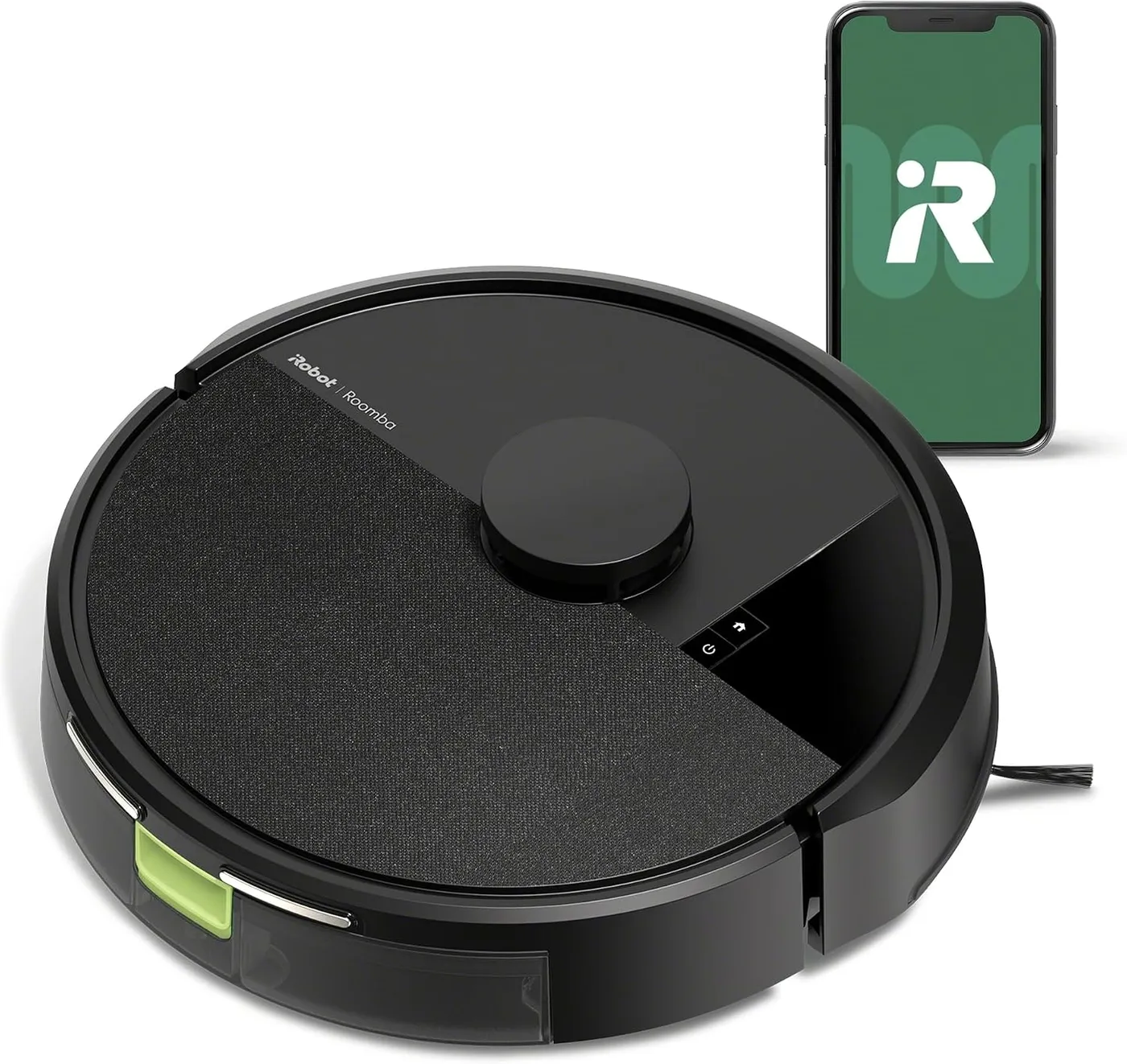
Keep the robot on its dock during setup. The iRobot Roomba 105 Vac should be charging there, ideally near your router, while your phone joins the 2.4 GHz network you want the robot on. Turn on Bluetooth and location services, including Precise Location, since the app uses them to find the robot nearby.
Use a phone for setup, because iRobot no longer supports iPads or tablets there. The quick start card sits inside the cardboard packaging, and the setup QR code is on the box. Type the Wi-Fi password by hand, as iRobot advises against copy and paste.
The setup article still warns that symbols such as # or % can trip setup and suggests dropping them. According to the release notes, software 9.4.8, released August 18, 2026, supports all characters in Wi-Fi names and passphrases.
If the app says the robot belongs to another account, or shows error C1CD or BRC1CD, use its change-ownership steps, which include a factory reset. After two failed searches, the app asks you to pick a temporary network the robot creates. Your phone may then slip back to 5 GHz, so switch it back to 2.4 GHz. If a mesh network that merges both bands gives trouble, turn 5 GHz off until the robot connects.
Staying online: Roomba 105 Vac troubleshooting after updates
Refresh the robot, the router and the app first. Undock the robot and hold Power for 10 seconds to shut it down. Then hold it for 3 seconds to restart. Power-cycle the router, with 10 seconds unplugged and 2 minutes to boot, and reinstall the app.
One fault in Roomba 105 Vac troubleshooting has its own iRobot article. It covers an issue affecting some Roomba 105 robots after a recent software update. For a robot marked offline in the app, begin with step one of iRobot's recovery steps for offline 105 robots: open Robot Settings, choose Replace Wi-Fi and follow the prompts. Separately, the release notes list software 9.4.9 as a hotfix for robots going offline after an update.
If it stays offline, step two erases the robot. Under Robot Settings, open the About page for your robot and choose Factory Reset & Remove Robot at the bottom. Next, undock the robot and hold Home for about 5 seconds until it chimes. Then immediately hold Home and Power together for about 5 seconds.
Once the reset finishes, switch the robot on by holding Power for 3 seconds, then dock it and check that it charges. Add it in the app as a new device and leave it docked afterward. The reset wipes maps, cleaning history, favorites, schedules and personalized settings, so the robot must learn your home again.
Jobs that end early: battery and the power light
The robot heads home whenever it needs a charge. Once it has enough, it resumes cleaning where it left off, the owner's guide says. Because the robot arrives partly charged, the guide also recommends a 4-hour charge before the first clean.
Read the power button's light before any deeper Roomba 105 Vac troubleshooting. A steady white light shows a connected, fully charged robot, while flashing white means it is heading back to charge. Pulsing white indicates charging from a low battery or, per a support article, a software update in progress. A flashing red light warns of a low charge or a fault.
If you start a job on a low battery, the buttons flash red and the robot says it cannot start. Error 46 also means a low battery, so leave the robot docked until the app shows a full charge. In contrast, error 29 means a job began during a software update, so put the robot back on the dock and let the update finish.
The robot ends a job after 90 idle minutes away from the dock, so check the app if you cannot tell whether it paused or finished. Heat triggers charging error 106 and cold triggers 107, so charge the robot between 60 and 75 °F (15.5 to 23 °C).
Jobs that stall partway through a room
Listen for the error number first. If you miss it, a press of Power repeats the message, and the app's notification lists the steps.
Errors 1, 4 and 5 involve the wheels. For error 1, which can mean an uneven surface, lift the robot onto a flat spot. Then bounce each wheel in its well a few times and shake out anything caught there. Both wheels should spin freely by hand and feel equally stiff. If one will not turn, iRobot says the robot may need replacing. The same goes for error 4 or 5 coming back on level, open floor. A robot still under warranty is a Customer Care case.
Error 6 fires when the robot hangs over a drop or stops on a threshold or dark flooring. Relocate it, then press Power to keep cleaning. If the code comes back, dry-wipe the cliff sensors using microfiber or soft cotton. For error 9, tap the bumper on both sides a few times to free trapped debris.
Error 16 usually means a lift, so avoid picking the robot up mid-job unless it needs rescuing. Draw a Keep Out Zone wherever it keeps stalling. Error 1025 points to the LiDAR: carry the robot somewhere open and try again, then reboot if the code returns. If it persists, check by hand that the LiDAR's inner part spins, using a fingertip or the cleaning tool.
When the map stops matching your home
Clear the floor before mapping. As the owner's guide advises, pick up excess clutter before each clean. With error 33, the robot can find no route out of an area, so check whether a door closed or furniture moved during the job. A threshold it cannot climb back over can also trap it.
Errors 32 and 1029 flag a mismatch between the robot's saved map and the app's map. Look over the app's map for recent edits and try again, rebooting if the error comes back. If it still appears, delete the map and build a new one with a mapping run or a full clean.
Error 48 means something blocks the way between rooms, and error 69 signals a localization problem. For both, clear the route and give the robot daylight or at least dim light, as the error articles ask. If error 48 persists across jobs, delete the map and let the robot make a new one. For error 69, iRobot also suggests a temporary dock move for one Clean Everywhere job, so the robot views the room from another angle.
Finding the dock and charging once it docks
Start with where the dock sits. The owner's guide puts it on a hard floor, away from direct sunlight and clutter. Leave 1.6 feet (half a meter) free on each side and 5 feet (1.5 m) clear ahead of it. Keep it at least 5 feet from stairs, with the cord wrapped back.
With error 1010, the robot has lost the dock mid-job. A closed door, a blocked path, a relocated or unpowered dock, or glare on the docking sensors can cause it, though darkness cannot, according to iRobot. Open the doors, clear the route and check that nothing hides the dock's IR window from the robot, then reboot. If 1010 keeps returning after you clean the wheels and sensors, delete the map so the robot can remap.
When the robot sits docked but will not charge, clean the contacts. Unplug the dock, wait 60 seconds and lift the robot off. Wipe both sets of contacts, robot and dock, with slightly damp melamine foam or a slightly damp cloth until they shine, since iRobot accepts only those two materials. Green or coppery contacts mean damage, which calls for Customer Care. For charging errors 104, 105 and 119, also reseat the power cord at the wall and at the dock.
When less dirt ends up in the bin
Turn to the bin, the filter and the brushes first. Whenever pickup drops, the owner's guide calls for emptying the first and cleaning the other two. Because the robot comes with a plain charging dock, this hand care is your share of Roomba 105 Vac troubleshooting.
Pop the bin out with its release button, open the door and tip the debris out. Then brush the bin clean and wipe it with a cloth, never rinsing or soaking it. Pull the filter, brush it off and refit it with the ridged grips facing out. The care table asks for a weekly filter clean, twice weekly with pets, and a new filter every 3-6 months.
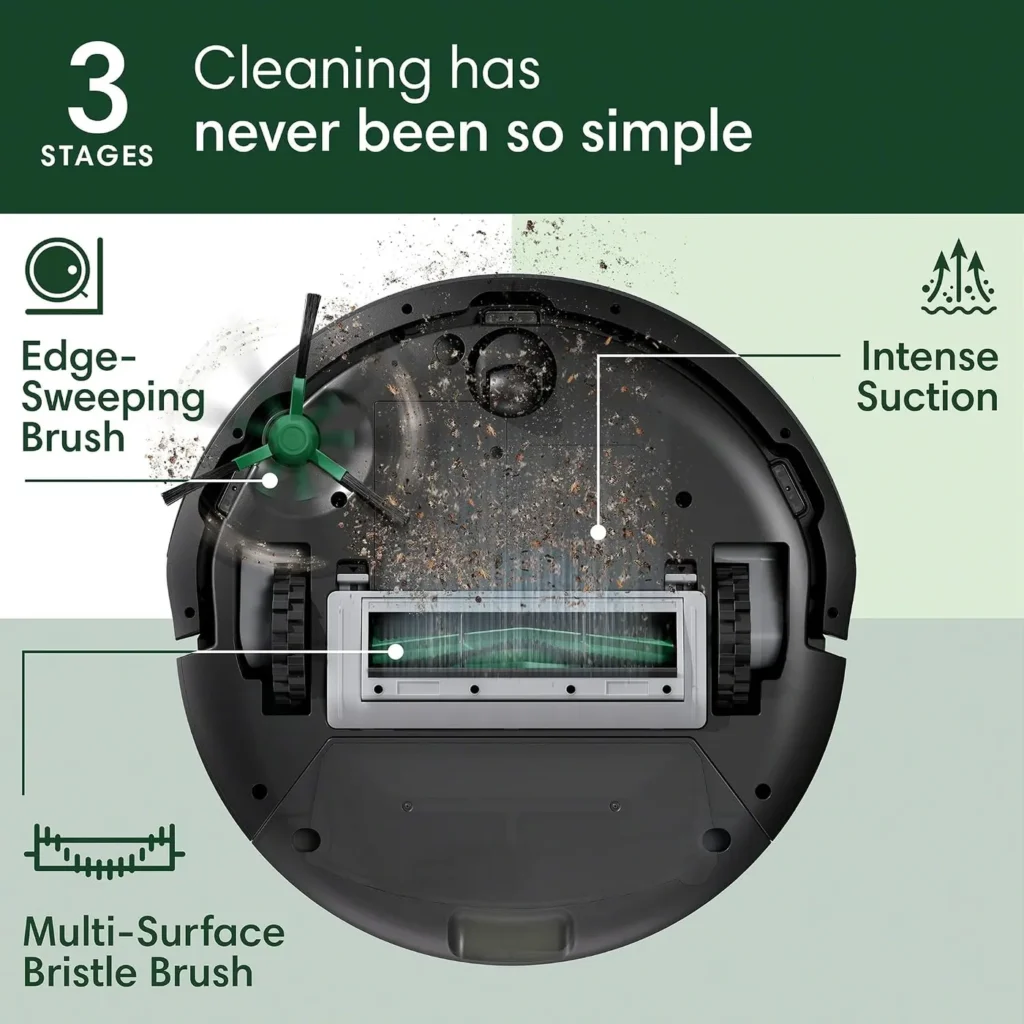
Unclip the Multi-Surface Brush cover with its release tabs and lift it away. Pull the brush out and use the cleaning brush to clear its hair. Next, twist off the cap on the right end and clear the hair under it before refitting it. Clean this brush weekly and replace it every 6-12 months. The edge-sweeping brush pulls straight off; clean it every 2 weeks, then press it back on until it clicks. Replace it every three to six months.
A main brush stall is error 2, and thick carpet or a deep-pile rug can trigger it by slowing the brush. Check whether the code repeats on a bare floor. Error 26 signals poor airflow, so clean the filter or fit a fresh one. For error 14, a missing-bin code, seat a clean filter, then slide the bin home until you hear it click. Error 1001 means the edge brush has stalled; clean it, then restart the job from the dock.
Worn parts, standby mode and long-term storage
Replace parts once they show wear. The owner's guide says replacement timing may vary, so let visible wear decide and ask iRobot Customer Care about parts. Inspect the brush cover every 6 months as well, replacing it if it looks worn or damaged.
Every 2 weeks, brush hair out of the front caster wheel, since a clogged caster can damage the floor. A caster that still sticks after cleaning is a Customer Care call. Give the sensors a monthly clean using a dry cloth or slightly damp melamine foam, and never spray water or cleaner onto them. Error 47 also goes straight to Customer Care, because it means invalid calibration and iRobot can update the sensor remotely.
Between uses, standby saves power: with the robot docked, keep Home pressed for 10 seconds. Tap Power briefly to wake it. For long-term storage, undock the robot, hold Power for 10 seconds to switch it off and put it away somewhere dry and cool.
Conclusion
Work through Roomba 105 Vac troubleshooting stage by stage, gentle fixes first: a wipe, a reseat, a reboot. Keep Factory Reset & Remove Robot for a robot that stays offline, since it erases maps and schedules. Call iRobot Customer Care when the 105 Vac stays offline after both recovery steps, announces error 47, or still shows error 1025 after the LiDAR spin check. The US and Canada number in the owner's guide is (877) 855-8593. The line answers weekdays from 9 AM until 9 PM Eastern Time and weekends from 9 AM until 6 PM. Once repairs stop paying off, our pick of the best budget robot vacuums lists likely replacements.
Frequently Asked Questions
Will the 105 Vac finish a job after it goes back to charge?
Yes. The owner's guide says the robot returns to the dock whenever it needs a recharge and, once it has enough charge, resumes cleaning where it left off. If you are unsure whether the job is paused or finished, the Roomba Home app shows where it stands.
Where is the setup QR code for the 105 Vac?
On the box. The quick start card sits on the inside of the cardboard packaging, and the setup article says you can set the robot up using the box's QR code. You can also find the Roomba Home app in your phone's app store and follow its setup steps.
What does a factory reset erase on the 105 Vac?
According to iRobot, a factory reset removes the robot's maps, cleaning history, favorites, schedules and personalized settings, and the robot then has to learn your home again. For a robot that has gone offline, try Replace Wi-Fi under Robot Settings first, since iRobot lists it as step one.
How do you turn down the 105 Vac's voice?
Open the Roomba Home app, go to Robot Settings and choose Audio Volume to lower the robot's voice. According to iRobot's 2025 product FAQ, the new robots talk a lot, and that setting is where the volume comes down.
Why does the 105 Vac no longer fit under furniture an older Roomba reached?
The ClearView LiDAR sensor sits on top of the robot and adds an extra half inch of height compared with previous models, according to iRobot, which says this may affect its fit under furniture. The store page lists the robot at 4.09 inches tall.
Why do the 105 Vac's buttons flash red when a job will not start?
Start with the battery. The owner's guide says the buttons flash red, with a spoken warning, when you try to start a job on a low battery. Flashing red can also mean an error, so check the Roomba Home app for a notification and its steps, and give it a full recharge on its dock.