Roborock's manual asks two things of you with a new Qrevo Edge 2. Follow the robot through its whole first route, and vacuum at least three times before its first mop. Good Roborock Qrevo Edge 2 troubleshooting starts from those two habits, because the first route shows where the robot struggles.
When something does go wrong, the fixes below come from Roborock's US manual and support pages, simplest first. The voice alerts, the lights and the app's pop-ups point you to the right section.
Key Takeaways
- Start every job from the dock and leave the dock in place while the robot cleans.
- A dock light that stays on with the robot docked means error 13: clean the charging contacts.
- The robot needs 2.4 GHz Wi-Fi, and holding both top buttons resets its connection.
- Clean the main brushes and the filter every two weeks.
- Contact Roborock when an error returns after its listed fix.
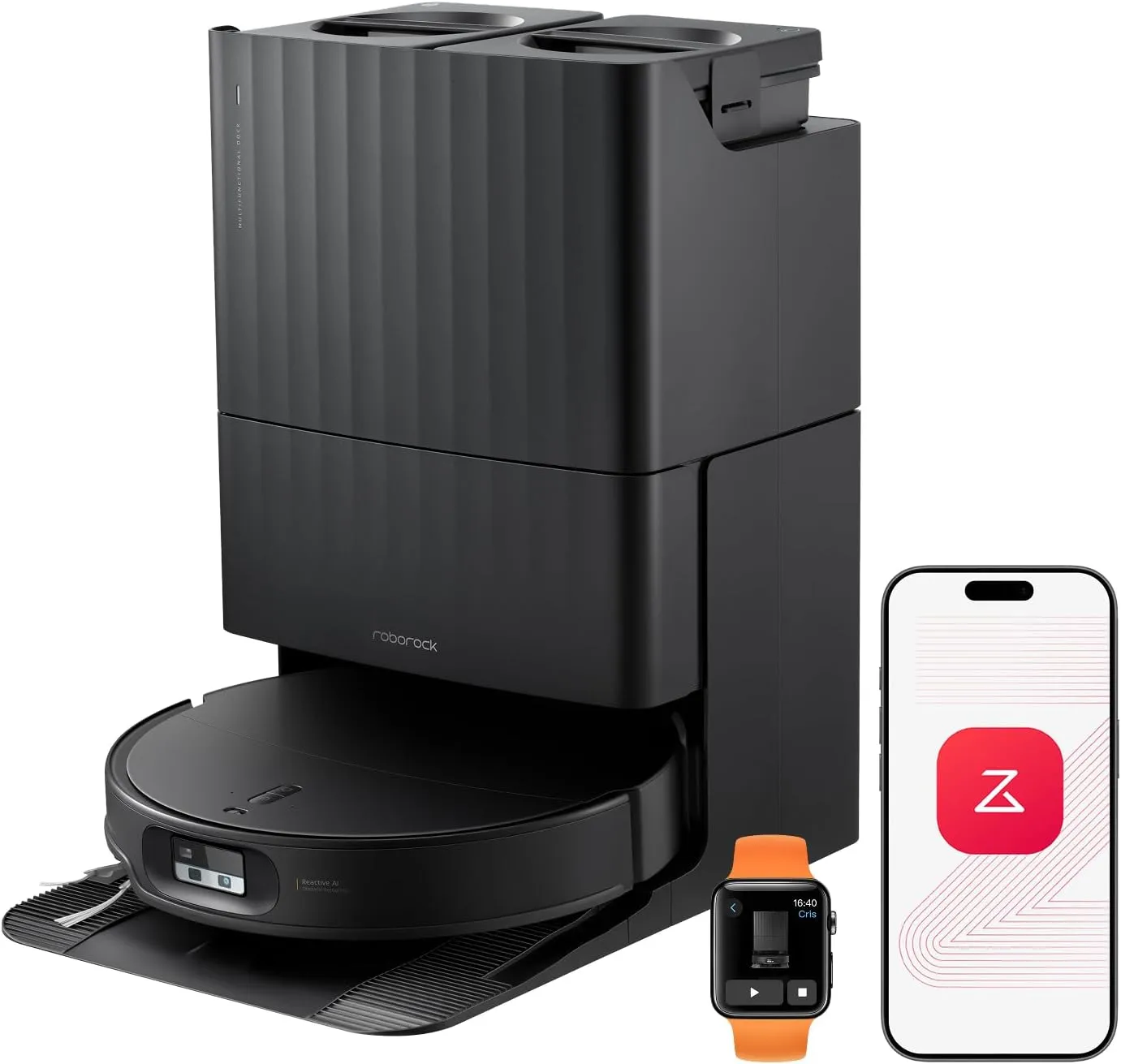
Moving parts: the laser tower, the arms and the mop mounts
Three parts on this robot move on their own. The LiDAR sensor on top lowers itself only when the robot cleans under furniture or appliances. A raised tower in an open room is normal. If it will not rise or drop, clear anything stuck around it and wipe the upward sensor.
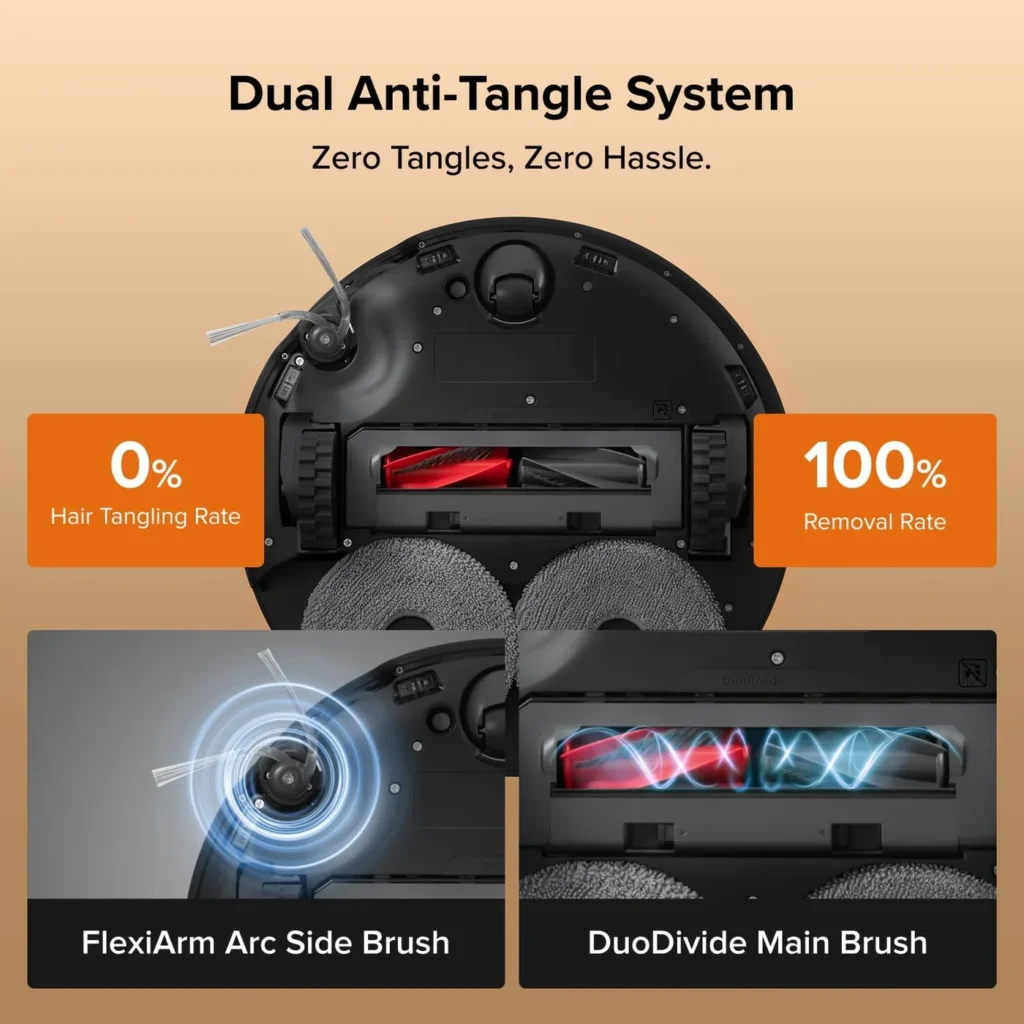
The side brush and the side mop on the Roborock Qrevo Edge 2 reach out along walls. Both need their FlexiArm settings switched on in the app. Even then, the brush does not extend at every corner or on every pass along a wall, and the mop extends only along walls and certain obstacles. If neither ever moves, check the brush for a jam and the mop's extension for anything stuck.
The mop mounts detach on their own so the robot can clean carpet. When they stay put, check that Auto-Detach/Reinstall Mop Cloth Mounts is switched on. The feature works only under certain conditions. Next, make sure the mounts are not jammed, sit back where they were removed and are fitted properly. Finally, clear any foreign objects out of the dock's cleaning tray.
If you would rather the robot skipped a rug, mark it as a no-go zone in the app.
Charging, docking and error 13
Charging starts only when the contacts on the robot and the dock meet cleanly. With the robot docked, the dock's indicator light should be off. If it stays on, Roborock calls that error 13, a poor connection.
First, nudge the robot on the dock until the light goes out. If it stays on, clean the contacts on the robot and the dock. A dry cloth works, as does a cloth lightly dampened with alcohol, or an eraser for oxidation. Then check the power cable at both ends, and try another outlet.
Slow charging comes down to temperature. The robot works between 4 and 40°C (39 and 104°F). Near either end of that range, it slows its charging to protect the battery.
A robot that cannot find its way home needs a clear run. Start every job from the dock, leave the dock where it is during cleaning, and clear clutter from around it. The manual wants the dock on a hard, flat floor against a wall. Leave a space at least 0.4 m (1.32 ft) wide, 1.2 m (3.94 ft) deep and 0.9 m (2.96 ft) high. After spot cleaning or a long move by hand, the robot rebuilds its map. If the dock is then too far away, carry the robot back to charge.
Resuming has its own rules. A robot placed on the dock by hand, or sent back with a button, will not resume after charging. Do Not Disturb hours can also stop it resuming, and a schedule starts only when the battery is above 15%.
Getting it online on 2.4 GHz
The robot connects over 2.4 GHz Wi-Fi only, and it does not work with WEP security. If your router uses WEP, switch it to WPA or WPA2. It also helps to remove special characters such as !@#$ from the network name or password.
To reset the robot's Wi-Fi, press and hold both of its top buttons together until it says "Resetting WiFi". The power light then flashes blue slowly while it waits for a connection. Add it again in the Roborock app with Add Device or the plus button. Choose your home network, not the robot's own.
If pairing still fails, give the app location permission, and on iOS 14 or later allow local network access. Switch off your phone's cellular data and any VPN during setup. Then restart the robot and the router, and update the app.
A robot that drops offline all at once may be hitting a router setting. For that one, Roborock asks you to contact its support team.
Roborock Qrevo Edge 2 troubleshooting by error number
When the robot stops on a fault, its power light flashes red. The app shows a pop-up, and a voice alert may sound. Roborock's support pages give these fixes for the sensor, brush and wheel errors.
– Error 1: check that the laser unit spins at start-up; if not, turn it gently by hand and restart.
– For error 4, wipe the cliff sensors, and keep the robot off very dark or shag carpet.
– Error 5 calls for clearing anything wrapped around the main brush, in both slots and at each end, then a run with Carpet mode on.
– With error 7, spin the drive wheels by hand and free them if they stick.
The filter, fan and charging errors have their own fixes.
– Error 9: look for the magnet on the side of the filter; if there is none, fit a new filter.
– For error 10, clean the filter, dry it thoroughly and put it back.
– Error 13 means the charging contacts are not connecting; see the docking section above.
– To clear error 18, clap the side of the robot a few times to shake debris out of the fan.
– A fan speed lowered alert calls for checking the strainer and replacing the filter.
– An internal error needs a system reset, as the last section explains.
A robot left in an error state for over 10 minutes goes to sleep. Placing it on the dock by hand ends the current job.
Dust left behind and a louder robot
When pickup drops or dust leaks out, the manual lists three checks. Empty a full dustbin, clean a blocked filter and untangle the main brushes. Missed spots are usually the sensors. Wipe the wall sensor, the cliff sensors and the carpet sensor with a soft, dry cloth. Then clear anything blocking the way into a missed area.
Roborock puts normal running noise at about 64 dB, close to everyday conversation. Anything as loud as a hair dryer or a busy street counts as a fault. To find the source, run the robot briefly after each step.
– Remove the main brush and its cover; if the noise stops, refit them with the cover's tabs in their slots.
– Take off the side brush and test again.
– Take off the front wheel and test again.
– Turn the drive wheels by hand and listen for grinding.
– Clean the dustbin and filter, or drop to the lowest suction setting.
– Run it without the mop mount, or in Vacuum Only mode.
Turn the robot off before you clean jammed brushes or wheels. The omnidirectional wheel pries out with a small screwdriver, though its bracket stays in place.
Water, washing and the drying cycle
If little water reaches the pads, raise the water flow in the app first. Then change the mop cloths and the water filters, and clear the water outlet gently with a needle. A tank that no longer sits flat may be bent, and a bent tank needs replacing.
When the dock skips a wash, remember that pads not used on a run are not washed. The robot also returns for washing only if it started from the dock. The dock must also appear on the app's map. Beyond that, refill the clean tank and empty the dirty one. Seat both properly, and check the cleaning tray and its filter.
For hot washes, set Mop Washing Temperature to Hot Water in the app. When washes seem weak, stick the pads flat on their mounts. For a dirty floor, switch the washing mode to Deep. Keep your hands away from the clean water dispensers during a wash, because the water is hot.
Drying has its own settings. If it never starts, auto-drying may be switched off. A robot that leaves the dock mid-dry also ends the cycle early. In a humid home, lengthen the drying time in the app.
When the dock won't empty or glows red
Auto-emptying runs after a cleaning job. It will not run if it is switched off in the app or if the dust container cover is missing. It also skips runs where the robot came back without cleaning. The same goes for a return during Do Not Disturb hours, or a robot carried to the dock. In those cases, press the Dock button with the robot docked, or start emptying from the app.
Weak emptying or an unusual noise while it empties points to a blockage or a loose part. Check that the main brushes and their cover are seated. Then clear the filter, air duct, suction inlet, air inlet, dustbin and dust bag.
A steady red status light on the dock signals a dock fault. Check that your outlet's voltage matches the label on the dock. Both water tanks should be filled or emptied as needed and seated properly. Then confirm that the cleaning tray and its filter are in place.
A parts calendar, from brushes to bags
Roborock's intervals are a starting point. The manual says to replace any part early if it wears abnormally, and to switch the robot off before you clean anything.
– Main brushes: clean every two weeks, replace every 6 to 12 months.
– Washable filter: clean every two weeks, replace every 6 to 12 months, and let it dry for 24 hours before refitting.
– Side brush: clean monthly, replace every 3 to 6 months.
– Mop cloths: clean as needed, replace every 1 to 3 months.
– Dust bag: replace as needed, and always fit a new one before closing the cover.
– Sensors, wheels, charging contacts, dirty water tank and cleaning tray: clean as needed.
In the clean water tank, use tap water and only the cleaning solution Roborock recommends, never a disinfectant. Don't overdo the dose either, because too much can make the robot slip. Rinse the tanks with cold water only, since hot water can deform them. Wipe off any water stains before putting them back.
The dustbin gets clean water only, with no cleaning liquid, and it needs 24 hours to dry. Wipe the main brushes with a damp cloth and let them air-dry out of direct sun. The spares on this page fit the Qrevo Edge 2, according to their listings.
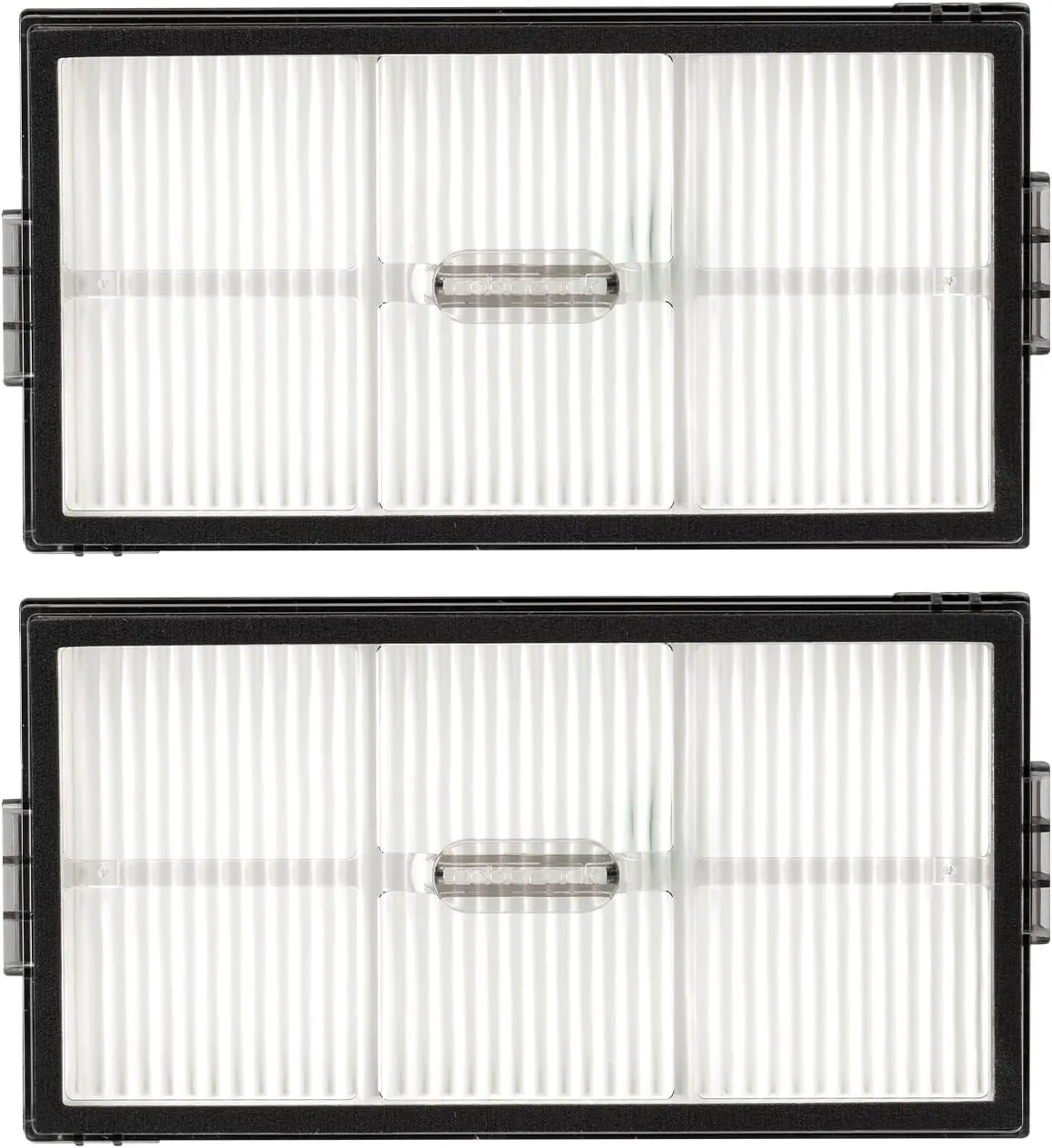
Roborock Washable Filter (2-Pack)
View on AmazonRestarts, resets and a call to Roborock
For odd behaviour, restart the robot first. If it will not respond or turn off, remove the top cover and open the rubber plug. Then press the Reset button inside. A system reset returns settings such as schedules and Wi-Fi to their defaults, so expect to set them up again.
If the robot still misbehaves after that, the manual's last resort is a factory restore. With the robot on, you press the Reset button while holding the top button the manual's diagram shows. The robot announces that it is restoring factory settings, which takes about five minutes.
Roborock keeps its full list of answers on the Qrevo Edge 2 support page.
When an error returns after its listed fix, Roborock Qrevo Edge 2 troubleshooting moves to Roborock itself. Its US support line runs 24/7 at 1-855-960-4321, and email goes to support-us@roborock.com. Note the error number and the steps you have tried, so support can start from there.
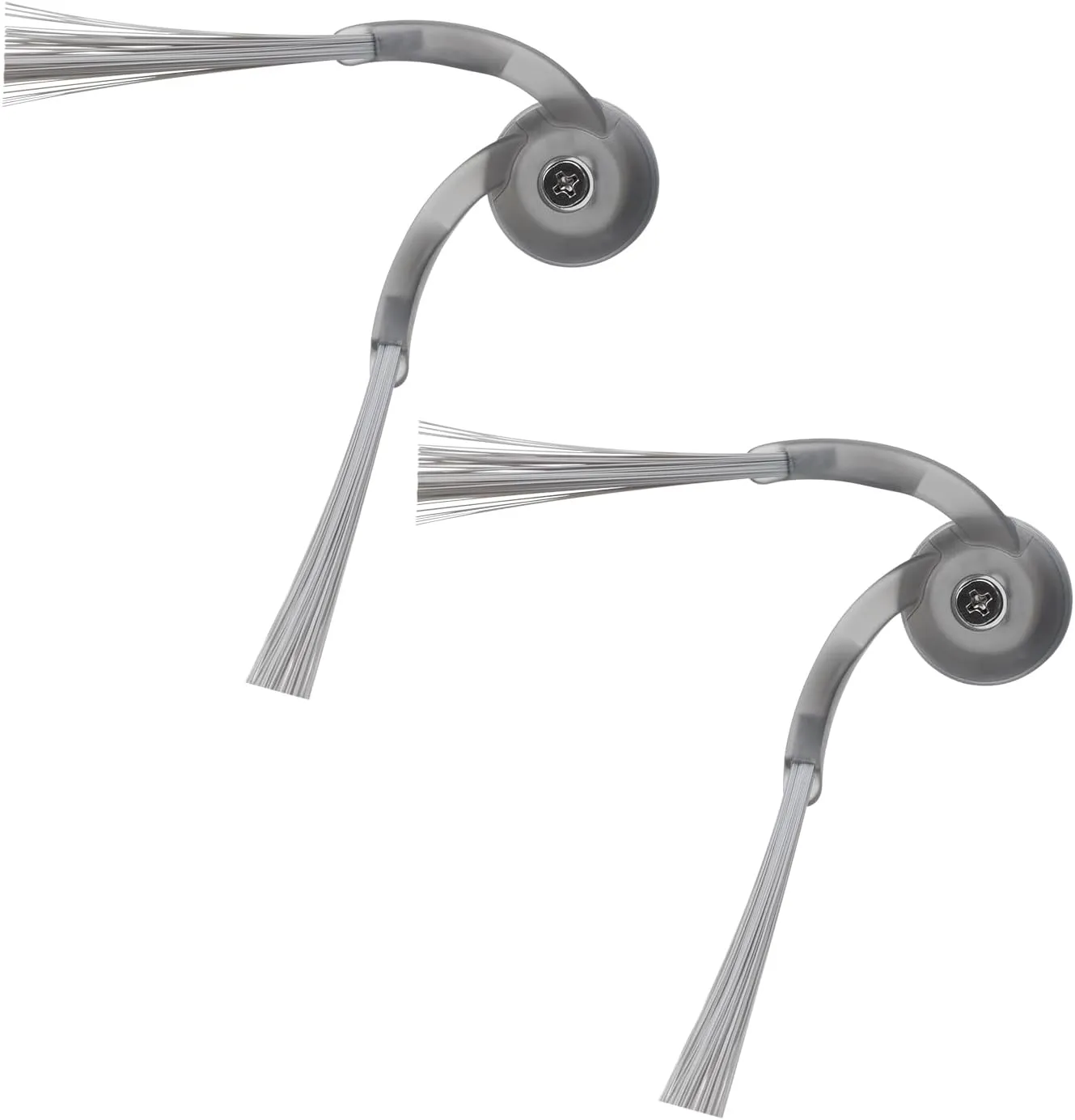
Roborock Side Brush (2-Pack)
View on Amazon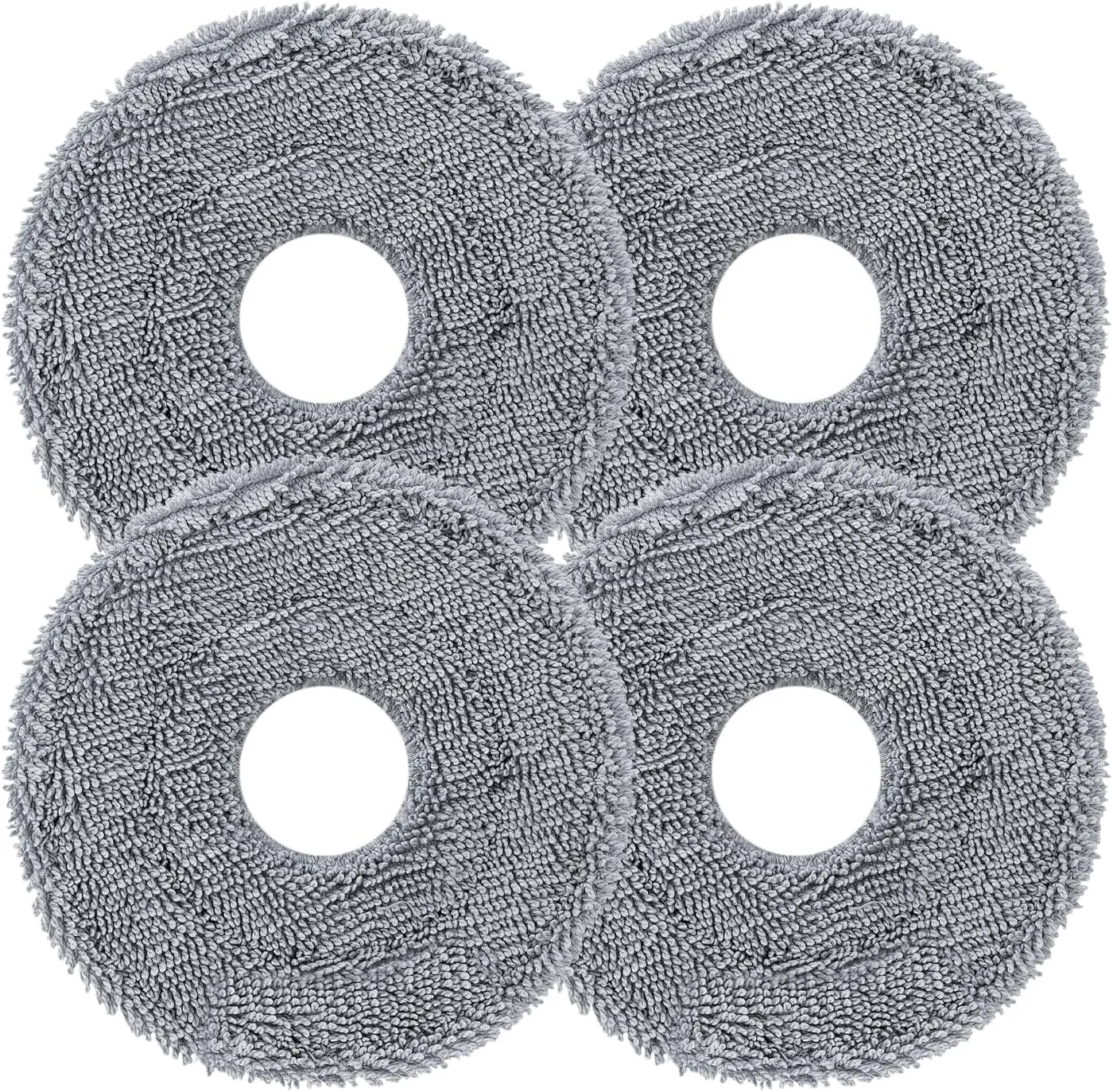
Roborock Rotating Mop Pads (4-Pack)
View on Amazon
Roborock Floor Cleaning Solution (1 L)
View on AmazonConclusion
The Qrevo Edge 2 tells you a lot when it stops. It speaks an alert, lights up red and names an error number in the app. Match that signal to the section above, work from the simplest step, and keep the parts calendar close. If the same fault returns after Roborock's own fix, stop troubleshooting and call.
Frequently Asked Questions
What does error 13 mean on the Roborock Qrevo Edge 2?
The charging contacts are not connecting. With the robot docked, the dock light should go off; if it stays on, reposition the robot, clean both sets of contacts and check the power cable.
Why won't the Qrevo Edge 2 connect to Wi-Fi?
It works on 2.4 GHz networks only, and not with WEP security. Reset its Wi-Fi by holding both top buttons until it says "Resetting WiFi", then add it in the Roborock app on your home network.
Why doesn't the laser tower go down?
The LiDAR sensor lowers itself only when the robot cleans under furniture or appliances. If it never moves, clear anything around it and wipe the upward sensor.
Why didn't the dock empty the robot?
Auto-emptying skips runs where the robot returned without cleaning, came back during Do Not Disturb hours or was carried to the dock. It also needs the dust container cover in place. Start emptying from the app or with the Dock button.
How often should the filter and brushes be replaced?
Roborock's manual gives 6 to 12 months for the filter and the main brushes, 3 to 6 months for the side brush and 1 to 3 months for the mop cloths.
How do I reset the Roborock Qrevo Edge 2?
Remove the top cover, open the rubber plug and press the Reset button. That returns settings such as Wi-Fi and schedules to their defaults, so set them up again afterwards.