Roborock's support answers for the Q7 M5+ read like a map of the robot's parts. Error 5 sends you to the main brush, error 10 to the filter, error 13 to the charging contacts and error 1 to the laser unit. Q7 M5 Plus troubleshooting therefore starts with finding the part.
This guide files each code and symptom under the part it points to. It opens with the brush, filter and fan, where hair and dust collect, then moves on to Wi-Fi, the wheels, the mop, the dock and the map. Every fix comes from Roborock's help center or its US store page.
Key Takeaways
- For error 5, free the main brush, its two slots and both ends, then test in Carpet mode.
- Error 9 needs a filter with its side magnet, and error 10 a clean, fully dried filter.
- Pair the robot over 2.4 GHz with WPA or WPA2 security, since it cannot use 5 GHz or WEP.
- For error 8, clear the space around the robot, then take the water tank off and try again.
- A nearly dry mop cloth needs a fresh cloth, a cleared water outlet and a tank without bends.
Errors 5, 9, 10 and 18 along the path debris takes
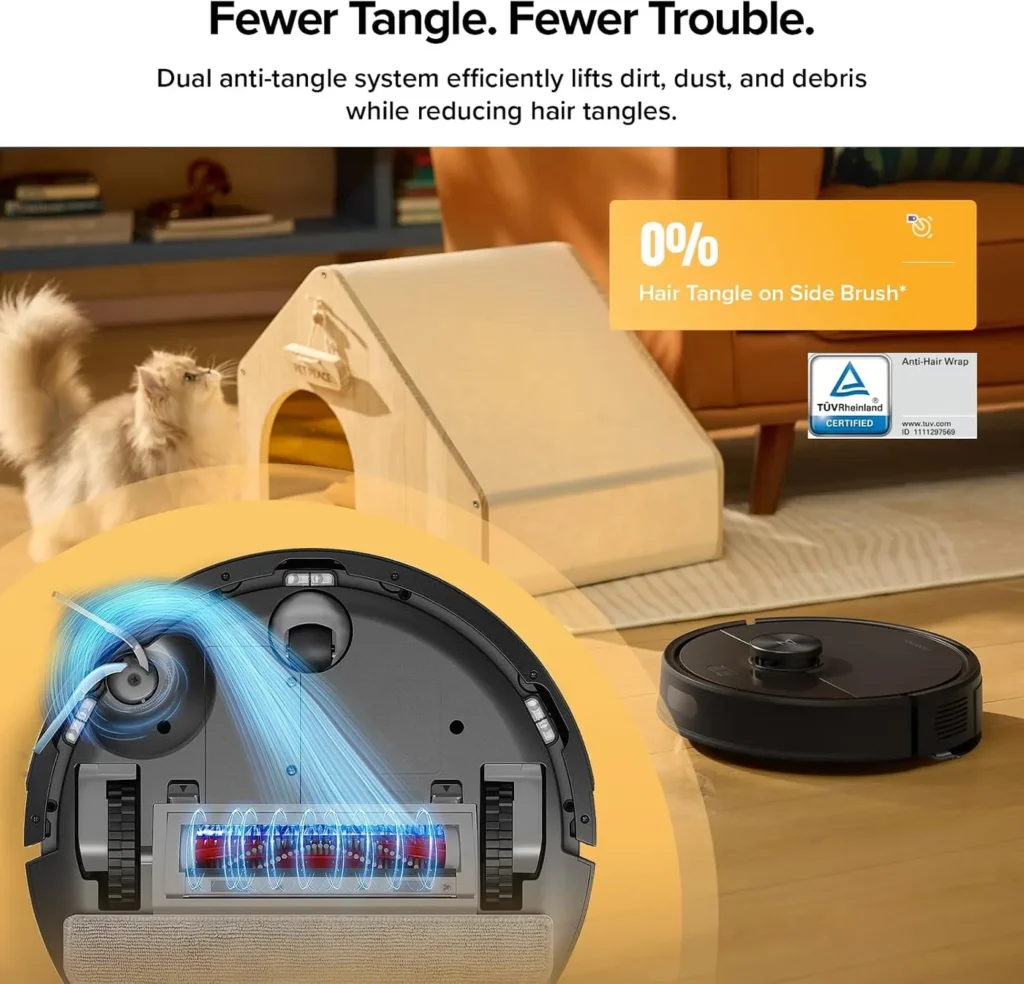
Start at the main brush. Roborock says its Dual Anti-Tangle System, which pairs a JawScrapers Comb main brush with an anti-tangle side brush, keeps hair clogs at bay. If error 5 appears anyway, pull out whatever is wound around the main brush, including inside its two installation slots. Clear both ends of the brush too. Then switch on Carpet mode for the next run, which Roborock suggests as the way to see whether the error has cleared.
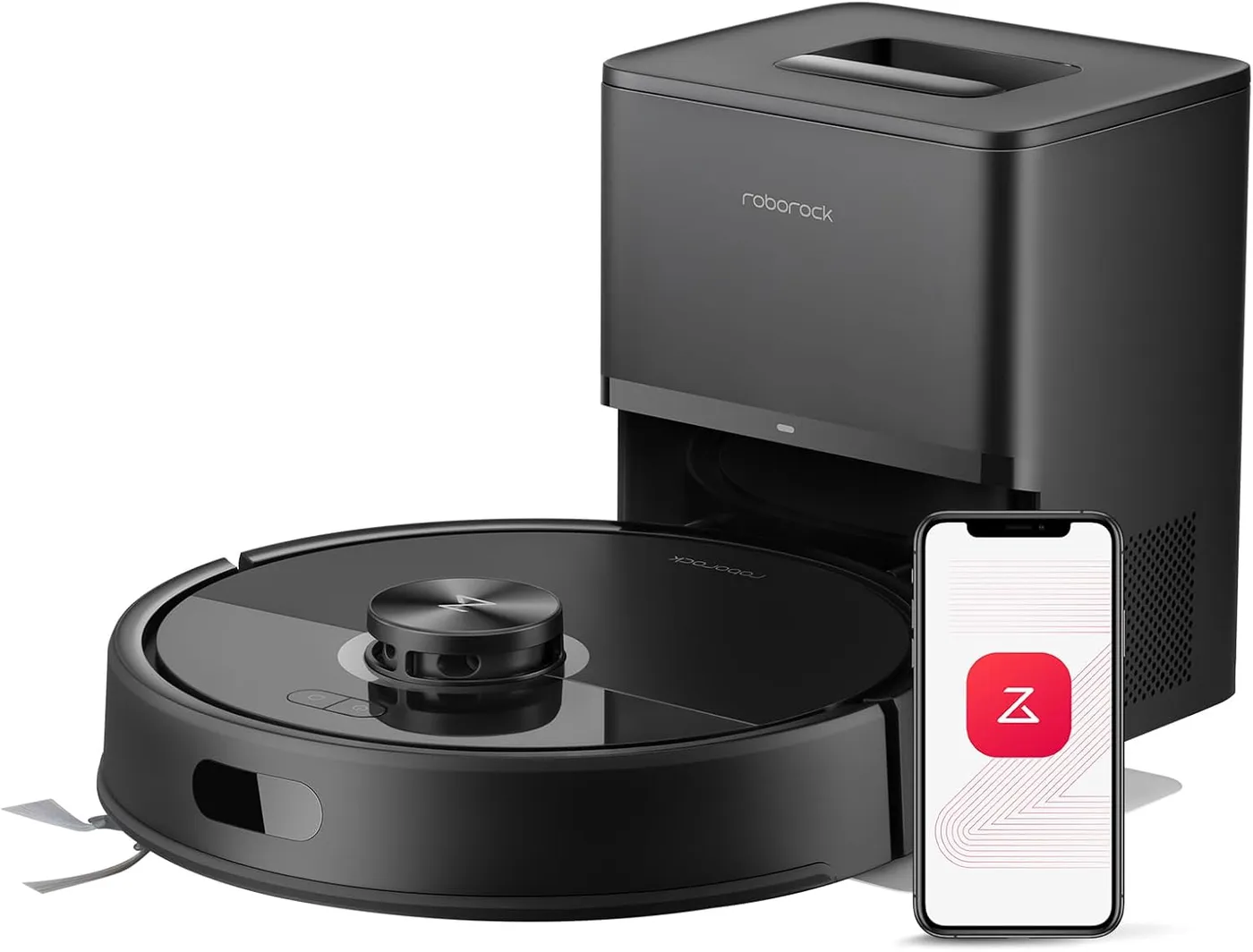
Debris on the Roborock Q7 M5 Plus passes the brushes into the robot's dustbin, and the RockDock Plus then empties it into a 2.7 L dust bag. Roborock says one bag lasts up to 7 weeks in its internal testing, though results vary with use. Roborock's help center lists no manual for this model, and no schedule for changing the bag, the filter or the brushes.
Errors 9 and 10 both lead to the filter. Error 9 asks you to find the filter's side magnet, and a filter without one needs replacing. For error 10, the filter needs a clean and a full dry before it goes back in. Roborock's US store lists washable replacement filters for the Q7 M5 and Q7 M5+.
A fan speed lowered error asks for a check of the strainer for any blockage and then a new filter. Error 18 concerns the fan itself: clap the robot's side a few times to try to clear debris.
Q7 M5 Plus troubleshooting at the router and phone
Check the network band first. Roborock's Wi-Fi entry rules out 5 GHz Wi-Fi for this robot, and its store page says the app supports 2.4 GHz only. WEP security will not work either, so move a WEP router to WPA or WPA2.
Next, look at the phone and give the app permission to use your location. On an iPhone with iOS 14 or newer, turn on Local Network access for the app too. Switch off mobile data and any VPN while you pair the robot, as Roborock advises.
On the choose-network screen, select your home Wi-Fi and type its password, not the robot's own Wi-Fi. Make sure the password itself is correct, and if the Wi-Fi name or password holds symbols such as !@#$, remove them in the router settings.
Still offline? If you know your router well, point its DNS at 8.8.8.8, then reboot the router and the robot. Should pairing fail after all of that, the Wi-Fi entry ends with a referral to Roborock's support team.
Errors 7, 8 and 4 at the wheels and the floor
Error 7 is a wheel check. Press and spin each wheel by hand to test for sticking, and work loose any wheel that will not turn. Error 8 starts with the space around the robot, so clear away any obstacles first. Its fix then repeats the press-and-spin check and adds one step: with the water tank in place, remove it and try again.
The cliff sensors are the part behind error 4. Give them a wipe, then make sure the robot is not sitting on a dark or shag carpet. If any of these codes returns after its steps, Roborock's fixes send you to its support team.
Roborock says the robot can also spot tricky areas, like under chairs and tables, and suggest No-Go Zones there. Roborock also lists a 2 cm climbing ability for thresholds.
The water tank and outlet behind a dry mop cloth
Check the water setting first. Roborock's store page says the app offers three water flow levels, so confirm which one the run used.
For a cloth that comes back almost dry, Roborock's fix begins with a fresh mop cloth. Keep cleaning products out of the tank water, because Roborock warns that they may block the filter. Next, work a needle gently through the water outlet to clear it. Finally, rest the water tank on a flat surface and look for bending, since Roborock says a bent tank calls for a replacement.
For vacuum-only runs, take the mop off: the store page describes a detachable mop design, and Roborock's noise checklist names a Vacuum Only mode.
Error 13 at the contacts, then where the dock stands
Charging needs solid contact. Roborock's error 13 entry explains that the robot charges only when its contacts line up with the dock's contacts and touch them. A poor connection means charging never starts.
With the robot docked, check the dock's indicator light: dark means the contacts meet and charging is working. When it stays lit, shift the robot slightly until the light turns off.
If the light will not go out, inspect the contacts on both sides, robot and dock. Any that look dusty, stained or oxidized need cleaning. Use a dry cloth, a cloth barely dampened with alcohol or a light rub with an eraser. Then check that the power cord sits firmly in the dock and in the wall outlet, and plug into a different outlet if the light stays on.
Docking trouble is a separate branch of Q7 M5 Plus troubleshooting. Roborock links it to a run started away from the dock, a collision with an obstacle or a robot picked up and set down elsewhere. Try the dock in a new spot, standing against a wall. Leave at least 0.5 m of free space to either side and 1.5 m of open floor in front. Then wipe the signal area on the dock's face and the robot's forward-facing sensor, which guide it home.
Error 1 at the laser unit, plus maps and zones
Switch on the robot and watch the laser unit. It should spin, and if it sits still, give it a gentle turn by hand and restart the robot. Contact Roborock support if error 1 comes back after that.
One map fault in Q7 M5 Plus troubleshooting can trace back to the dock. The app's map should only appear horizontal or vertical, and Roborock links a tilted map to the dock's placement. The fix is to relocate the dock, keeping the clearance given in the section above. Alternatively, turn Map Saving off and then back on, so the robot builds a fresh map on its next clean.
Zone cleaning may fail in an area that sat behind a closed door earlier. Run an ordinary clean close to the doorway first, and once the robot has registered that the door is open, start the zone clean again.
Roborock says the robot keeps maps for multiple floors and recognizes each level once you set it down on that floor. By its account, a second floor needs no extra dock and no manual level choice in the app.
Noise without an error code, tested part by part
Some noise is normal. Roborock gives around 65 dBA as the robot's usual sound level, close to a dishwasher, and notes that the level varies with the cleaning mode. Noise on the scale of a busy street or a hair dryer counts as abnormal.
Track the source down with a short test run after each step below. Begin by taking out the main brush with its cover and running the robot briefly. Should the noise disappear, reinstall the pair correctly, because the brush cover's tabs must meet the housing's slots. After that, test without the side brush, and then without the front wheel.
Press and rotate each drive wheel by hand, listening for an abnormal sound. Next, clean the dustbin and the filter, or switch to the lowest suction mode, and test again. The last check is a run with the mop mount off, or one in Vacuum Only mode. Roborock support is the next stop for any noise that outlasts the whole sequence.
A reset for the internal error, and when to call
One error has no part to clean. For an internal error, Roborock prescribes a system reset with the Reset button, which sits under the robot's top cover. Lift the cover and press the button. Its position varies slightly by model, Roborock notes, so check the app's diagram or the printed manual that came in the box.
A reset takes every current setting back to its factory state, which clears the Wi-Fi connection and any cleaning schedules. Afterward, pair the robot with the app again and rebuild the schedules.
Roborock's troubleshooting page for the Q7 M5+ holds the original wording of each answer used in this guide.
If a code comes back after the steps Roborock lists for it, contact Roborock support. Roborock's store page lists 1-855-960-4321 as a 24/7 line for the US.
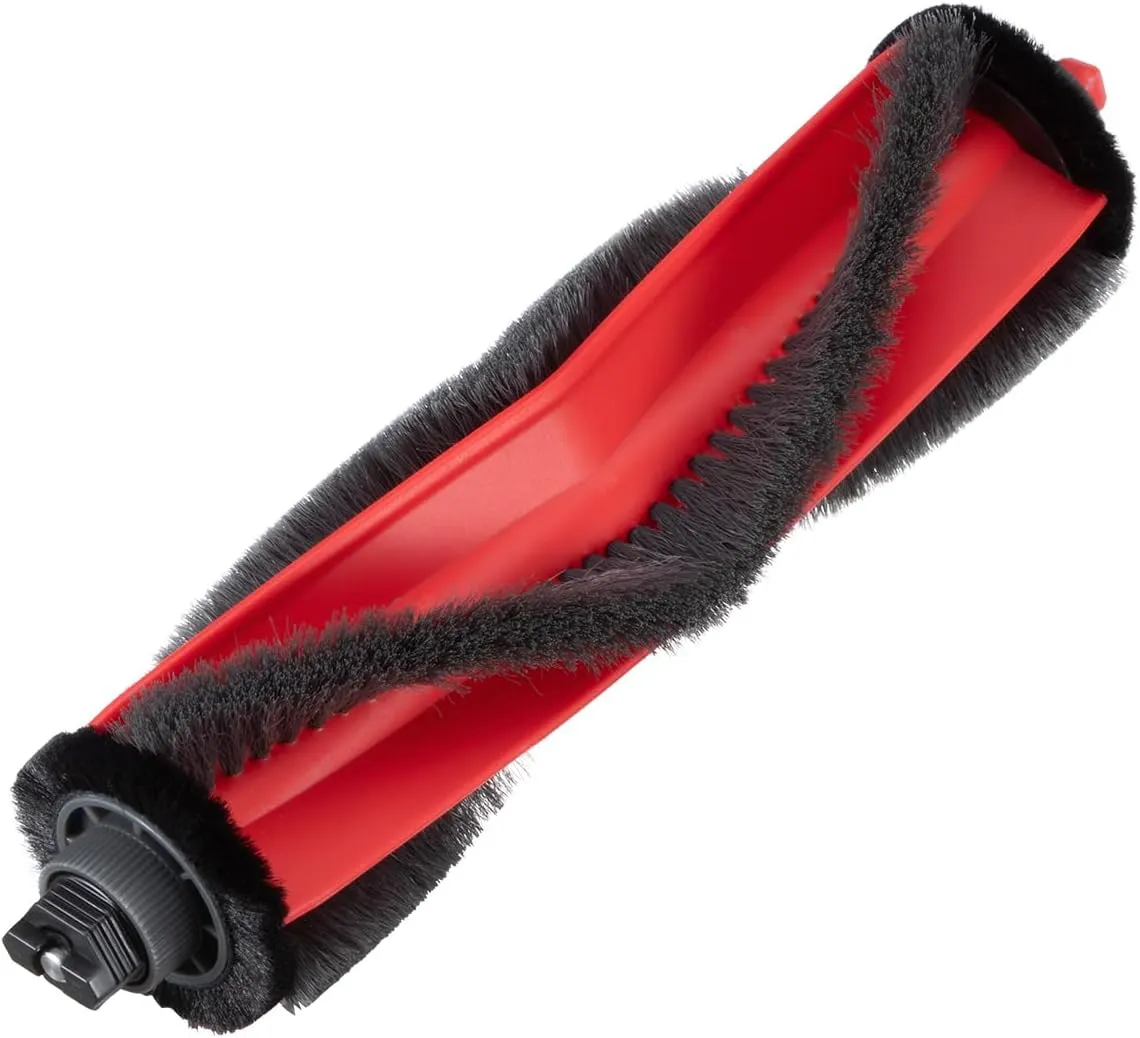
Roborock Anti-Tangle Rubber Main Brush (1-Pack)
View on Amazon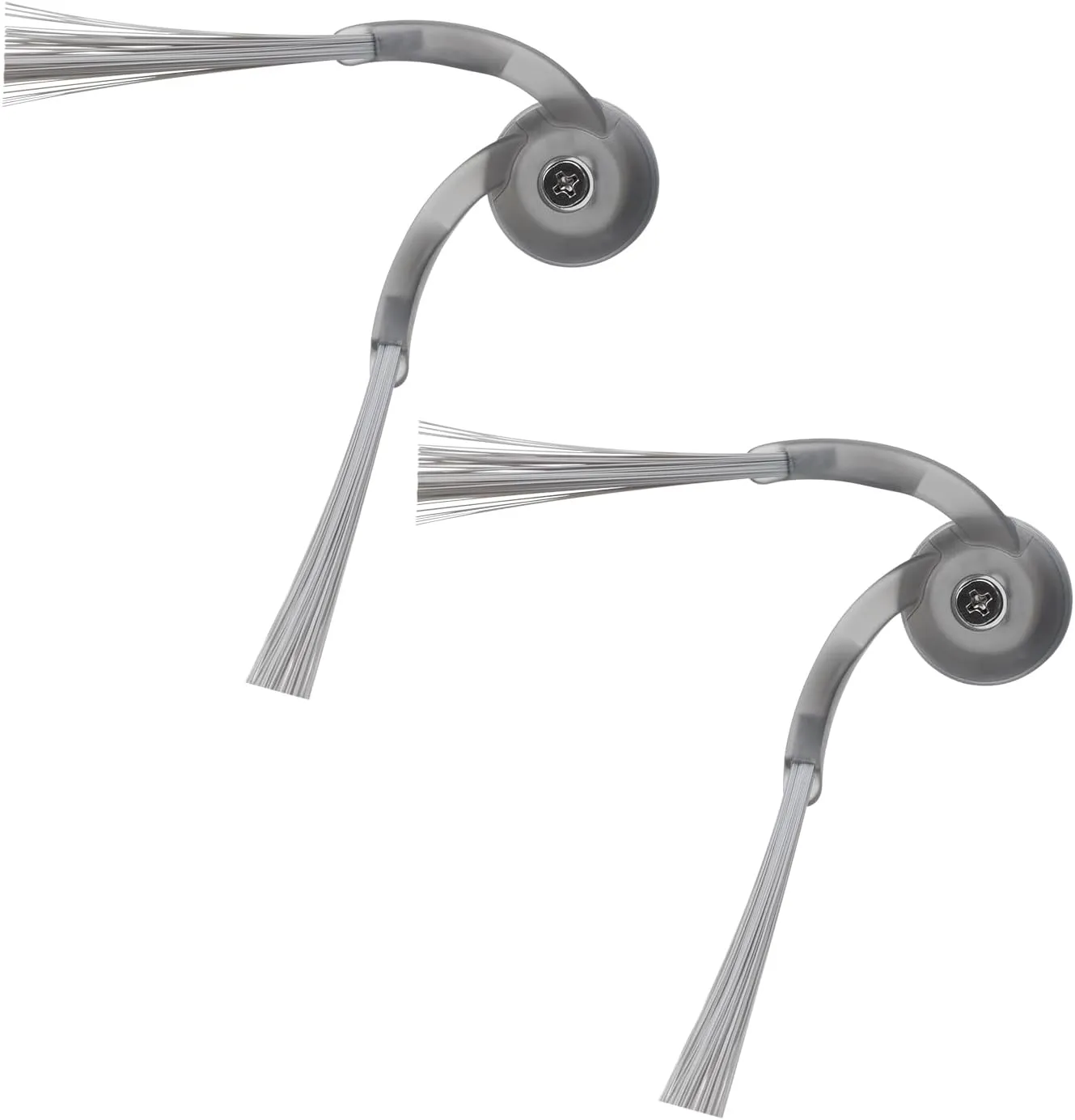
Roborock Side Brush (2-Pack)
View on Amazon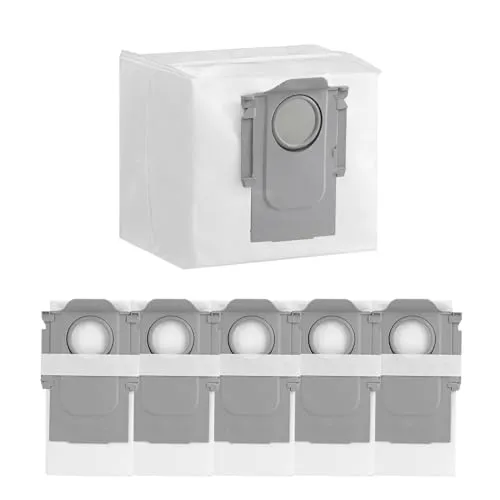
Conclusion
Q7 M5 Plus troubleshooting needs few tools beyond a dry cloth, a needle and your router settings. Match the code to its part, then work through that part's steps in the order Roborock gives them. Test after every change, so you know which step made the difference. If an error reappears after those steps, or Wi-Fi pairing still fails, contact Roborock support on its 24/7 US line. Should the robot prove beyond repair, our ranking of the best mid-range robot vacuums compares current replacements.
Frequently Asked Questions
Why does the Q7 M5+ keep showing error 5?
Error 5 belongs to the main brush. Roborock's fix is to free the brush of anything wound around it, then check the two slots it sits in and both of its ends. Next, enable Carpet mode for a fresh run and see whether the error clears. If it still comes back, contact Roborock support.
Can the Q7 M5+ join a 5 GHz Wi-Fi network?
No. Roborock says 5 GHz Wi-Fi will not work with this robot, and its store page says the app supports 2.4 GHz only. WEP security is out too, so a router set to WEP has to move to WPA or WPA2 before the robot can pair.
Is it safe to put soap in the Q7 M5+ water tank?
Roborock advises against it. Its fix for a mop cloth that stays almost dry says to keep cleaning products out of the water, because they may block the filter. If the cloth is already coming back dry, fit a fresh one and work a needle gently through the water outlet.
Where is the Reset button on the Q7 M5+?
It sits under the robot's top cover. Roborock says its position varies slightly by model, so check the app's diagram or the printed manual if you cannot spot it. A press takes every setting back to factory defaults, the Wi-Fi connection and cleaning schedules among them, and Roborock prescribes it for an internal error.
How long does one RockDock Plus dust bag last?
Roborock says the 2.7 L bag lasts up to 7 weeks, based on its internal testing, and notes that actual results vary with usage conditions.