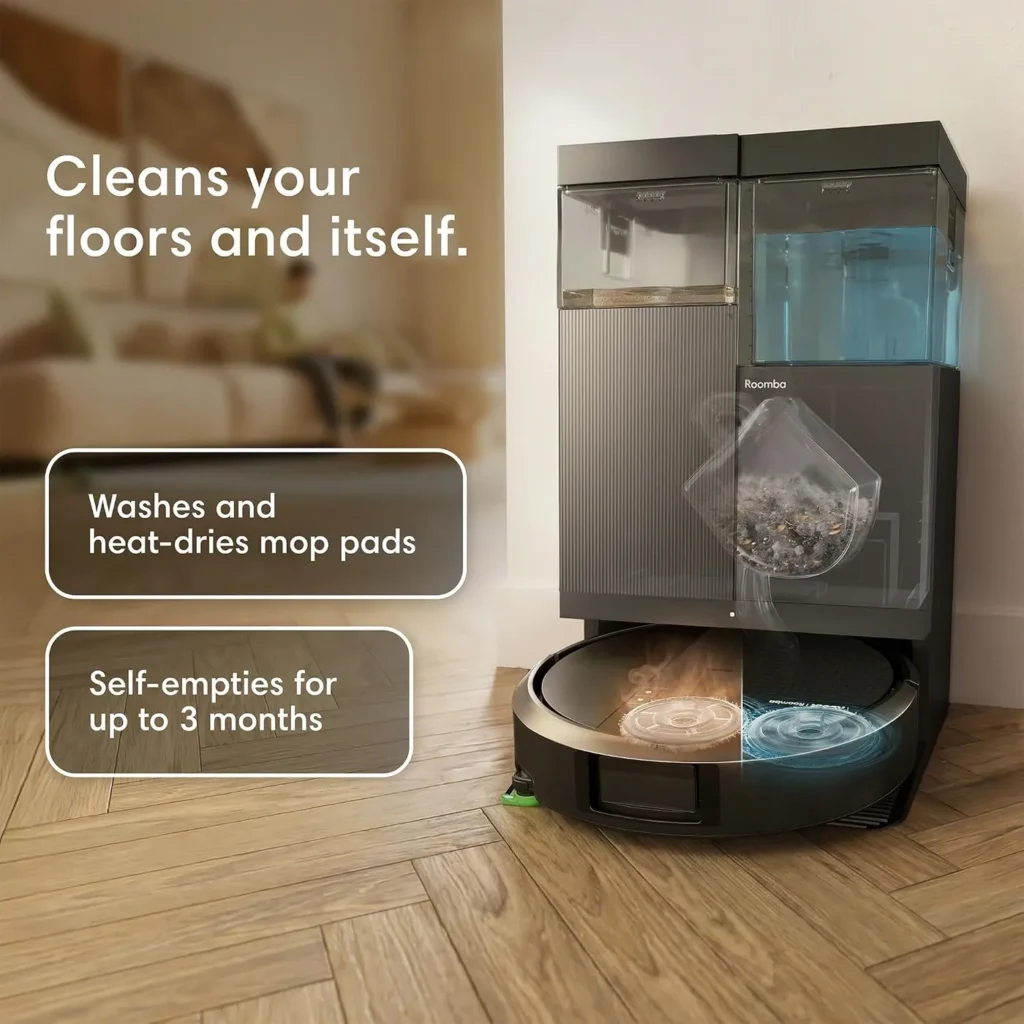
The owner's guide puts the Roomba 415X and its AutoWash dock on a care clock. The water tank needs emptying after every use and the filter a weekly clean, while a new Multi-Surface Brush comes due every 6-12 months.
Day one of Roomba 415X troubleshooting belongs to the app and the first charge. After that, the sections follow the clock through each run, week and month, ending with replacement parts, storage and a factory reset.
Each step comes from iRobot's owner's guide for the 410-419 series, its 415X product page or its cleaning-solution list.
Key Takeaways
- Setup needs the Roomba Home App and a Wi-Fi network running at 2.4 GHz.
- Charge the robot for 6 hours before its first map.
- Solid red on the dock flags the bag, the wash basin or either water tank.
- Fill the clean tank with StayClean concentrate or plain water, never vinegar or hot water.
- Clean the Multi-Surface Brush and filter weekly, and the filter twice weekly with a pet.
- Replace parts that show visible wear, and ask iRobot Customer Care about replacements.
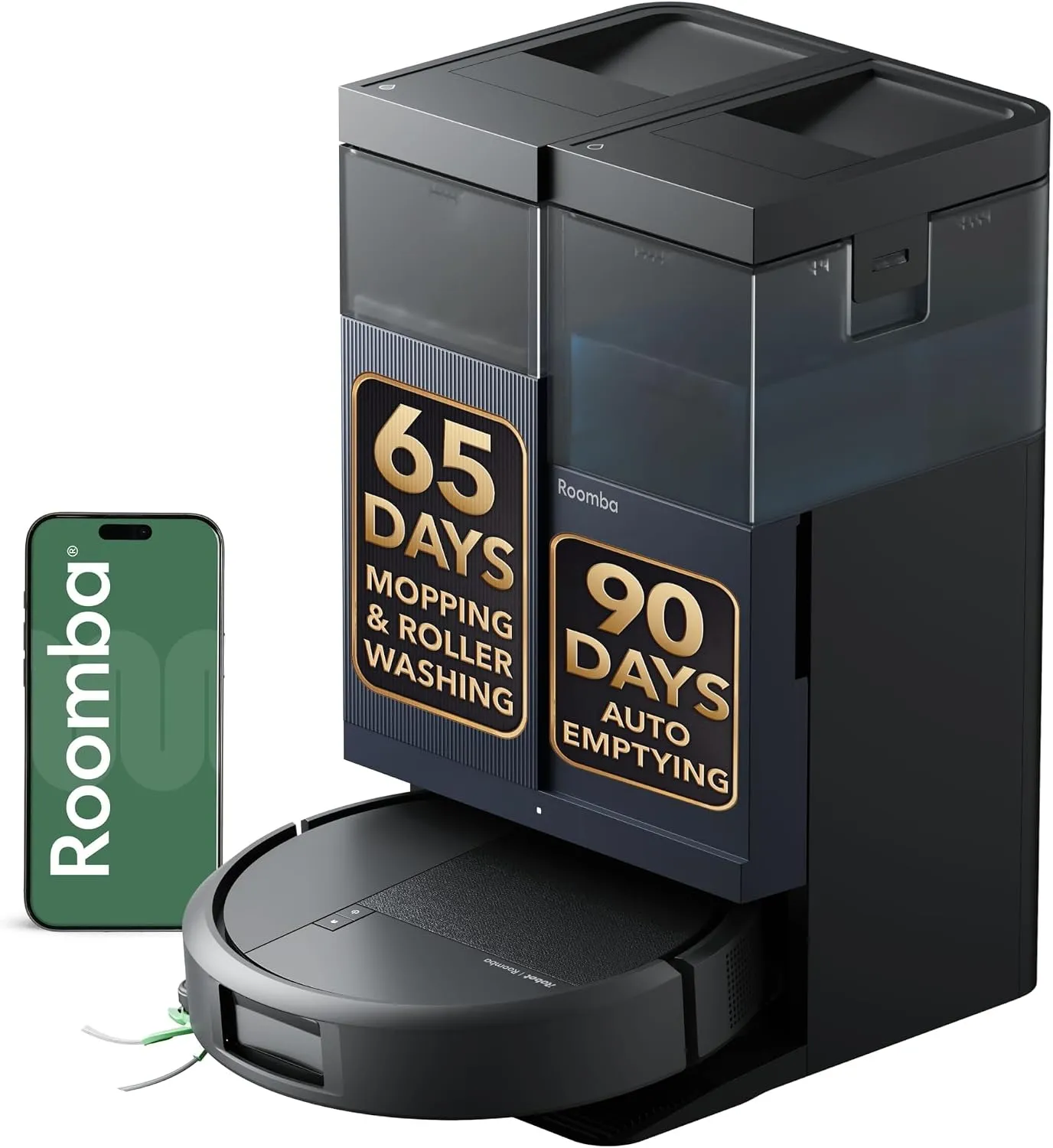
Day one: app, network and first charge
Setup can't finish without the app. Per the owner's guide, the iRobot Roomba 415X needs the Roomba Home App and a Wi-Fi connection to finish setup. Scan the guide's QR code with your phone's camera, or find the Roomba Home App in your app store. Your network must use 2.4 GHz, and the app then guides you through each step.
That guide covers the whole Roomba Plus 410-419 series, the 415X included. Keep iRobot's online owner's guide for the 410-419 series bookmarked for any later Roomba 415X troubleshooting.
First, peel the protective film off the ClearView LiDAR screen and pull the foam inserts from behind the bumper. Then set the dock on hard, level flooring, out of direct sunlight and at least 4 feet (1.22 meters) from stairs. Keep the area around the dock free of clutter, which the guide says improves docking performance. Wrap the power cord behind the dock so it stays out of the robot's path.
To wake the robot, place it in front of the dock and slide it forward until the metal charging contacts line up. Its lights show it waking, and a sound tells you when it's fully awake. Charge it for 6 hours before mapping, since the guide warns that battery readings may be inaccurate for the first few days. Per the product page, a 1,000 sq ft map takes 9 minutes, and up to 3 maps can cover different levels.
Roomba 415X troubleshooting while a run is underway
The robot speaks up when something goes wrong. Per the troubleshooting page, it gives a voice announcement or an audio alert. The Roomba Home App also sends a notification with steps to fix the issue, so work through those steps first.
The HOME and POWER buttons double as status lights: white means fully charged and connected, and flashing white means heading home to charge. Pulsing white shows a battery below 20% that is charging or on its way to charge. Flashing red signals an error, or a battery below 20% while the robot is off the dock.
Each run starts along a room's perimeter and then covers the rest of the floor in neat rows. A robot standing still may have paused or finished, so check its status in the app. After 90 minutes of inactivity off the dock, the robot ends the job by itself. A Spot Clean, started with two taps of POWER, also ends in place until you press HOME to send the robot back. Trips back to the dock are by design, since the robot recharges and then resumes where it left off. Mopping jobs add pad-wash returns as needed, and the guide says not to interrupt a pad wash.
Before the next run, collect loose cords and other clutter, since the guide's first tip is removing excess clutter. To step in by hand, tap POWER to pause or resume, and tap HOME to send the robot back to the dock.
Mopping days: pad plates, brush and rugs
Mopping has a short checklist. Fill the clean water tank, drain the dirty one and install both Mop Pad Plates with their Mop Pads. The robot can start from the dock or the floor and runs Vac & Mop by default. Use the app to switch to Vacuum only, Mop only or Vac then Mop.
Check the Edge-Sweeping Brush too: the guide fits it by aligning it and pressing down until it clicks. Refit a loose brush the same way, but treat a missing plate or brush as a replacement part for iRobot Customer Care.
Rugs need a decision before the run starts. The product page says the robot detects carpet and lifts its mop pads 10mm before crossing a rug. Even so, the owner's guide asks you to roll up or remove carpets in any area you plan to mop. Where that isn't practical, the app can limit the mopping job to rooms you pick.
The floor type matters as well, since the guide advises against mopping unsealed hardwood and certain laminate or vinyl planks, citing possible water damage. Run those rooms on Vacuum only to avoid that risk.
After each run: the dock's white and red light
The dock empties the robot's bin after every run. The LED on the canister's front and the Roomba Home App are the first clues in dock-side Roomba 415X troubleshooting. Solid white covers normal work: charging, standby or emptying, pad washing and drying, and refilling the robot's clean water tank. Solid red means the dust bag, the wash basin or either water tank needs a hand.
For the bag, the troubleshooting table says to replace it if full or missing and make sure it's securely inserted. To swap it, remove the Cubby Door, pull the card to seal and remove the old bag and slide a new card into the guide rails. If the light stays red, clear debris from the ports on the robot's back and the dock's front.
For a tank, lift out the one that needs attention and open its latch. Empty the dirty tank or fill the clean one with water, then close and latch the lid. The guide stresses a closed latch and a properly seated tank to prevent leaks. Basin care sits in the two-week slot below.
If the dock's motor stops, its thermal protector may have tripped to guard against overheating. Unplug the dock, let it cool for 30 minutes and clear any blockage from the evacuation port and tube before plugging it back in.
After each run: pad washing, heat drying and solution
Pad care follows its own rhythm. The robot washes its pads as needed during a job and again when the job ends. Drying waits until the run is over, when the dock blows heated air over the pads at 113°F, per the product page. The guide says drying can last a few hours, and the app offers different drying times.
The guide calls it normal to hear the pads spin while the wash basin fills and drains. You may also hear a low hum from the dock while the dryer runs. From the app, start a pad wash by hand, start or stop drying, or change the pad-wash settings.
The clean tank's contents affect the warranty. The approved-solutions page for the Plus 410 series lists StayClean Mopping Concentrate for Roomba Combo Robots or plain water. For StayClean, add 2 caps to the empty tank, then fill it with water to the fill line without overfilling. Skip hot water, and never add vinegar, which the page says causes corrosion and voids the warranty. Unapproved solutions void it too, the page warns.
Per the robot's care table, the water tank gets emptied after every use. Rinse the tanks as needed with warm water, using mild soap and a sponge for stubborn debris, and keep them out of the dishwasher. Refill the clean tank with water, leave the dirty one empty and latch both lids before the tanks go back.
Once a week: bin, filter and Multi-Surface Brush
Start here when debris stays on the floor. For a robot leaving debris behind, the guide says to empty the bin, then clean the filter and both brushes. That advice makes this slot the first stop in Roomba 415X troubleshooting for poor pickup. The care table sets a weekly clean for the Multi-Surface Brush and filter, or twice weekly for the filter with a pet.
Lift off the robot's top cover, press the Dust Bin Release Button and pull the bin up. Remove the filter cartridge and its cover, then tap the filter against a trash can or wipe it clean, but never wash it. With the filter out, empty the bin over the trash, then wipe it or rinse it with warm water. Skip the dishwasher for the bin, then reassemble the parts in reverse order, ending with the top cover.
For the Multi-Surface Brush, press the release tabs on the brush frame and lift the frame off. Remove the brush, clear hair and debris, then remove the end cap and the hair collected beneath it. Refit the cap, then reinstall the brush and its cover.
Every two weeks or monthly: contacts, caster and sensors
Contacts come first in this slot. Wipe the robot's charging contacts every two weeks, its sensors monthly, or sooner as needed. Lift the robot off its dock and use a clean, dry cloth or lightly dampened melamine foam on both. Never spray water or cleaning solution on the sensors or their openings.
The Edge-Sweeping Brush and caster wheel share the two-week slot, so pull the brush off, clear any hair and refit it. For the caster, lift it out of the robot and wipe hair and debris from beneath it with a cloth. Then pry the wheel out of the caster with a flathead screwdriver. To refit the caster, press down firmly with your palm until it clicks. A clogged front wheel could damage your floor, the guide warns, so contact Customer Care if it still won't spin freely after cleaning.
On the dock, clean the wash basin and air duct every two weeks. Remove the Debris Guard, wipe out the basin, rinse the guard and reinsert it face up, properly nested. The guide notes that a guard sitting wrong may keep the mop from getting properly cleaned.
Monthly, unplug the dock, give its charging contacts and IR window a dry wipe and clean its sensors. Then remove the Cubby Door and wipe lint or debris from the blower cover, the guide's dock-filter job.
Every 3-12 months: spotting wear and replacing parts
The replacement column sets the longest clock. Per the care table, the mop pads, the Edge-Sweeping Brush and the filter come due every 3-6 months. The Multi-Surface Brush comes due every 6-12 months, and its brush cover gets an inspection every 6 months. Replace the Mop Pad Plates and the brush cover whenever they show wear or damage.
Those dates can shift: the footnote says frequency may vary and tells you to replace any part showing visible wear. Dirt Disposal Bags go by a prompt instead, from the dock's LED or the app, once a bag is full.
The product page lists 2 Dirt Disposal Bags, one pair of DualClean Mop Pads and one Edge-Sweeping Brush in the box. For any replacement part, including a lost pad plate, the guide says to contact iRobot Customer Care for more information.
Now and then: standby, storage, shipping, reset
Both buttons also manage power. Hold POWER for 3 seconds to turn the robot on, or for 10 seconds to turn it off. The robot draws a little power whenever it sits on the dock, and holding HOME for 10 seconds cuts that further. A short press of POWER ends low-power mode, and the app can't start a clean until then.
For long-term storage, lift the robot from its dock, hold HOME and the bumper together for 10 seconds, then store it somewhere cool and dry.
Before shipping, turn the battery off, because lithium-ion batteries face strict transport rules. Lift the robot away from the dock, then push in its bumper. Keep it pressed while you hold HOME for 10 seconds or until the lights turn off, then package the robot securely.
A factory reset uses a two-step hold. Press HOME for 5 seconds and keep holding, then within the next 5 seconds add POWER and hold both for 5 seconds.
Conclusion
Pin the care tables somewhere handy and let them set the calendar for Roomba 415X troubleshooting. Day one covers the app and the charge, while weekly and monthly jobs keep brushes, contacts and sensors clean. Call iRobot Customer Care at (877) 855-8593 for a replacement part or a caster wheel that still won't spin freely. Call, too, when the app's steps leave a problem unsolved. The US and Canada line runs 9 AM to 9 PM Eastern on weekdays and 9 AM to 6 PM Eastern on weekends. And when a repair no longer makes sense, our mid-range robot vacuums page lines up today's alternatives.
Frequently Asked Questions
Why does the 415X keep heading back to the dock mid-job?
Those trips are part of the design. Per the owner's guide, the robot goes home whenever it needs to recharge, then resumes where it left off. During Mop only and Vac & Mop jobs, it also returns to the AutoWash dock to wash its pads as needed. Let each pad wash finish without interrupting it.
Which part needs attention when the AutoWash dock light turns red?
Per the owner's guide, solid red means the dust bag is full, missing or not installed properly. It can also mean the dirty tank is full or the clean tank is empty, or that either tank is missing or not installed properly. A full wash basin turns it red as well. Check the Roomba Home App for the steps.
Why won't the Roomba Home App start a cleaning job?
Check whether the robot is in low-power mode, which holding HOME for 10 seconds turns on. The owner's guide says cleaning can't start from the app in that mode, and one short press of POWER brings the robot out of it. For setup, the app also needs Wi-Fi running on 2.4 GHz.
Which cleaning solutions are safe for the 415X's clean water tank?
The approved-solutions page for the Plus 410 series lists StayClean Mopping Concentrate for Roomba Combo Robots, at 2 caps in the empty tank topped up with water to the fill line, or plain water. It rules out hot water and water with vinegar, and it warns that unauthorized solutions void the warranty.
What is the button sequence for a 415X factory reset?
Hold HOME for 5 seconds and keep holding. Within the next 5 seconds, add POWER and hold both buttons for 5 seconds. That sequence comes from the owner's guide's troubleshooting page. For further help, the guide points to the Roomba Home App, iRobot Customer Care or global.irobot.com.
How do you get replacement parts for the 415X?
The owner's guide answers with one line under its care tables: if you think you need a replacement part, contact iRobot Customer Care for more information. The same tables give the intervals, such as every 3-6 months for the mop pads, filter and Edge-Sweeping Brush, and every 6-12 months for the Multi-Surface Brush.