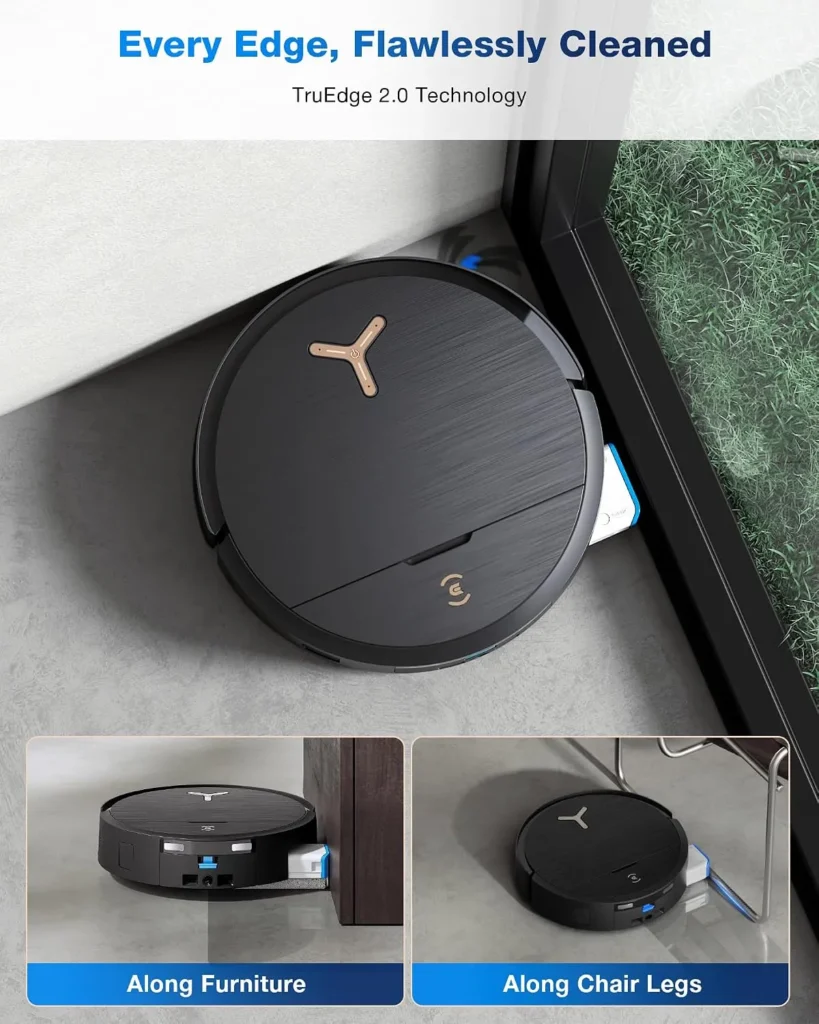
A robot mop that stalls halfway through the kitchen leaves you with half a clean floor. When the ECOVACS DEEBOT X9 PRO Omni hits a fault, the indicator on its station flashes red. The ECOVACS HOME app then names the problem. This DEEBOT X9 PRO Omni troubleshooting guide matches each warning or fault with ECOVACS's own remedy.
Sections run from a robot stuck under the sofa to a station that won't drain.
Key Takeaways
- A flashing red station light means a fault, and the app names it.
- Reach the roller mop by double-pressing the robot's AUTO button off the station.
- Check the power switch under the top cover before any charging fix.
- Clean the roller mop, main brush, filter, drip tray and dirty water box weekly.
- For storage, charge fully, switch off and recharge every 1.5 months.
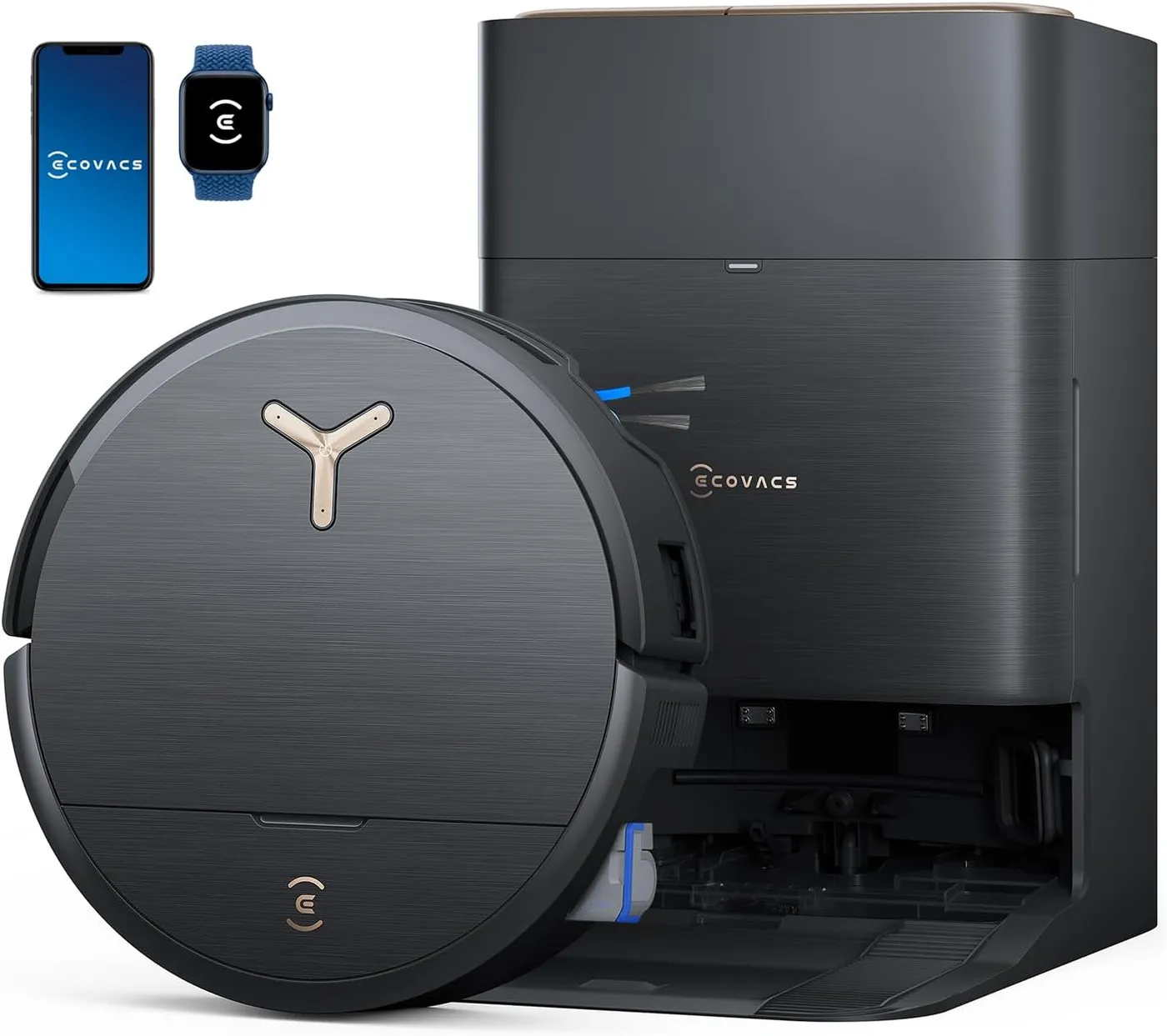
DEEBOT X9 PRO Omni troubleshooting for a stuck robot
Look first at where the robot stopped. The ECOVACS DEEBOT X9 PRO Omni is 98 mm high, so furniture with a gap that low can catch it. ECOVACS gives three remedies for that spot. Raise the furniture, add a physical barrier, or draw a virtual boundary in the app.
Cords, curtains and rug fringes are a different snag. The robot tries to free itself first. If it can't, remove the obstacle and restart. Before the next clean, put cables away and tuck rug tassels under the rug.
For "Bumper Stuck", take off the bumper's protector strip. Tap the bumper's left, center and right sections so it springs back, then restart. For "Laser Sensor Abnormal", turn the laser unit so its lens faces forward. Wipe it with a soft brush or clean cloth. Then power the robot off for a few seconds and back on.
The alerts "Anti-drop sensors dusty" and "Anti-drop sensors error" need a dry wipe. With the dirty water box out and the robot upside down, clean the sensors with a soft, dry cloth. Refit the box and power cycle the robot. "Difficulty running, check drive wheels" uses the same setup with the power off. Press and turn each wheel to clear tangles, then wipe it with a damp, wrung-out cloth.
Messy routes, skipped areas and the first map
A good map starts with a tidy home. Before the first mapping run, open every door, clear the floor and light the rooms well. Then start mapping in the app, or press AUTO and let the robot map as it cleans. Meanwhile, stay out of doorways and hallways.
To keep that map, never pick the robot up mid-clean, and let it dock by itself afterward. After any edit, back the map up manually in the app.
If the robot spins in circles or wanders, check the laser sensor at the center of the front bumper. Wipe off any dust with a dry paper towel. Next, wipe the drive wheels with a dry rag. Clutter also makes the route look messy, as the robot steers around each obstacle.
The robot climbs up to 2 cm, so a taller threshold closes that area off. For a mat across a doorway, choose Bypass in the app under Map Management, Edit Map and Carpet Settings. On fresh wax or smooth tiles, the wheels can slip, so let wax dry before a run. If they slip on a step or door bar, close that room's door and clean it separately. Leave small misses alone; the robot returns for them during the clean.
Roller mop alerts and a mop that stays dry
First, take the robot off the station. ECOVACS warns against double-pressing AUTO while it sits inside. Then double-press the robot's AUTO button, and the roller unit slides out. For "Roller Mop Tangled", press the release latch inside the unit and pull out the roller. Remove its end cover and clean it thoroughly.
Next, with the dirty water box out and the robot upside down, clear the roller cavity with a cleaning tool. Spin the roller motor bearing to check it turns smoothly. Then refit the end cover, line the roller up with the motor and push until it clicks. Finally, double-press AUTO to retract the unit, refit the box and restart.
A roller that won't turn is either sitting wrong or blocked, so clean it and refit it. If it won't slide outward along edges, switch on "TruEdge Adaptive Edge Mopping" in the robot's advanced settings. The cleaning mode should also read "Vacuum and Mop".
If no clean water reaches the mop, lift out the station's clean water tank. Check that nothing sits between it and the station, that it rests flat and that its sealing plug fits tightly. Then disconnect the water hose, rinse the tank's filter in clean water and refit everything.
Charging faults and missed docking
Start with power. The robot's own switch sits under its top cover and must show "I", since it can't charge while off. Next, check the outlet and push the power cord firmly into the station's back. On US models, also set the switch on the station's back to ON.
Then long-press AUTO so the robot drives onto the station, or set it on the contacts by hand. While it charges, the AUTO button light blinks and the app shows a lightning icon. If neither works, clean the charging contacts at the robot's rear and on the station with a dry cloth. Also make sure the base clicks into the station.
Keep the station against a wall on level, hard flooring. Leave 5 cm clear at each side and 80 cm (2.62 ft) in front. Cover the bottom 14 cm of any nearby mirror or reflective skirting, and keep sunlight off the station. Start cleans from the station, never move it mid-run and keep the route clear.
If the robot reaches the station but slips, dry the mop washing tray and the floor around it. Then, with the robot off and upside down, clean the drive wheels with a damp, wrung-out cloth and dry them. Reseat the roller mop and the tray before trying AUTO again.
Pairing with the ECOVACS HOME app
DEEBOT X9 PRO Omni troubleshooting leans on the app for alerts and settings. ECOVACS prefers Bluetooth pairing, so allow the app to use your phone's Bluetooth. With the robot on and near the station, scan the QR code under its top cover. When prompted, press the RESET button briefly, then wait for "Bluetooth hotspot released" before tapping Next.
Use a 2.4 GHz or mixed 2.4/5 GHz network, never a 5 GHz one. Avoid hidden networks, VPNs and proxy servers, and turn on WPA2. Keep characters such as !, @, # and & out of the network name. In North America, stick to channels 1 to 11. An extender or repeater must copy your main network's name and password.
Still failing? Move the robot closer to the router and re-enter the password. The Wi-Fi light under the cover shows progress. A slow white flash means disconnected, a fast one connecting and solid white connected.
Tangled brushes and a clogged dust bin
Clicking, a tangle alert or weaker suction all lead to the main brush. Switch the robot off, remove the dirty water box and turn the robot over. Press both tabs on the brush cover inward, remove the brush and pull off any hair. Detach the V-shaped comb too, rinse it and let it dry fully. Refit everything and spin the brush by hand before the cover clicks home.
For a "tangled side brush" alert, prepare the robot the same way. Loosen the side brush screws with a small Phillips screwdriver, ideally an M3. Clean the brush and bearing, press it back until it clicks, then tighten the screws clockwise until it can't turn. That same tightening is ECOVACS's fix for a side brush that drops off mid-run.
Weaker suction can also mean a full dust bin. Switch the robot off, press the dustbin release latch and empty the bin. Water is fine for the bin and filter, but never clean the filter with fingers or a brush. Let both dry completely before refitting.
Station alerts for dust and water
When the station won't empty the robot, start in the app. Turn on auto-empty and turn off Do Not Disturb. Let the robot dock by itself, since carrying it back may not trigger emptying. If its bin still stays full, lift the bin out and clear anything blocking its outlet.
For "Dust Bag Full", lift off the dust collection cabin cover and discard the bag. Wipe the cabin with a dry rag, fit a new bag and close the cover. Then tap "I've Replaced" under Settings, Maintenance and Dust Bags in the app. If the station smells, clean the cotton filter in the dust collection cabin, and air-dry it after washing.
For "Clean Water Tank Anomaly", refill the clean tank and check that its float resets. For "Waste Water Tank Anomaly", empty the dirty tank and check that its float pivots back. Clip each lid firmly shut.
For "Dirty Water Box Abnormal", empty the robot's dirty water box, clean its filter and close the lid tightly. Then press the drain port to check it lets water out, and brush the port clean. Next, press the right-hand charging contacts on the station's base for 1 to 2 seconds. Watch the drain rod move up and down smoothly.
For standing water in the mop washing tray, or "Abnormal cleaning sink", reseat the tray and its overflow float. Clear the tray's suction port and press the dirty water tank down firmly. After that, run the app's "auxiliary drain" feature. If the alert persists, switch the station off and on.
ECOVACS's upkeep schedule, part by part
Five parts need a weekly clean. They are the roller mop, drip tray, dirty water box, main brush and filter. About once a month, clean the edge sensor, anti-drop sensors, bumper and universal wheel. The robot and station charging contacts, navigation module, obstacle avoidance module and AIVI camera share that monthly slot. So do the dirty water tank, the inside of the dust container and the station's body and bottom. The clean water tank follows every 3 months, and the mop washing tray every 5.
Plan on a new roller mop every 1 to 2 months. Dust bags last 2 to 3 months, and the side brush and filter 3 to 6. The main brush lasts 6 to 12 months. ECOVACS lists replacement roller mops, dust bags, filters and both brushes for the X9 PRO Omni, beside its cleaning solution.
For storage, charge the robot fully, switch it off and recharge it every 1.5 months so the battery doesn't over-discharge. Empty the dirty water box and both tanks first, and let the mop dry.
Faults that belong with ECOVACS support
Some faults go beyond a cloth or a setting. ECOVACS's advice for a drive wheel that stays stuck after cleaning is to contact support. A drain alert that survives every listed step goes there too, as does drying noise that outlasts a station restart. After long storage, a battery may refuse to charge. ECOVACS asks you to contact it then, and never to open the battery yourself.
ECOVACS lists no home remedy for faint streaks after mopping. Take them to support, along with a robot that won't leave the station. A box missing a part the manual lists, such as the power cord, also goes there.
ECOVACS's help center page for the X9 PRO Omni holds the manual, alert guides and Tutorial Videos.
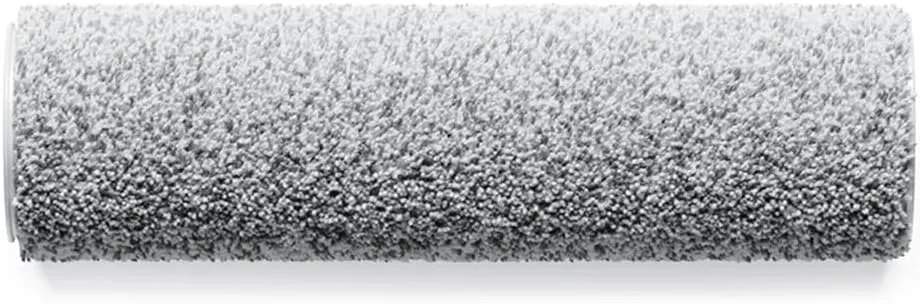
ECOVACS DEEBOT Washable Roller Mop
View on Amazon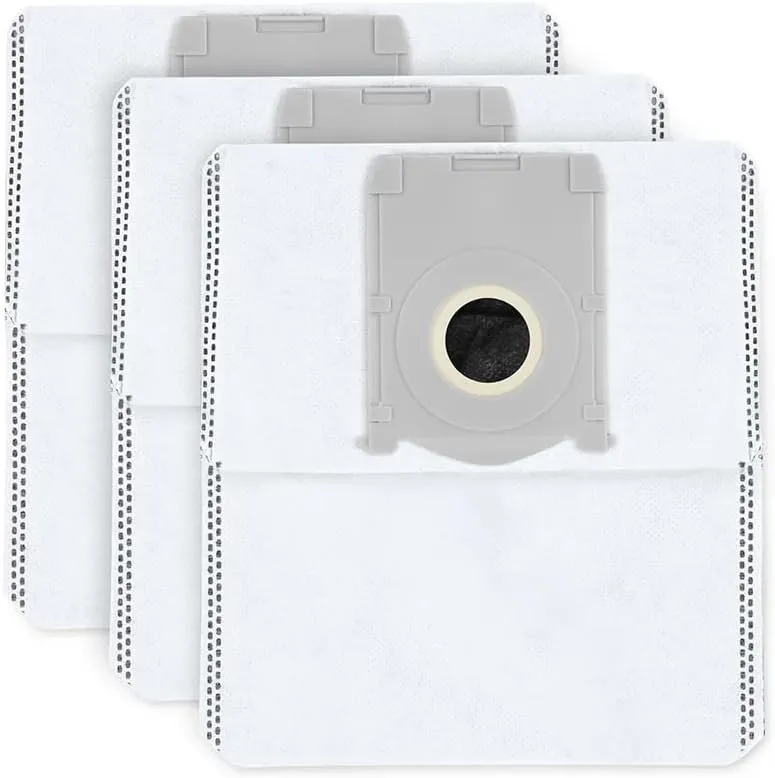
ECOVACS DEEBOT Dust Bags (3-Pack)
View on Amazon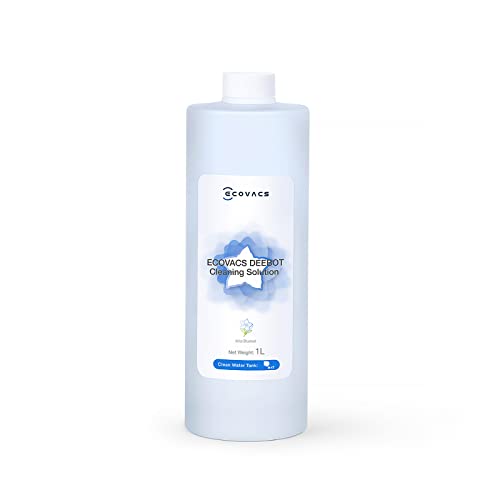
Conclusion
ECOVACS's DEEBOT X9 PRO Omni troubleshooting steps repeat three moves: clean the part, seat it again and restart. I'd put the weekly jobs on one day, from the roller mop to the filter. Let the robot dock by itself, too, since ECOVACS ties a finished map and the auto-empty to that return.
And before the X9 PRO Omni spends a season in a cupboard, charge it fully and switch it off. Then top it up every 1.5 months.
Frequently Asked Questions
What does a flashing red light on the station mean?
It signals a malfunction, and the ECOVACS HOME app shows the details. Solid white means standby or running. If the light goes out, the cause is a power outage or deep sleep mode.
Why won't the X9 PRO Omni wake up after time away from its station?
After about 10 hours outside the station, the robot enters deep sleep mode to protect its battery. To wake it, switch it off and on again at the power switch under the top cover. A short pause is different: its lights go out, and a short press of its button wakes it.
Why does the X9 PRO Omni return to the station before it finishes?
When the area is large, it may need to recharge partway through a clean. For that case, ECOVACS says to turn on auto resume in the app. A very complex layout can also leave a clean unfinished, so ECOVACS suggests simplifying it where you can.
How do you restore the X9 PRO Omni to default settings?
Open the top cover and hold the RESET button for 5 seconds. After a voice prompt, the startup music plays and the robot returns to its default settings. A short press of the same button starts network setup instead.
What fixes the "Low Cleaning solution level" alert?
Lift off the dust collection cabin cover and check that the cleaning solution unit sits in place. If it's empty, refill it with ECOVACS cleaning solution, no higher than the dispensing outlet. Then tap "I have added" under Settings, Maintenance and Cleaning Solution in the app. Never pour solution into the water tanks.
Why does the X9 PRO Omni bump into some objects?
ECOVACS notes that it may slow down and lightly touch black or thin objects. For anything more, wipe the laser sensor at the center of the front bumper with a dry cloth. Then check that "AIVI 3D" mode is on in the app's settings.