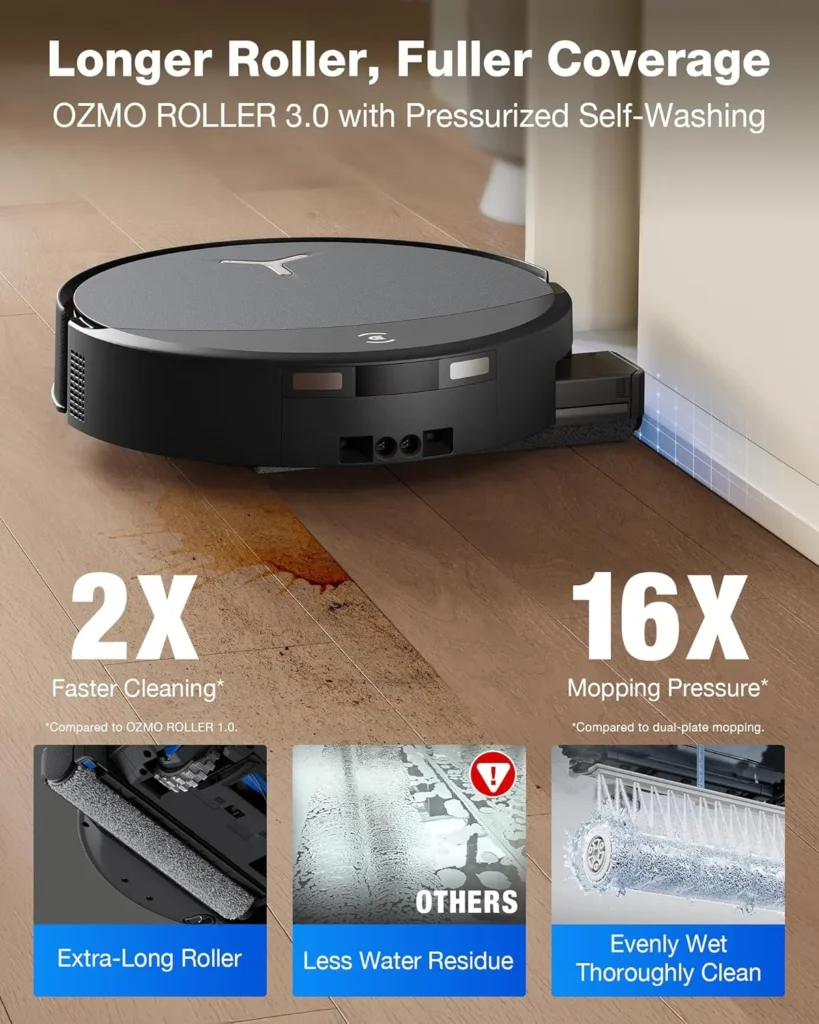
The ECOVACS DEEBOT T90 Pro Omni signals trouble with the light on its body. Flashing red points to the robot, flashing orange points to the station, and the ECOVACS HOME app explains why.
This DEEBOT T90 Pro Omni troubleshooting guide starts from that light. Every fix here follows the T90's own US instruction manual, with the quickest check first in each section.
Key Takeaways
- Flashing red flags the robot, flashing orange flags the station, and the app gives the reason.
- To release the roller mop, double-tap the robot's button while it's away from the station.
- Turn on multi-floor mode before mapping a second floor.
- Let the robot drive back to the station so the dust bin empties.
- Clean the drip tray, main brush and filter every week.
Light and button basics for DEEBOT T90 Pro Omni troubleshooting
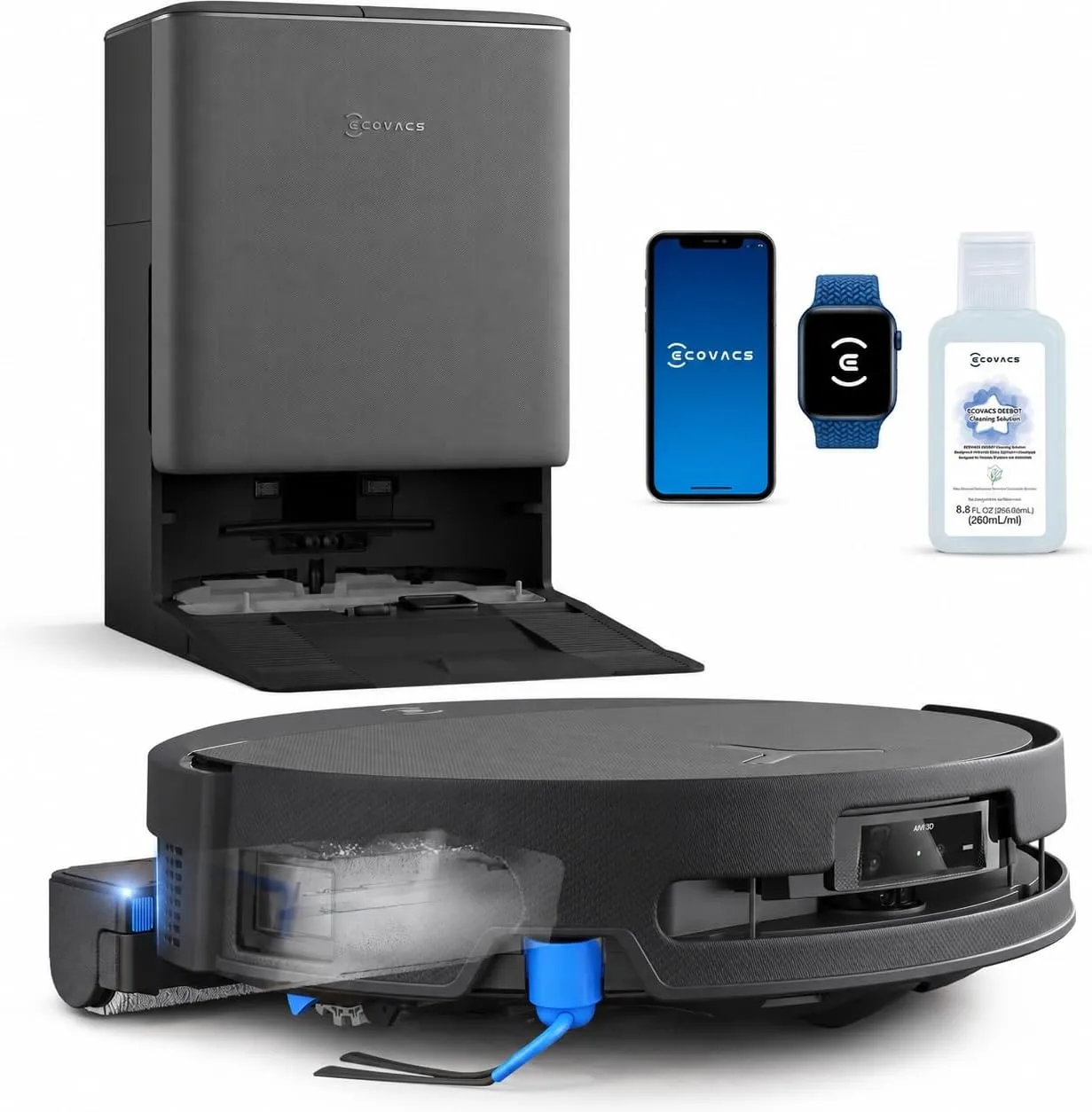
The ECOVACS DEEBOT T90 Pro Omni has a single button, and it does three jobs. A press starts or pauses a clean, while holding it for three seconds sends the robot home. A double tap pushes the roller mop out for cleaning, but only while the robot is away from its station.
The light on the robot sorts its state into five patterns:
– Breathing white: charging.
– Solid white: fully charged, or running.
– Solid red: low battery.
– Flashing red: a fault on the robot.
– Flashing orange: a fault on the station.
For either flashing color, open the app to see the cause. A dark robot may simply be asleep. Once it has sat paused for a while, the lights switch off, and one short press brings it back. After roughly 10 hours away from the station, it also drops into deep sleep to protect the battery. Turn the power switch off and back on to wake it, and if it stays dark, return it to the station.
Before anything else, lift the top cover and make sure the robot's power switch is on. The robot cannot charge while it is switched off. Back on the station, the voice prompt "Start charging" and a breathing white light confirm a good connection.
Getting online through Bluetooth and 2.4 GHz
ECOVACS recommends pairing the robot with its app over Bluetooth. First, turn on the robot and your phone's Bluetooth, and give the ECOVACS HOME app permission to use it. Then scan the robot's QR code in the app, or let the app search for nearby robots.
When the app can't find the robot, it may not be ready to pair. Press the RESET button under the top cover once, and a voice prompt signals that pairing can begin. Should that not work, the app walks you through reconnecting.
The manual sets these conditions for the robot's Wi-Fi:
– 2.4 GHz Wi-Fi, including a network that mixes 2.4 and 5 GHz, but not 5 GHz alone.
– WPA or WPA2 security with TKIP, PSK or AES/CCMP, and WPA2 enabled on the router.
– No VPN, proxy server or hidden network.
– In North America, Wi-Fi channels 1 through 11.
– A network name free of special characters such as ! @ # & or %.
– An extender only if it copies the main router's network name and password.
Beyond those rules, a mistyped password or a weak signal is the likely culprit. Type the password again, and bring the robot nearer the router while it pairs. A slow live video in the app also points to a weak signal. Under the top cover, the Wi-Fi light flashes white slowly while the robot is offline and quickly while it connects. Once it is connected, the light stays on.
Maps that vanish, and a second floor
The first map shapes every clean after it, so prepare the house before it runs. Open every door, give the AIVI camera enough light and pick up cables, clothes and slippers. Raise low furniture where you can, or cover its base, so the robot can't wedge itself underneath. While it explores, stay out of hallways and other narrow spaces, because standing there blocks its navigation sensor.
A map that never appears in the app points to one of two slips. Moving the robot in the middle of a clean can erase its map, so leave it where it is. The map also needs a finished job, with the robot returning to the station on its own.
A second floor needs multi-floor mode, enabled in the app before the robot maps that floor. Near the station, the manual also asks you to cover the lowest 14 cm, or 5.5 inches, of any mirror or reflective skirting.
Holding the RESET button for five seconds restores the default settings. However, it also deletes the current maps and cleaning settings, so save that step for last.
Low furniture, thresholds and missed patches
At 95 mm, or about 3.7 inches, the robot slips under plenty of furniture. It can also wedge itself under a gap of almost the same height. The fix is to raise the furniture, block the gap, or fence it off with a virtual boundary drawn in the app. Narrow corners get the same treatment, along with a tidy-up.
Thresholds and steps have an app fix of their own. The app guides you through setting a threshold ramp, or a boundary if the robot shouldn't cross at all. ECOVACS rates its climbing system for a single step of up to 2.4 cm, just under an inch.
Cables, curtain hems and the tassels on a rug can snag the robot. It tries several ways to free itself, and if those fail, clear the snag by hand and start the job again. Fold any fringe under the rug's edge before a run. Keep the robot away from shaggy rugs with fibers longer than 10 mm, or about 0.4 inches, too.
Messy routes and skipped patches have causes of their own. Clutter forces detours, and the robot circles back to a missed area by itself, provided it stays where it is and its path stays clear. On a freshly waxed floor, wait for the wax to dry, since the wheels slip. When a door bar causes the slipping instead, shut that room and give it a separate run.
A driving wheel that stops turning has probably picked up hair or thread. Rotate and press the wheel to find the snag, then clear it out. If the wheel still sticks after that, it's a job for ECOVACS support.
Charging, PowerBoost and early trips home
When charging fails, one of four checks in the manual is the reason. The robot must be switched on, its charging contacts must meet the station's, and the station needs power. The base must also sit firmly in place, which it signals with a click. When the station powers up, a soft mechanical sound comes from its base.
Wipe the robot's contacts and the station's with a dry cloth only. They hold sensitive electronics, and a wet cloth can damage them.
Docking needs a clear run home. The station belongs on a flat, hard floor with its back to a wall. It needs 0.05 m, or 0.16 ft, of space on either side and 0.8 m, or 2.62 ft, ahead of it. Start each job from the station, leave the station where it is during a clean, and keep doors on the way home open. Direct sun and hot spots don't suit the station either.
In a large home, the robot may head back before the job is done because the battery runs short. Switching auto-resume on lets it recharge and carry on from the same spot. A maze-like floor plan can also leave a job unfinished, and simplifying it helps. With PowerBoost Charging on, the robot fast-charges for about five minutes after each return, then switches to standard charging. ECOVACS says that burst restores 10% of the battery in three minutes while the roller washes.
Charge the robot between 0°C and 40°C, or 32°F and 104°F. For storage, fully charge the robot, switch it off, and give it a fresh charge every 1.5 months. A battery that won't take a charge after long storage needs ECOVACS, and the manual rules out opening it yourself.
The roller mop: release, rinse, refit
The roller comes out at the push of the robot's button. Away from the station, a double tap slides the roller unit out. Next, press the unlock button on its side to lift the roller free, then pull off the end cover. Never pull the roller while it is retracted, since force can damage the unit.
Clean the end cover and the roller, then lift the roller shaft and wipe its axle and the chamber it sits in. Push the roller back into the end cover, and double-tap the button again to retract it. Keep water away from the robot itself, because the manual says never to wash it.
If the roller stops spinning, either it sits wrong or something jams it, so clean it and seat it again. ECOVACS's schedule also swaps in a new roller every one to two months.
The drip tray under the roller needs a weekly rinse. Take it out, rinse it and put its filter parts back as the manual's diagram shows. A drip tray laden with dust is also ECOVACS's explanation for extra wash cycles. Outside drying mode, flipping the robot can also let a little leftover water leak out.
On a new robot, run two or three vacuum-only jobs before the first mop, as the manual advises.
Station water: tanks, plugs and a tray that won't drain
The station keeps the robot's small onboard tank topped up, so you never fill the robot directly. Pour water into the clean water tank, but never hot water, which can warp it. Marks inside a new tank come from a factory function test and are safe.
A mop washing tray that stays full, with a voice alert about the tray, has several causes in the manual. Work through them in order:
– Press down on the dirty water tank until it sits fully in place.
– Check that both sealing plugs in the dirty water tank are seated.
– Reseat the mop washing tray.
– Detach the tray base and wash it.
– Lift the tray out and put the floating ball back in its place if it has stuck.
– Clear anything caught in the tray's suction port.
– Restart the station by switching it off, then on again.
If the alert survives all of that, the station needs ECOVACS support. Also, leave the robot docked while the station washes its roller.
The dirty water tank, plus the station's body and base, get a monthly clean on ECOVACS's schedule. Every three months, wash the clean water tank, and every five, the mop washing tray. After washing the tray base and its filter, refit the tray and base until they click. Before storage, empty both tanks and let the roller dry.
Dust bag, auto-empty and dust leaks
The station empties the robot's dust bin only under the right conditions. Auto-Empty must be on in the app, and Do Not Disturb must be off. The robot also has to drive back by itself, because carrying it to the station skips the emptying. Inside Do Not Disturb hours, an emptying run can still start from the app.
When the station senses weaker emptying, the app prompts for a new dust bag. If the bag turns out not to be full, the manual says you can put it back. A full or blocked dust bin on the robot can also stop the emptying, so empty it and clear its outlet. If none of that helps, a station part may be faulty, and ECOVACS support takes over.
Lift the old bag out by its handle, which keeps the dust in. Before the new bag goes in, give the cabin a wipe with a dry cloth, and press the cover down on both sides to seal it. Dust inside the cabin means fine particles got past the bag, or the bag is torn, loose or behind an open cover.
Dust leaking from the robot while it works points to a blocked bin outlet or a clogged main brush chamber. A sudden rise in noise points to a tangle, a packed bin, or a clogged filter or roller. Strong and Max suction also raise the noise, and Standard mode brings it back down.
Cleaning solution and ECOVACS's upkeep calendar
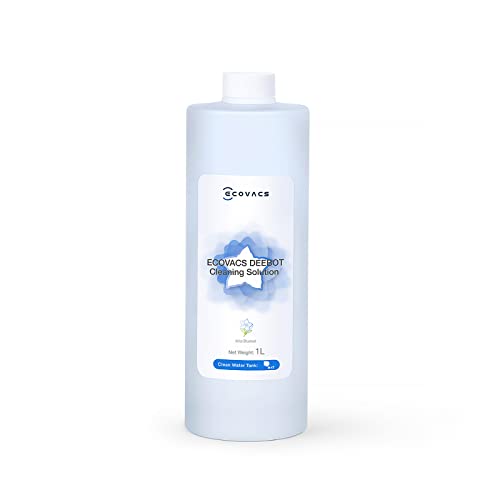
The station doses cleaning solution into the wash water from a box under the dust collection cabin cover. Slide the box out, fill it on a level surface, stop short of the brim, then slide it home and press the cover down firmly. ECOVACS recommends its own solution for a longer product life, and the dosing can be switched off if you mop with plain water.
ECOVACS's maintenance table sets the rhythm:
– Weekly: the drip tray, main brush and filter get a clean.
– Side brush: a clean every two weeks, and a new one every 3 to 6 months.
– Monthly: wipe the sensors, bumper, camera and universal wheel, the robot's and the station's charging contacts, and the solution unit.
– Roller mop: a new one every 1 to 2 months.
– Filter: a new one every 3 to 6 months.
– Main brush: a new one every 6 to 12 months.
– Dust bag: a new one when the app prompts.
Rinse the dust bin and filter under water, skip fingers and brushes on the filter, and let both dry fully before refitting. A screwdriver releases the side brush, and a side brush that falls off during a run needs its screw tightened. Wipe the camera lens with a clean, soft cloth, never with sprays or detergent.
ECOVACS's T90 support page hosts the manual and short videos for each alarm, from a stuck bumper to a mop washing tray fault.
Conclusion
Good DEEBOT T90 Pro Omni troubleshooting starts with three habits. Let each job begin at the station, and let the robot drive itself home afterward. Also keep up the weekly cleaning of the drip tray, main brush and filter. When an alarm outlasts every fix here, ECOVACS support is the next step.
Frequently Asked Questions
Why is the DEEBOT T90 Pro Omni's light flashing orange?
Flashing orange marks a station alarm, while flashing red marks a fault on the robot itself. Either way, the cause appears in the ECOVACS HOME app. A solid red light only means the battery is low.
Can a dust bag go back in if the app wants a new one?
Yes, if it isn't full. The station asks for a new bag when it senses weaker emptying, which a full or blocked dust bin on the robot can also cause. Empty the bin, clear its outlet and refit the bag with the cover sealed.
Does the DEEBOT T90 Pro Omni need ECOVACS cleaning solution?
No, but ECOVACS recommends its own solution for a longer product life. If you mop with water alone, switch off the automatic dosing. When you do use solution, fill the box without overfilling it, since it can overflow when the lid closes.
How do I map a second floor?
Turn on multi-floor mode in the app before the robot maps the new floor. Without it, the app can fail to create the new floor's map. As with the first floor, open the doors, pick things up off the floor, and let the robot finish and return on its own.
Why won't the robot wake up after a day off the station?
Roughly 10 hours away from the station puts it into deep sleep, which protects the battery. Toggle its power switch off, then on, to wake it. If it still doesn't respond, put it back on the station to charge.
What does the RESET button do?
A short press starts network setup, with a voice prompt, so the robot can pair with the app. Holding it for five seconds restores the default settings and deletes the current maps and cleaning settings.