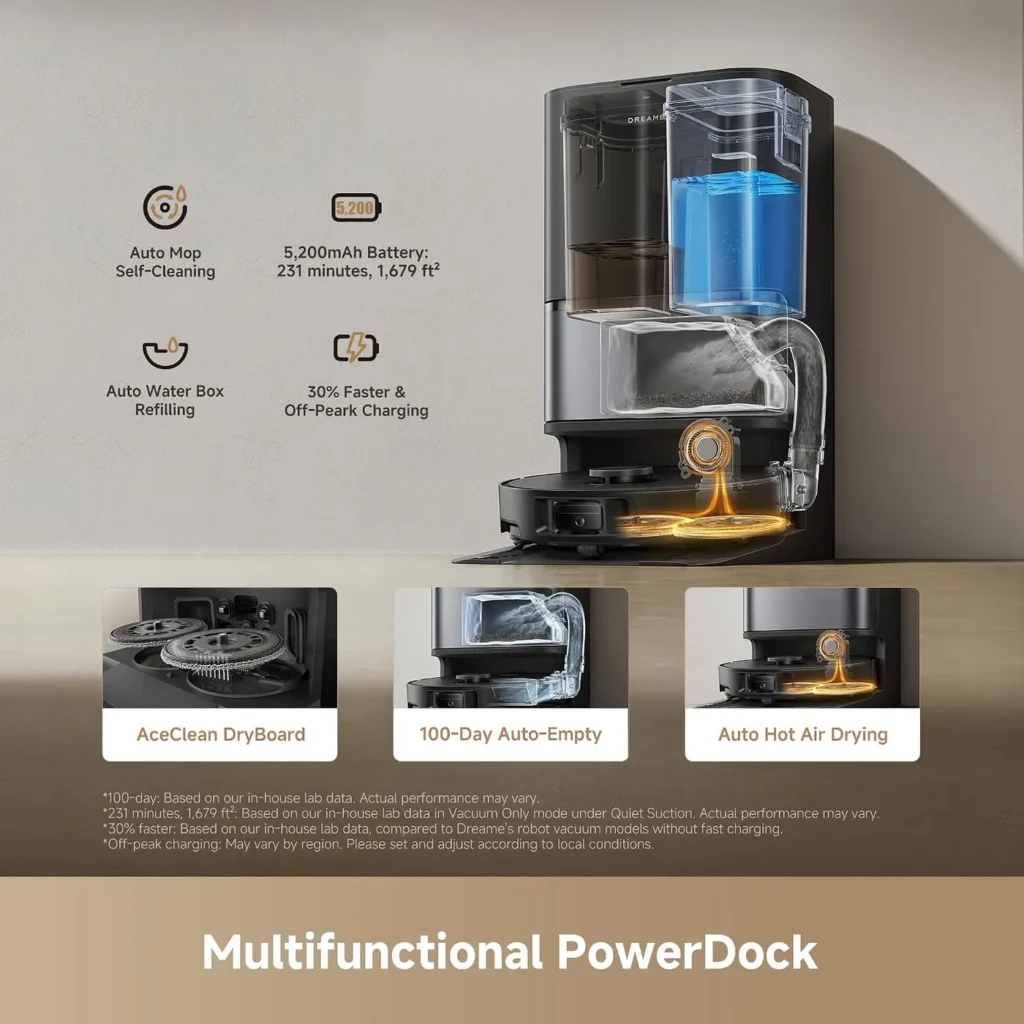
Treat the Dreame L40 Ultra Gen 2 and its dock as one loop. The robot leaves the base, may return mid-run to wash its mop pads and comes back when the run ends.
Back on the dock, the base station empties the dust box, then washes and dries the pads. Because every stop needs a docked robot, this L40 Ultra Gen 2 troubleshooting guide starts with docking. After that, it follows the loop, using fixes from Dreame's manual, help center and product page.
Key Takeaways
- Emptying, washing, drying and charging all wait until the robot is back on the dock.
- A pause on the dock before mopping is the pad pre-wash, which the manual asks you to wait out.
- The robot mops with water from the clean tank, and the separate solution module only adds detergent.
- Empty and rinse the used water tank after each run to keep odor away.
- The manual's two-week jobs cover the main brush, side brush and dust box filter.
- Try the 10-second forced restart before the Reset button, which clears schedules and Wi-Fi.
The trip home and the charge that follows
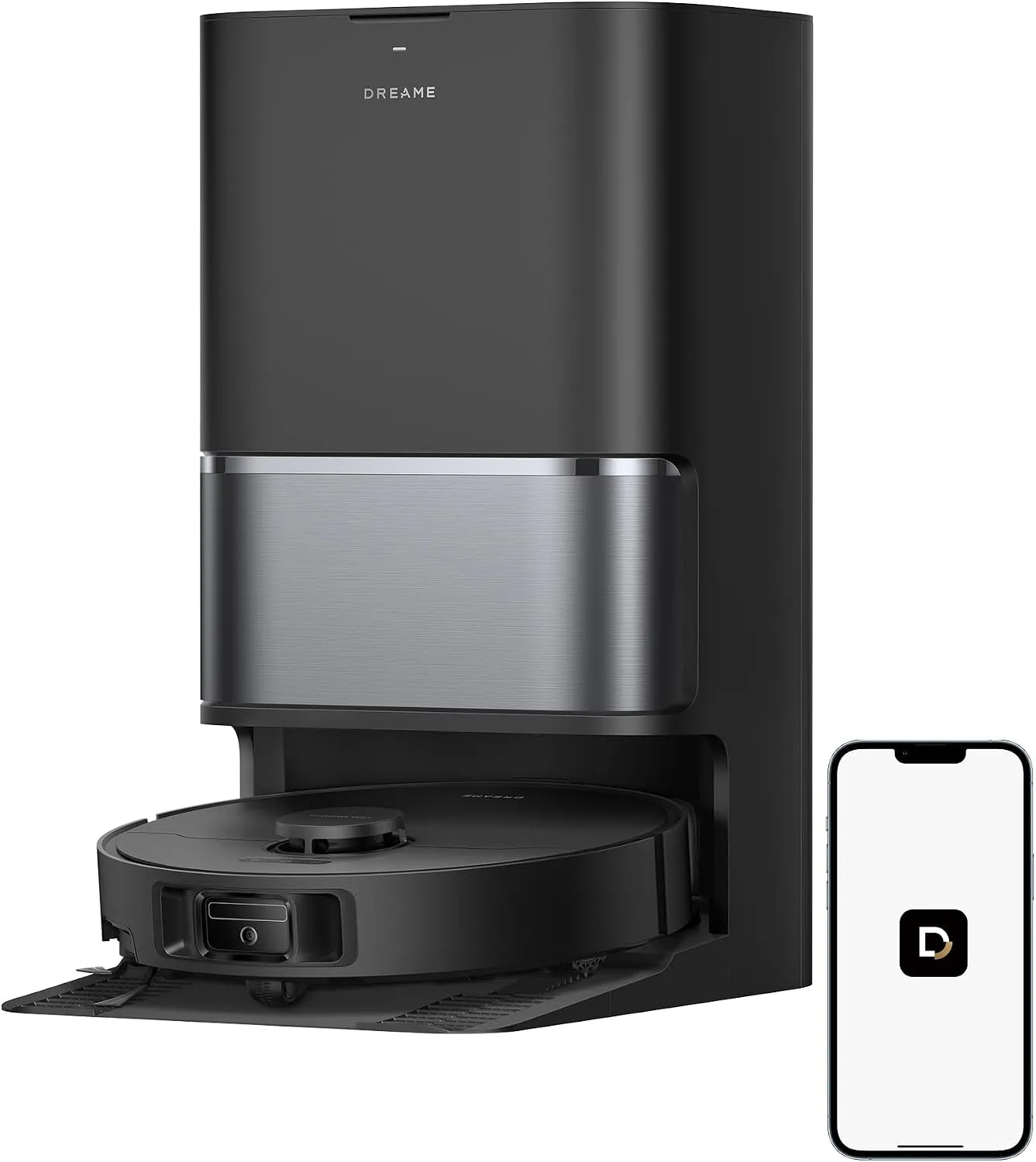
Check the dock's own status indicator before anything else. Solid white means the base station has power, and solid orange means it has an error. If the indicator stays dark, push the cord firmly up into the base until it lights, then check the wall plug.
Next, read the robot's button indicator: breathing white means charging, breathing orange means charging on a low battery and blinking orange flags an error. If the robot will not charge on the dock, wipe its charging contacts and the dock's with a dry cloth. Clear foreign objects from its connectors too. Charging can slow or stop outside 32°F to 104°F (0°C to 40°C), and a full charge from a low battery takes about 3.5 hours.
When the Dreame L40 Ultra Gen 2 fails to return, look at the route and the base station. A closed door or clutter around the dock can obstruct the return trip. If the base lost power or moved during a run, plug it in or lift the robot onto it. Then give the dock open space and wipe its signaling area with a dry cloth.
A robot that stalls just short of the dock needs room on both sides and in front. Dry the floor there, since wet patches make the wheels slip, and check that the ramp extension plate sits right. If it still stalls, the manual suggests trying the dock in another spot. Carry the robot back yourself when it is too far away to return, or too flat to switch on.
For L40 Ultra Gen 2 troubleshooting that keeps circling back to docking, Dreame's help center adds one habit. Send the robot out from the dock every time, so the map keeps an accurate fix on the charging spot.
Before the first run: pairing and Wi-Fi
Set the dock somewhere open with a strong Wi-Fi signal. The manual prefers tile or marble under it, so water does not stain wood floors or carpet. It also recommends a full charge before the first run.
Hold Power down for 3 seconds, open the robot's cover and scan its QR code to get the Dreamehome app. Then tap "Scan QR code to connect" and scan the same code again. The robot's Wi-Fi indicator blinks slowly while waiting, blinks fast while connecting and stays on once online.
If pairing fails, work through the manual's checklist. The network has to be 2.4 GHz, since the robot does not support 5 GHz. Confirm the password and the signal strength at the robot's location. If the app still fails, close it, reopen it and try again. Later on, repeating the QR code step moves the robot to a new network.
If the app shows the robot offline and every light is off, suspect Energy Saving Mode. Holding the Dock button for 20 seconds during charging switches this mode on and disables Wi-Fi, so press the Power button until the lights come back.
When the route between dock visits goes wrong
The first map comes from Fast Mapping. After pairing, the app sends the robot out to map without cleaning, and the map saves automatically once the robot docks. The help center warns of a winding path on this run while the robot learns the layout.
Before any run, collect cords, slippers, toys and power strips, open the doors on the route and block the top of the stairs. If routes turn messy later, clean the drive wheels, wipe the bumper window with a soft cloth and dry wet floors.
For missed areas, the help center sets a minimum gap: 2 cm wider than the robot's body on each side. A long-pile rug or a cord in a doorway can also trip obstacle avoidance and keep it out. For thresholds, Dreame lists an obstacle crossing height of 0.79 in (2 cm). If the app shows a skewed or doubled map, remap the floor. When routes stay chaotic, update the firmware before resetting the map and mapping again.
Picking the robot up can make it relocate itself, and if that fails, the manual says it builds a new map. For a second floor, carry the robot up and pick that floor's map, or create one under Map Management. Dreame's L40 Ultra Gen2 help pages also host app videos on no-go zones and virtual walls.
L40 Ultra Gen 2 troubleshooting at the dock
The dock works in a set order. Once a run ends and the robot docks to charge, the base station automatically empties the dust box, then washes the mop pads and dries them.
Some waiting is part of the cycle, since the dock washes the pads before mopping starts. Mid-run, the robot comes back to rewash them as often as the app's mop pad cleaning frequency says, and each visit also refills its water tank. Leave the base, both tanks and the washboard filter alone during operation, and keep fingers off the water outlet, which can scald.
If the dust box comes home full, check the app's auto-empty setting; the base empties only when it allows. Wipe both auto-empty vents, robot side and dock side, with a dry cloth. If emptying turns high-pitched or weak, the help center suggests emptying the dust box by hand after hair-heavy runs and wiping the dust-collection port using a dry microfiber cloth.
To change the dust bag, lift off the dust tank cover and pull the bag's handle up to seal it. Wipe the base's filter with a dry cloth, slide in a fresh bag and refit the cover. Never run the dock without a bag, the manual warns.
The water jobs the dock leaves to you
Dreame's FAQ draws the line clearly. The dock refills the robot's own water tank, but you empty the used water tank and refill the clean one. Use clean water only, never hot, since hot water can warp the tank.
Empty the used water tank after every run, because the manual ties it to odor. Rinse it and scrub the inner wall with a proper tool, and go easy on the float ball, a fragile moving part. Smelly mop pads, says the help center, come from damp pads in a humid home or a dirty washing tray. Lengthen drying under Self-Cleaning Settings > Start Drying, and check the washing tray now and then. Before a long idle spell, take the pads off and leave them somewhere dry and ventilated.
Detergent takes a separate route. The product page lists automatic solution adding as a separate module, and its FAQ confirms the dock does not add solution by default. After fitting the module, switch on automatic dispensing in the Dreamehome app. Dreame's FAQ presents the module as a way to stop adding solution to the clean water tank by hand. Either way, the manual allows only Dreame's own cleaning fluid.
Keeping rugs dry and the pads in place
Fitting the mop assembly makes Vacuum and Mop the first-run default. To change it, open Cleaning Mode in the app and pick Mop after Vacuuming, Vacuum or Mop.
For rugs, Dreame lists a mop lift of 0.41 in (10.5 mm), and the app's carpet settings include Carpet Boost and Vacuum Carpet First. Dreame describes Intensive Carpet Cleaning as two slower passes, Carpet Avoidance as a way to skip fringed rugs and Carpet Crossing as passing over mats without cleaning them. Draw a missed rug into the app yourself. To keep the robot off a rug while it mops, mark the rug as a restricted zone first.
Dreame lists 32 mop moisture levels, marking 5 as slightly dry, 16 as moist and 27 as wet. Along walls, it says the MopExtend assembly pushes a pad out by up to 1.57 in (4 cm).
To replace a pad, pull it off its mop pad holder; the holders come off for cleaning too. If a new pad sits unevenly, peel off any plastic backing film and smooth it flat from the center out.
When hair or grit reaches the brushes
Turn the robot off first, because a brush may start unexpectedly. Press the brush guard clips inward, lift off the guard and take out the main brush. Pull the end covers off, clear wrapped hair with a cleaning tool, then refit the covers and press the guard down until it locks. Dreame's help center adds a last check: rotate the brush manually to see that it spins smoothly, and make sure every clip snaps in.
Free the side brush with a screwdriver, clear its hair and screw it back on. The omnidirectional wheel also separates: gently part its axle and tire with a small screwdriver, rinse it and refit it only when completely dry.
When the robot gets louder, the manual lists four steps. Clean or replace a clogged dust box filter, remove any hard object from the main brush or dust box, clear tangles off either brush and switch suction to Standard or Quiet. For weak pickup, the help center reverses that: clean the filter and brush, then raise suction to Standard or Turbo.
Treat the filter gently: tap its basket to knock dirt loose, and keep brushes, fingers and sharp objects off it. Rinse the dust box and filter in clean water with no detergent. Refit them only when completely dry; for the filter, the help center suggests at least 24 hours.
Restart first and save the reset for last
Unresponsive buttons may mean Child Lock is on. Hold the Dock button for 3 seconds to release it, or use the Dreamehome app. After more than 10 minutes on pause, the robot falls asleep with every light off until a button press or the app wakes it.
If it still freezes, hold Power down for 10 seconds to force it off, then 3 seconds to restart. It will not switch off while charging, so lift it off the dock first. If even the 10-second hold fails, the manual sends you to after-sales service.
Three things stop a run from resuming after charging. First, enable Auto Resume Cleaning in the app. Second, Do Not Disturb, once enabled, blocks resuming during its window, which runs 22:00 to 8:00 by default. Third, a robot you carried home, or sent home with the app or Dock button, does not resume. Scheduled cleans still run in that window; set them under Settings > Timed Cleaning > Add.
Keep the Reset button, beneath the robot's cover, for last in L40 Ultra Gen 2 troubleshooting. The manual says a 3-second hold restores factory settings, and its setup notes use the same hold to disconnect Wi-Fi. Dreame's help center adds that a reset clears schedules and cleaning mode settings, so plan to rebuild them.
How often to clean and replace each part
These intervals come from the routine maintenance table in Dreame's manual. Use only a dry cloth on the sensors, since the manual warns that a wet one can damage them.
After each run: empty and rinse the used water tank.
Every 2 weeks: clean the main brush, side brush and dust box filter.
Monthly: wipe the dock's signaling area, the charging contacts and the auto-empty vents.
Also monthly: clean the omnidirectional wheel, the bottom of the robot and its water refilling inlet.
Monthly, dry cloth only: the carpet sensor, cliff sensors, edge sensor, LDS, bumper window and bumper.
Every 1 to 2 months: rinse and wipe the washboard filter after a pad wash.
As needed: clean out the dust box and the main wheels.
Replace the dust bag at 2 to 4 months and the mop pads at 1 to 3 months.
Replace the side brush and dust box filter at 3 to 6 months, and the main brush at 6 to 12 months.
The manual adds that real intervals depend on use, and it names the accessory usage page in the app as the other reference. Before a long break, switch the robot off and store it, charging it at least once every three months so the battery does not over-discharge.
Conclusion
Aim for a closed loop: out from the dock and back, so the base can service the robot. Keep the dock's cord, contacts and signaling area in order, and empty the used water tank after each run. Then keep to the care table. Some L40 Ultra Gen 2 troubleshooting goes past these steps, though. Contact Dreame support at support.na@dreame.tech or +1 (866) 977-5177 if the robot will not power down even after the 10-second hold, or if a fault survives the manual's fix. If a repair stops making sense after that, compare current models in our best robot vacuums rankings.
Frequently Asked Questions
Why does the L40 Ultra Gen 2 sit on the dock before it starts mopping?
It is waiting for its mop pads. Dreame's manual says the dock washes the pads before mopping begins and asks you to be patient. During a run, the robot also comes back to rewash them at the mop pad cleaning frequency set in the app.
Can the L40 Ultra Gen 2 mop without the solution dispenser module?
Yes. The dock tops up the robot's water tank using the clean water tank, which you fill with clean water. Dreame's FAQ says automatic solution adding is not included by default. The separate dispenser module adds detergent after you switch on automatic dispensing in the Dreamehome app, and the manual allows only Dreame's own cleaning fluid.
Why are all the robot's lights off?
Three states in the manual dim or switch them off. After a full charge, the robot's and the dock's lights stay lit for 10 minutes and then dim. A pause longer than 10 minutes puts the robot to sleep. Holding the Dock button for 20 seconds during charging starts Energy Saving Mode, which also cuts Wi-Fi; press the Power button until the lights return.
Why didn't the robot go back to cleaning after it recharged?
First, make sure Auto Resume Cleaning is turned on in the app. Do Not Disturb, once enabled, blocks resuming during its window, which runs 22:00 to 8:00 by default. The manual adds that the robot does not resume after you place it on the dock manually or send it home with the app or the Dock button.
Will holding the Reset button wipe the robot's schedules?
Yes, by Dreame's account. The manual says a 3-second hold of Reset restores factory settings and disconnects Wi-Fi. The help center adds that a reset clears scheduled cleans and cleaning mode settings. For a frozen robot, try the forced restart first: hold Power down for 10 seconds, then for 3 seconds to switch it back on.
Why do the mop pads smell?
Dreame's help center names two causes: pads that stay damp in a humid home, and a dirty washing tray in the dock. Lengthen drying under Self-Cleaning Settings > Start Drying, check the washing tray now and then and air the pads before a long break. The manual also says to clean the used water tank after each run to prevent odor.