Introduction
In the era of remote work and online communication, the MuteMe illuminated physical mute button emerges as an innovative and essential tool for anyone frequently participating in virtual meetings. As featured on the popular TV show Shark Tank, MuteMe has swiftly captured the attention of professionals and casual users alike. Designed for compatibility with both Mac and PC, MuteMe enhances the online communication experience by offering a tactile and visual means to control audio muting during Zoom, Microsoft Teams, WebEx, and other virtual meeting platforms.
The MuteMe device, with its simple yet sophisticated design, caters to the growing need for efficient and hassle-free virtual interactions. The physical mute button is not just a functional tool; it’s a statement of professionalism and technological savvy. The concept of having a dedicated mute button, which also serves as a visual indicator, revolutionizes the way we interact in online environments. This feature is particularly useful in managing the common challenges of online meetings, such as accidental interruptions or background noise.
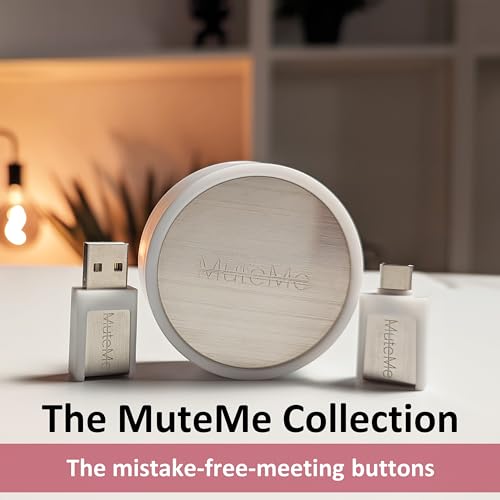
One of the standout features of MuteMe is its ease of setup. The package includes a USB cord and adapter, ensuring seamless integration with your computer setup. However, the device does require a free software download, which is a small step towards optimizing your virtual communication experience. This software integration allows MuteMe to work effectively across various online platforms, offering a universal solution to a common problem.
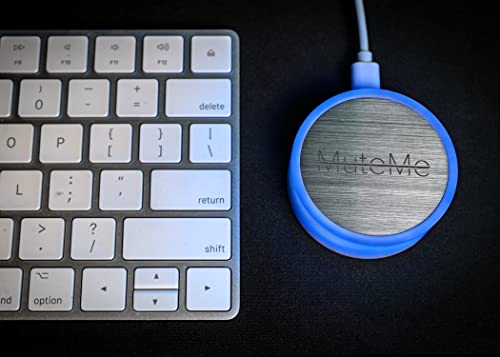
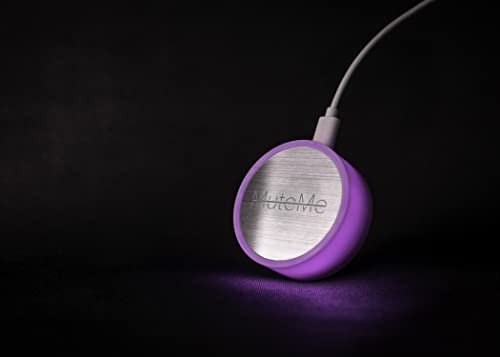
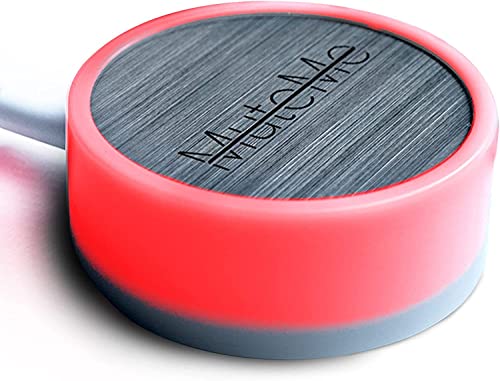
Another significant advantage of the MuteMe button is its visual feedback system. The illuminated button changes color to indicate the mute status, providing a clear and immediate visual cue. This feature is particularly useful in multitasking environments or during long meetings where attention might fluctuate.
Ergonomic Design and Aesthetic Appeal
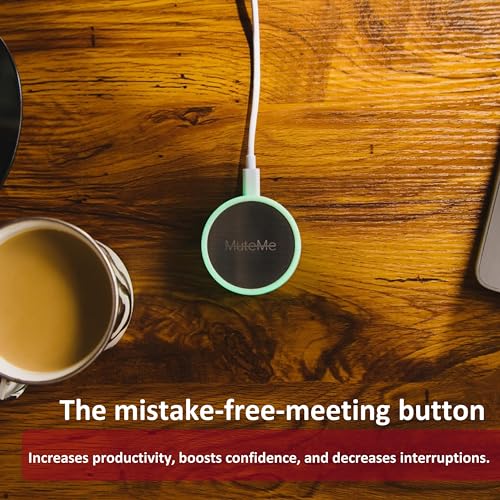
MuteMe’s ergonomic design is a noteworthy aspect that deserves special attention. The device, with its sleek and compact form, fits seamlessly into any workspace, be it a professional office setup or a casual home environment. The tactile feel of the button provides a satisfying user experience, far superior to the virtual mute options on a screen. This physical interaction not only adds a layer of tangibility to virtual meetings but also significantly reduces the risk of accidental audio mishaps. Additionally, the aesthetic appeal of MuteMe, with its customizable LED colors, adds a touch of personalization, making it not just a tool, but a part of the user’s personal workspace decor.
Compatibility and Software Integration
One of MuteMe’s strongest selling points is its broad compatibility with both Mac and PC systems. This universal compatibility ensures that the device can cater to a diverse user base, irrespective of their operating system preferences. The requirement for a free software download, which might seem like a minor inconvenience, actually plays a crucial role in the device’s functionality. This software allows for seamless integration with various online communication platforms, ensuring that MuteMe operates flawlessly whether you’re on Zoom, Teams, WebEx, or other similar platforms. The software also enables updates and feature enhancements, ensuring that MuteMe remains relevant and efficient in the ever-evolving landscape of virtual communication tools.

Audio Control Efficiency
MuteMe’s primary function, audio control, is executed with remarkable efficiency. The device responds instantly to presses, effectively muting or unmuting the microphone without any noticeable lag. This immediacy is crucial in fast-paced meeting environments where timing is key. Additionally, the illuminated feature acts as a foolproof indicator of the current audio status, a simple yet powerful solution to the common ‘Am I muted?’ dilemma. This feature alone significantly enhances the user’s control over their auditory presence in virtual meetings, providing a sense of confidence and professionalism.

Practicality in Diverse Settings
The practicality of MuteMe extends beyond the confines of professional meetings. In educational settings, for instance, teachers and students can benefit greatly from the device’s straightforward muting capabilities, especially in large virtual classrooms. Similarly, in casual settings, like virtual family gatherings or online gaming, MuteMe offers a convenient way to manage audio, ensuring privacy and minimizing disruptions.

Durability and Longevity
MuteMe’s build quality suggests a device built to last. The robust construction, combined with high-quality materials, indicates that the device can withstand regular use over a prolonged period. This durability is a key consideration for users who are looking for a reliable mute button that won’t degrade or fail after repeated use.

Conclusion
The MuteMe illuminated physical mute button is a game-changer in the domain of virtual communication, enhancing user experience with its intuitive design and functionality. Its integration with major online communication platforms like Zoom, Teams, and WebEx, along with its compatibility with both Mac and PC, makes it a versatile and must-have accessory for anyone regularly engaged in online meetings. The visual feedback system adds an extra layer of convenience, eliminating the common fear of speaking while muted or being overheard when not.

MuteMe’s appeal lies not only in its functional benefits but also in its contribution to the professionalism and efficiency of virtual interactions. It simplifies the often cumbersome process of muting and unmuting, a task that has become a staple in the remote working era. Moreover, the device’s appearance on Shark Tank underscores its innovative nature and the growing market demand for such tools.
In conclusion, MuteMe is not just a gadget; it’s a reflection of the evolving needs of the modern professional. Its thoughtful design, ease of use, and practicality make it an essential tool for anyone looking to streamline their virtual communication experience. As an expert in virtual communication tools, I highly recommend MuteMe for its reliability, innovation, and the sheer convenience it brings to daily online interactions.
PROS
- Instant audio control
- Universal compatibility
- Customizable LED colors
- Ergonomic and aesthetic design
- Robust build quality
CONS
- Requires software download
- Limited to computer use
- Might be redundant for some users
- No wireless option
- Initial setup required